
Setting your company up on Ruul takes a few minutes: pick the account type, enter your details, confirm your email, and add your company. This guide covers that, plus signing in afterwards and what to do when a password goes missing.
Create the account
Go to the sign-up page to start.
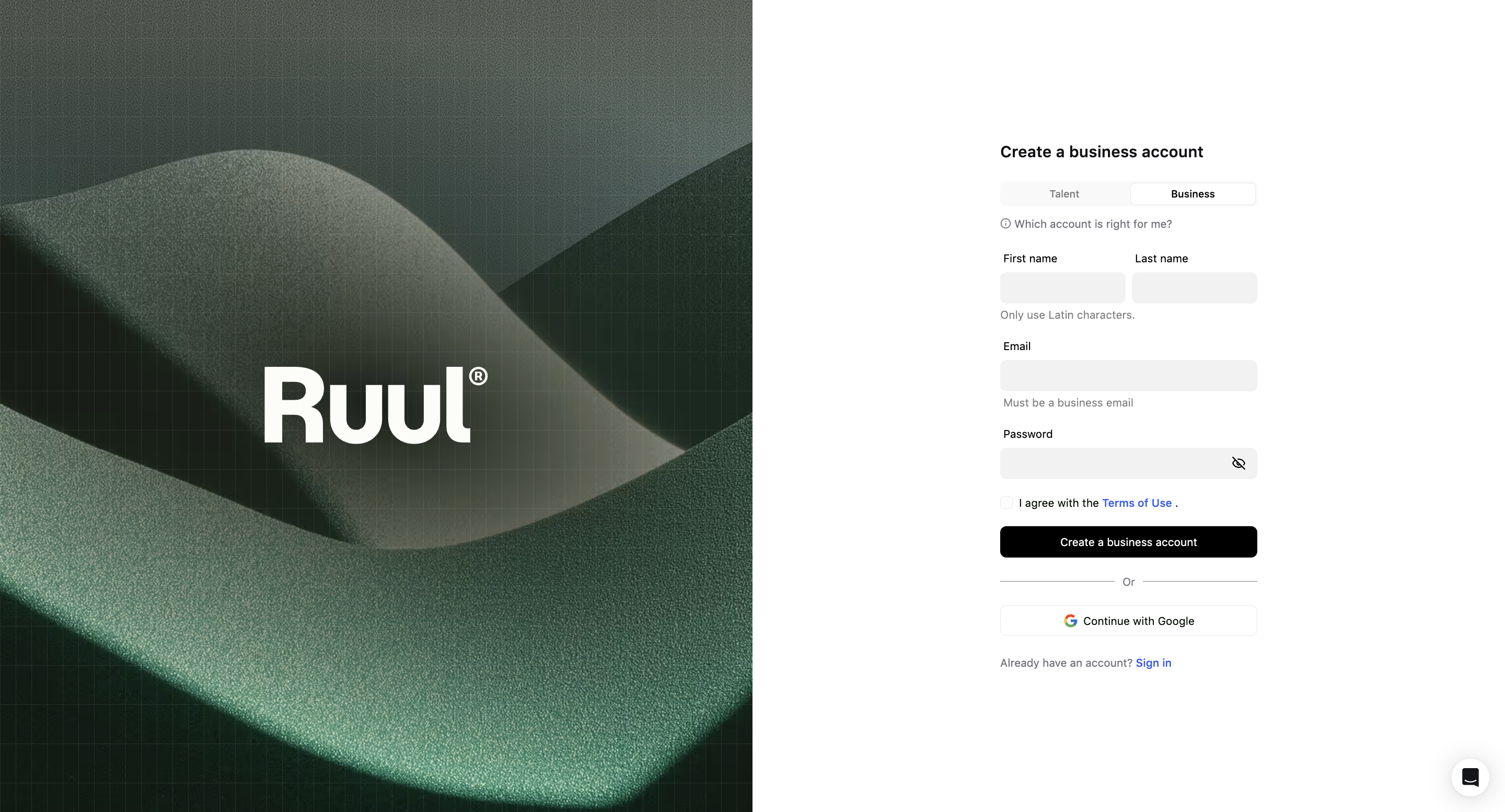
Select the Business tab, then enter your First name, Last name, Email (use a business address) and a strong Password. Tick I agree with the Terms of Use and click Create a business account.
Continue with Google works too, if you’d rather not set a password.
Confirm your email
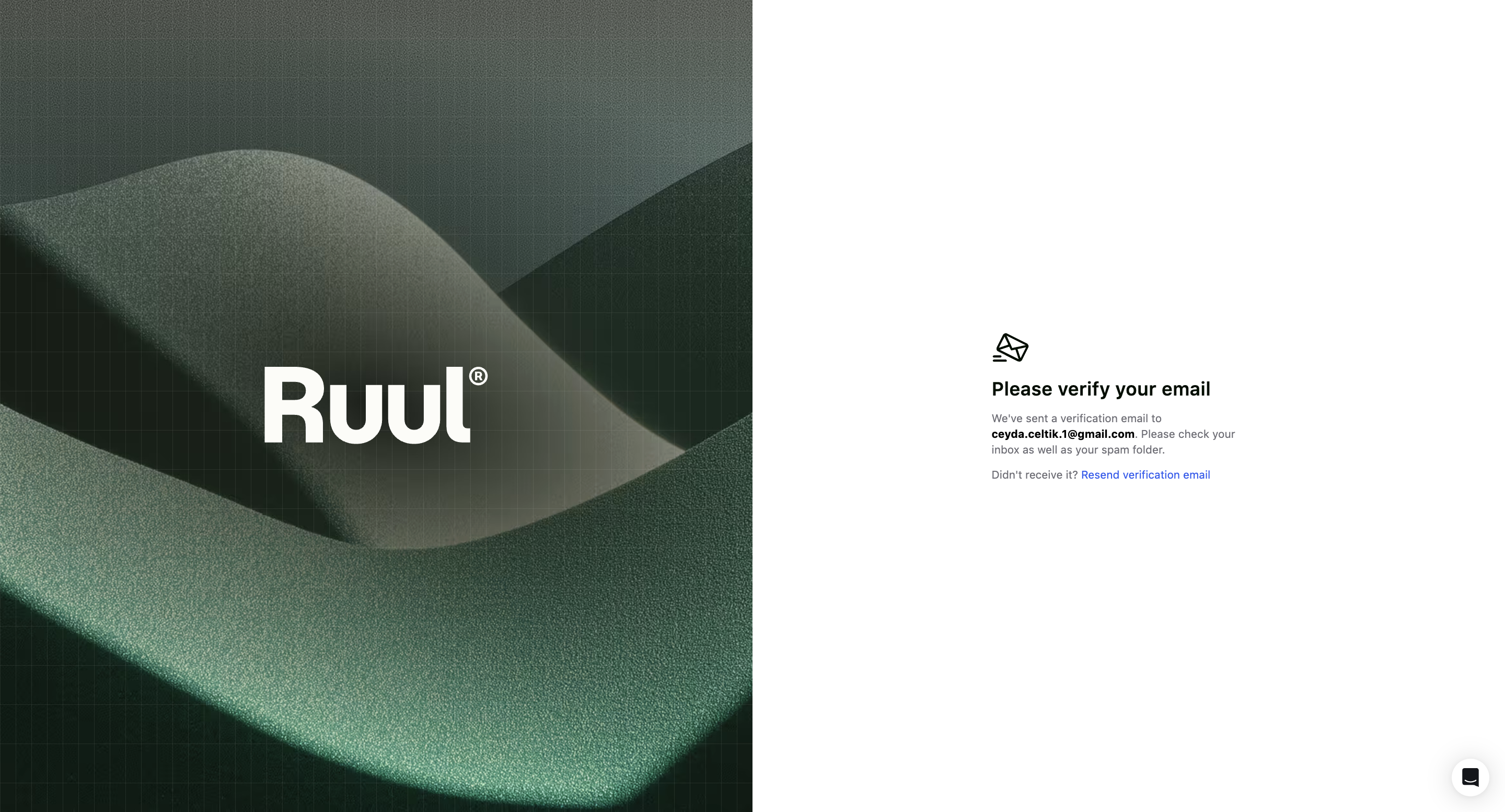
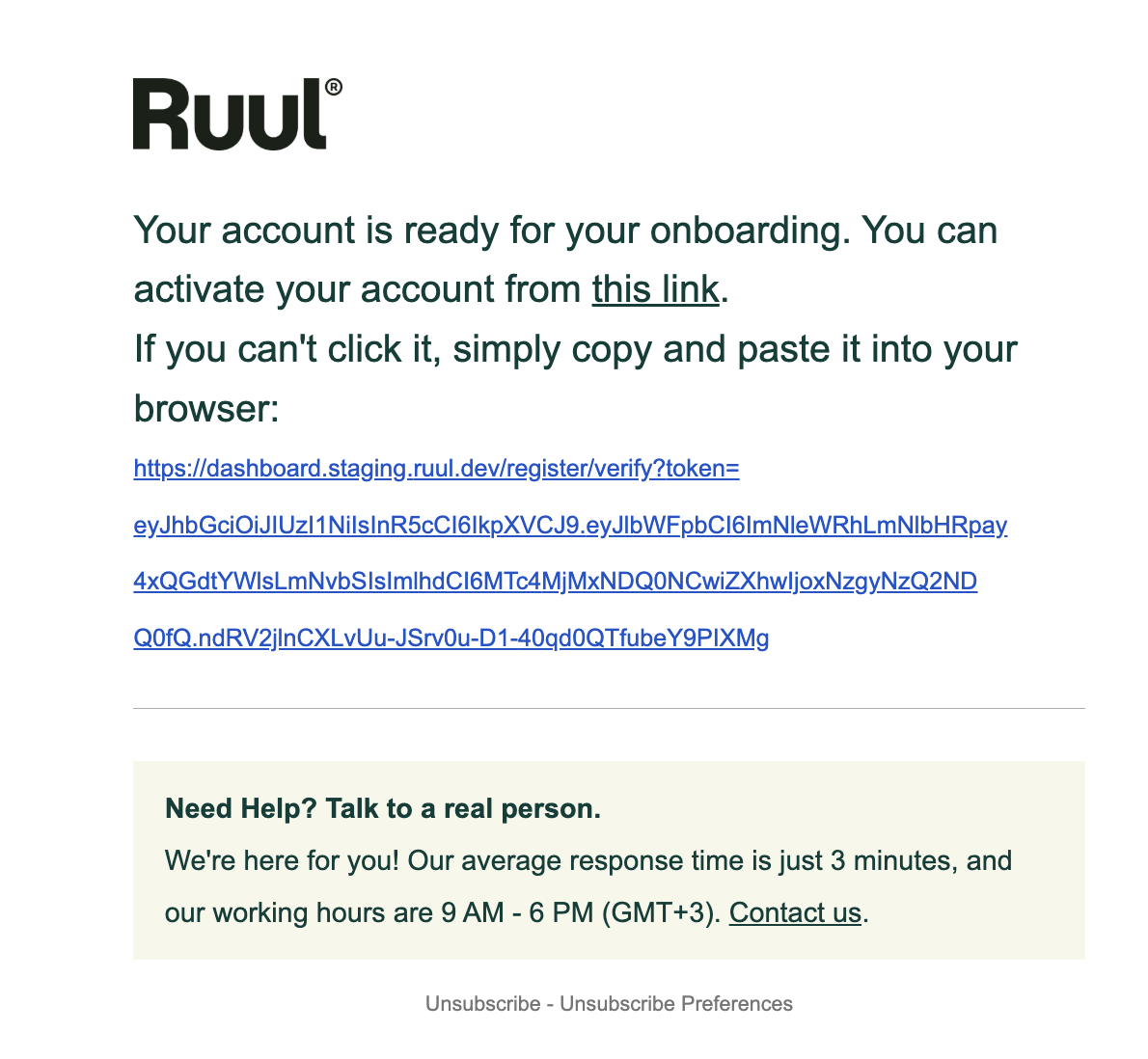
Ruul sends a Please verify your email message to the address you entered. Open it and click the link.
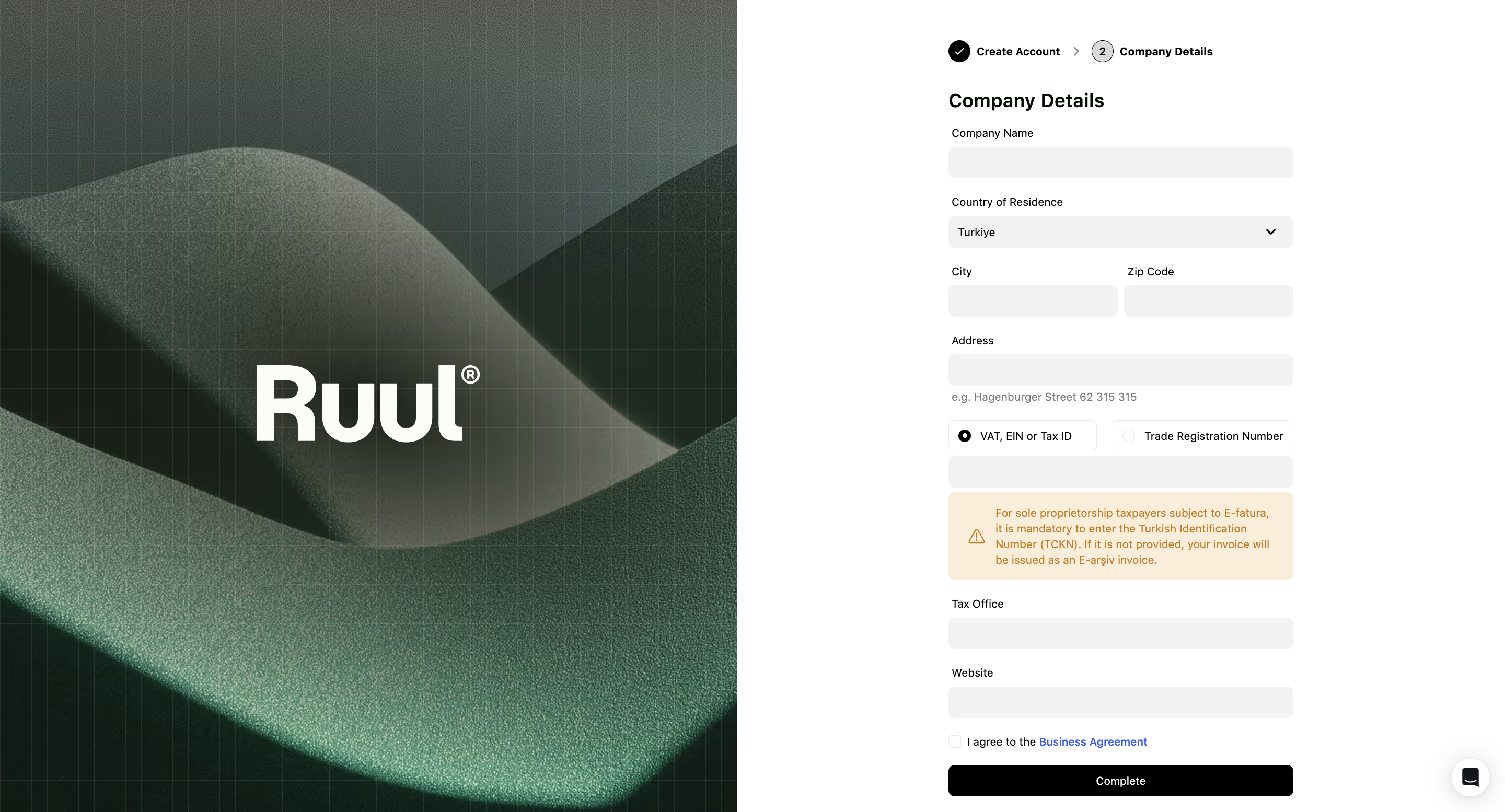
Add your company details
Next you enter the company itself: where it’s registered, the address, and its tax identifiers. These are what appear on the invoices Ruul issues, and they’re what Ruul checks during business verification, so they need to match your registration.
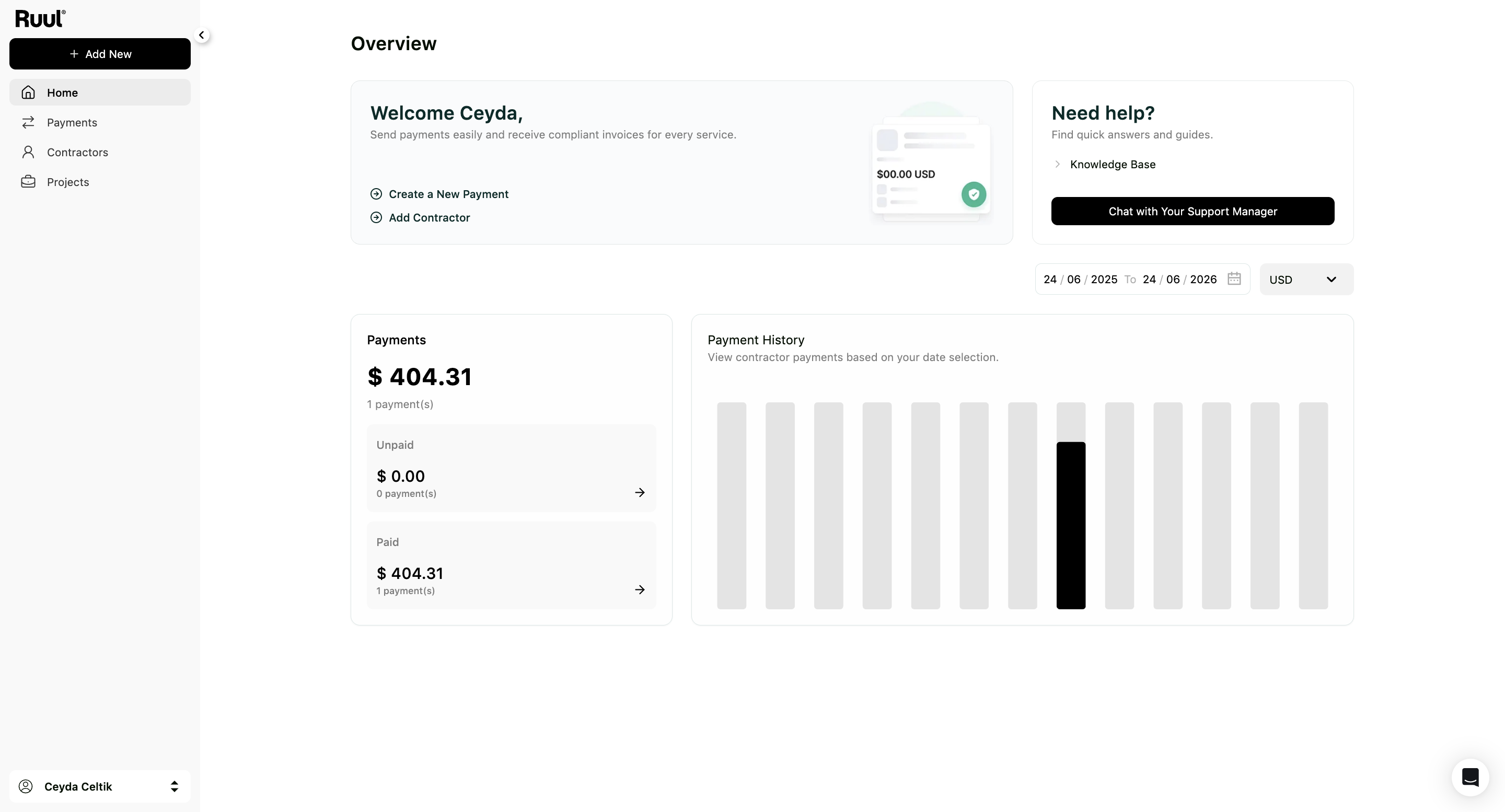
Your dashboard opens once this is done, and you can start adding contractors straight away.
Sign in
Go to the sign-in page, enter your email and password, and click Sign In.
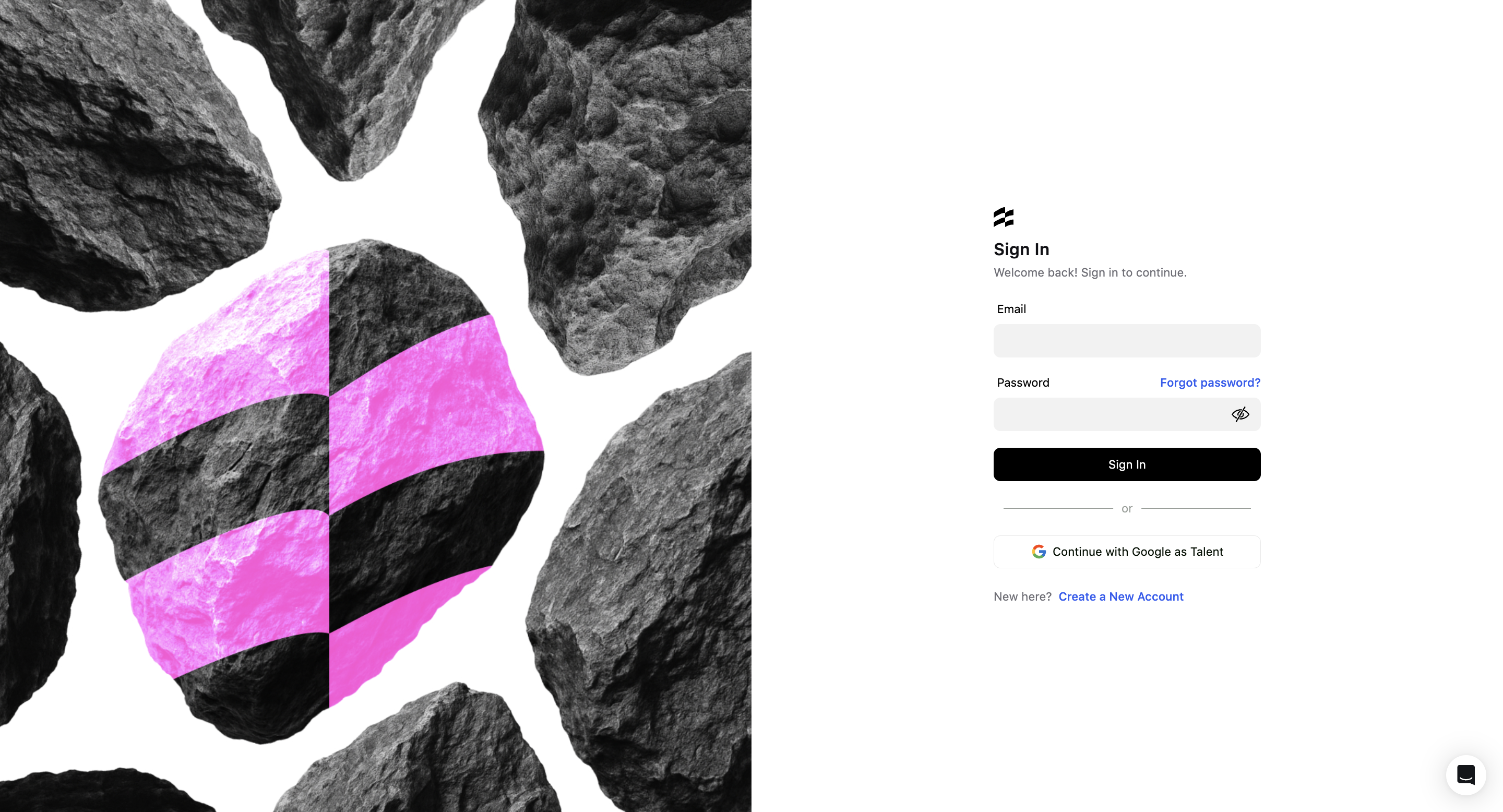
Ruul then emails you a verification code. Enter it and click Continue.
- The code is valid for 10 minutes.
- If it doesn’t arrive, click Resend for a new one.
This second step runs on every sign-in, so a password on its own is never enough to reach your company’s payments.
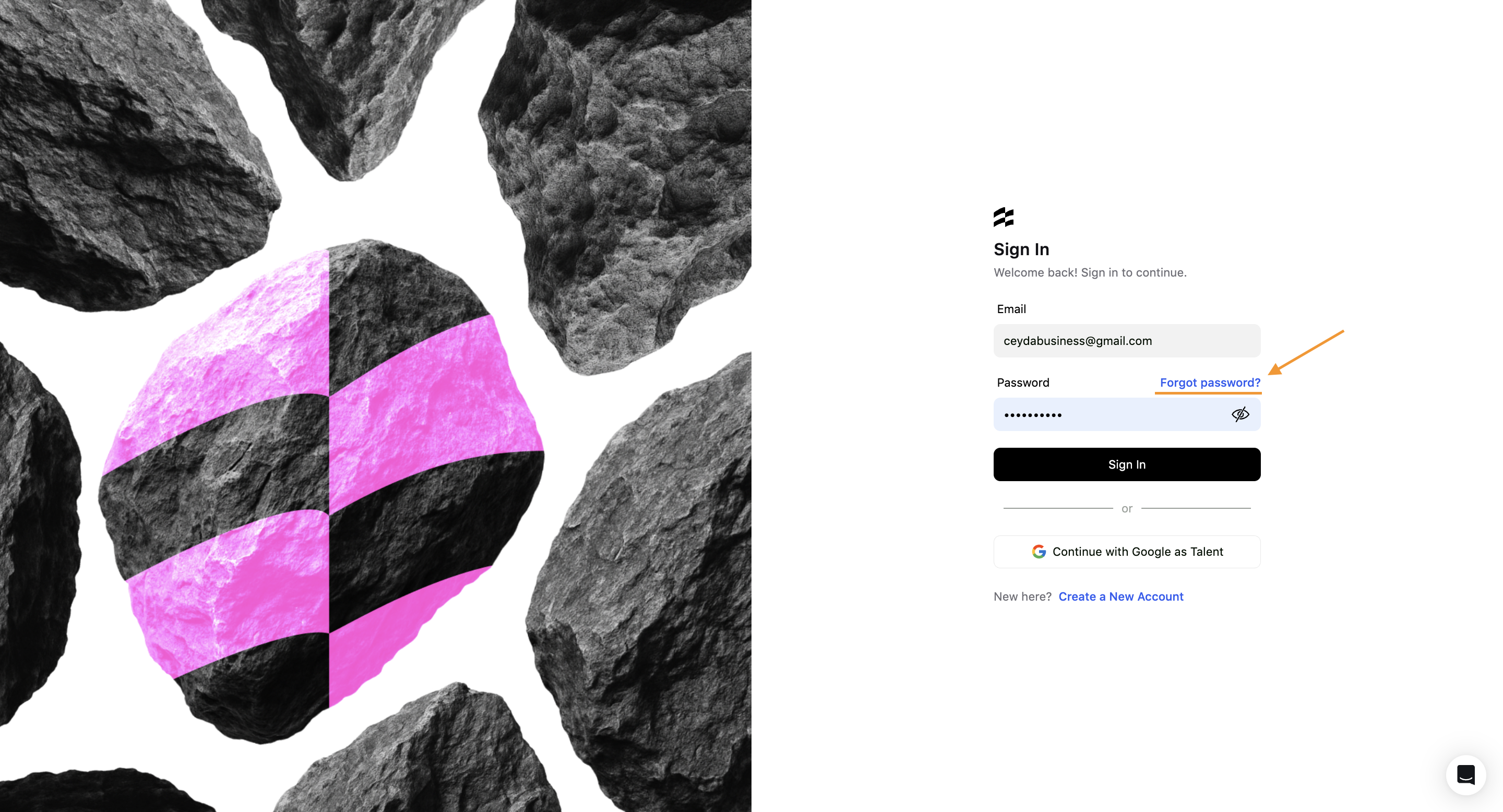
If you forgot your password
Click Forgot password? on the sign-in page and enter your email. Ruul sends you instructions for setting a new one.
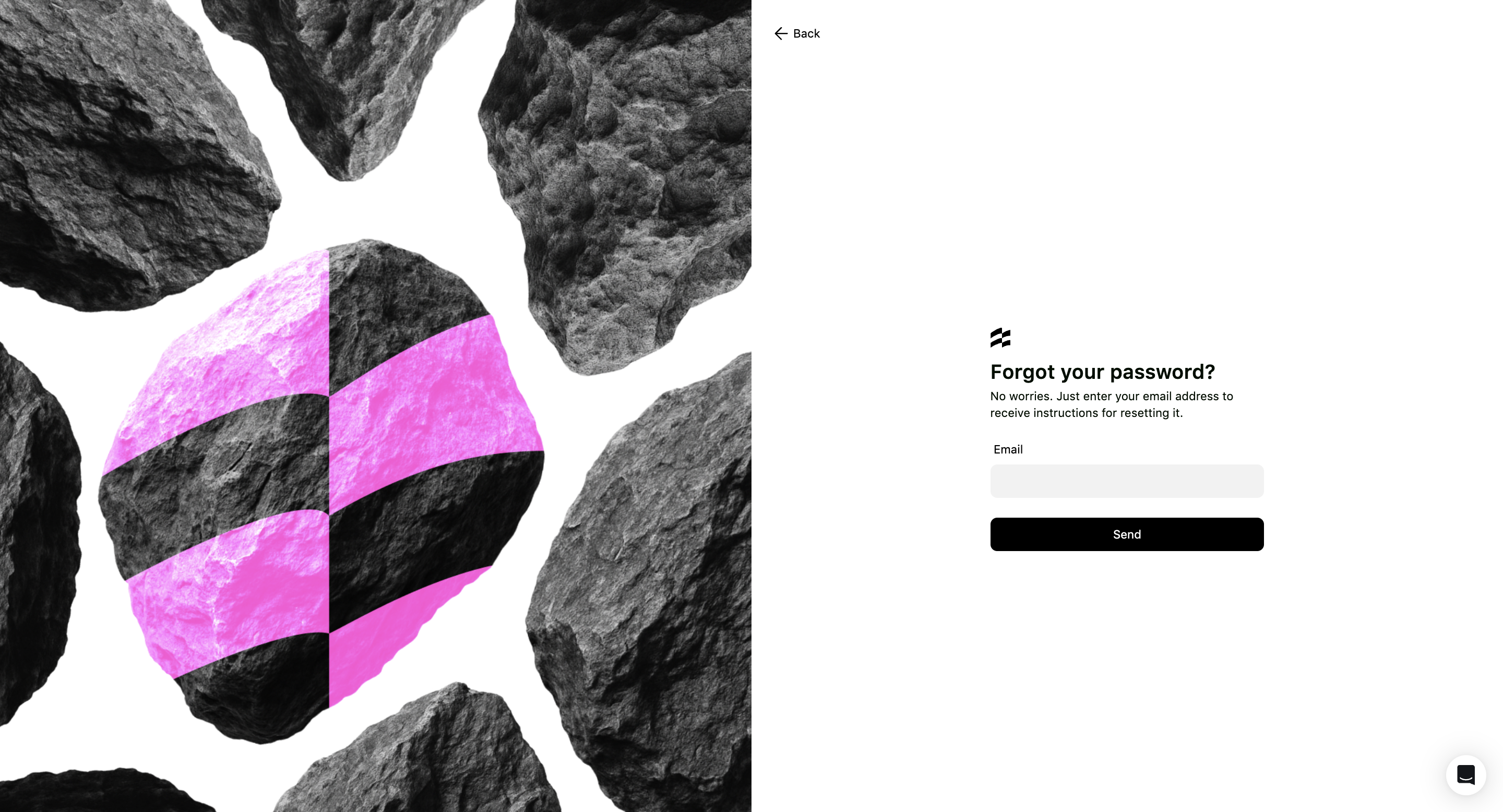
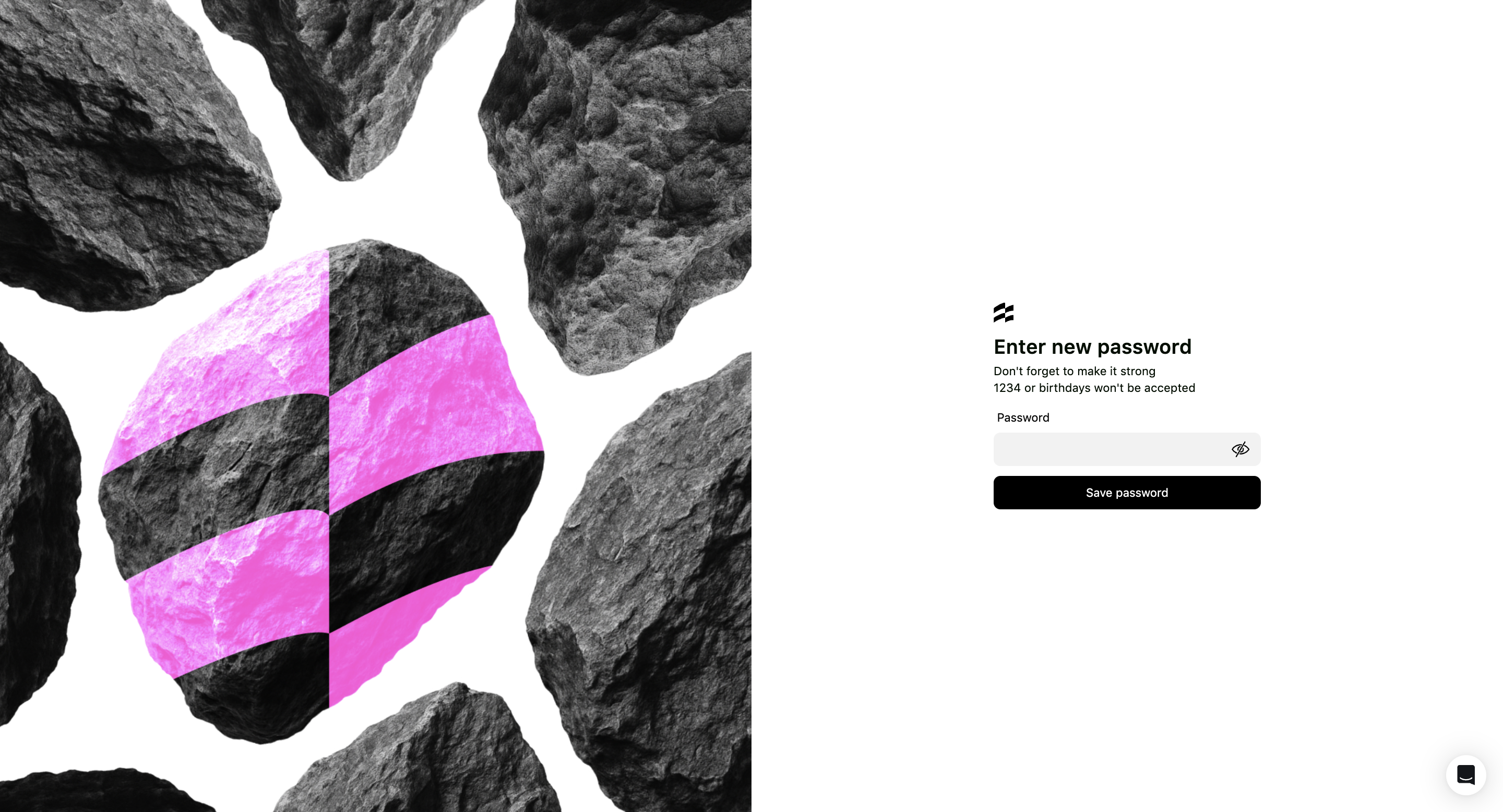
Changing your password
If you still know your password, open Settings and go to the Account tab. Enter your Current Password, then your New Password, and click Change Password. The eye icon in each field shows what you’ve typed.
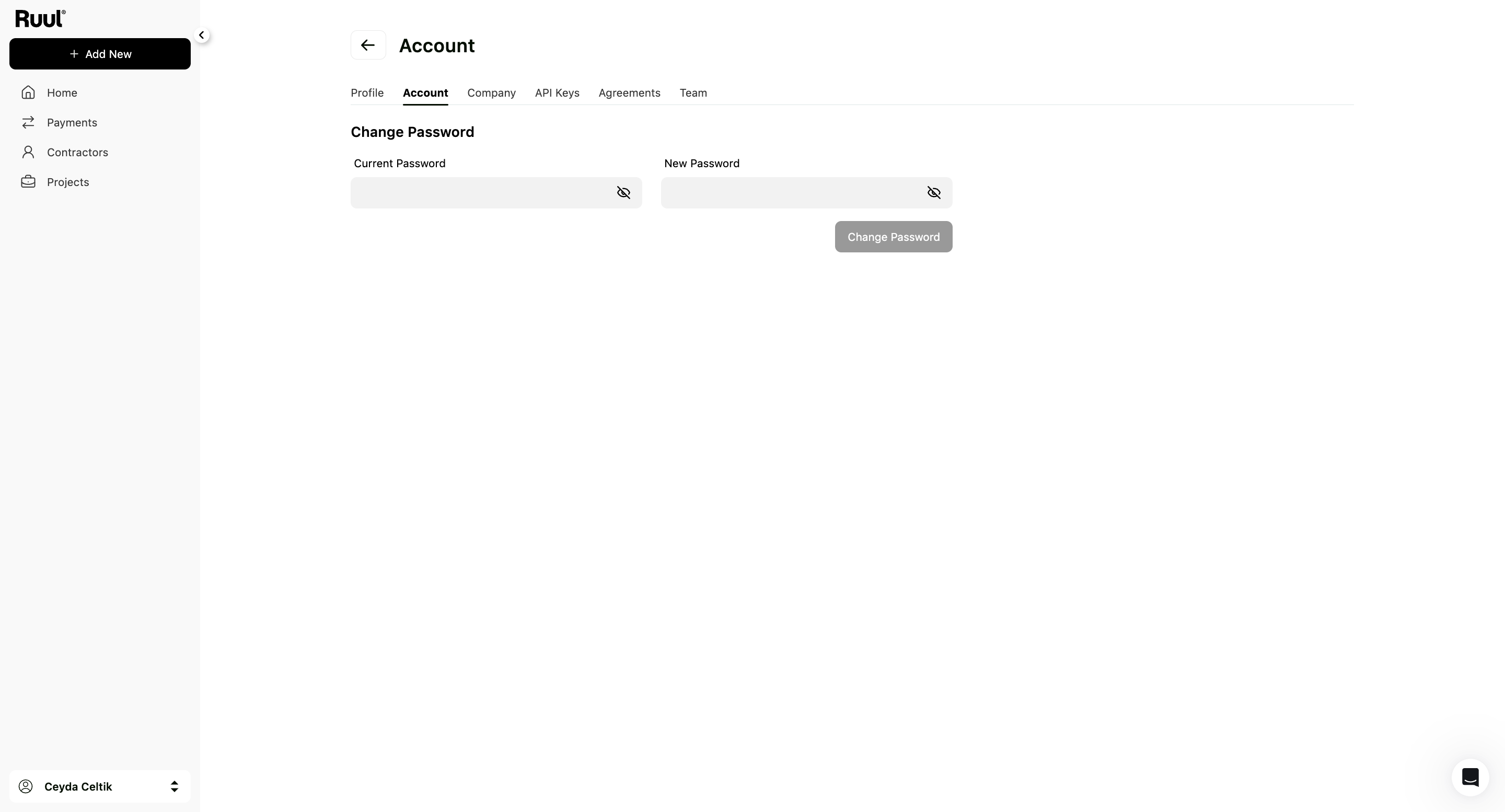
Good to know
- Your name and email on the Profile tab can’t be edited directly. Use the contact us link there and the team will change them.
- Settings is reached by clicking your name in the bottom-left corner and choosing Settings.
- Colleagues get their own sign-in rather than sharing yours. See your team and roles.
Frequently asked questions
Do I need a registered company to sign up as a business?
Yes. A business account is for registered companies. You provide company details during sign-up and complete KYB verification before paying contractors.
Can I start working right after signing up?
Yes. Once your account is created you land on your dashboard and can begin right away, including adding contractors and preparing a payment.
The verification code didn't arrive. What do I do?
Click Resend on the code screen to get a new one. Each code is valid for 10 minutes.
How long does setting up take?
A few minutes. Email verification is instant once you click the link Ruul sends you.
Was this article helpful?
Thanks for the feedback! 🙌