
Your Company tab holds the registered details Ruul uses on every document it issues for you, plus the addresses that get told when something happens with a payment.
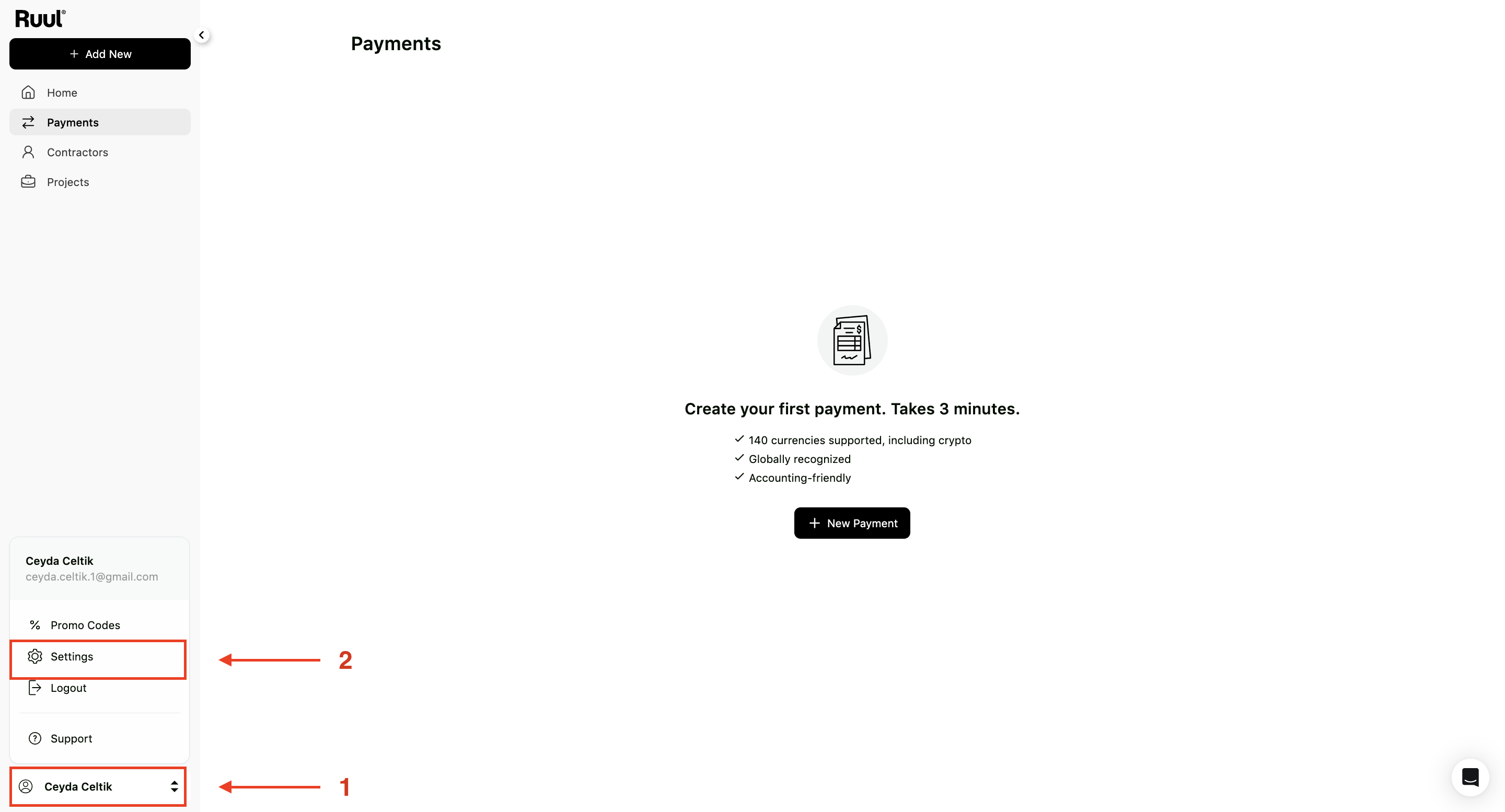
Open Settings by clicking your name in the bottom-left corner, then go to Company.
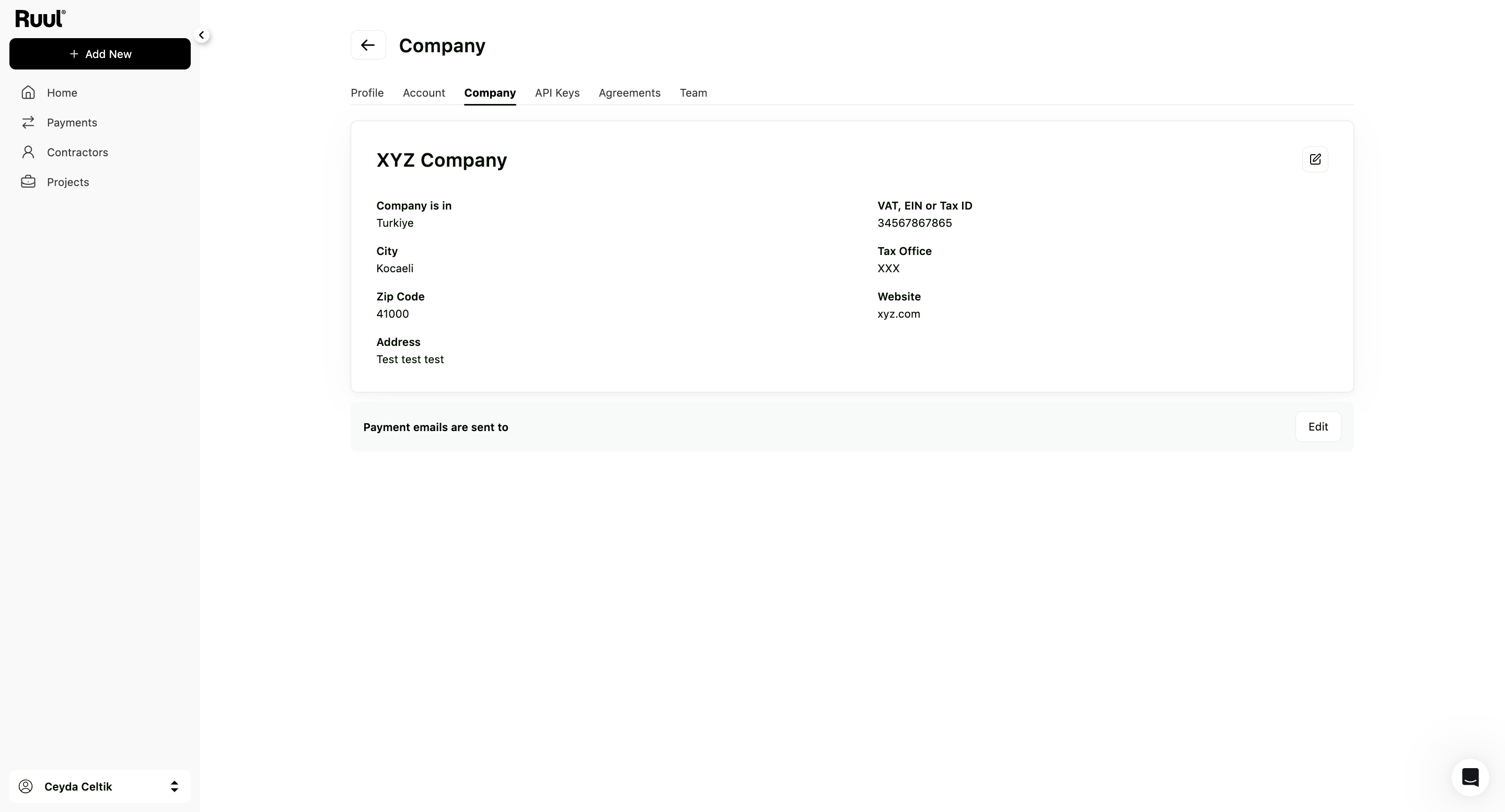
Company details
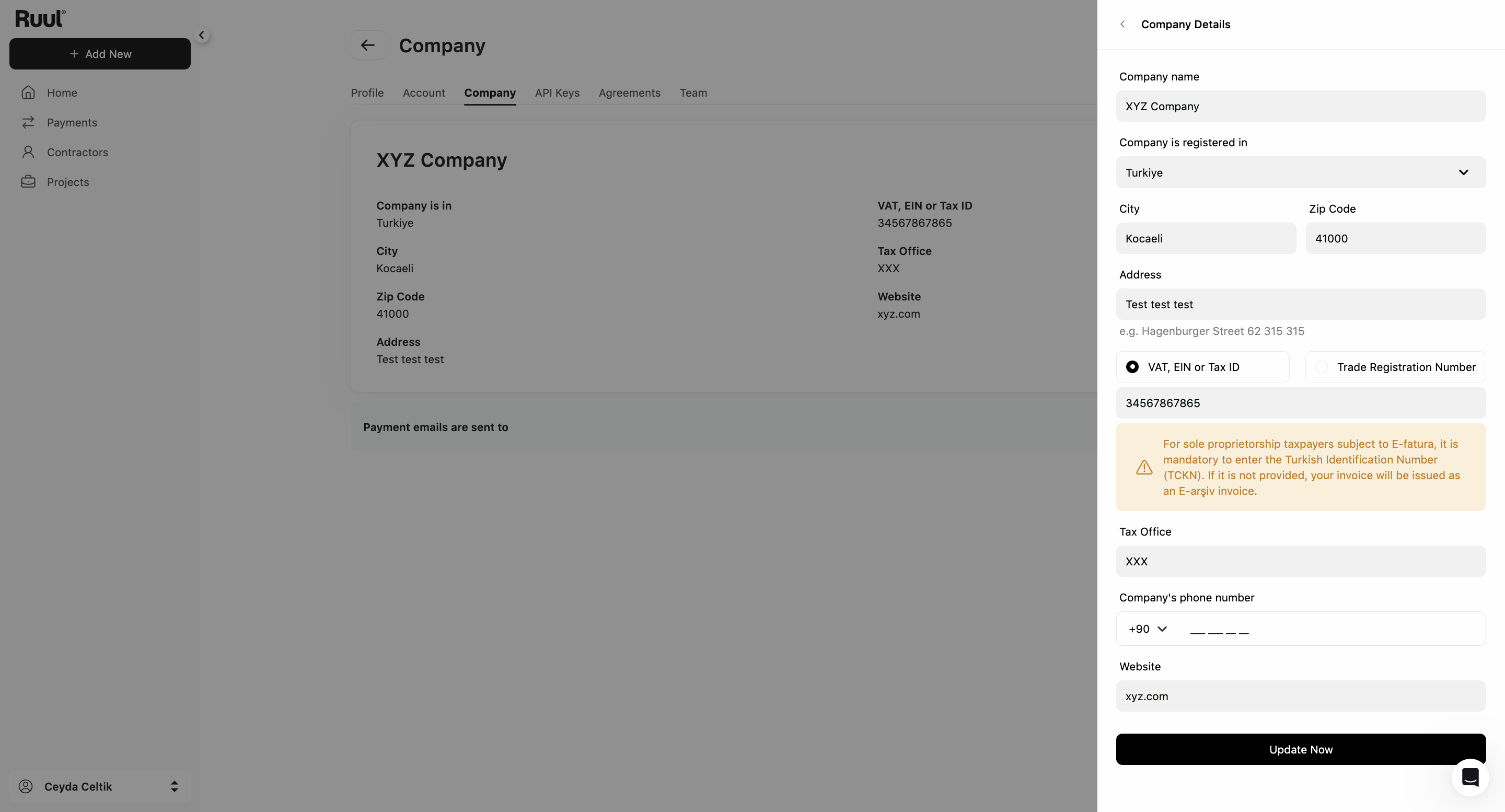
The card shows where the company is registered, the city, zip code and address, the VAT, EIN or Tax ID, the Tax Office and the Website.
These end up on the paperwork Ruul issues for your contractor payments, so they need to match your actual registration.
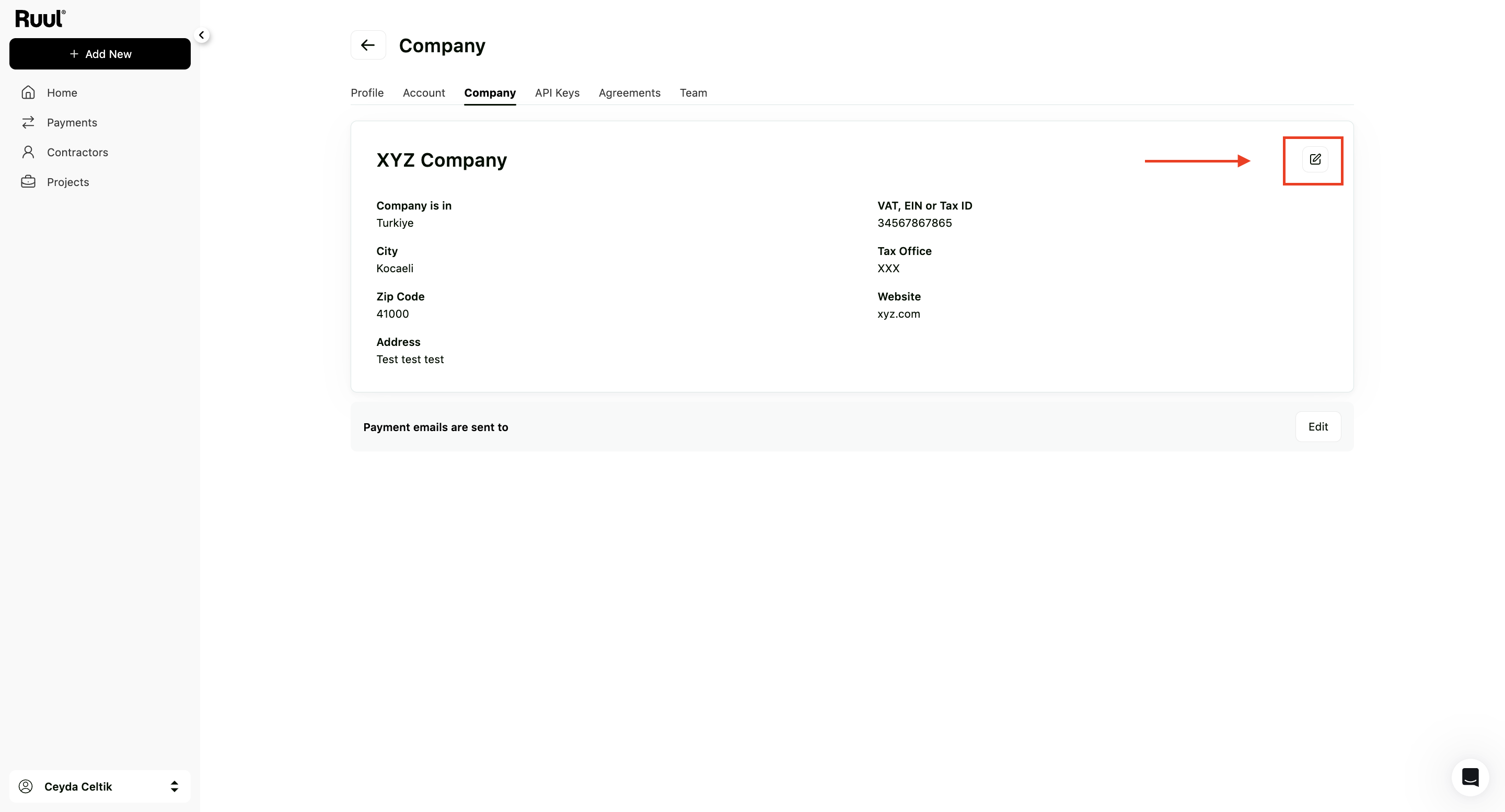
To change something, click Edit on the company card. The panel that opens lets you edit the company name, country, city, zip code, address, VAT or tax ID, tax office, phone number and website. Click Update Now to save.
Payment emails
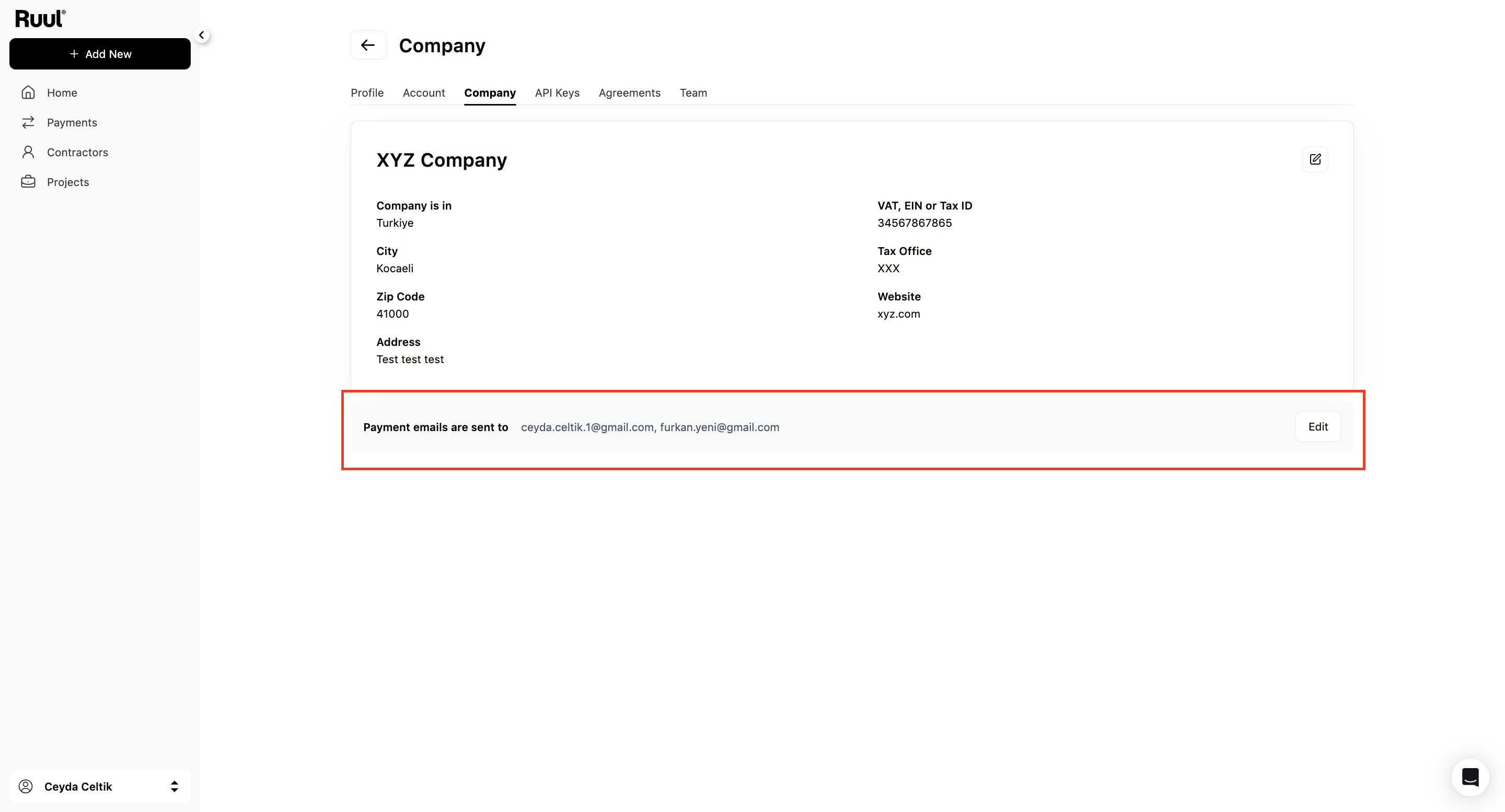
Lower down the same tab is Payment emails, the addresses that receive notifications for this company: when an invoice is issued, when it’s paid, when a commercial invoice goes out.
By default that’s only the account’s own address. Adding your finance or operations colleagues here is the simplest way to keep everyone in the loop without giving them dashboard access.
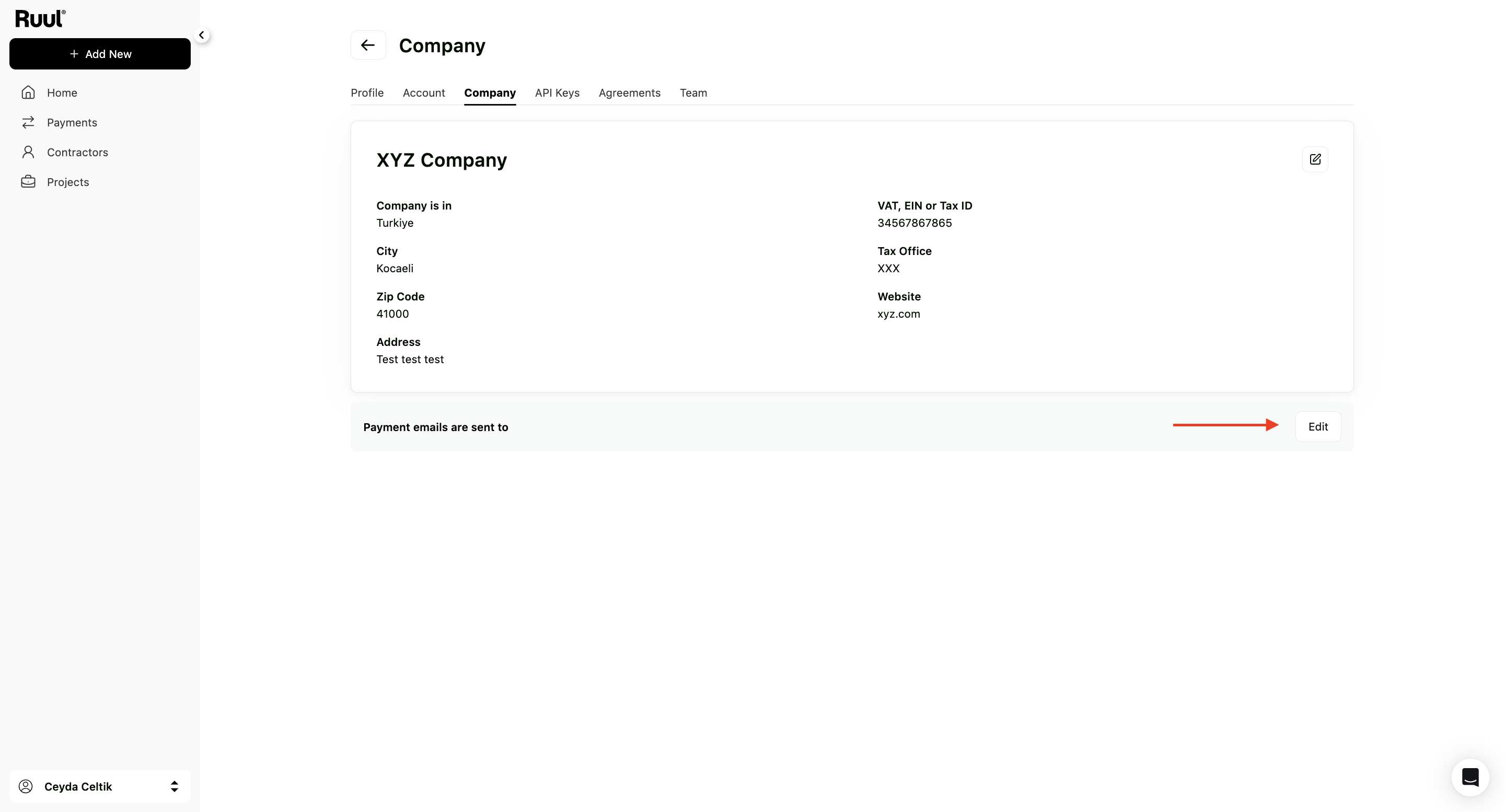
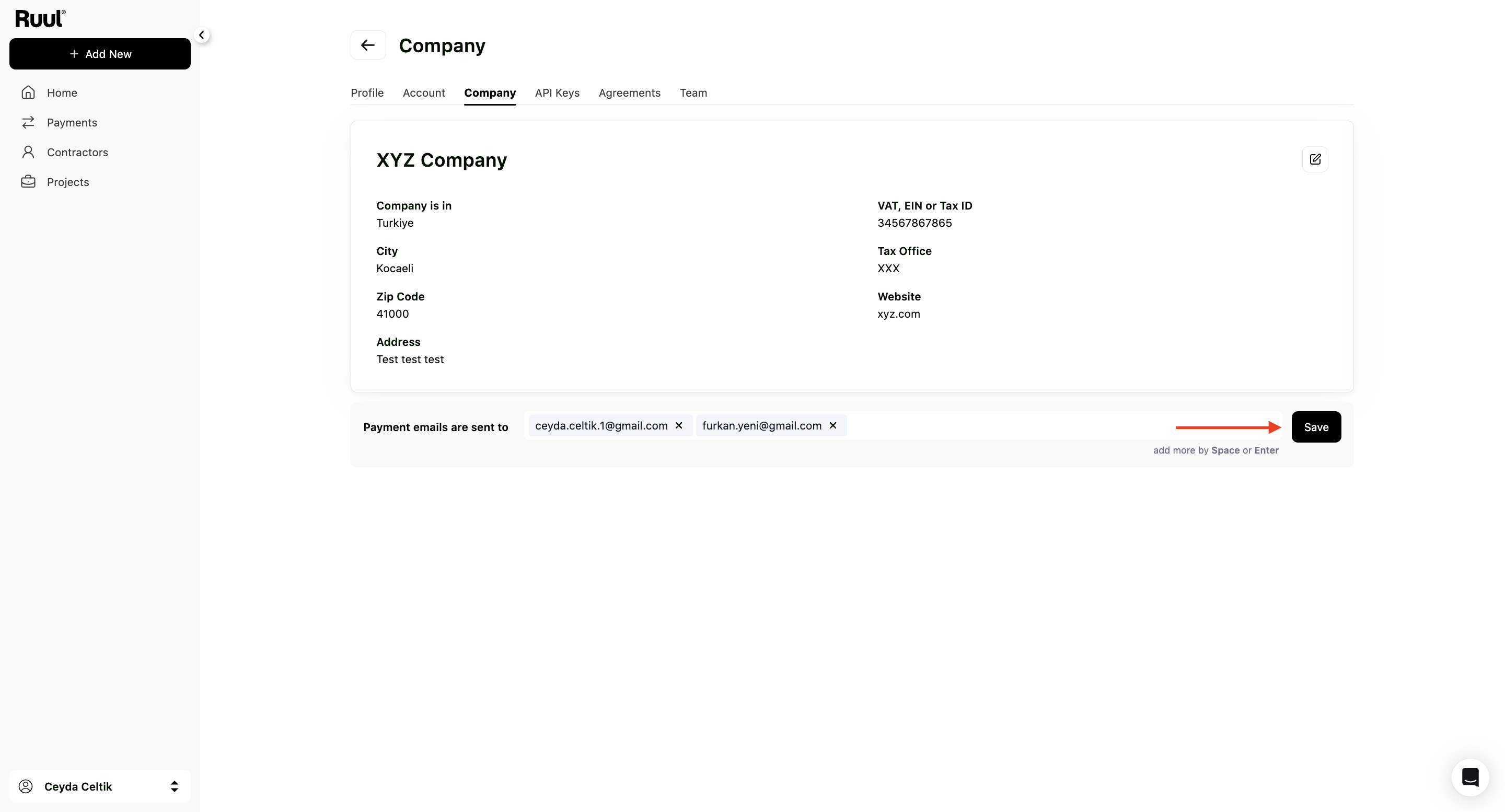
Click Edit, type an address, and press Space or Enter to turn it into a tag. Remove one with the x beside it. Add as many as you need, then click Save.
Good to know
- Payment emails are notifications only. They don’t give anyone access to your dashboard. For that, see your team and roles.
- Press Space or Enter after each address, and remember to click Save. An address you typed but didn’t turn into a tag isn’t saved.
- If your organization has several companies, each one has its own details and its own payment emails. See managing multiple companies.
- The contracts your company signed with Ruul are on the next tab along. See agreements and documents.
Frequently asked questions
Why do my company details have to match my registration?
They appear on the invoices and documents Ruul issues for your payments. A mismatch can cause problems for your accounting and for the contractor's.
Who receives payment emails by default?
The account's primary email address. Anyone else you want notified has to be added on the Company tab.
How do I add a payment email?
On the Company tab, click Edit in the Payment emails section, type the address, press Space or Enter to turn it into a tag, then click Save.
Does adding a payment email give that person access to the dashboard?
No. It only sends them notifications. Dashboard access is a separate thing, set up on the Team tab.
Was this article helpful?
Thanks for the feedback! 🙌