

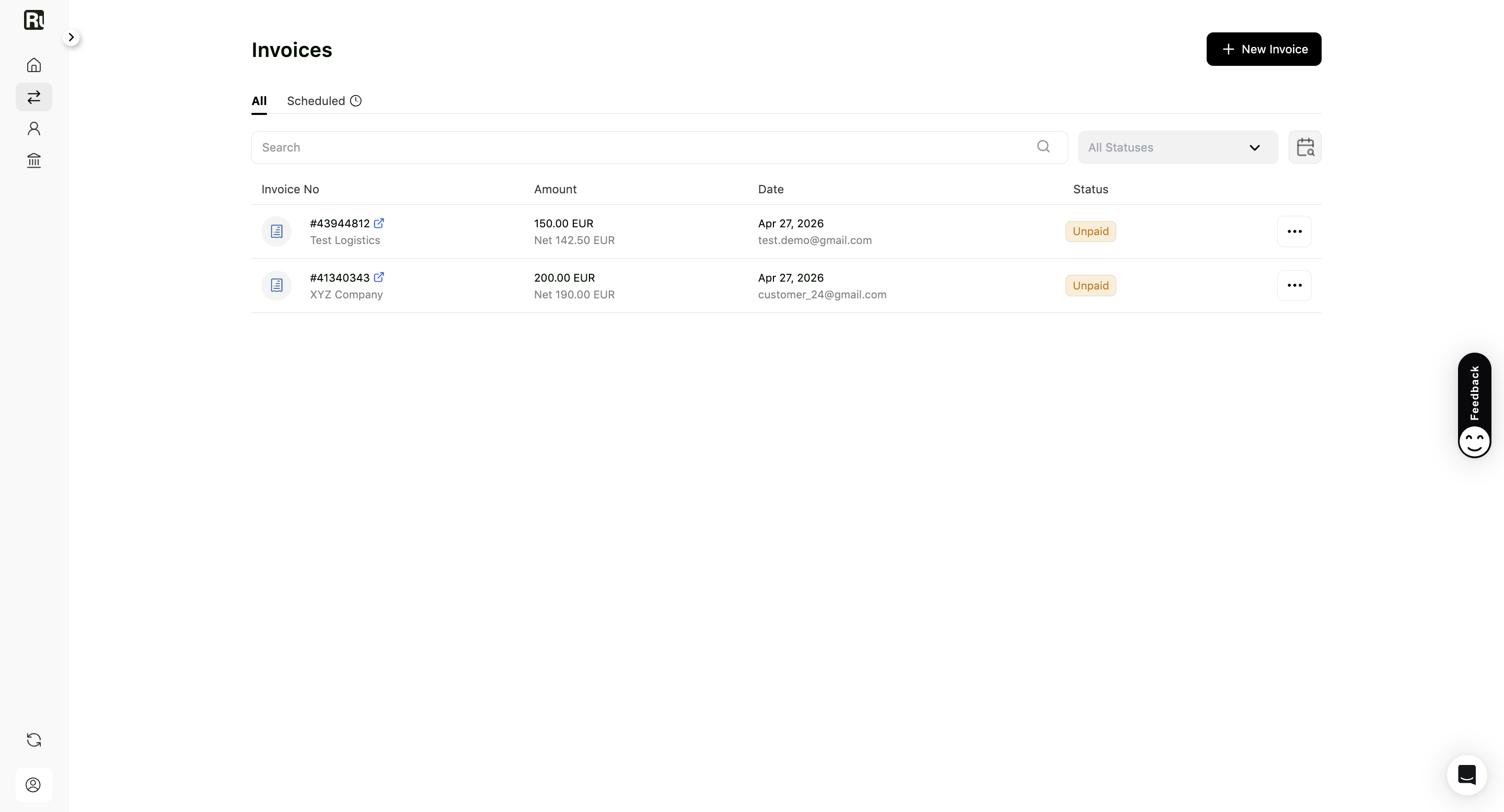
The Invoices tab is where every invoice you’ve issued lives. It has two views:
- All, every invoice you’ve issued or received.
- Scheduled, the recurring invoices that generate automatically.
Finding an invoice
Above the list you have:
- Search, for an invoice number or a customer name.
- Status, to narrow the list down to one or more statuses. This is also where you find Archived invoices.
- Date range, for a specific period.
- Columns, to choose which columns the table shows.
- Download Excel, to export the list you’re looking at. Filter first if you only want part of it, which is what makes this useful at tax time. See how Ruul helps you stay organized.
Each row shows the Invoice No, the customer, the Amount with the net figure underneath, the Issued date, and the Status. Invoices that came from a subscription carry a Subscription badge next to the number.
What you can do with an invoice
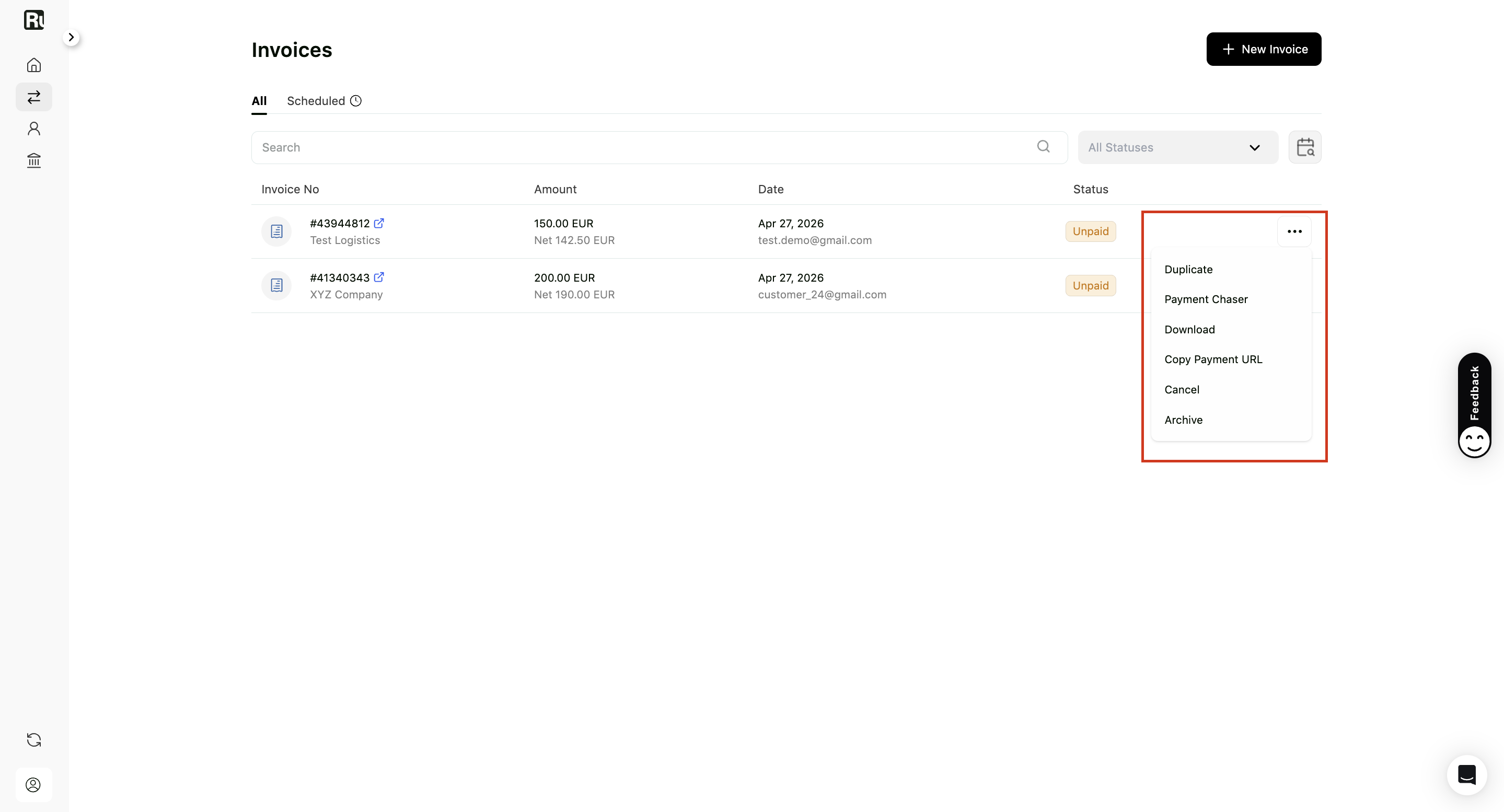
Open the Actions menu on a row. What you see depends on the invoice’s status and type:
- Duplicate. Create a copy with the same details, for when you invoice something similar again.
- Payment Chaser. Send a reminder about an unpaid invoice. See how to send payment reminders.
- Download. Save a copy of the invoice.
- Copy Payment URL. The same link your customer received by email. Useful if they lost it or you want to send it yourself.
- Cancel. Cancel an invoice you created. It disappears from your customer’s dashboard. Ruul can also cancel an invoice if there’s a problem with it, and will email you if that happens.
- Archive. Invoices can’t be deleted, because they’re financial records. Archiving takes one out of your normal view instead. Archived invoices stay reachable through the Status filter.
- Unarchive. Brings an archived invoice back.
- Manage subscription. On an invoice generated by a subscription, jumps to the subscription itself. See managing and canceling a subscription.
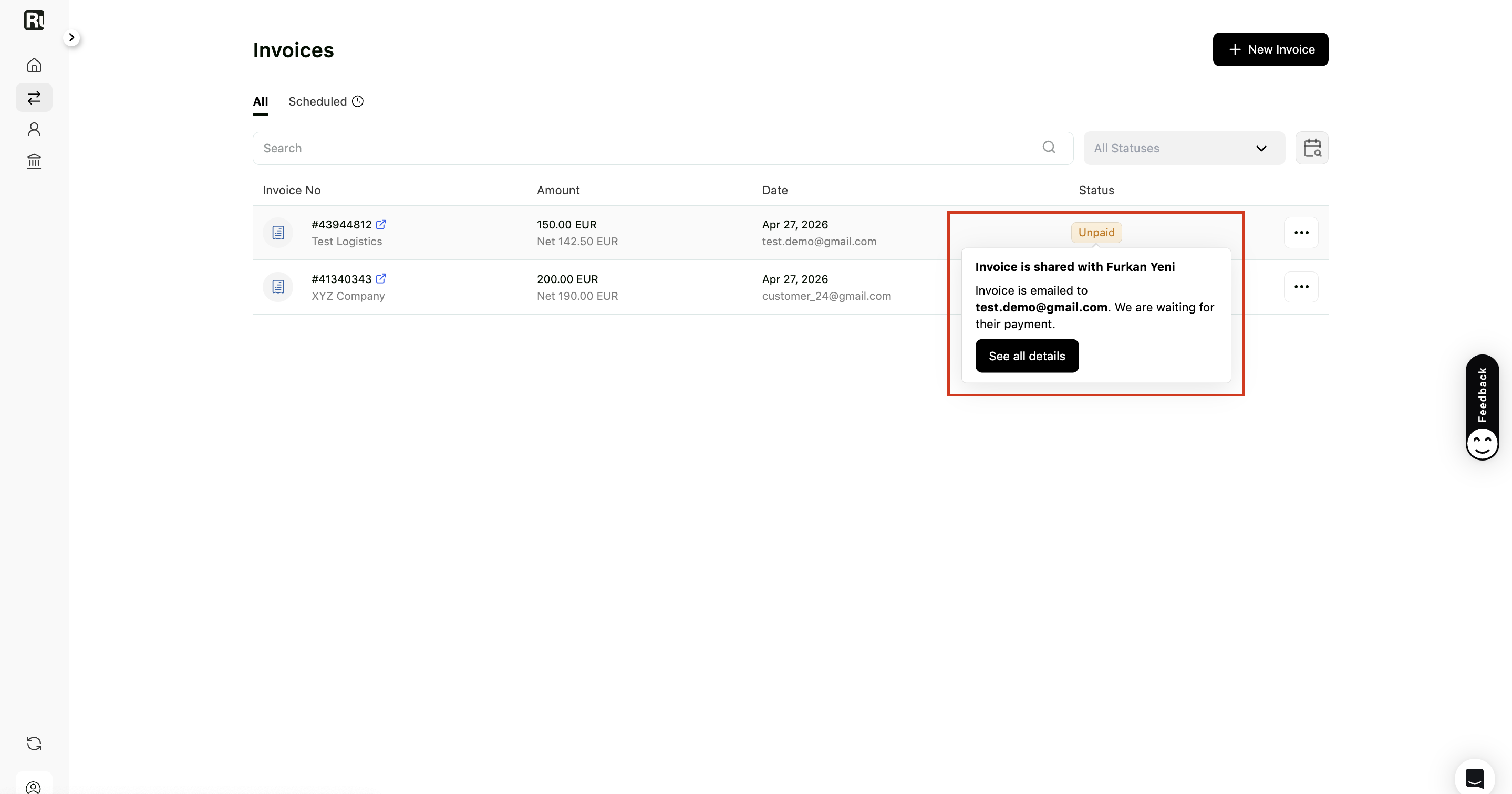
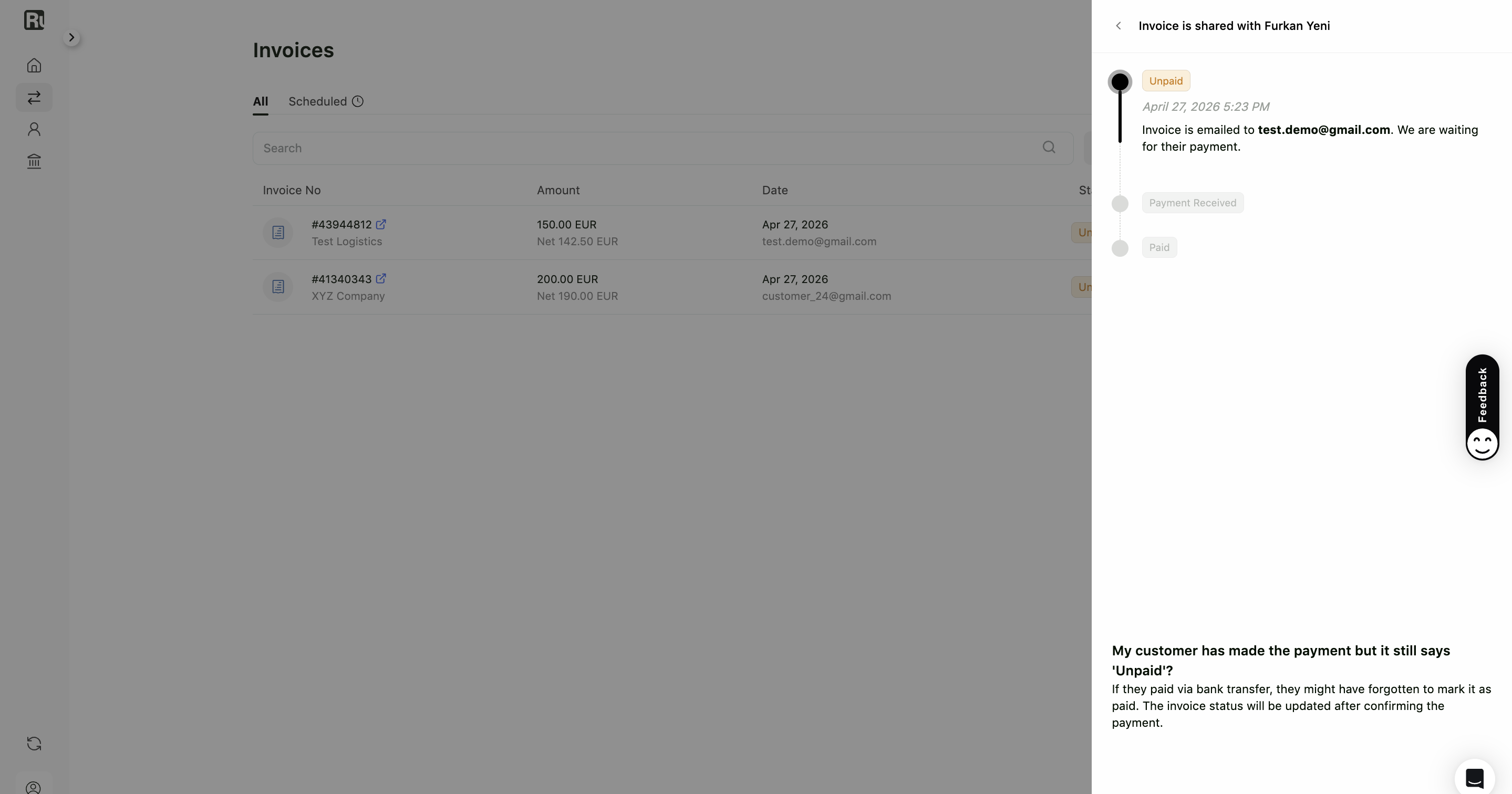
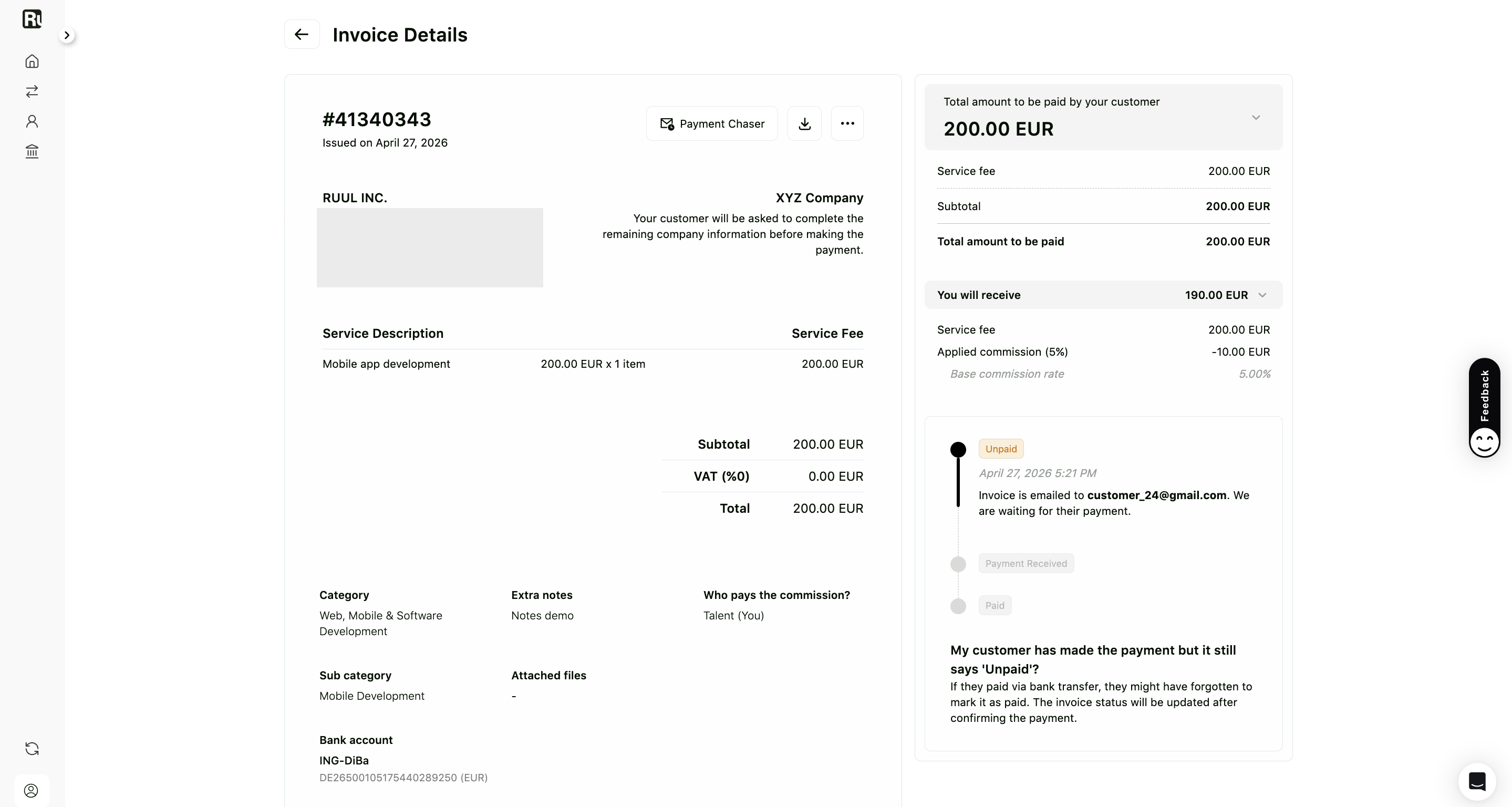
You can also hover a status to preview where things stand, click See all details to open the full timeline, or click the invoice number to open its Details page.
Statuses
| Status | What it means |
|---|---|
| Unpaid | The invoice has been sent and you’re waiting for your customer to pay. |
| Payment Received | Your customer has paid. Once the funds reach Ruul, your payout is prepared. |
| Paid | Your payout has been sent to your payout account. |
| Canceled | The invoice was canceled, by you or by Ruul. |
| Rejected | Your customer rejected the invoice. |
| Archived | You archived it. Visible through the Status filter. |
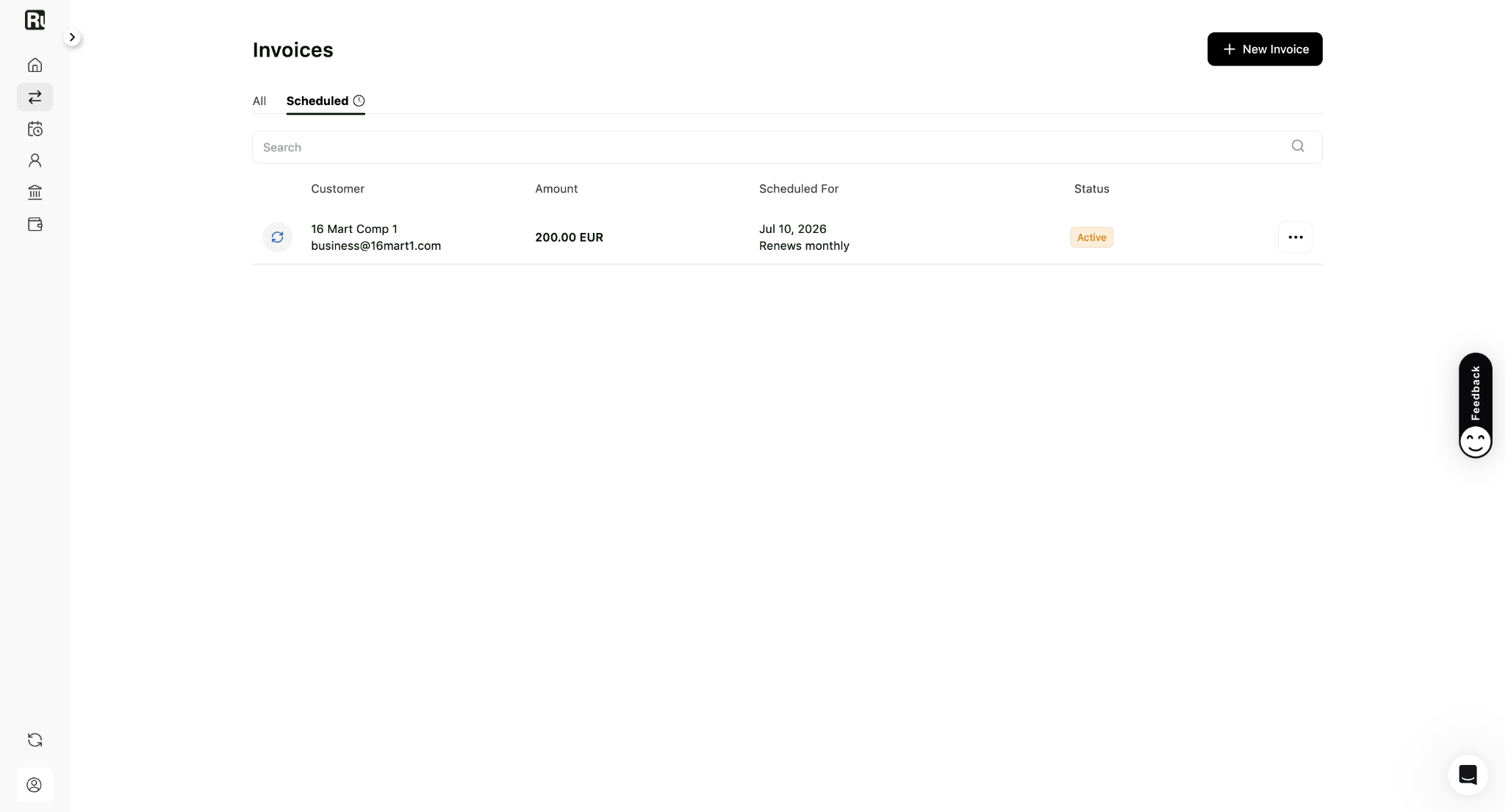
Scheduled invoices use a different pair: Active while the schedule is running, Inactive once it’s stopped.
Recurring invoices
The Scheduled tab lists the invoices that generate automatically. Each one shows the customer and amount, the day it generates (for example Generates on the 5th of every month), and whether it’s Active or Inactive.
The only action is Stop Recurring Invoice, which ends the schedule. Nothing new is generated after that, but invoices that have already gone out stay open for payment.
To change the amount or any other detail, stop the schedule and create a new one. See how to create an invoice.
Where is my payment?
The status usually tells you where things stand.
Status: Payment Received
Your customer’s payment has arrived and your payout is being prepared. It usually begins within one business day.
If the money still isn’t with you after that, give your bank time to process the incoming transfer. International SWIFT transfers can take 3-4 business days depending on the intermediary banks involved. If it’s been longer than that, contact Ruul and the team will trace it.
Status: Paid
The payout has left Ruul. Reaching your account can still take a few business days, most often when the payout goes to an account in a different currency, because those travel through SWIFT and several partner banks.
Your customer is paying through Ruul for the first time
When a company pays through Ruul for the first time, it goes through a one-time business verification, and Ruul may ask them for extra documents. That check can add time before the payment reaches you.
You don’t have to chase it. Ruul emails both you and your customer when this happens, so you’ll know it’s the reason rather than a lost invoice. If you want to help it along, the fastest thing you can do is ask your customer to send whatever documents Ruul requested from them.
The invoice still shows Unpaid but my customer says they paid
They may have made a bank transfer and forgotten to mark it as complete in their dashboard. The status updates once Ruul’s finance team matches the payment to the invoice. Sending proof of payment lets the team trace it with the payment provider.
Frequently asked questions
What does the 'Payment Received' status mean?
Your customer has paid, and once the funds reach Ruul they are transferred to your payout account. Payouts usually begin within one business day.
My customer paid but the invoice still shows Unpaid. Why?
They may have forgotten to mark the payment complete in their dashboard after a bank transfer. The status updates once Ruul's finance team matches the payment to the invoice. Sharing proof of payment helps trace it faster.
Where is the Archived tab?
There isn't one. Archiving doesn't move an invoice to a separate tab. Set the Status filter to Archived to see archived invoices, and use Unarchive on a row to bring one back.
Can I delete an invoice?
No. Invoices are financial records, so they can't be deleted. Archive one instead if it's obsolete.
How do I export my invoices?
Click Download Excel in the toolbar above the list. Filter first if you only want part of it, for example a single date range for a tax return.
My customer says they paid but the money hasn't reached me. Could it be their first payment?
Possibly. A company paying through Ruul for the first time goes through a one-time business verification, and Ruul may request extra documents from them, which adds time. Ruul emails both sides when this happens.
Why hasn't my payout arrived even though the status is Paid?
After a payout is issued it can take a few business days to land, especially for international SWIFT transfers, which often take 3-4 business days because several partner banks are involved. If it's been longer, contact Ruul to trace it.
Was this article helpful?
Thanks for the feedback! 🙌