
Saving a customer once means you can pull up their details for every future invoice - no re-typing, no inconsistencies. Here’s how to add one and keep your customer list tidy.
Entry Points
- From the Customers tab in the left navigation bar
- Or directly while creating a New Invoice
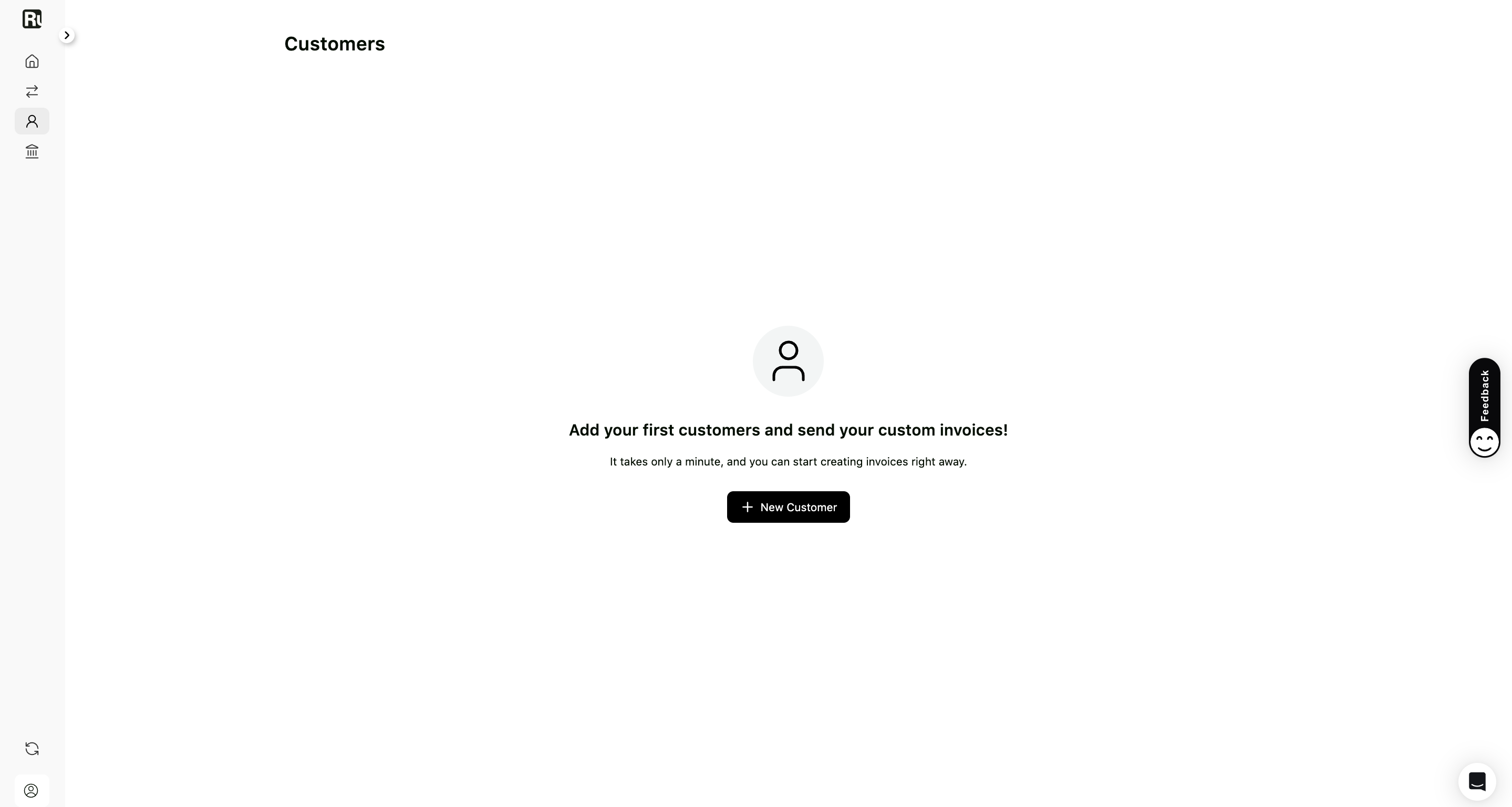
1. Open the Customers page
- Go to Customers from the sidebar.
- If this is your first customer, you’ll see the “Add your first customers and send your custom invoice” screen.
- Click + New Customer.
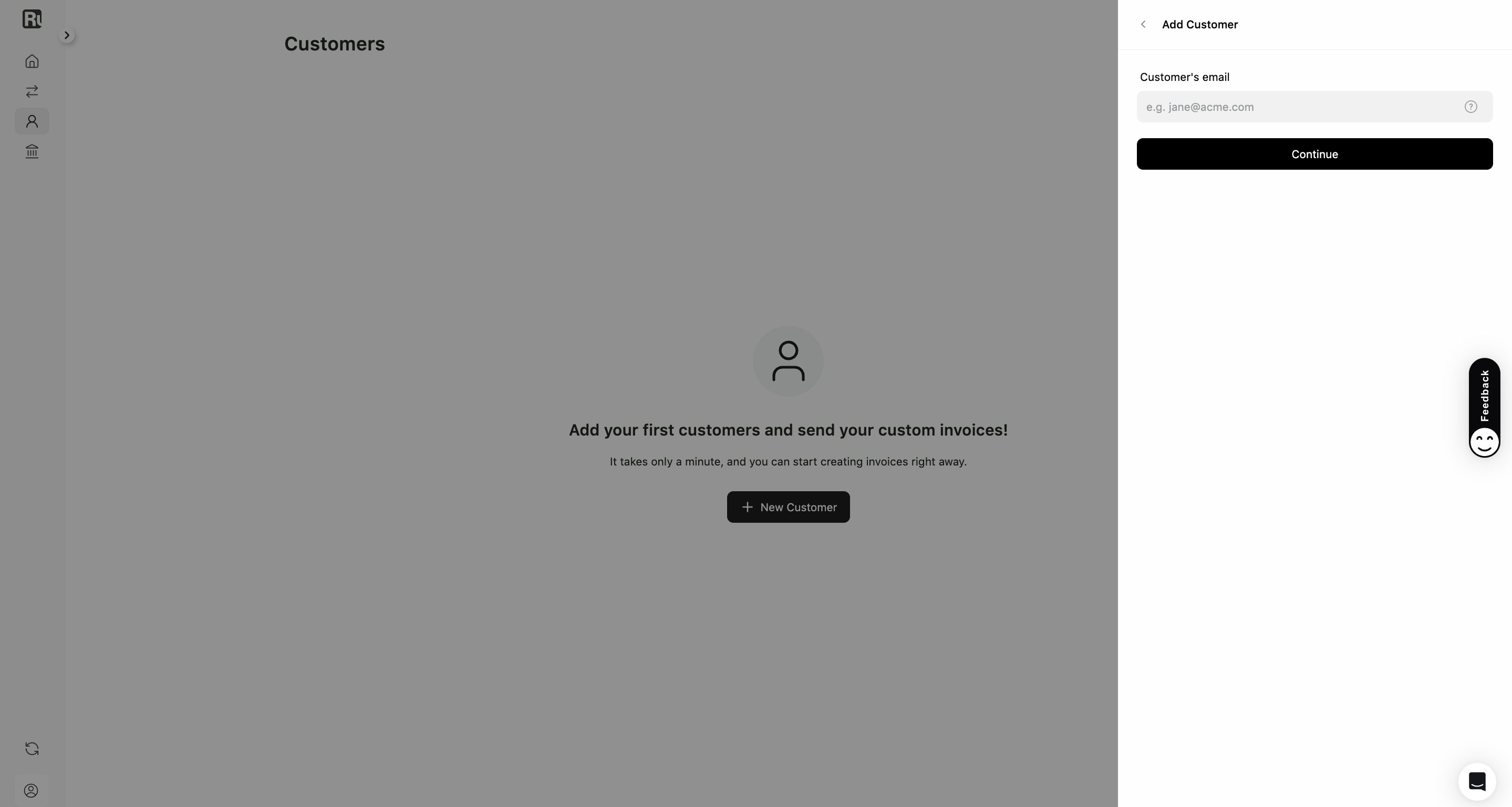
2. Enter the customer’s email
- A drawer will appear on the right side.
- Type the customer’s email address and click Continue.
- The email field becomes locked and cannot be edited afterward.
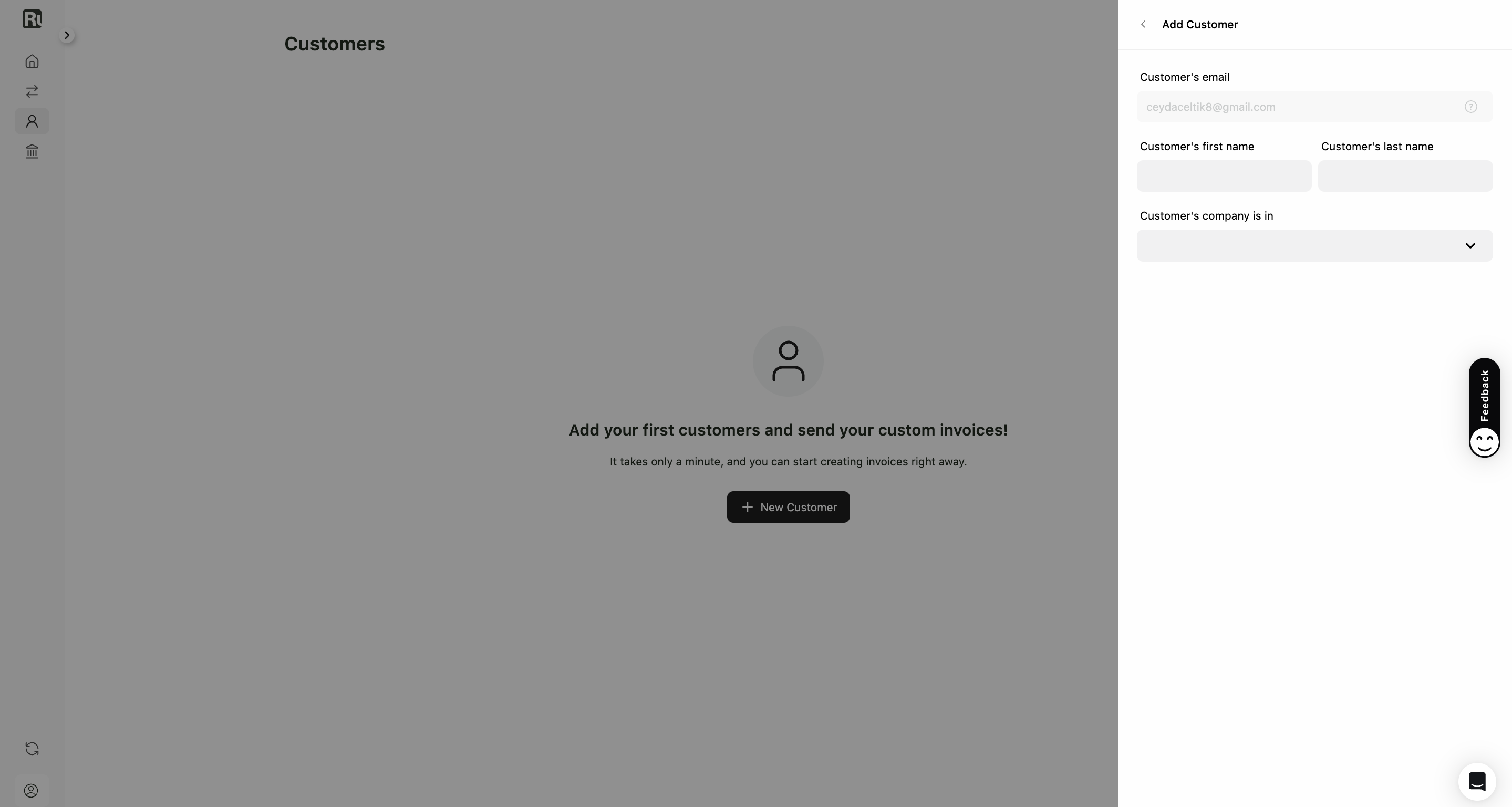
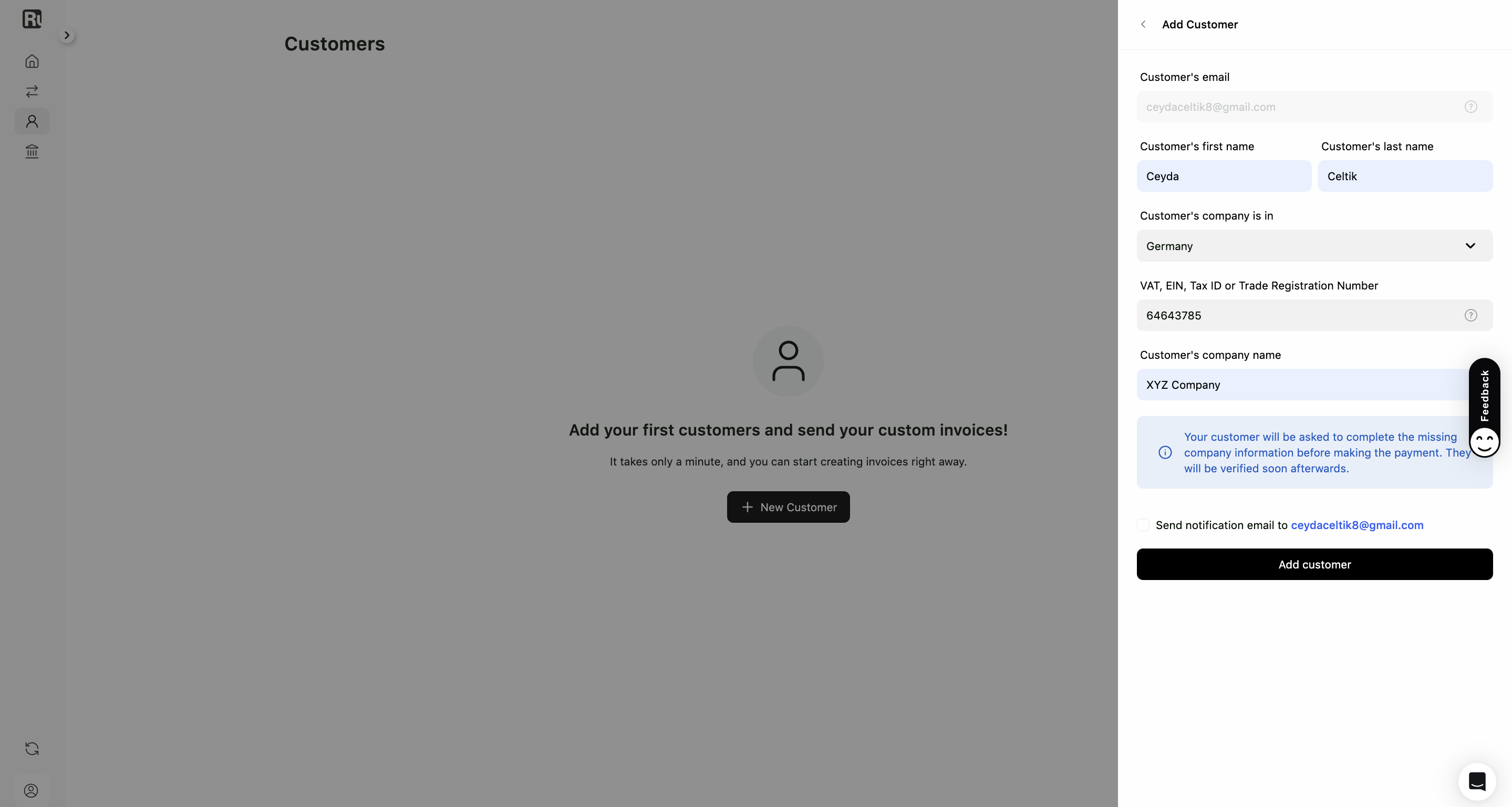
3. Fill in and confirm customer details
-
Provide the customer’s first name and last name.
-
Select the country where the customer’s company is registered.
-
Depending on the country, additional input fields may appear.
-
Enter the customer’s company name.
-
Choose the preferred language (English or Turkish).
-
Review the info box: “Your customer will be asked to complete missing company information before making the payment. They will be verified soon afterwards.”
-
(Optional) Tick the checkbox to send a notification email to the customer.
-
Click Add Customer to save. About Tax Numbers Entering your customer’s tax number and completing optional fields will speed up the verification process. The name of this identifier varies by country:
-
🇺🇸 EIN - USA
-
🇨🇦 Business Number (BN) - Canada
-
🇪🇺 VAT ID - European Union (or Trade Registration Number if not in VIES)
-
🇺🇦 USREOU Code - Ukraine
-
🇰🇷 BRN - South Korea
-
🇮🇳 GST Number - India
4. View your customer
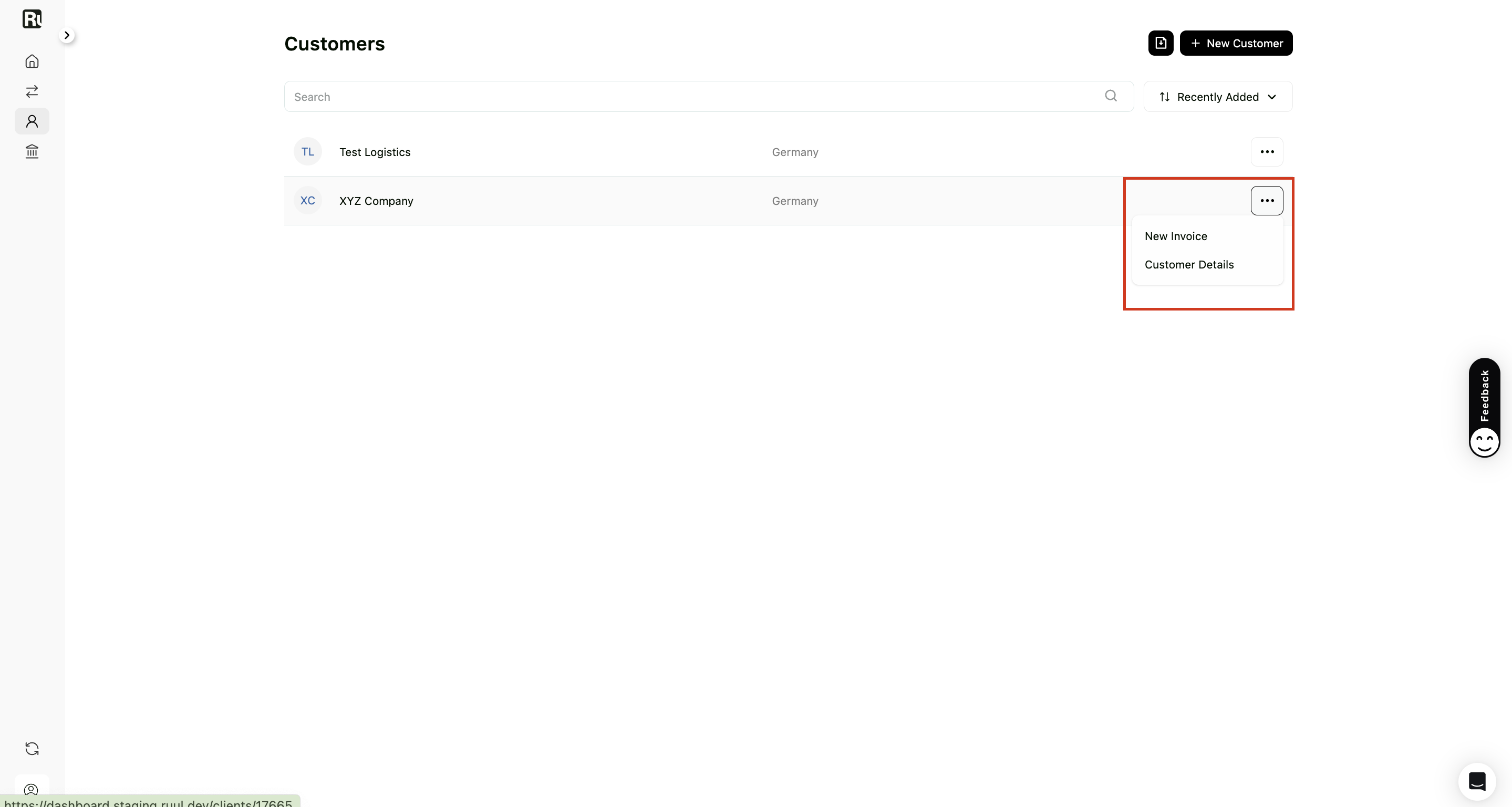
- The customer will now appear in your Customers list.
- Use the More (…) icon to create a New Invoice (with auto-filled customer details) or to open Customer Details.
Good to know
- Customers only need to be added once and can be reused across multiple invoices.
- Customers may be asked to provide company details before they can pay.
- Adding a customer from within an invoice follows the same steps.
Frequently asked questions
Can I change a customer's email after adding them?
No. The email field locks once you save it. If the email is wrong, you'll need to add the customer again with the correct address.
Do I have to add a customer before invoicing them?
You can add customers from the Customers tab ahead of time, or create one on the spot while building a new invoice - the steps are the same either way.
How can I speed up my customer's verification?
Entering your customer's tax number and filling in the optional company fields helps their verification go faster. The tax identifier's name varies by country (for example, EIN in the USA or VAT ID in the EU).
Was this article helpful?
Thanks for the feedback! 🙌