

Adding your contractors as talents is the first step to paying them through Ruul. Once a talent is in your dashboard, you can view their payment history and send payments in just a few clicks. Here’s how to add and manage them.
Accessing the Talents section
- Go to your Business Dashboard.
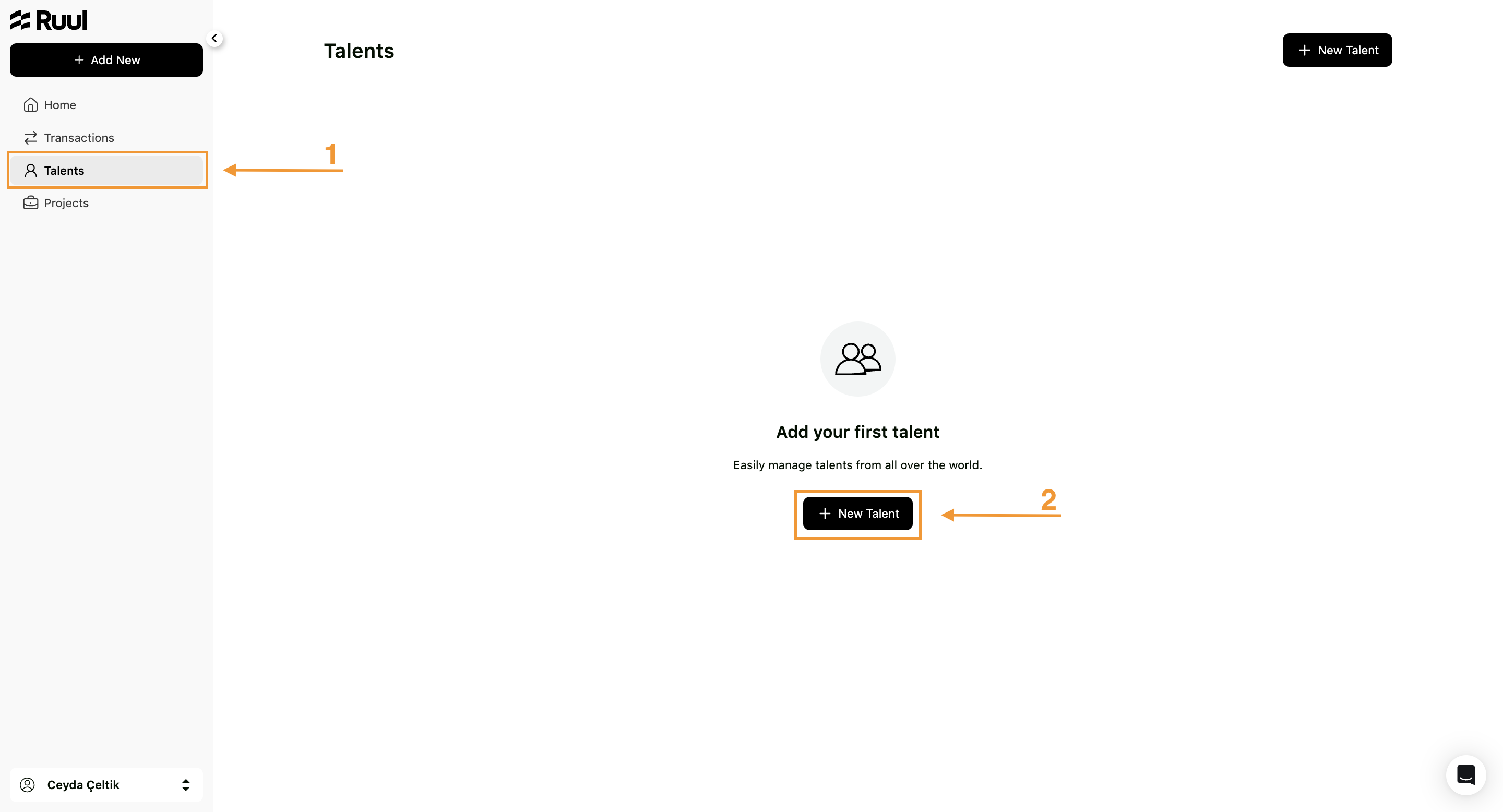
- From the left-hand menu, click Talents.
- If you haven’t added anyone yet, you’ll see the message “Add your first talent.”
- Click the + New Talent button.
Adding a new talent
-
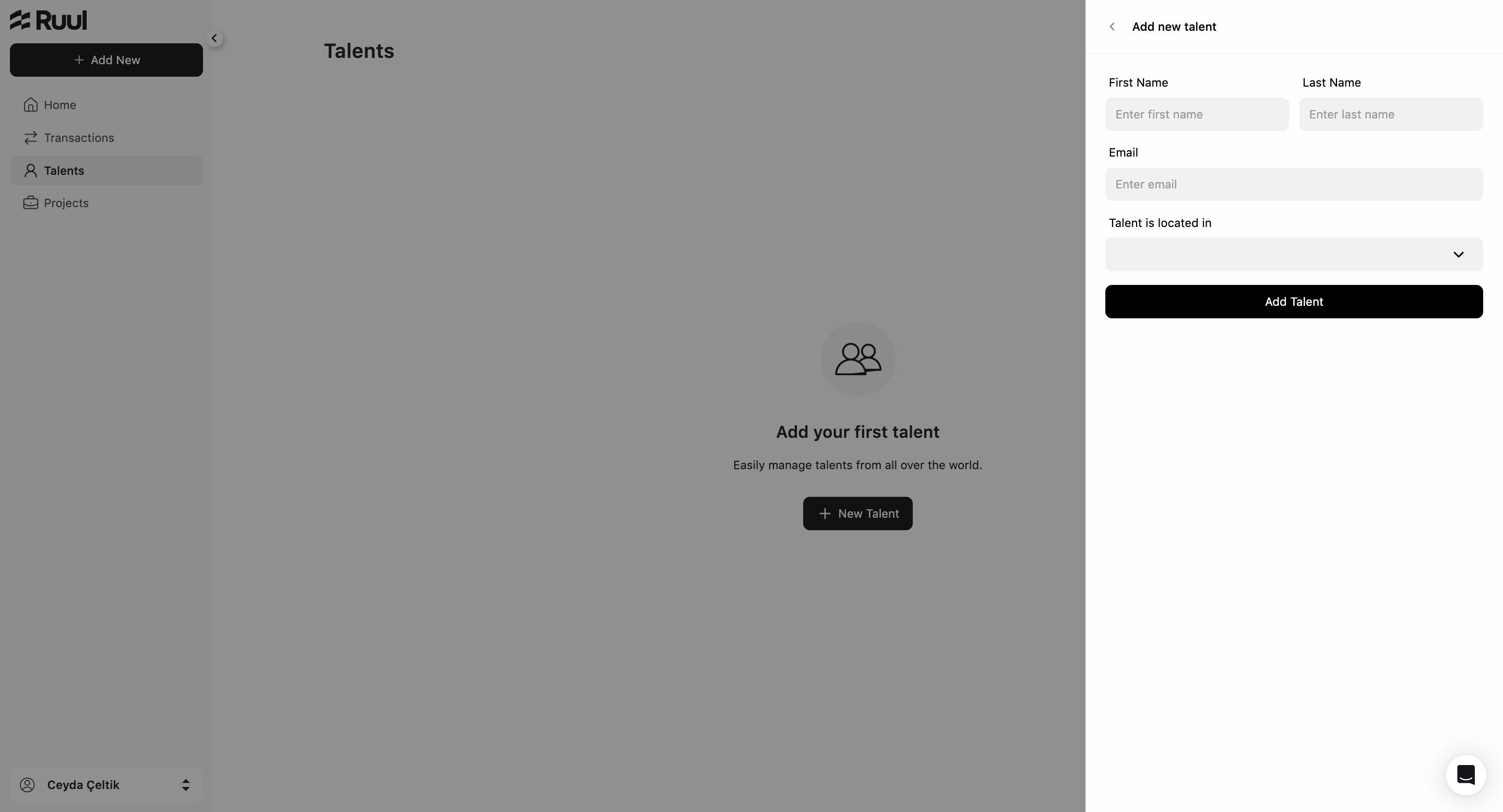
A panel will open on the right-hand side titled Add new talent.
-
Fill in the required fields:
- First Name
- Last Name
- Talent is located in (select the country from the dropdown menu)
-
Click Add Talent to complete the process.
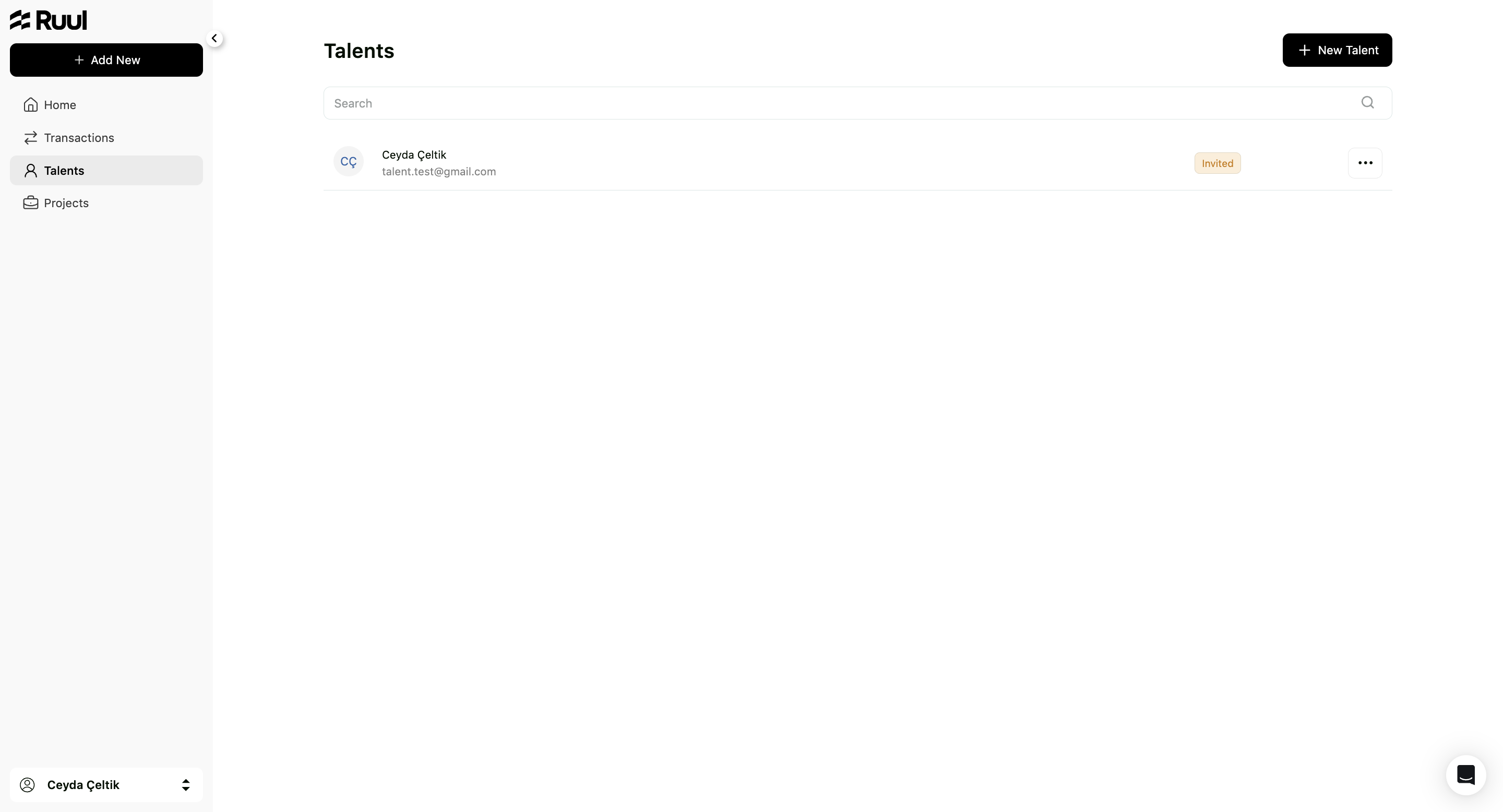
- Once added, the talent will appear in your Talents list with an Invited status.
Managing the added talent
Once your talents are listed, you can manage and interact with them easily:
-
Click on the More (⋯) icon next to it.
-
From here, you can:
+ **Talent Details** → View all payments between your business and the selected talent.
+ **New Payment** → Open a payment creation screen where the selected talent is automatically pre-filled. You can complete and send the payment directly.
For security and compliance, Ruul prohibits adding talents listed on:
-
FATF (Financial Action Task Force)
-
AML (Anti-Money Laundering)
-
PEP (Politically Exposed Persons) registers
Ruul upholds a strict stance against financial crime and terrorism financing. For the full list of restricted countries, see supported countries & currencies for businesses.
Notes & best practices
- The invitation is sent automatically to the talent’s registered email.
- Enter all details accurately, especially the email and country, so the invite reaches the right person and payments stay compliant.
Frequently asked questions
How does a talent get invited?
When you add a talent, Ruul automatically sends an invitation to the email address you entered. Make sure it is correct so the invite reaches them.
What does the "Invited" status mean?
It means the talent has been added and the invitation has been sent, but they have not yet completed their setup. Once they finish, their status updates accordingly.
Why might I be unable to add a talent?
For compliance reasons, Ruul cannot accept talents listed on FATF, AML, or PEP registers. Ruul maintains a strict stance against financial crime and terrorism financing.
Was this article helpful?
Thanks for the feedback! 🙌