

Chasing late payments is nobody’s favorite part of freelancing. Payment Chaser handles it for you - it automatically sends reminder emails about an unpaid invoice at set intervals, so you can stop tracking due dates by hand.
How it works
1. Open Payment Chaser
You can start Payment Chaser from two different places in your dashboard.
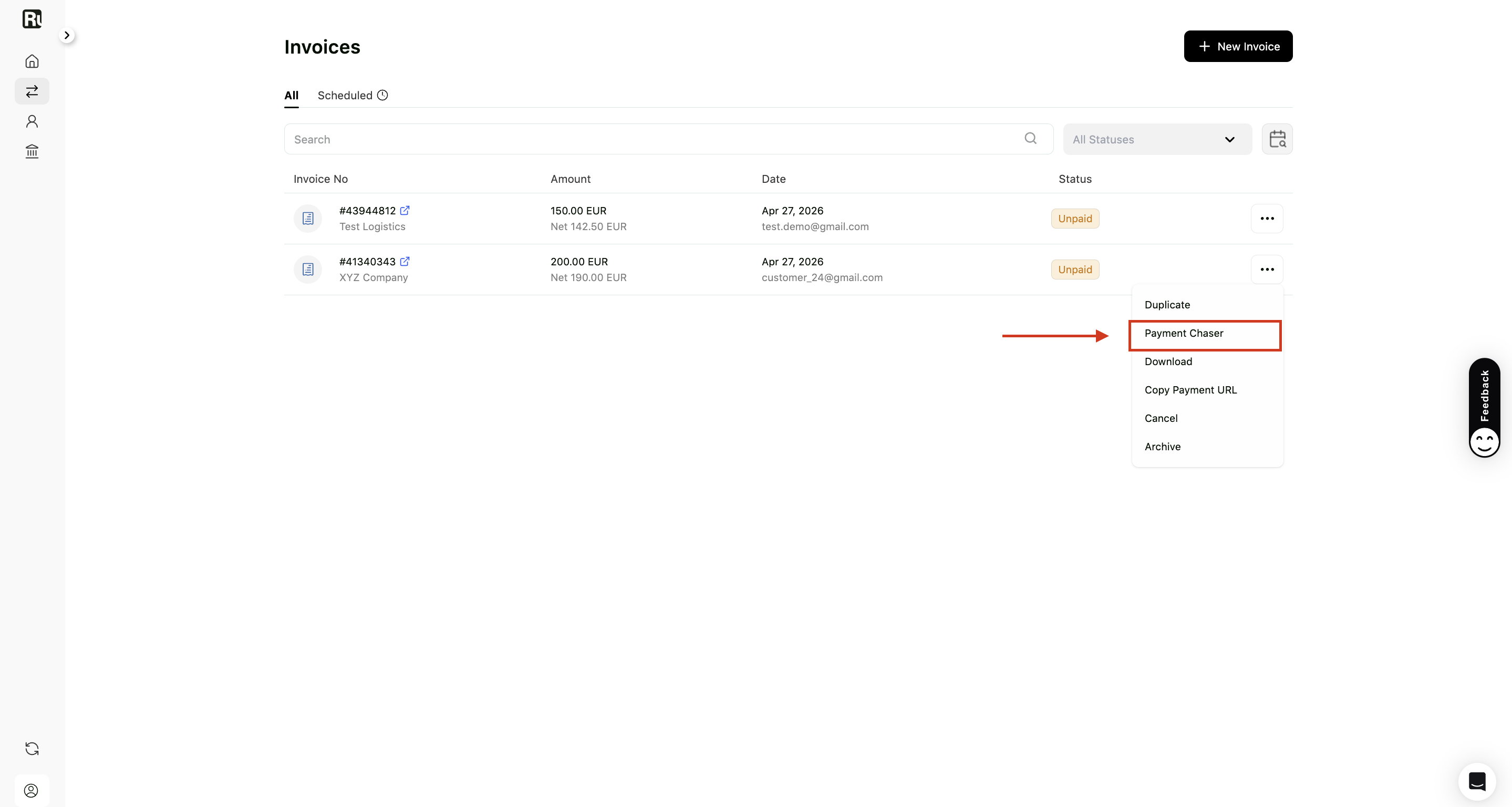
From the Invoices list:
- Go to Invoices
- Find an unpaid invoice
- Click the
⋯menu and select Payment Chaser
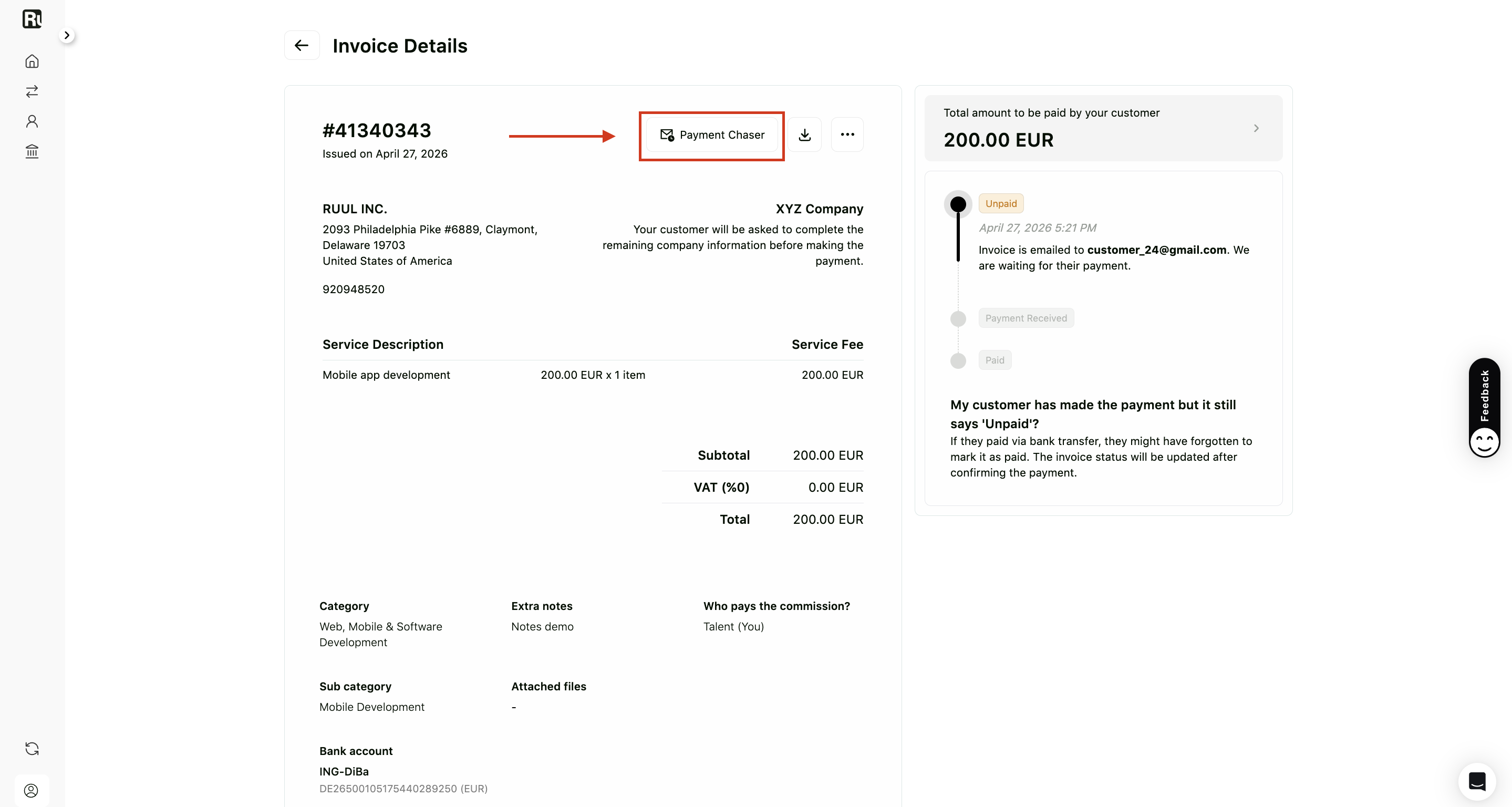
From the invoice details page:
- Open the invoice
- Click the Payment Chaser button at the top of the page
2. Review the Payment Chaser drawer
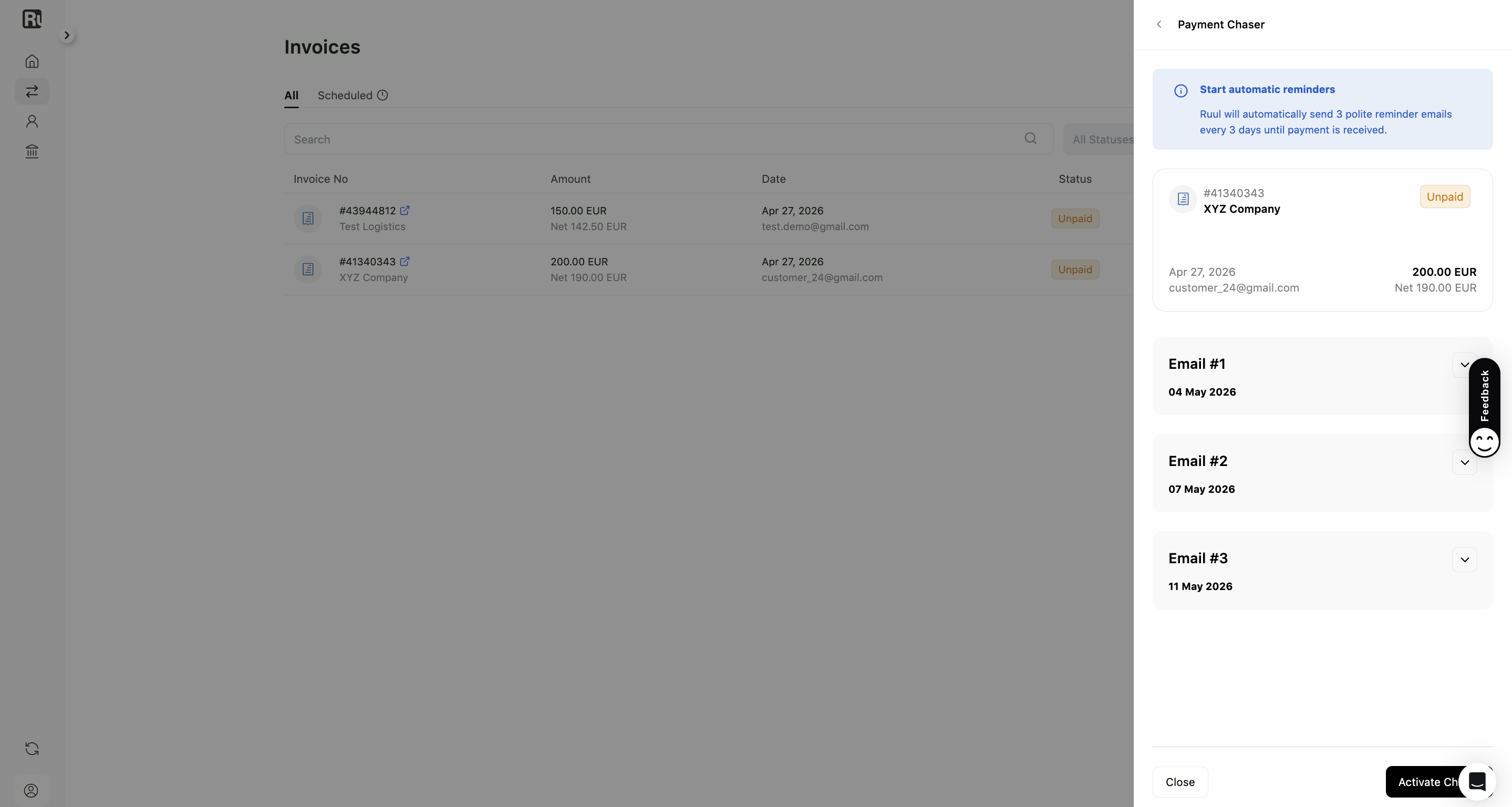
When you open Payment Chaser, a drawer appears on the right side of the screen.
In this drawer, you can:
- Review invoice details
- See how many reminder emails will be sent
- Check the scheduled sending dates
- Preview the email content before activation
3. Understand email scheduling
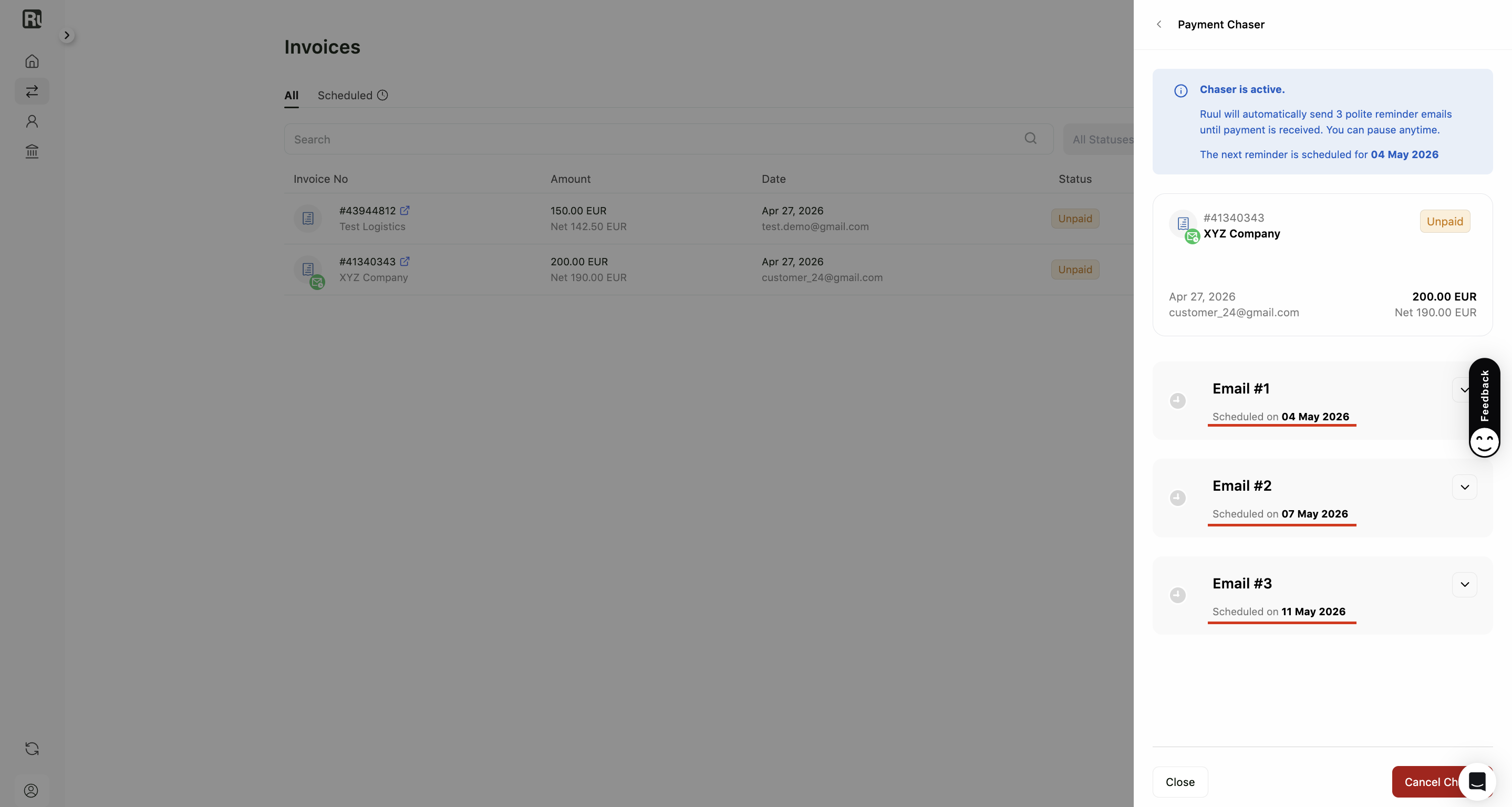
Payment Chaser automatically sends up to three reminder emails.
- The first reminder is scheduled 5 business days after the invoice is created
- If the invoice is already older than 5 business days, the first reminder is sent on the same day
- The next reminders are sent every 3 business days
4. Activate Payment Chaser
After reviewing the details and schedule:
-
Click Activate Chaser in the drawer
-
Payment Chaser starts tracking the invoice automatically Once active:
-
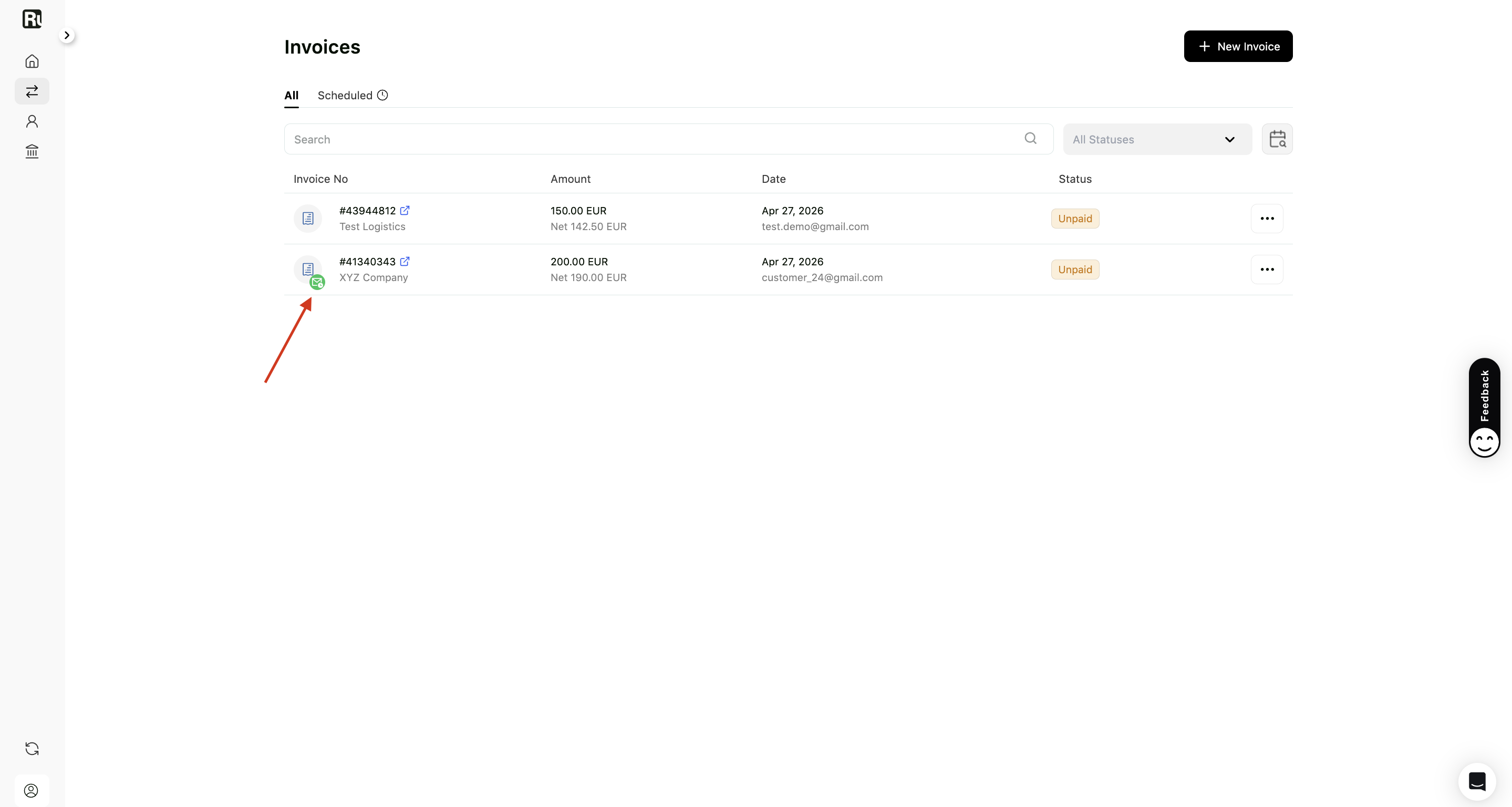
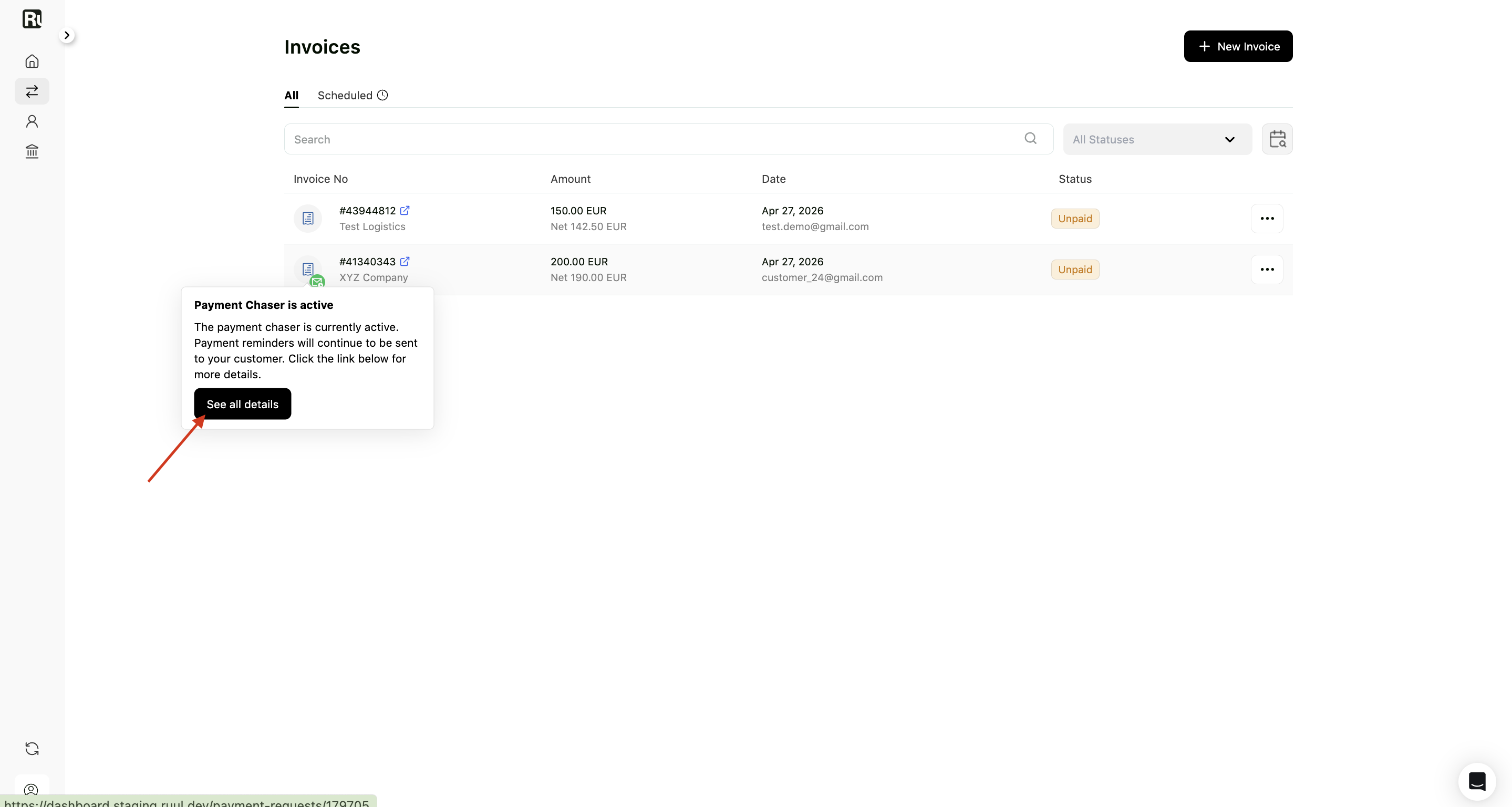
A green Payment Chaser icon appears in the Invoices list
-
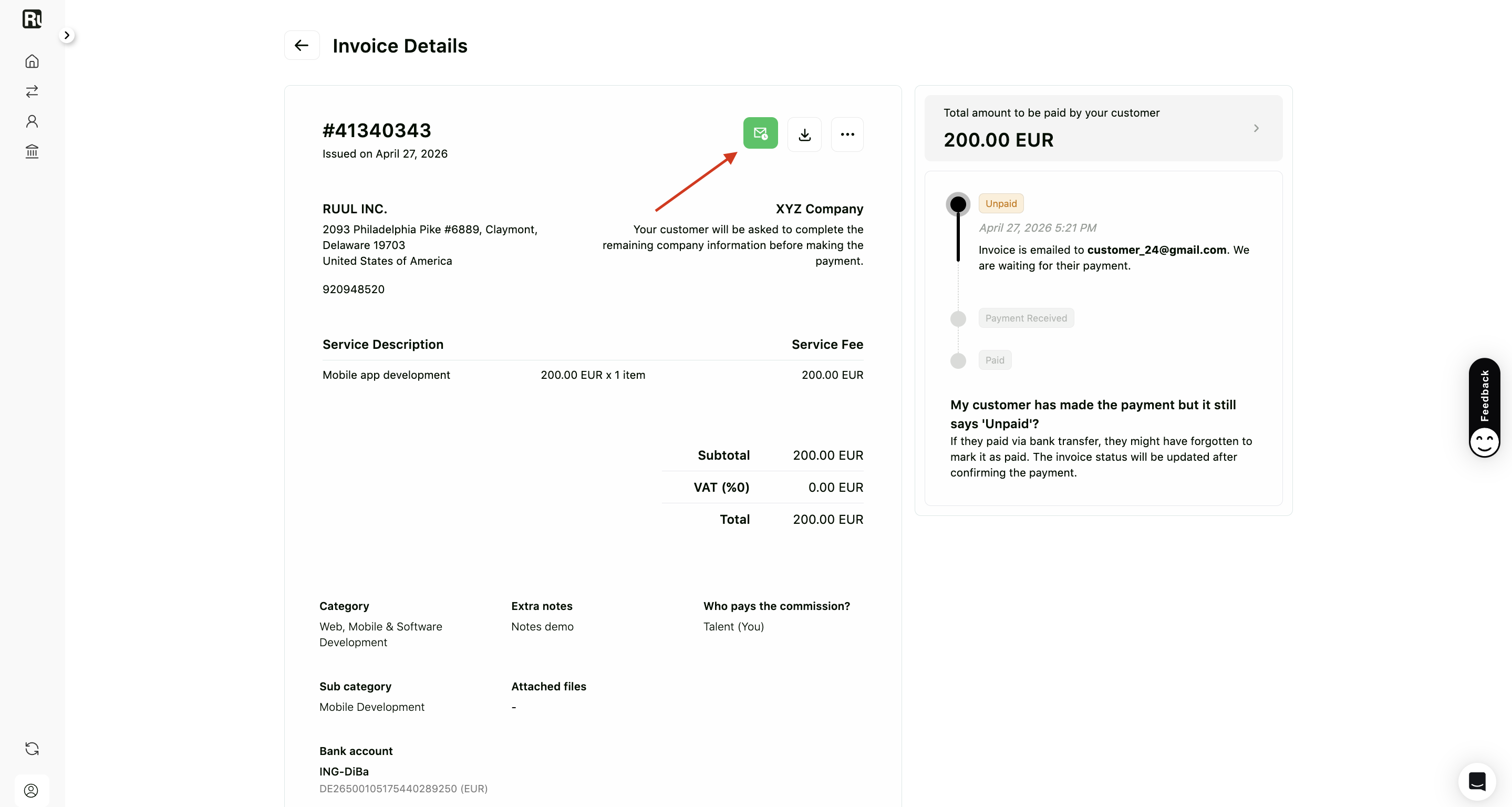
The Payment Chaser button in the invoice details page turns green
5. Track sent reminder emails
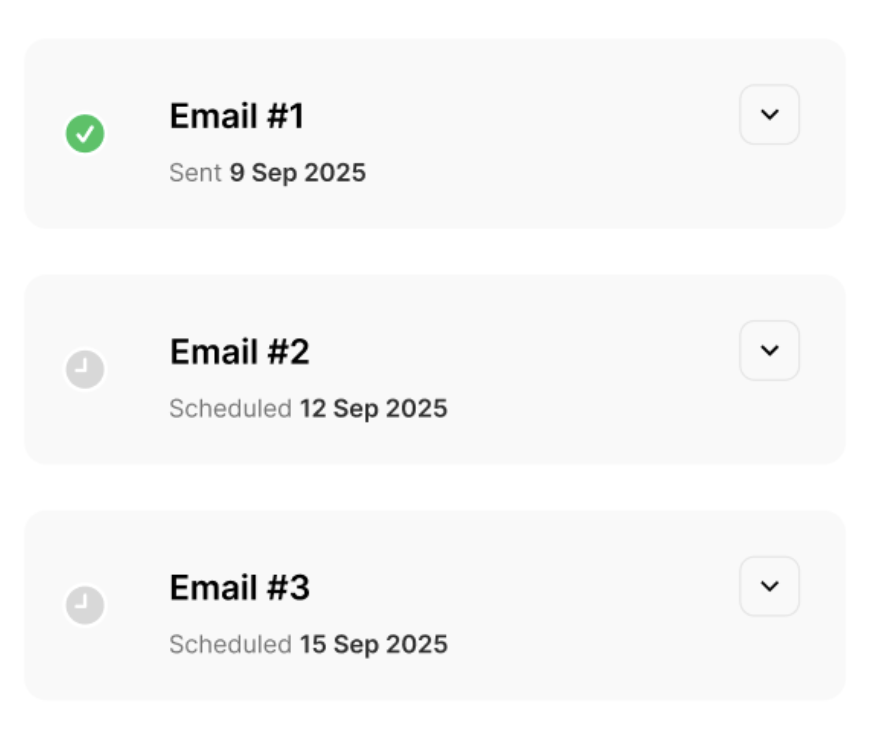
Each time a reminder email is sent:
- Its status is updated in the drawer
- A sent indicator appears next to the email
6. Cancel Payment Chaser
You can stop Payment Chaser at any time.
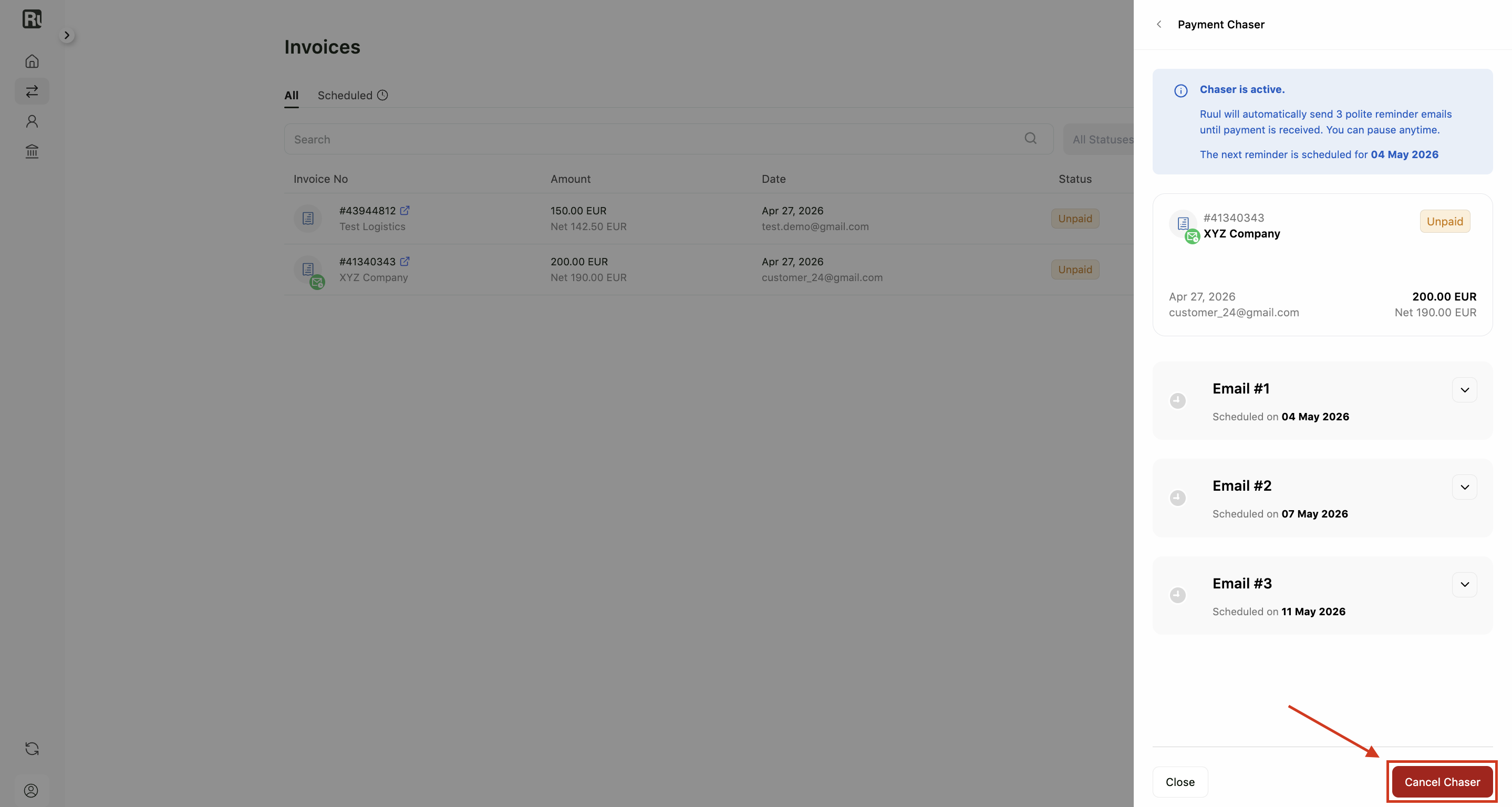
- Open the Payment Chaser drawer
- Click Cancel Chaser
- Confirm the action in the modal
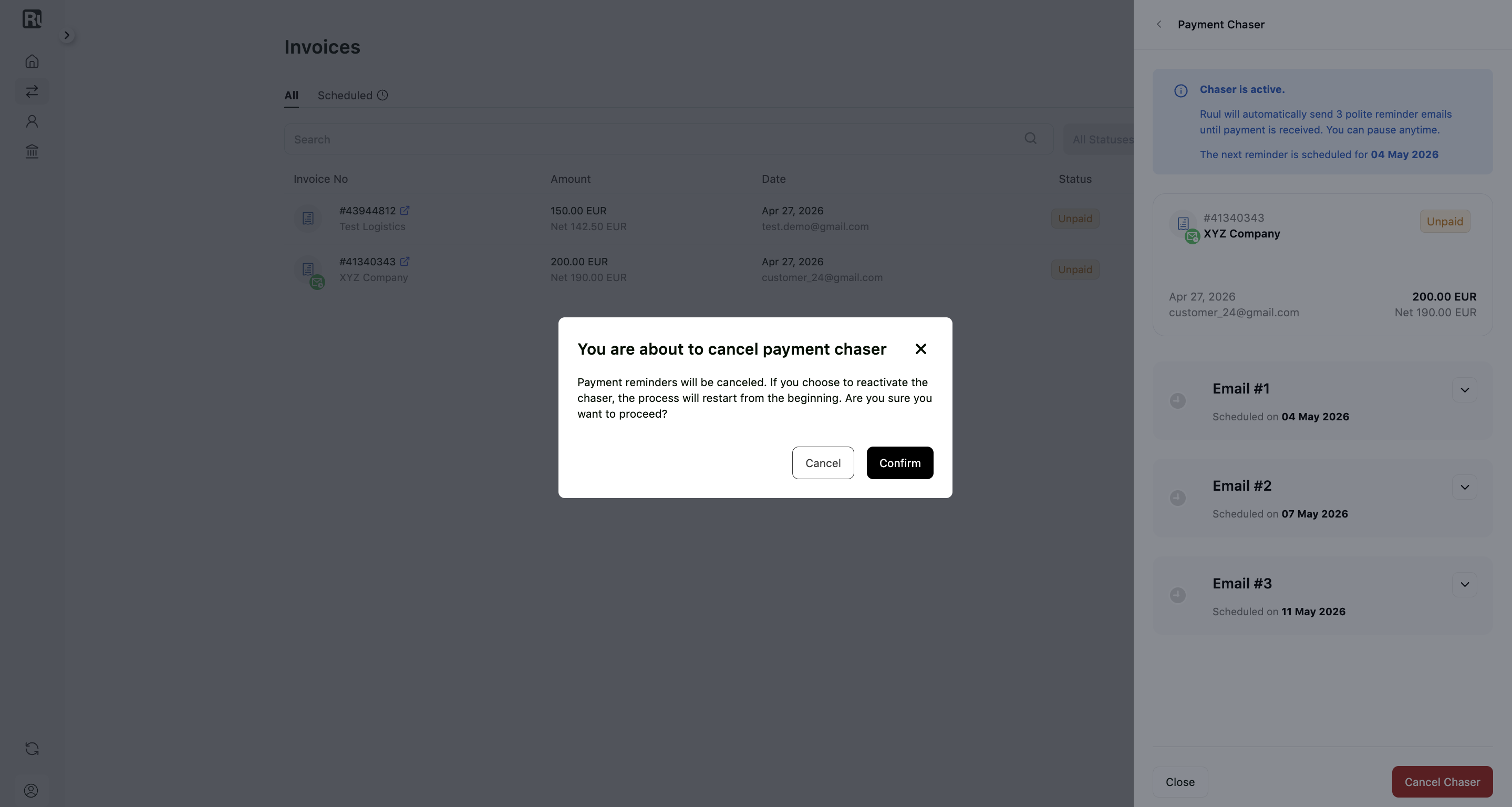
If you activate Payment Chaser again later, the reminder schedule starts from the beginning.
Notes / Tips
- Reminder emails are sent to the business email address of the customer.
- Payment Chaser stops automatically once the payment is completed.
- Canceled Payment Chasers do not resume from where they left off.
Frequently asked questions
How many reminders does Payment Chaser send?
Up to three. The first goes out 5 business days after the invoice is created (or the same day if the invoice is already older than that), and the rest follow every 3 business days.
Does Payment Chaser stop on its own?
Yes. It stops automatically as soon as the invoice is paid, so your customer won't get reminders for an invoice they've already settled.
What happens if I cancel and then reactivate it?
The reminder schedule starts over from the beginning. A canceled Payment Chaser doesn't resume from where it left off.
Was this article helpful?
Thanks for the feedback! 🙌