
If your organization operates through more than one legal entity, Ruul lets you manage them all from a single account and switch between them as you work. Here is how to view, add, and move between your companies.
Before we start
The multiple company feature is disabled by default. If your organization needs it, contact our support team and we will enable it for your account.
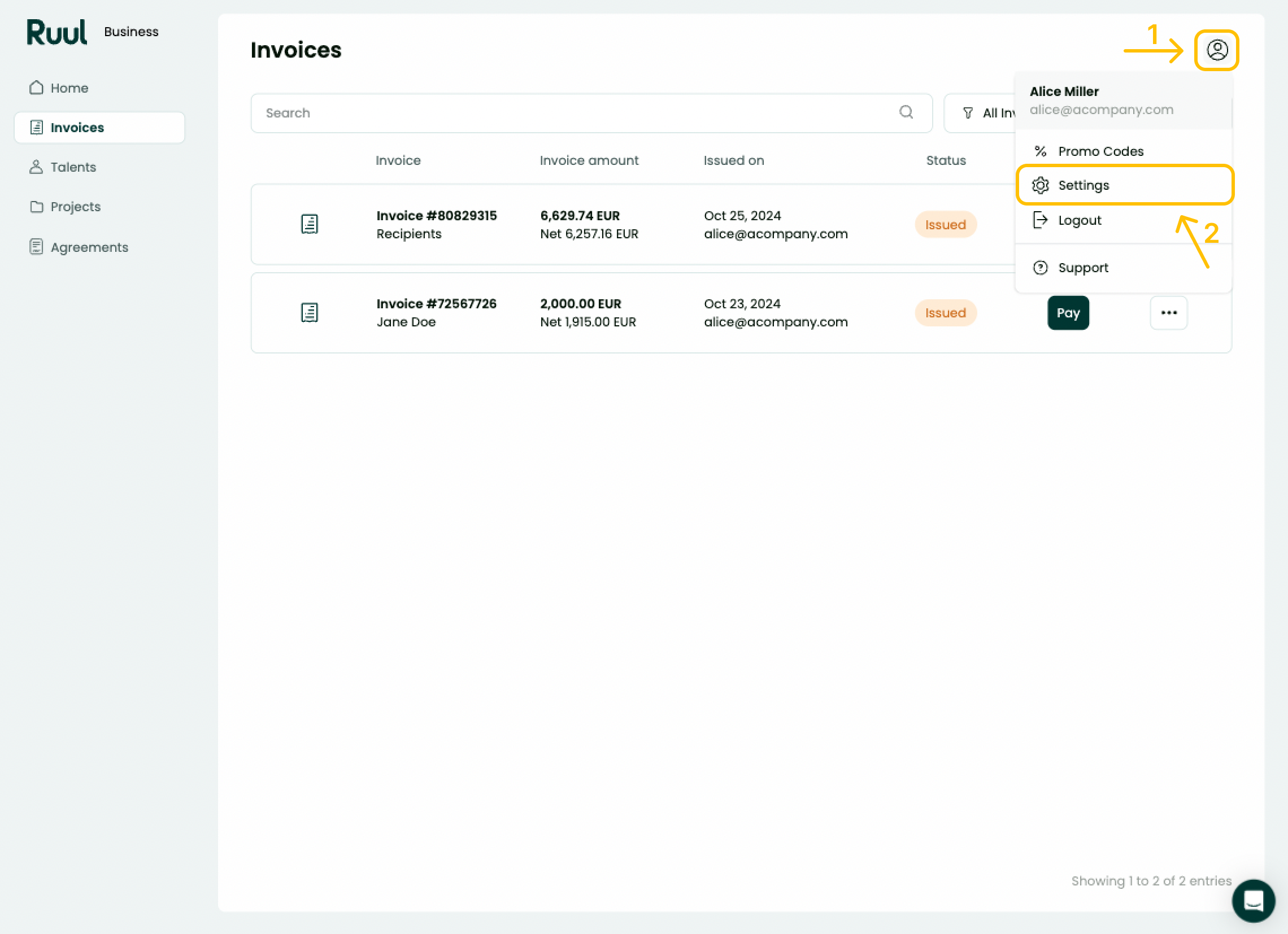
1. Open Settings
Click your profile in the bottom-left corner of your dashboard (1), then select Settings (2).
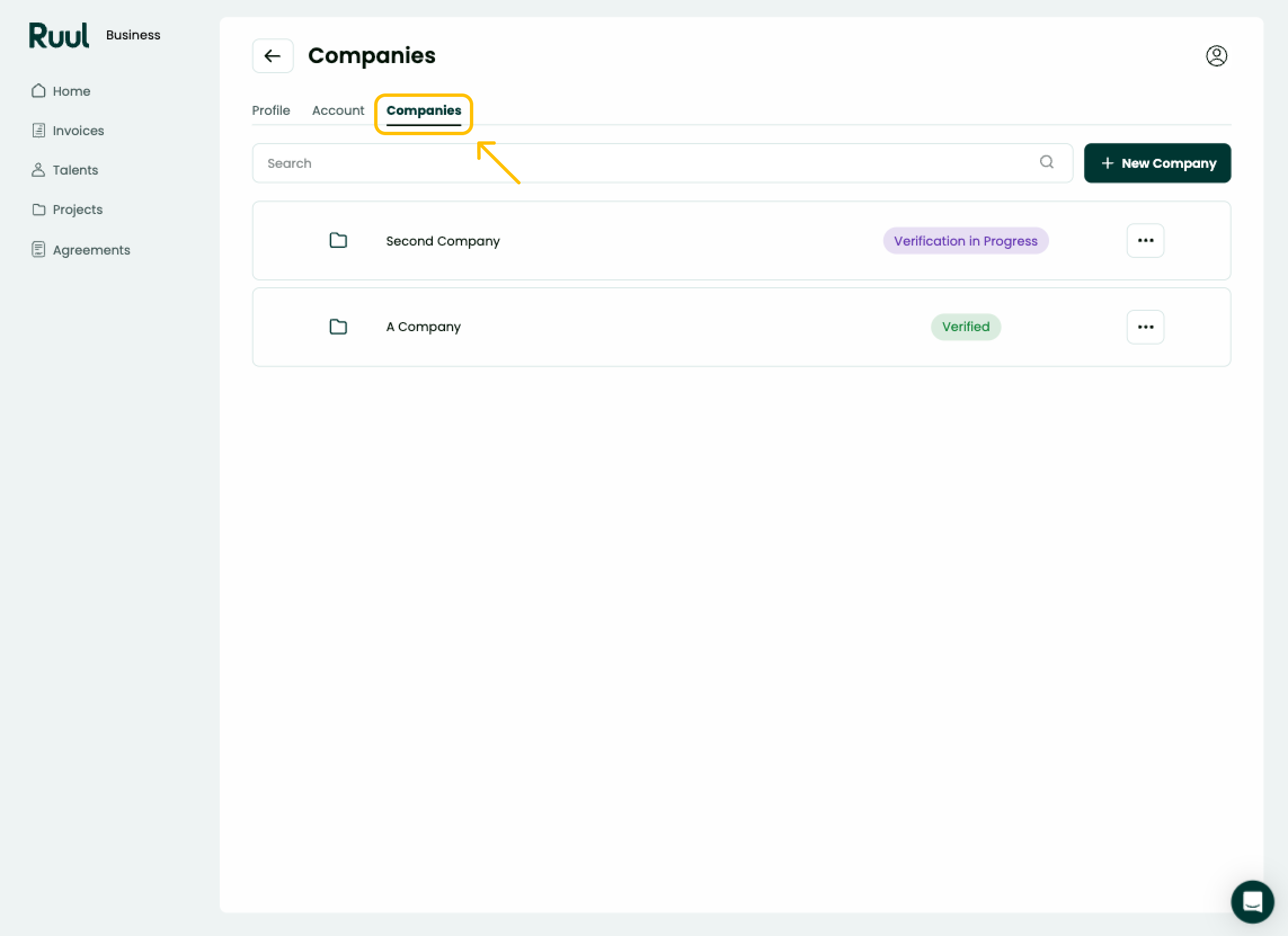
2. View your companies
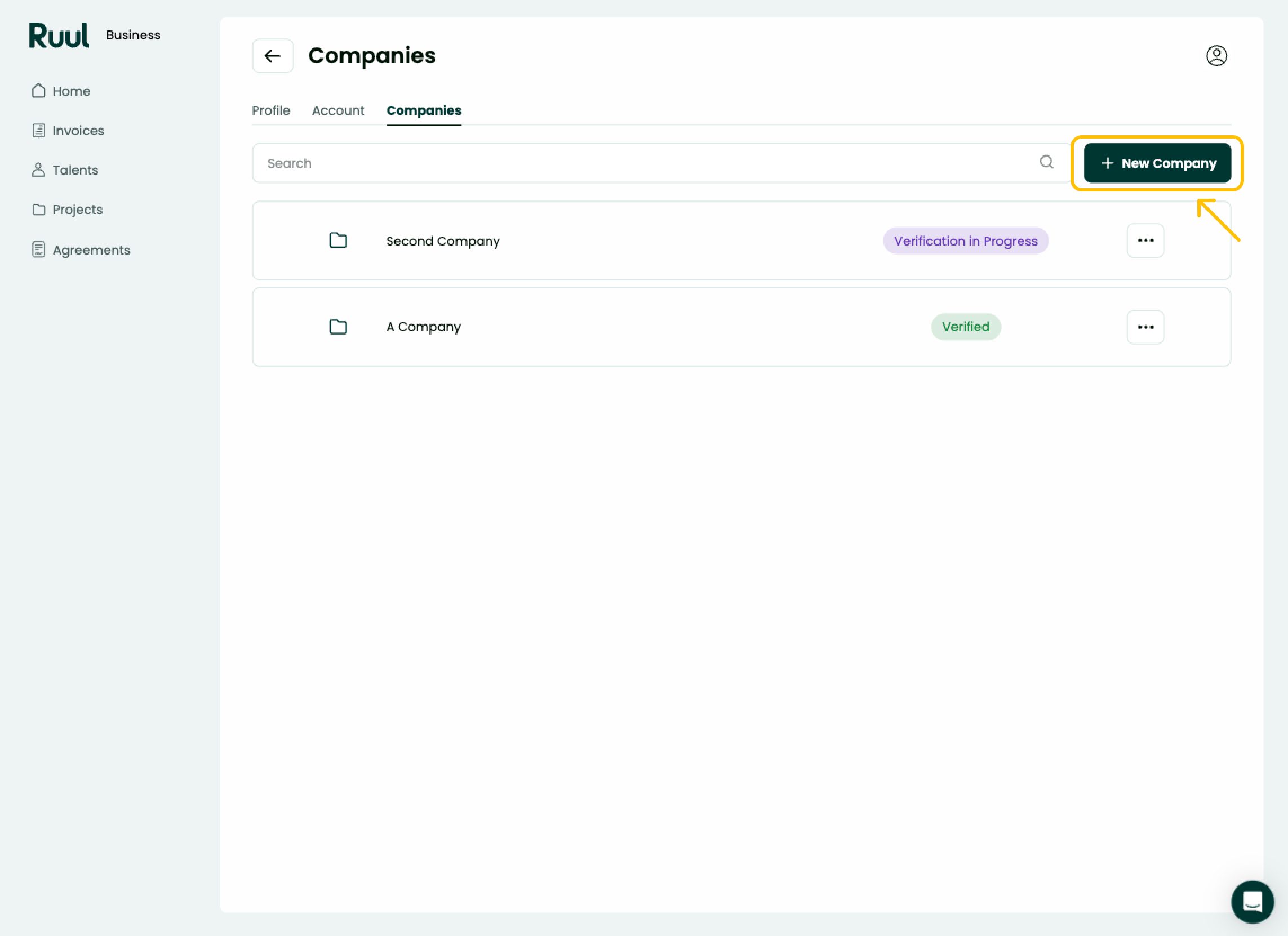
Select the Companies tab to see a list of all your companies. Each one shows its current status, such as Verification in Progress.
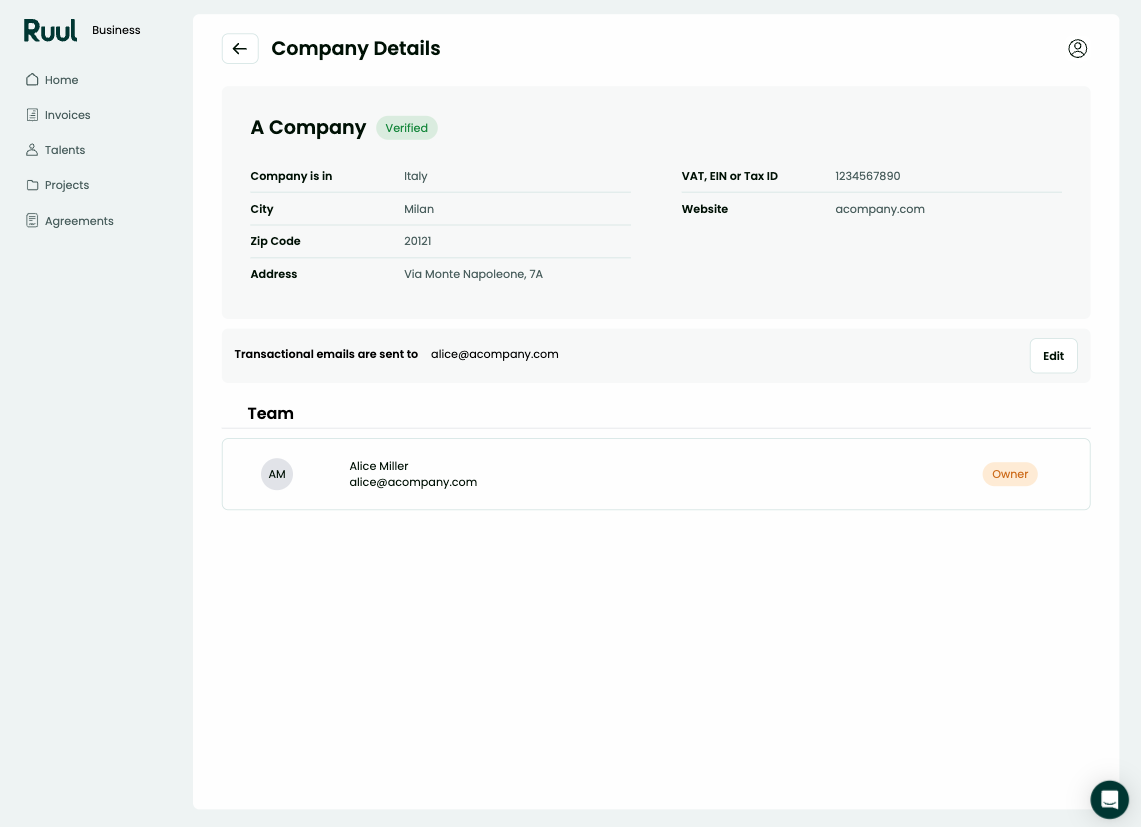
Click a company to open its Company Details, where you can review information like country of registration, address, VAT, EIN or Tax ID, and website.
3. Add a new company
On the Companies tab, click + New Company.
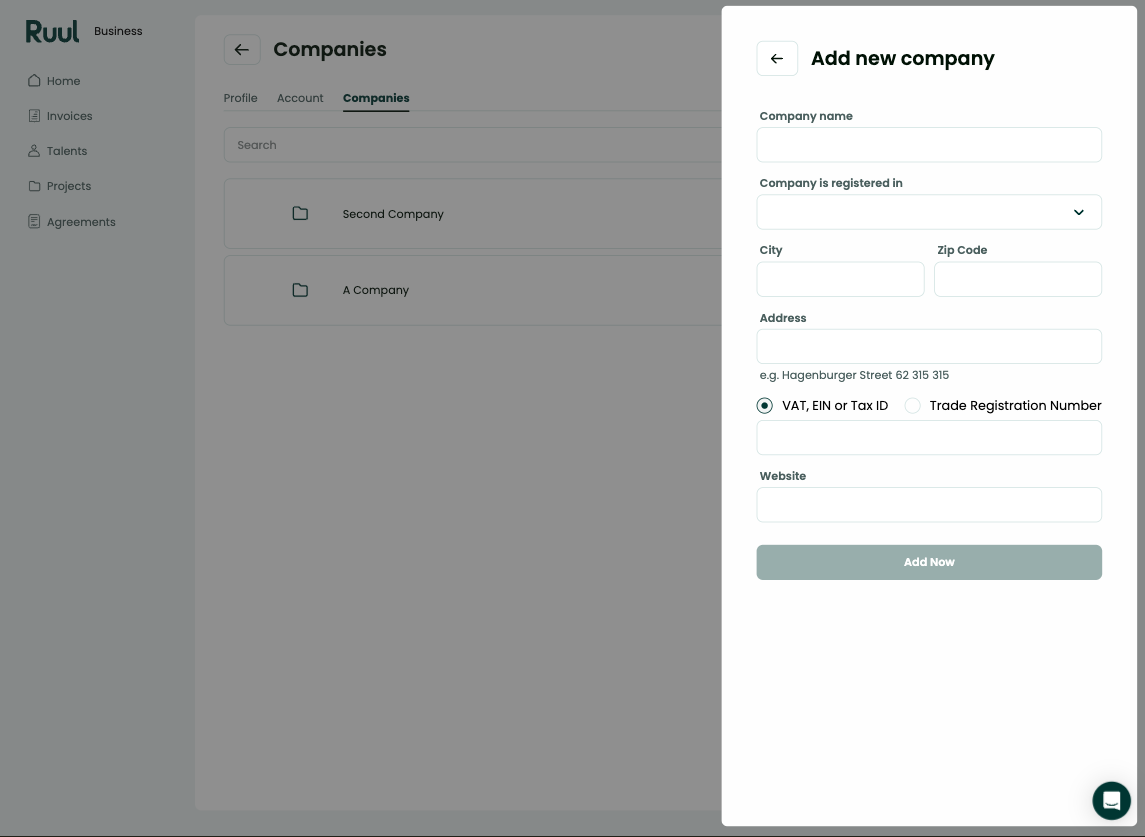
Fill in the company information in the Add new company panel:
- Company name
- Company is registered in
- City and Zip Code
- Address
- VAT, EIN or Tax ID or Trade Registration Number
- Website
When you are done, click Add Now.
Keep in mind that each company must have a unique tax number. You cannot add multiple companies with the same tax number. Each company you add goes through its own KYB verification, but you can start creating invoices and making payments right away, without waiting for verification to finish.
4. Switch between companies
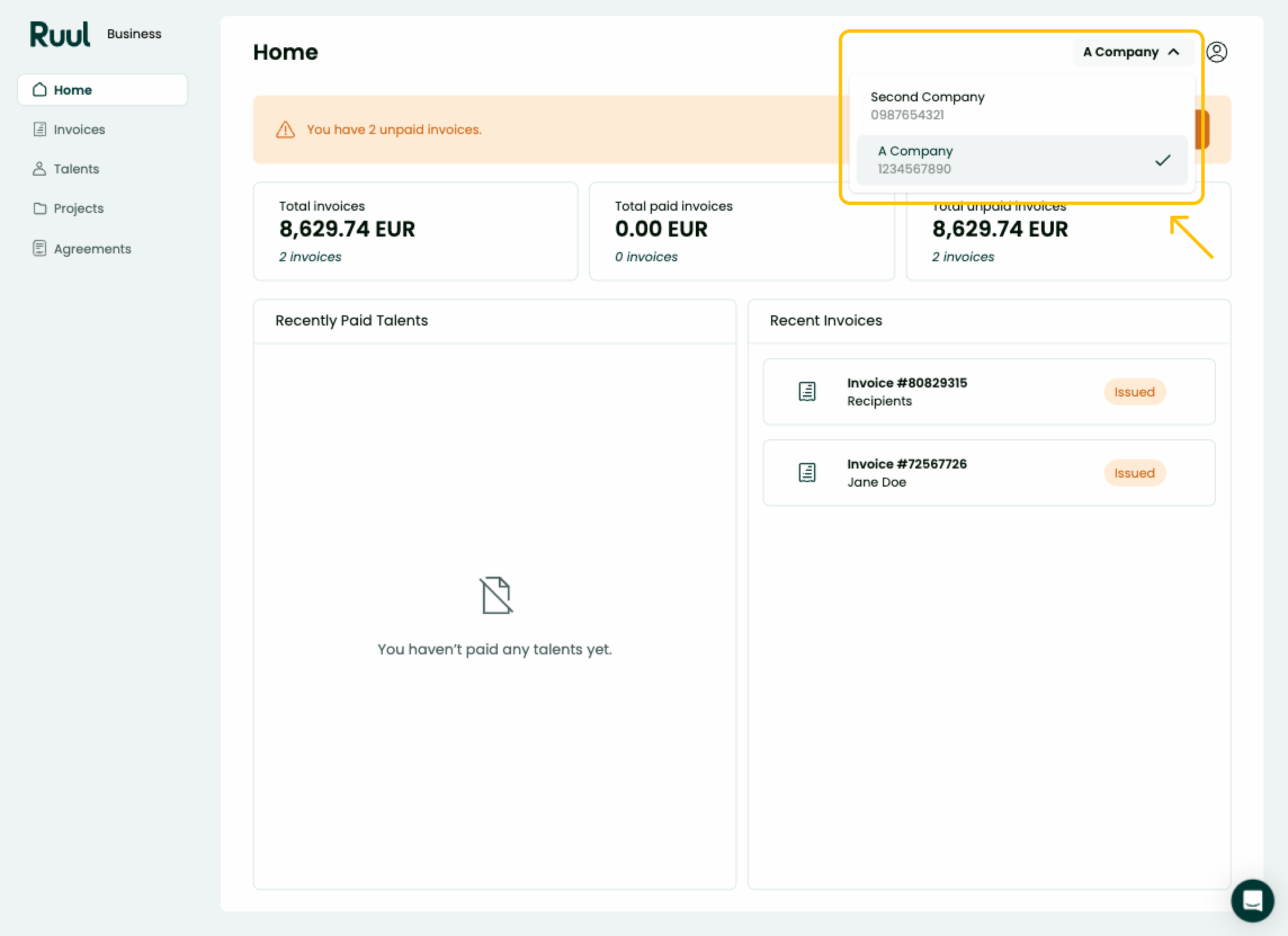
You will find a selection menu at the top of the Home page. Choose a company from the list, and the dashboard updates to show information for that company.
All payments, projects, agreements, and contractors you add apply to the company you have selected.
Good to know
- The multiple company feature is off by default. Contact our support team to have it enabled.
- Each company must have a unique tax number, and each one goes through its own KYB verification.
- You can start creating invoices and making payments before a company’s verification is complete.
- The company you select on the Home page controls which payments, projects, agreements, and contractors you see and work with.
- Need to add people to a company? See how to add and manage contractors.
Frequently asked questions
How do I enable the multiple company feature?
It is turned off by default. If your organization needs it, contact our support team and we will enable it for your account.
Can two companies share the same tax number?
No. Each company must have a unique tax number, so you cannot add multiple companies under the same one.
Does each company need its own verification?
Yes. Every company you add goes through its own KYB verification, though you can start creating invoices and making payments right away without waiting for it to finish.
Was this article helpful?
Thanks for the feedback! 🙌