
An invoice reaches you in one of two ways: you created the payment yourself, or one of your contractors sent you an invoice through Ruul. Either way you end up on the same payment screen, and the options there are the same.
This guide is for companies that already use Ruul. If you don’t have a Ruul account and an invoice just arrived by email, start with why did I get an invoice from Ruul? instead.
If what arrived is a subscription rather than a single invoice, see received a subscription from a contractor instead.
Getting to the payment screen
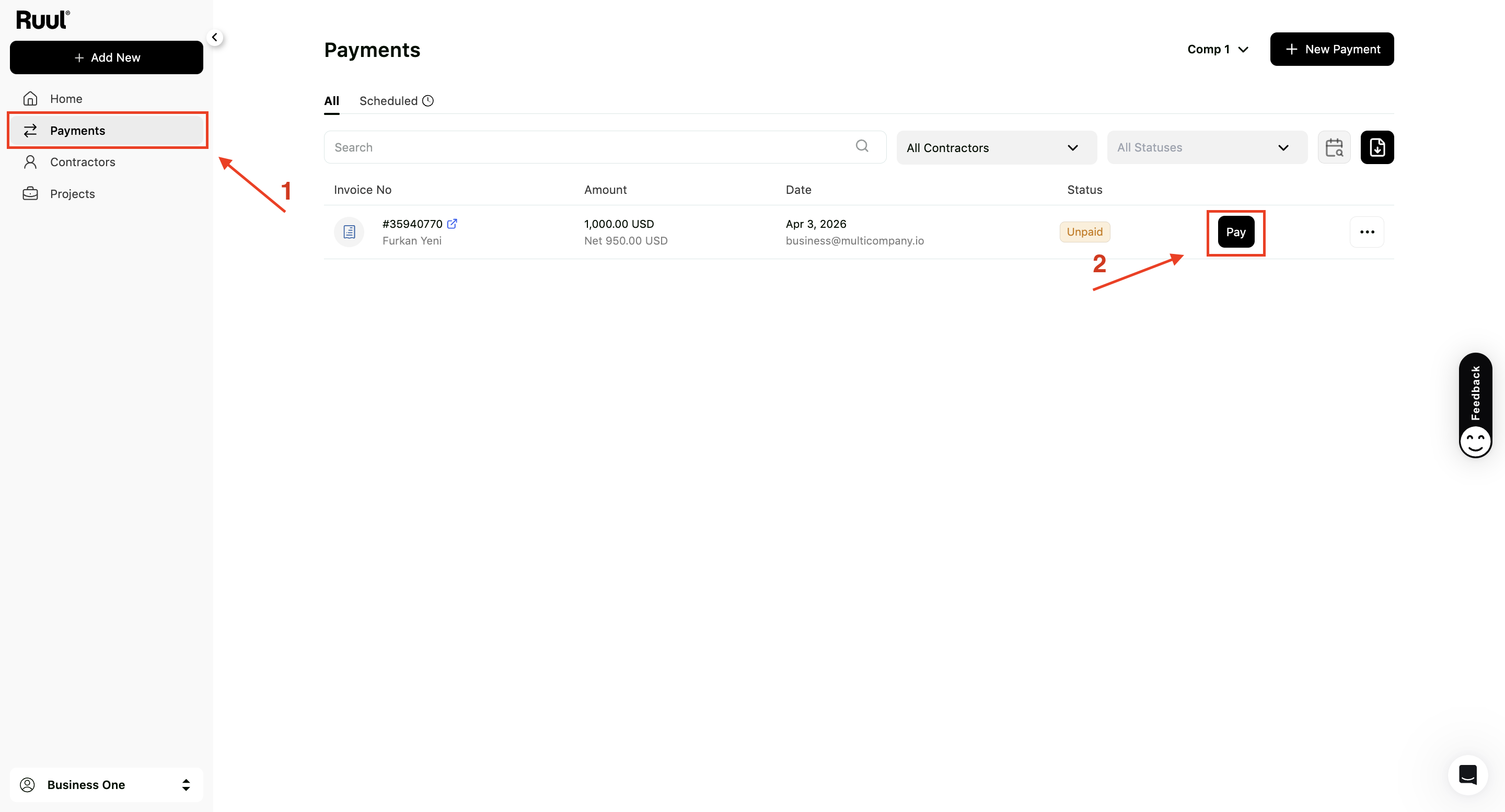
If you created the payment, click Make Payment on the confirmation screen right after creating it, or go to Payments, find the row and click Pay. Opening the payment’s details page and clicking Make Payment works too.
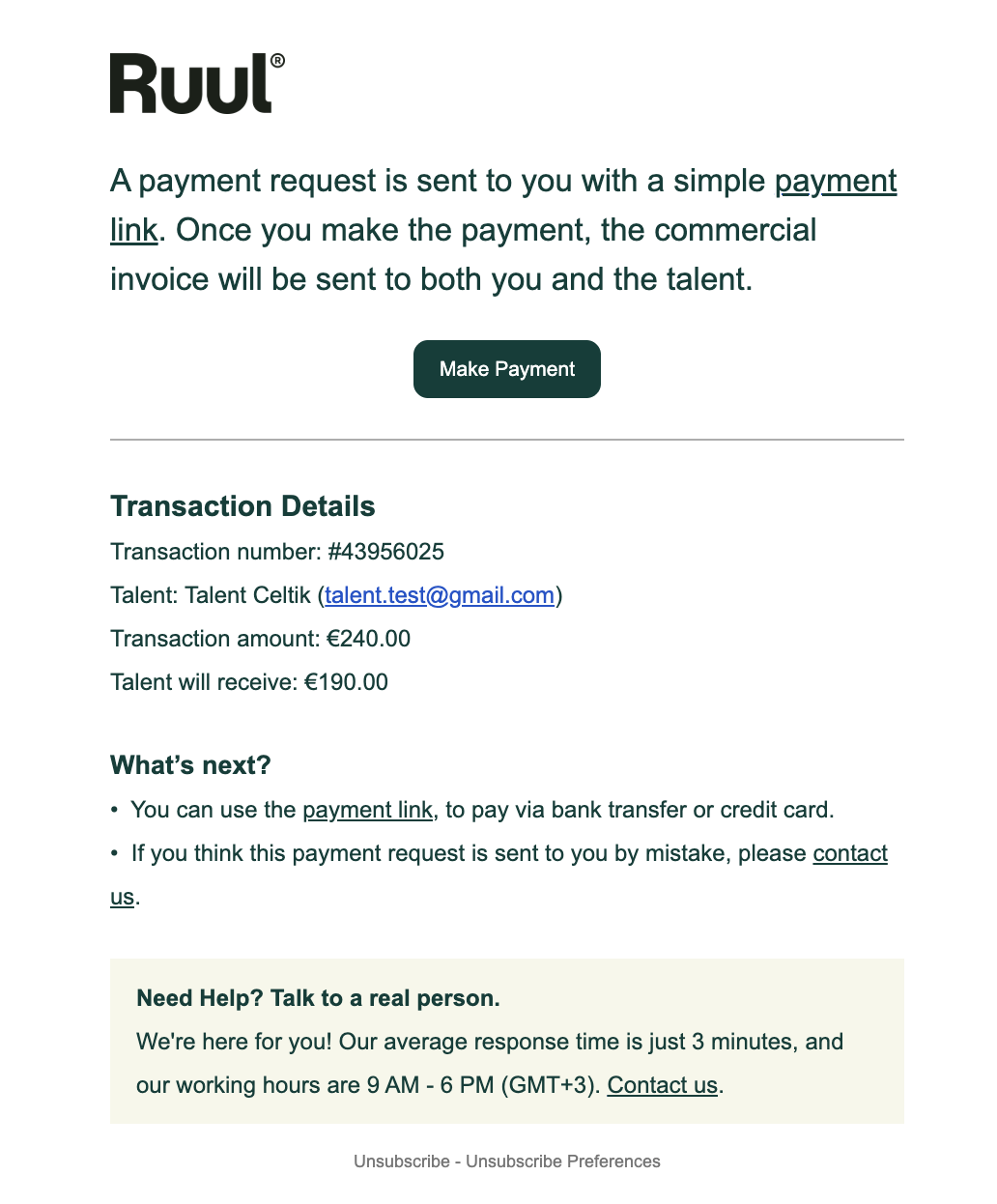
If a contractor sent you an invoice, Ruul emails you a secure payment link. The email carries the contractor’s name, the transaction number, the amount and currency, and a Make Payment button.
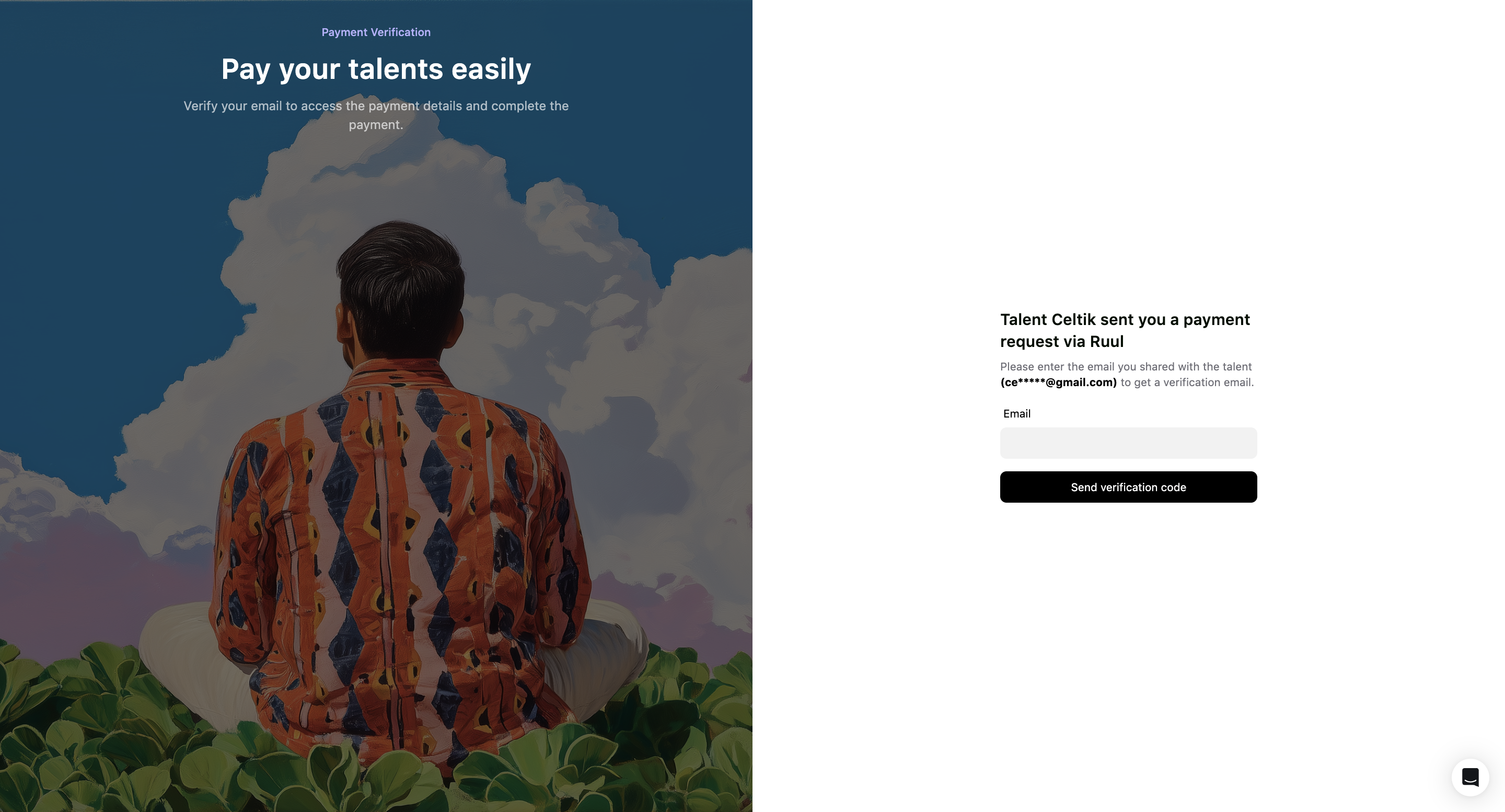
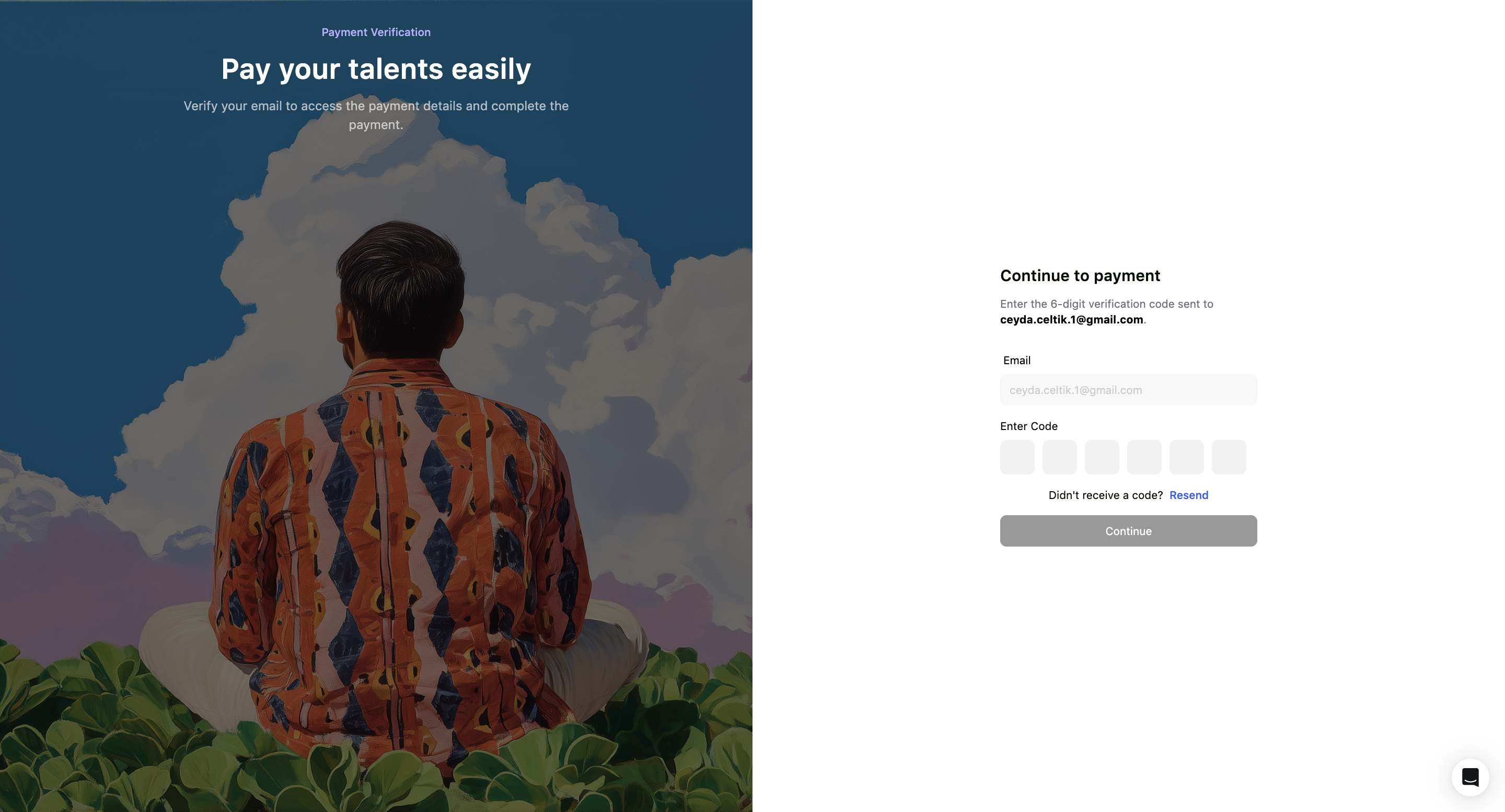
You don’t need a Ruul account to pay from that link. You’ll be asked to confirm your email address: enter the address the contractor used, click Send verification code, then type the 6-digit code from your inbox and click Continue. Use Resend if it doesn’t arrive.
Choosing how to pay
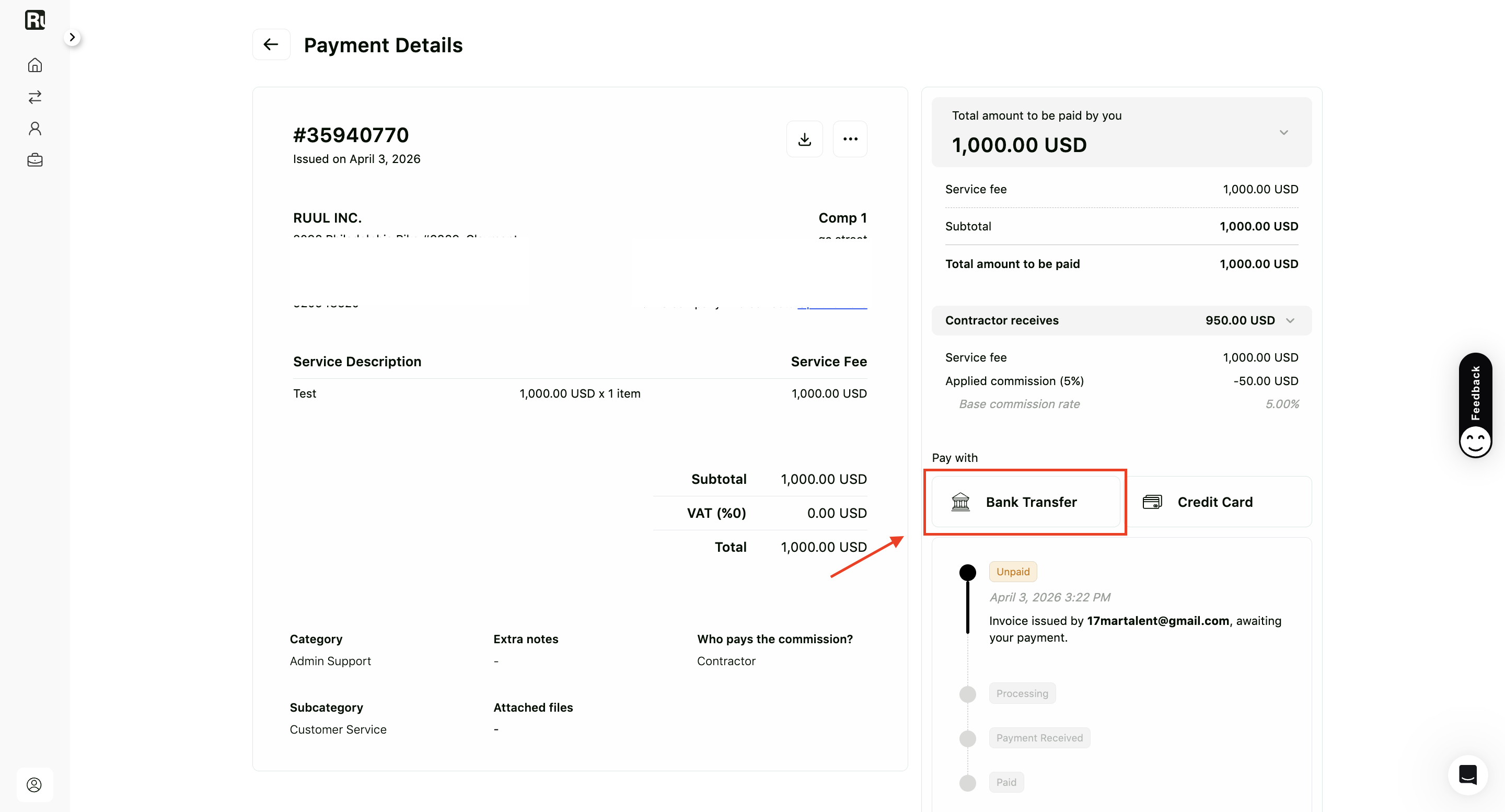
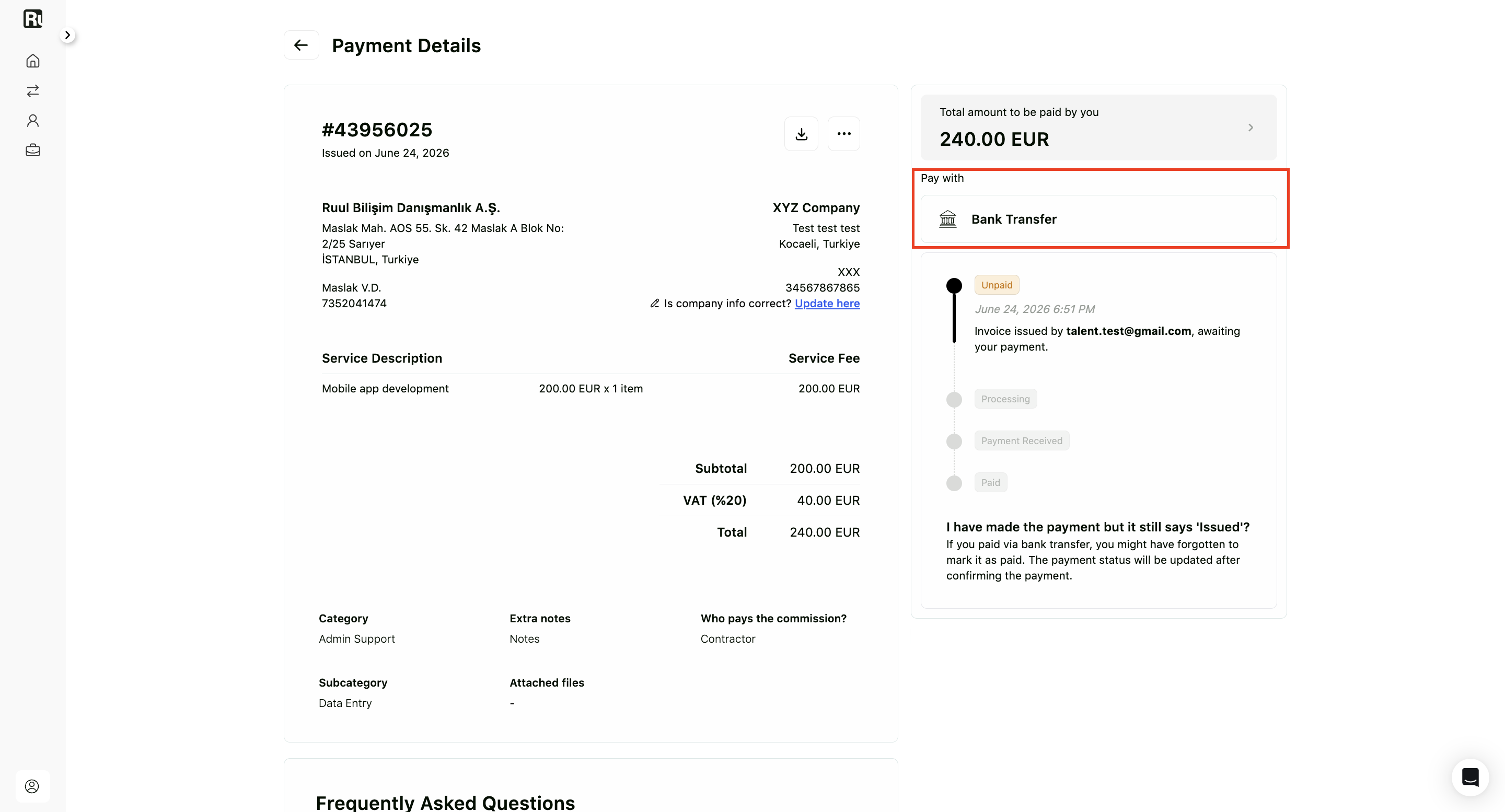
On the Payment Details screen you pick Bank Transfer or Credit Card.
Bank transfer
- Select Bank Transfer.
- Accept the Business Agreement.
- Click Continue with bank transfer.
Ruul shows you the bank details to send the money to. Put the invoice number in the transfer description so the payment can be matched to it.
The payment must come from a corporate account belonging to your company. Transfers from personal accounts aren’t accepted.
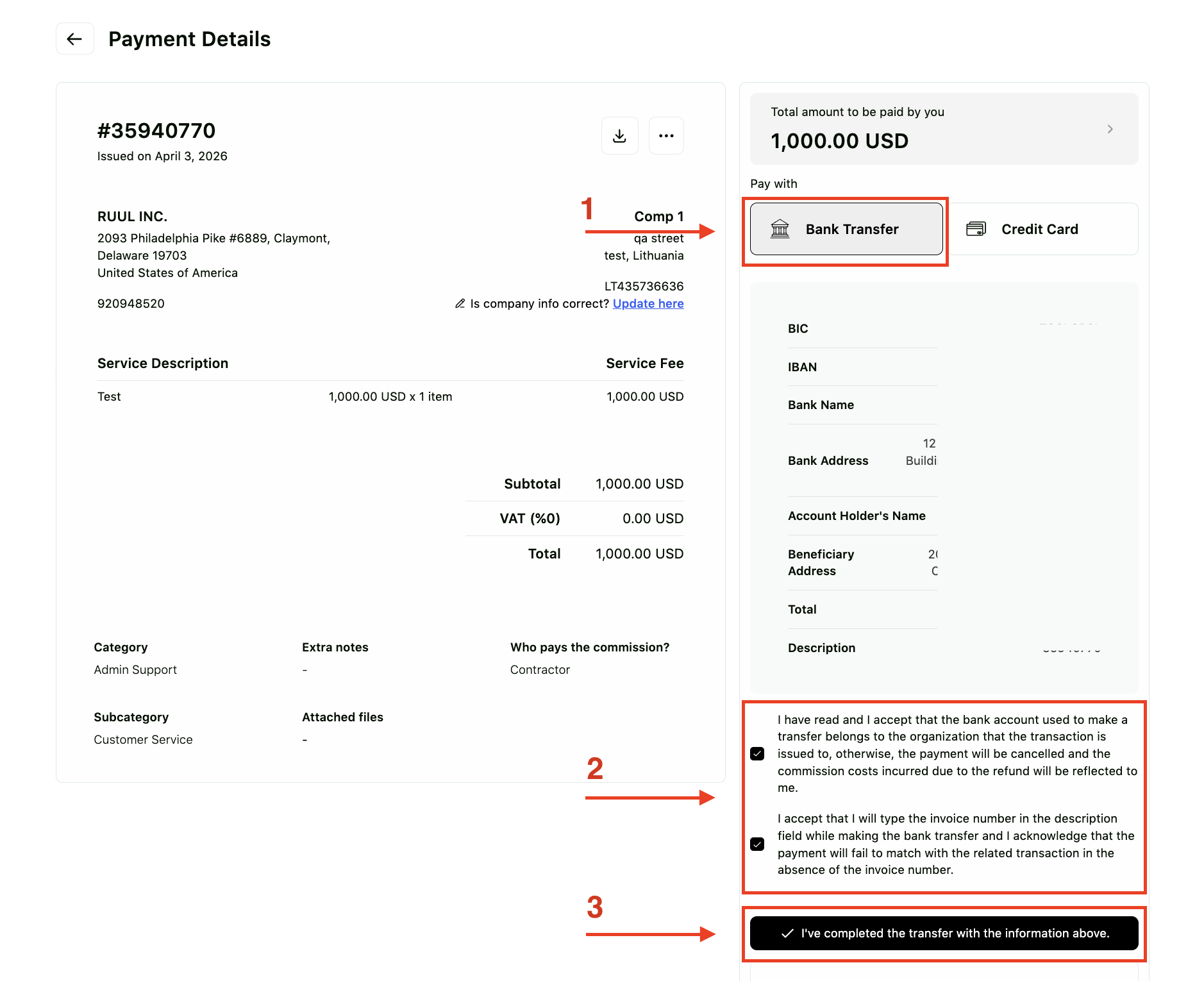
Then come back and confirm it. Click I’ve completed the transfer with the information above in your dashboard. This is the step people miss, and skipping it leaves the invoice showing as unpaid while your contractor waits.
Credit card
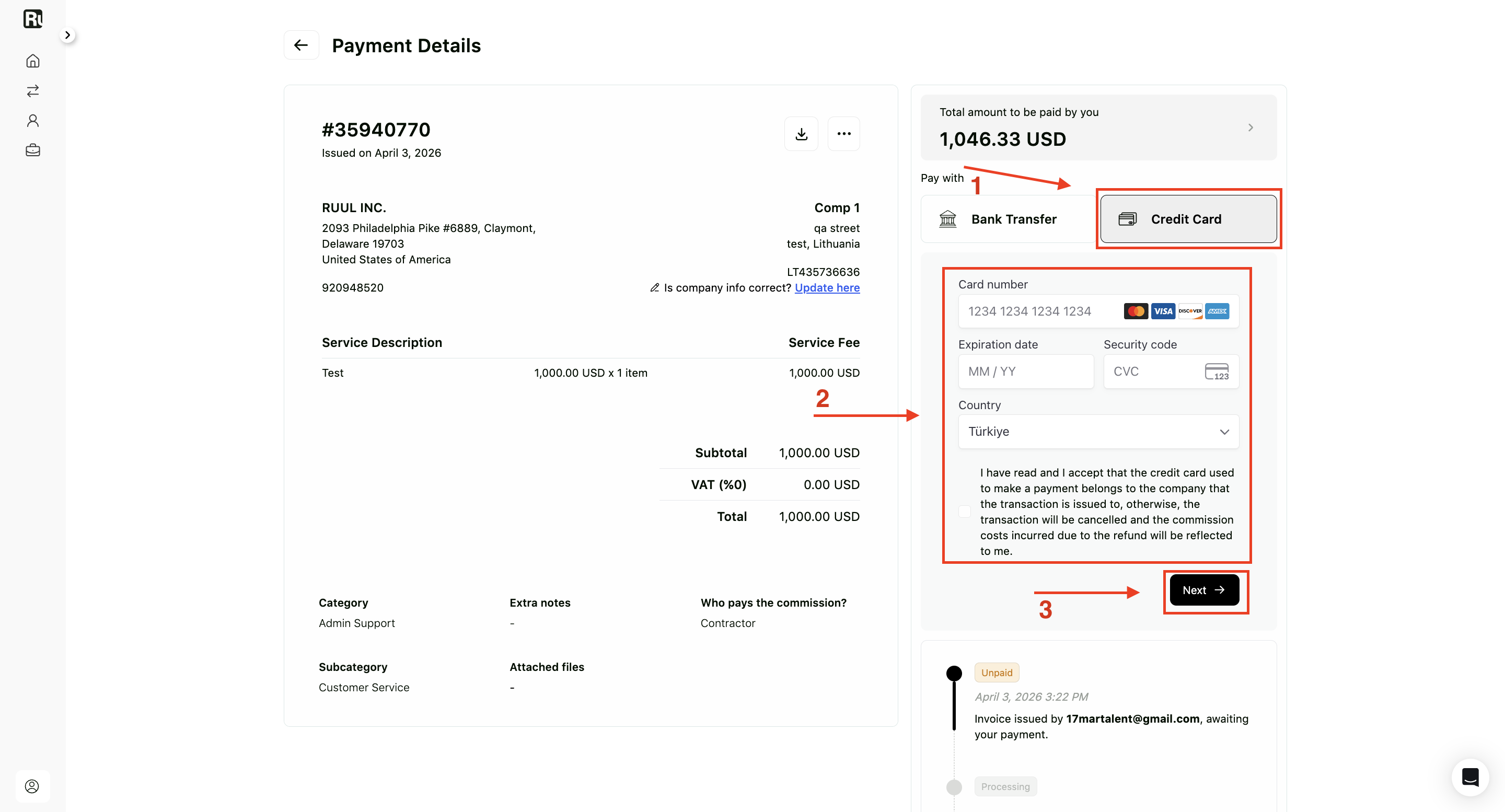
Select Credit Card and enter the card details.
For a company paying through Ruul for the first time, the card option is only enabled after a first payment has gone through by bank transfer. If you don’t see it, that’s why.
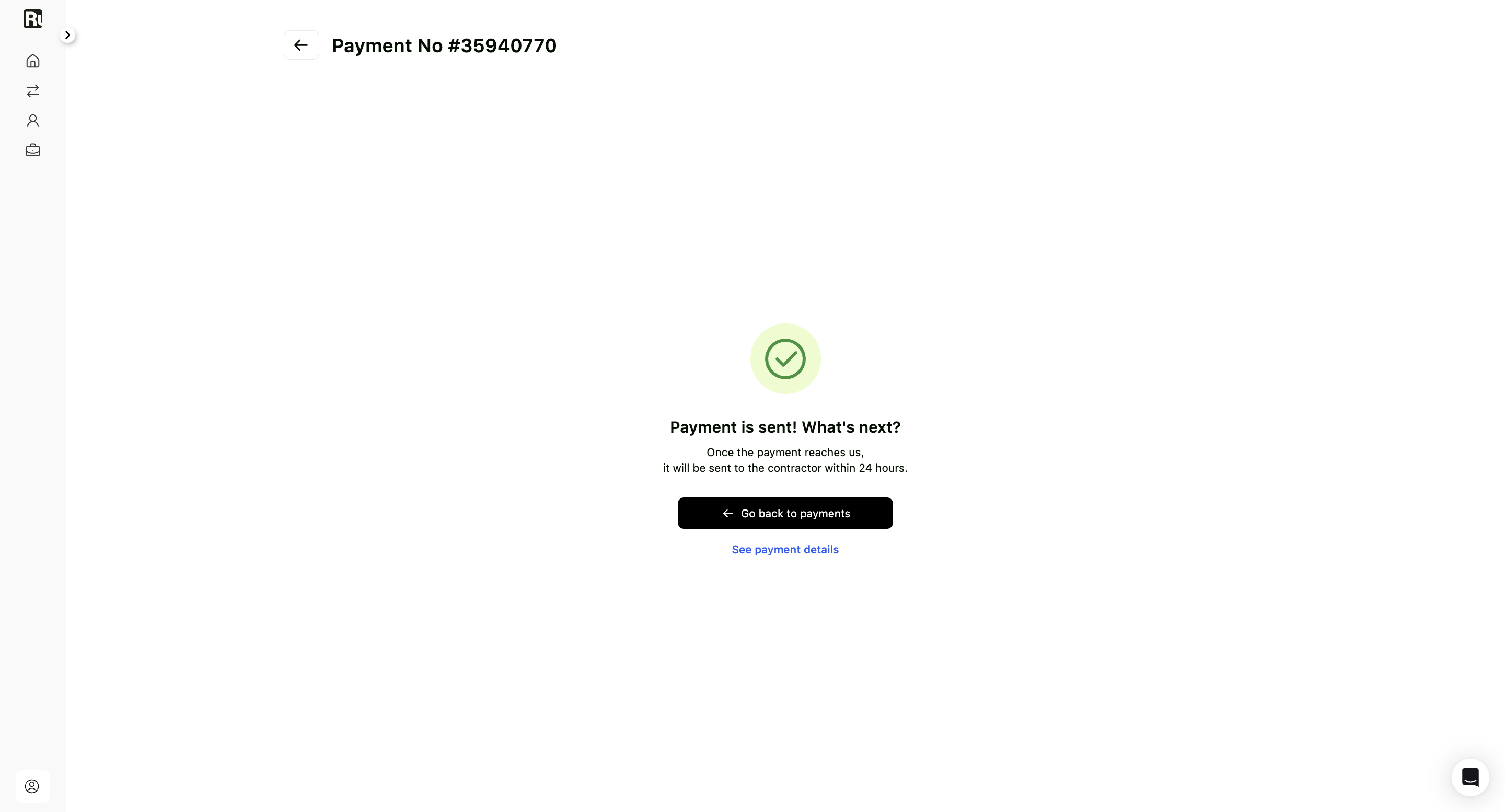
After you pay
Once Ruul receives and verifies the payment, the payout is released to your contractor, usually within one business day. You can follow it from your Payments list. See how to manage contractor payments.
Good to know
- The invoice stays unpaid until the payment is complete, and your contractor isn’t paid until then.
- A bank transfer that doesn’t carry the invoice number in its description takes longer to match.
- Paying from the email link is a one-off. If you work with the same contractor regularly, a business account gives you the whole picture in one place.
Frequently asked questions
Can I pay from a personal bank account?
No. Payments must come from a corporate account belonging to your company.
Why isn't the credit card option available?
For new companies the card option is enabled only after the first payment has gone through by bank transfer.
Do I need to do anything after making the bank transfer?
Yes. Come back and confirm it in the dashboard. If you skip that, the invoice stays unpaid and your contractor's payout is delayed.
A contractor sent me an invoice but I don't have a Ruul account. Can I still pay?
Yes. The email link takes you to a payment page and verifies you with a code sent to your email address. No account needed.
What happens after I pay?
Once Ruul receives and verifies the payment, the payout is released to your contractor, usually within one business day.
Was this article helpful?
Thanks for the feedback! 🙌