

Paying through Ruul takes one flow whether you’re sending money to one contractor or to several at once. This guide walks through creating a payment from start to finish, including who covers the commission and how to set one up to repeat.
How to create a new payment
You pay one contractor or several from the same New Payment screen. Add everyone you want to pay to the same payment, and you receive one invoice from Ruul covering all of them, rather than one per person.
When there is more than one contractor, Ruul calls it a bulk payment, and two things change: the commission is always covered by you, and category and subcategory no longer apply.
1. Start a new payment
Go to your Business Dashboard.
Open the Payments tab from the left-side menu.
If this is your first payment, click New Payment on the empty state screen.
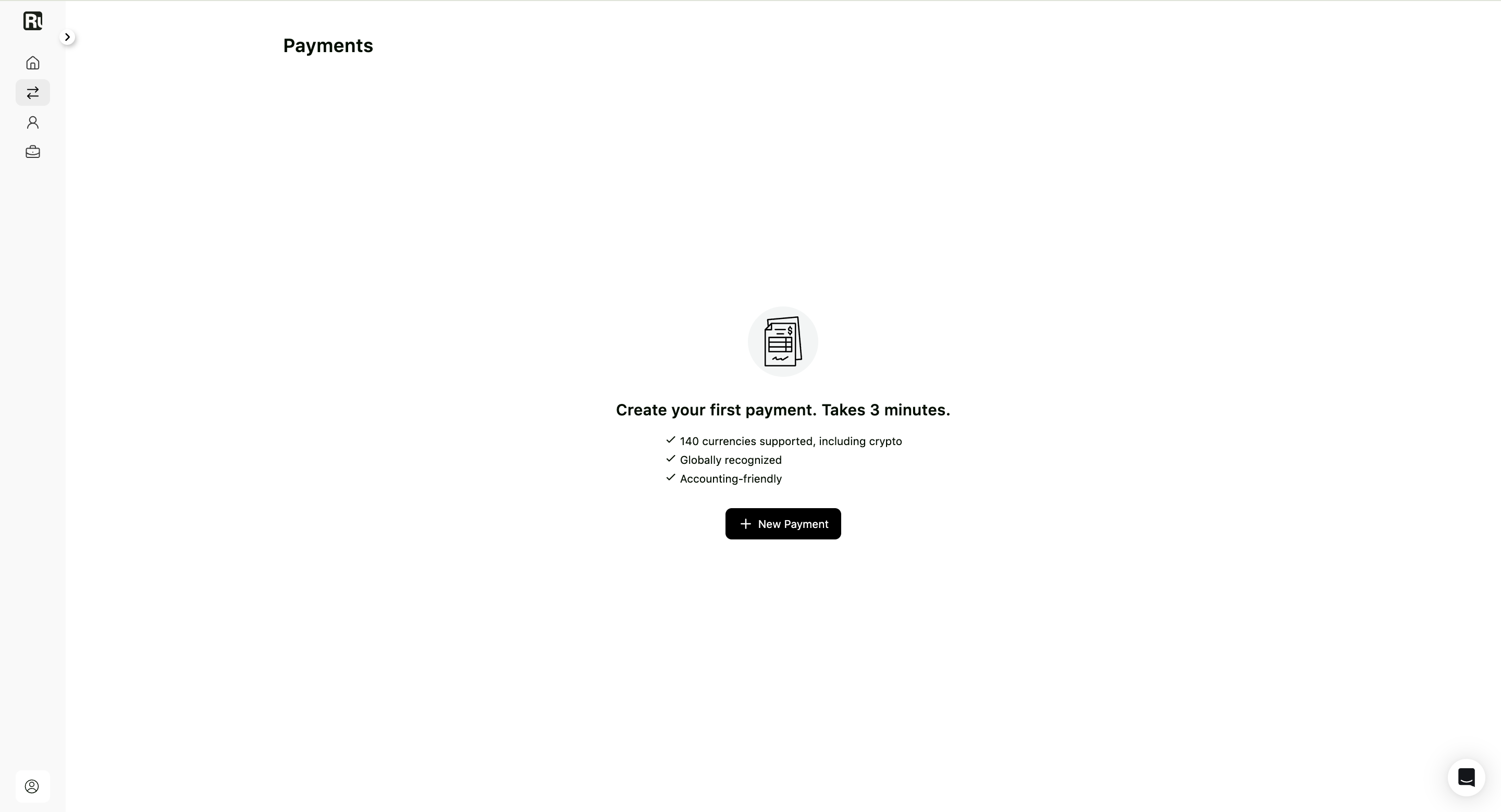
If you already have payments listed, click New Payment from the Payments page.
2. Fill in payment details
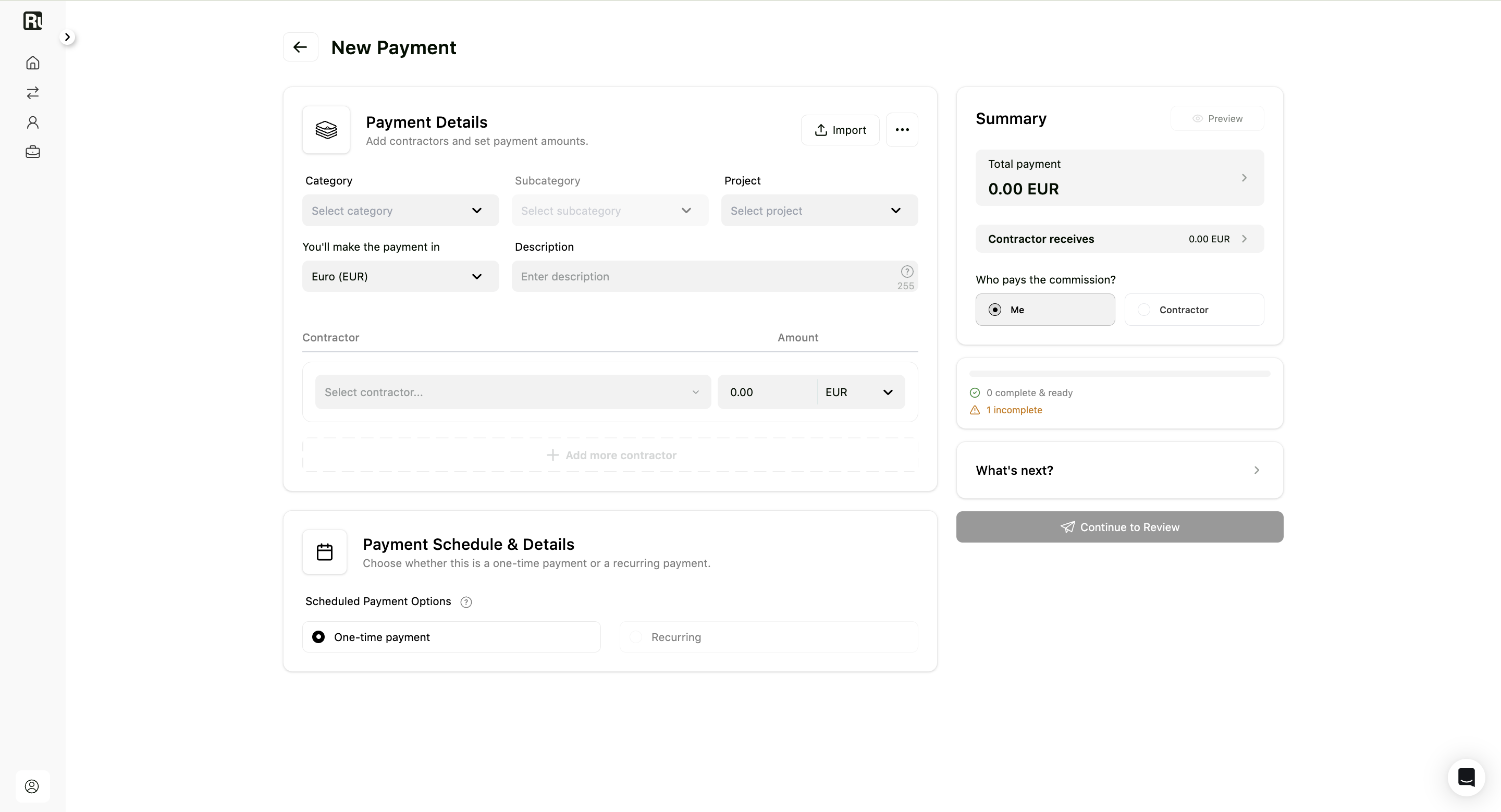
On the New Payment screen, start by completing the Payment Details section.
Here, you can add the payment category, project, currency, description, contractor, amount, and schedule details from a single screen.
Category and subcategory
Select the Category and Subcategory that best describe the service.
When you pay more than one contractor at once (a bulk payment), category and subcategory no longer apply and are disabled.
Project
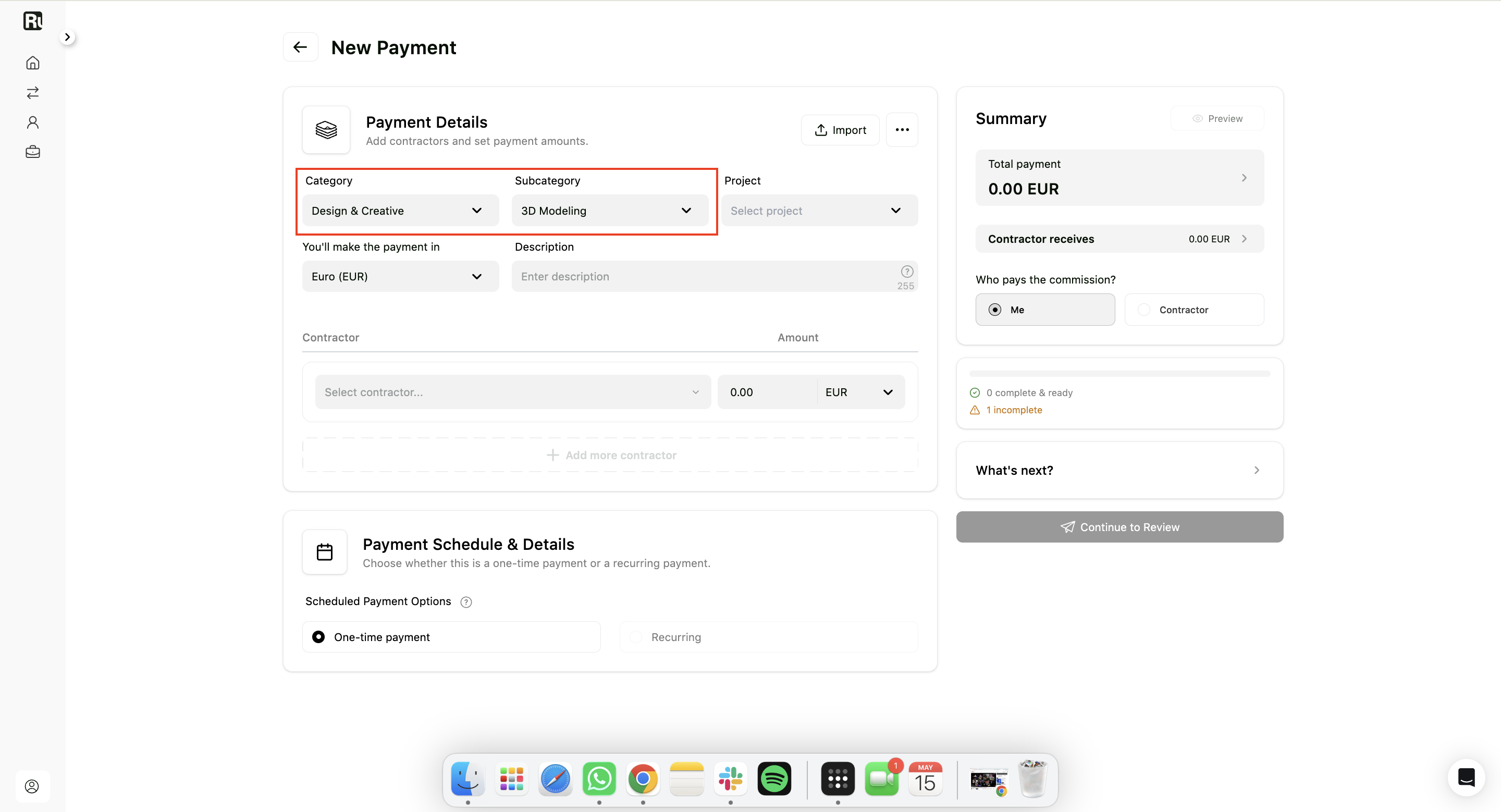
Choose an existing project from the Project dropdown.
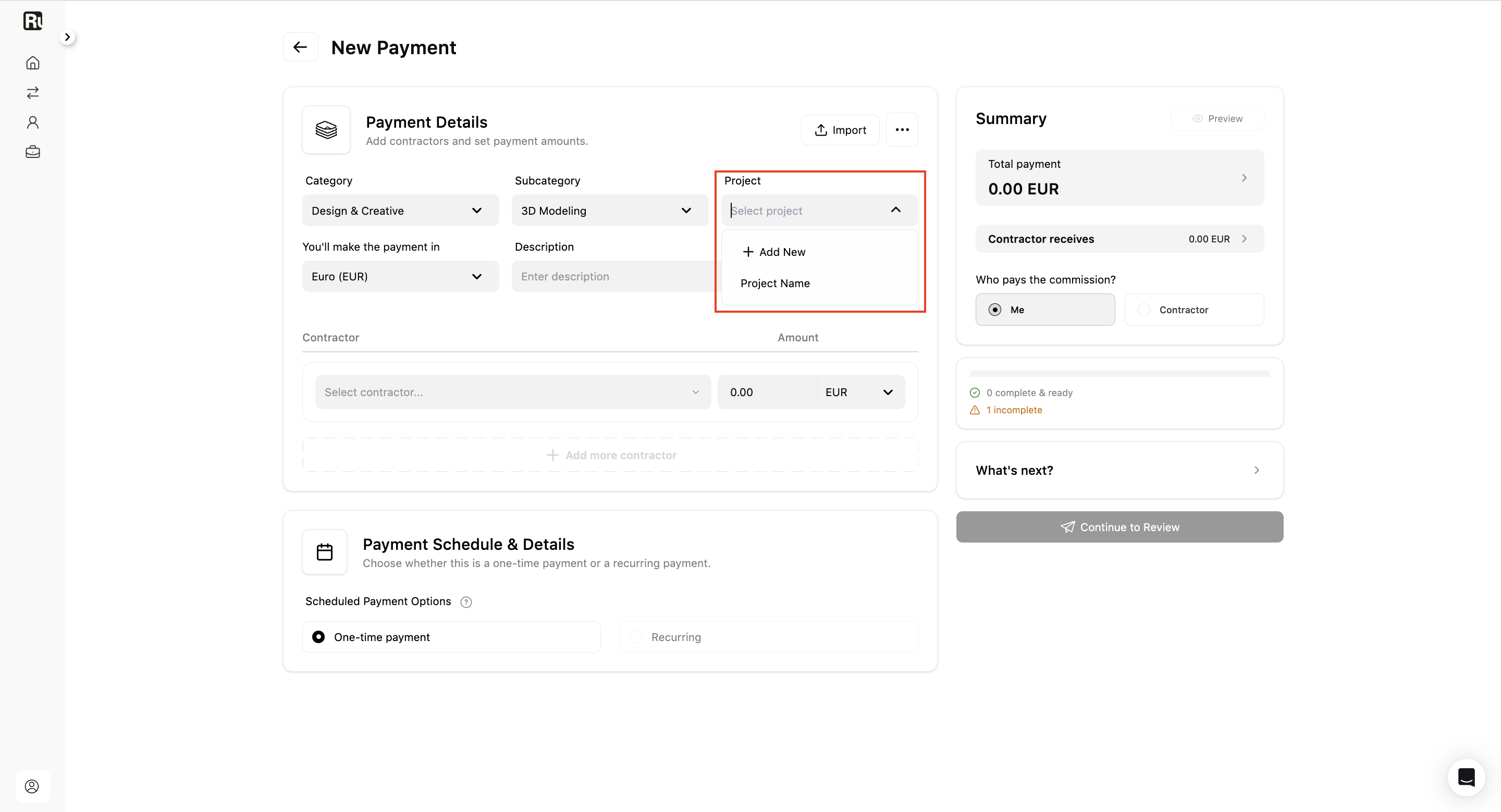
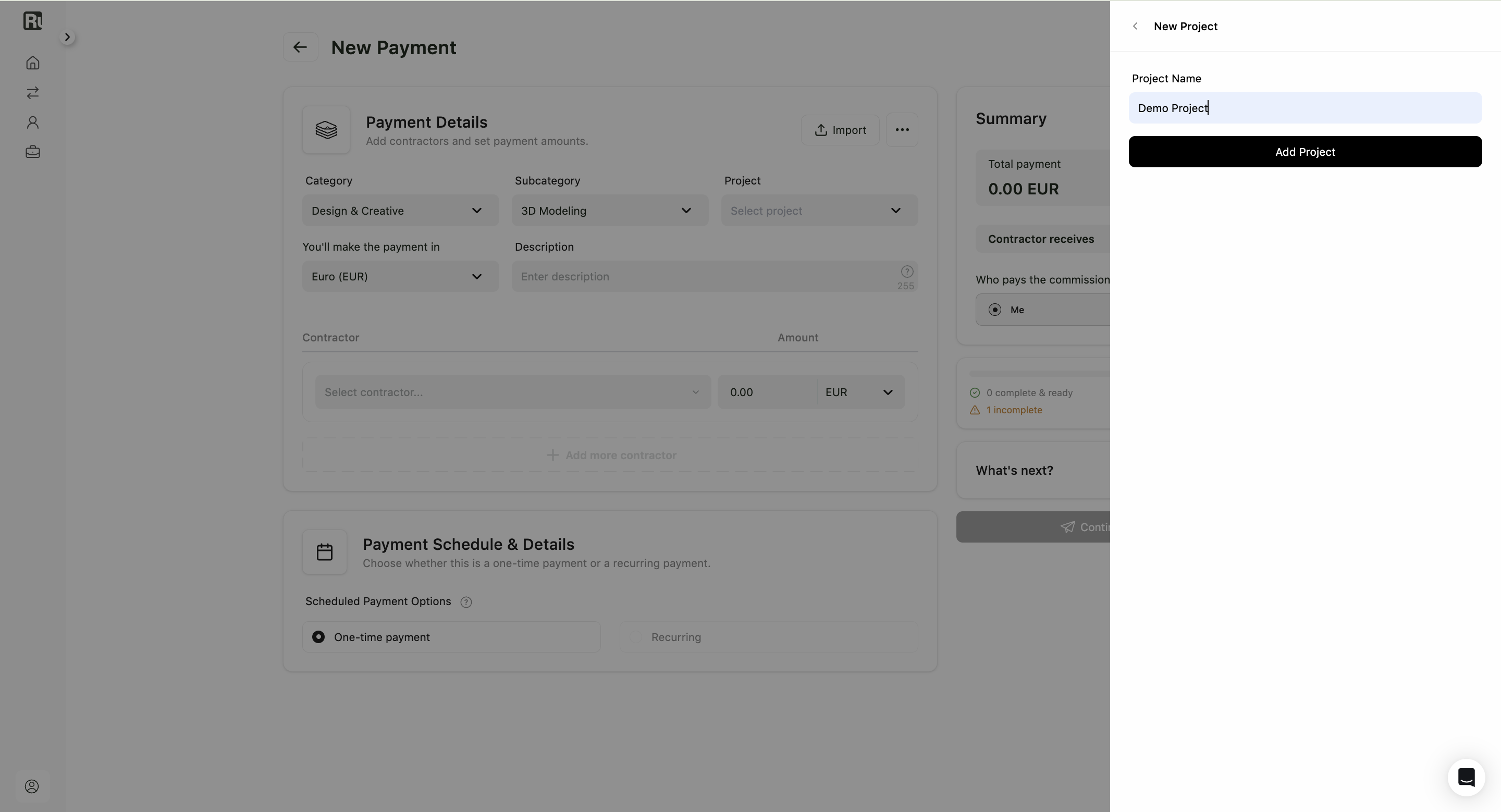
If you don’t have a project yet:
- Open the Project dropdown.
- Click Add New.
- Enter the Project Name.
- Click Add Project.
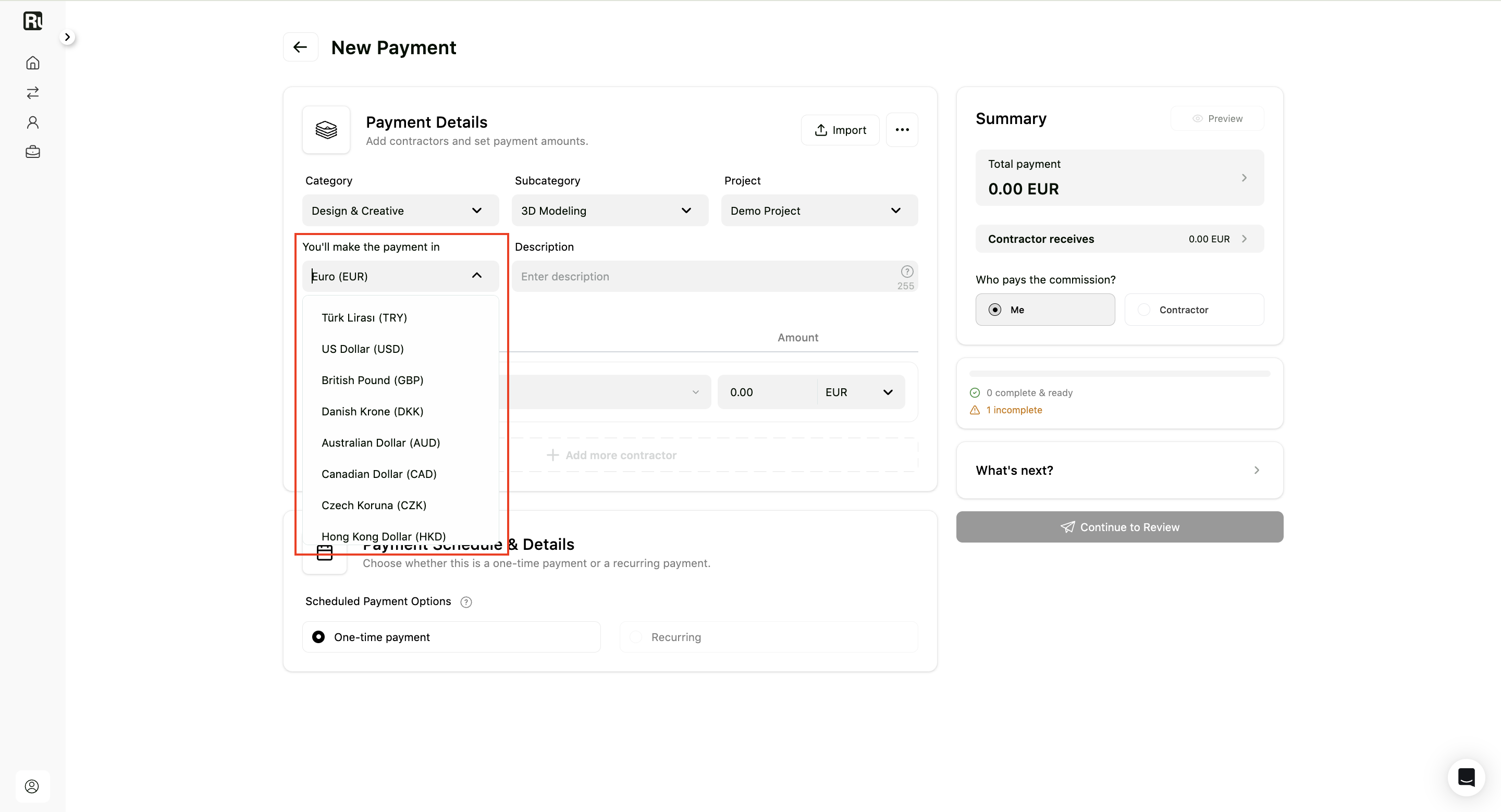
Payment currency
Choose the currency you want to pay in. This is the currency shown on the invoice you receive from Ruul.
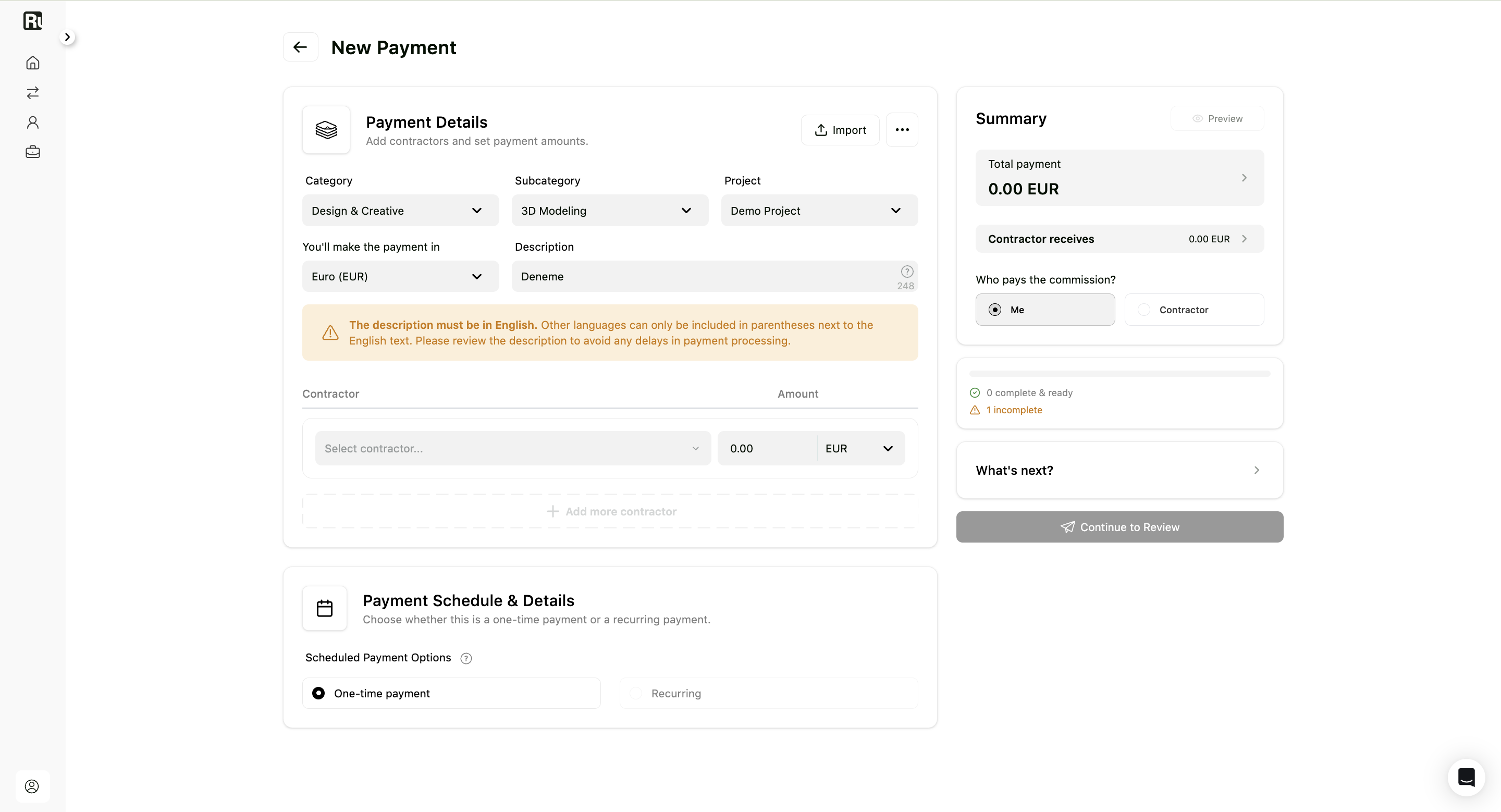
Description
Enter a short description of the service or work being paid for.
This description appears on the invoice, so make sure it clearly explains the service.
3. Add contractor and amount
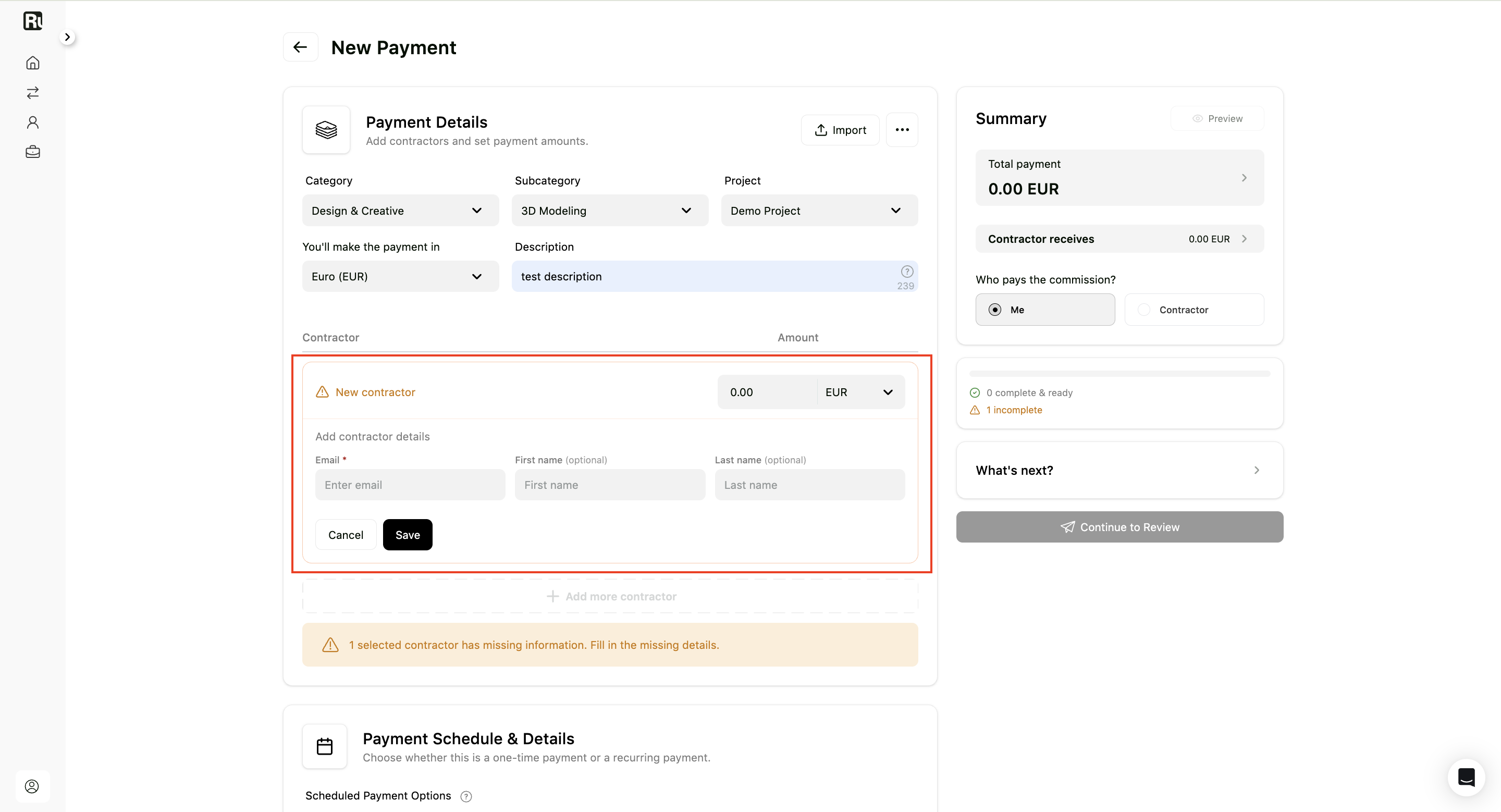
Under Contractor, select the contractor you want to pay.
You can search by name or email, then select an existing contractor from the list.
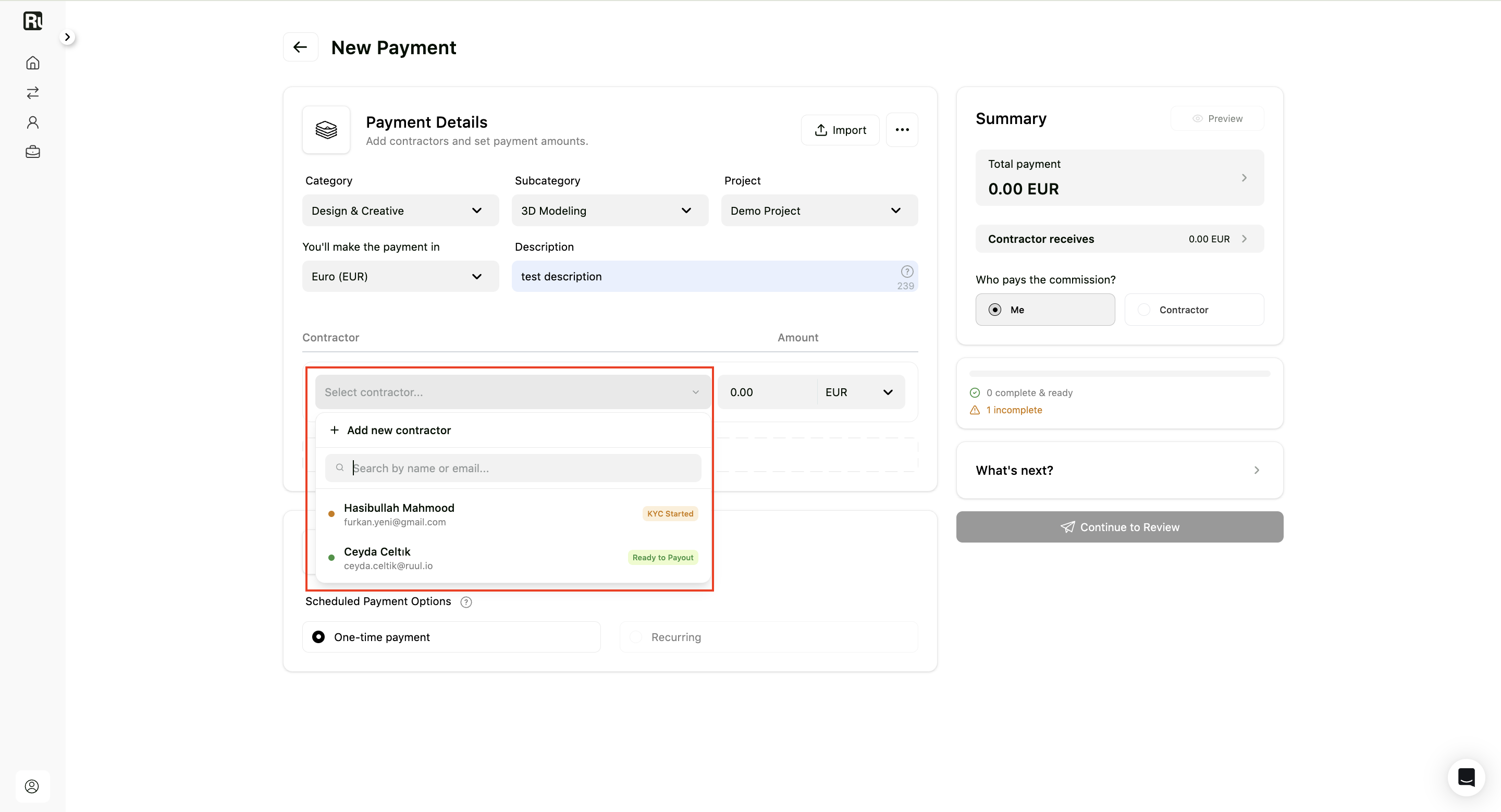
If the contractor is not listed, click Add new contractor and complete the required contractor details.
Then enter the amount for that contractor. This is what the contractor receives, before the commission is added or deducted depending on who covers it.
If you add more than one contractor
Ruul calls this a bulk payment, meaning one payment that covers several contractors at once. You still get a single invoice for the whole thing.
Two things change when you do:
- Category and subcategory no longer apply and are disabled.
- The commission can only be covered by you. If you had set it to Contractor, it switches to Me.
4. Choose who pays the commission
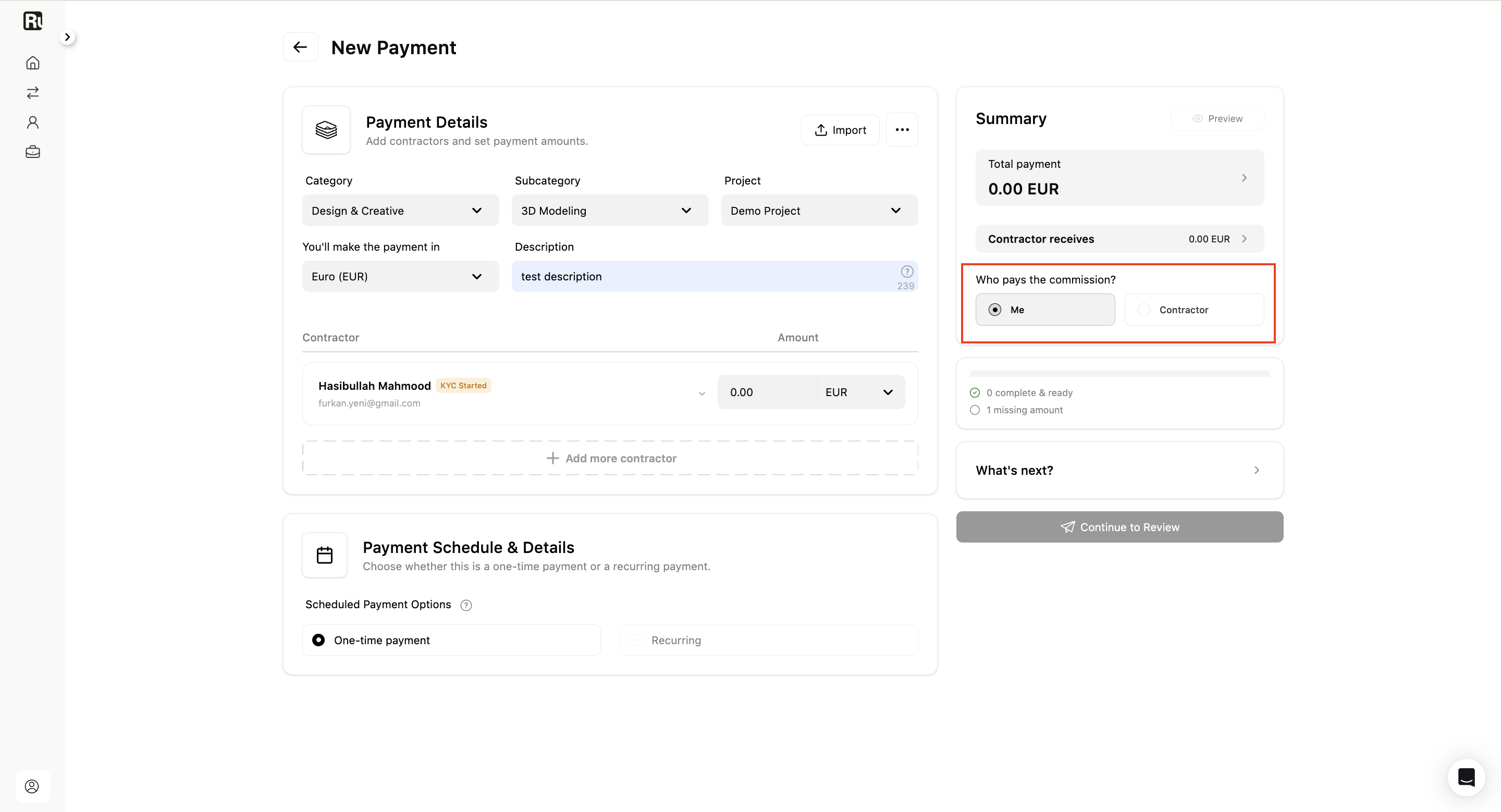
In the Summary section, choose who pays the commission.
You can select:
| Option | What it means |
|---|---|
| Me | You, the business, pay the commission. |
| Contractor | The commission is deducted from the contractor’s payout. |
When you pay more than one contractor at once, the commission can only be covered by Me, and the Contractor option is disabled.
5. Choose payment schedule
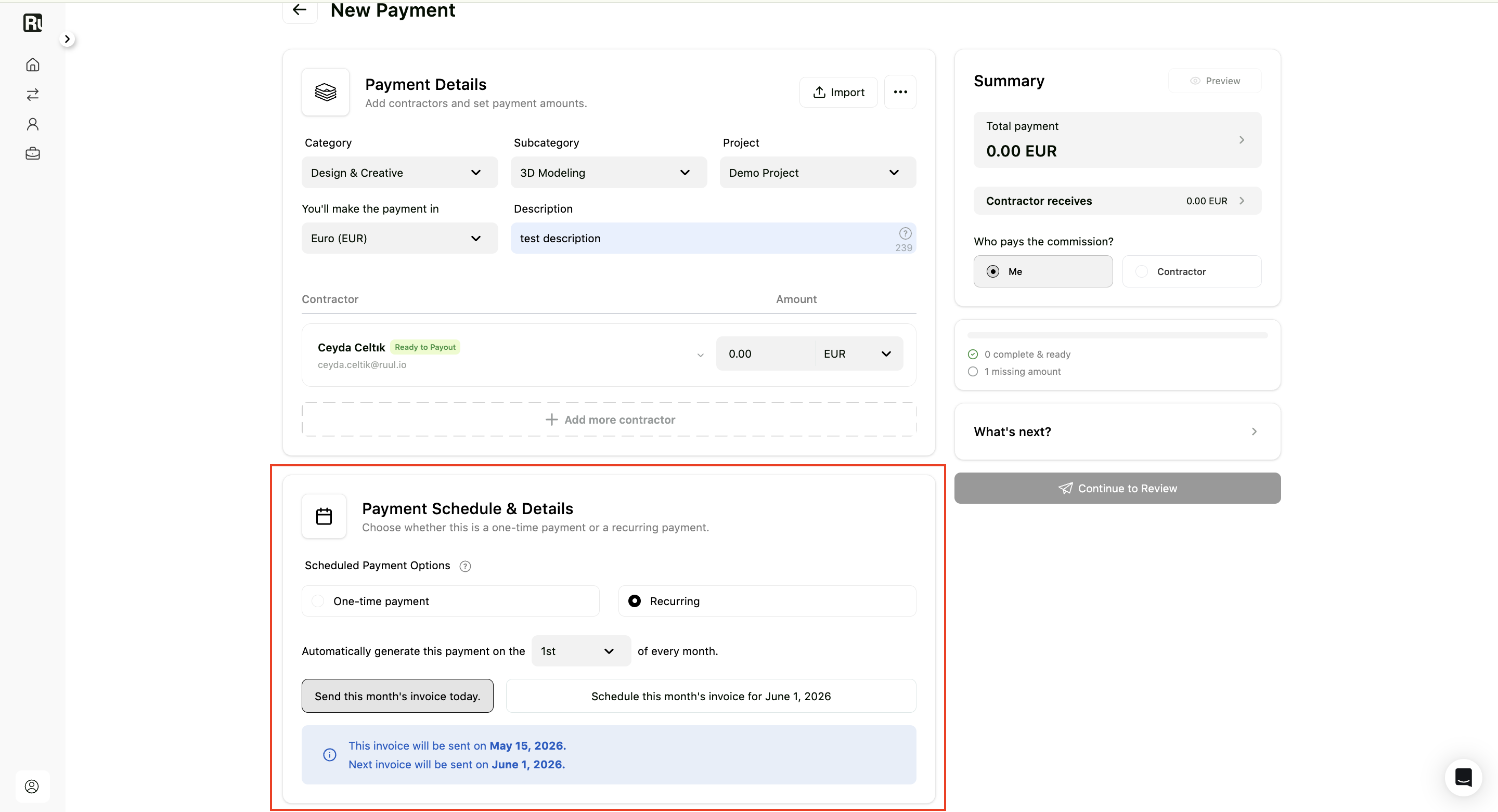
In the Payment Schedule & Details section, choose whether the payment should be one-time or recurring.
One-time payment
Select One-time payment if you want to create the payment once and complete it manually.
This is the default, and it works with any number of contractors.
Recurring payment
Select Recurring if you want Ruul to automatically generate this payment every month.
Two things have to be true for Recurring to be available:
- The payment has one contractor on it.
- That contractor is ready to receive payouts, which means their own account setup is finished.
If either isn’t the case, Recurring is disabled and the payment can only be one-time.
When creating a recurring payment, choose the day of the month when the payment should be generated.
You may also choose whether to send the current month’s payment immediately or schedule it for the next cycle, depending on the options shown on the screen.
6. Preview the invoice
Click Preview in the Summary panel to see the invoice that will be issued for this payment.
Review the document carefully to make sure the payment description, amount, currency, business details, and totals are correct.
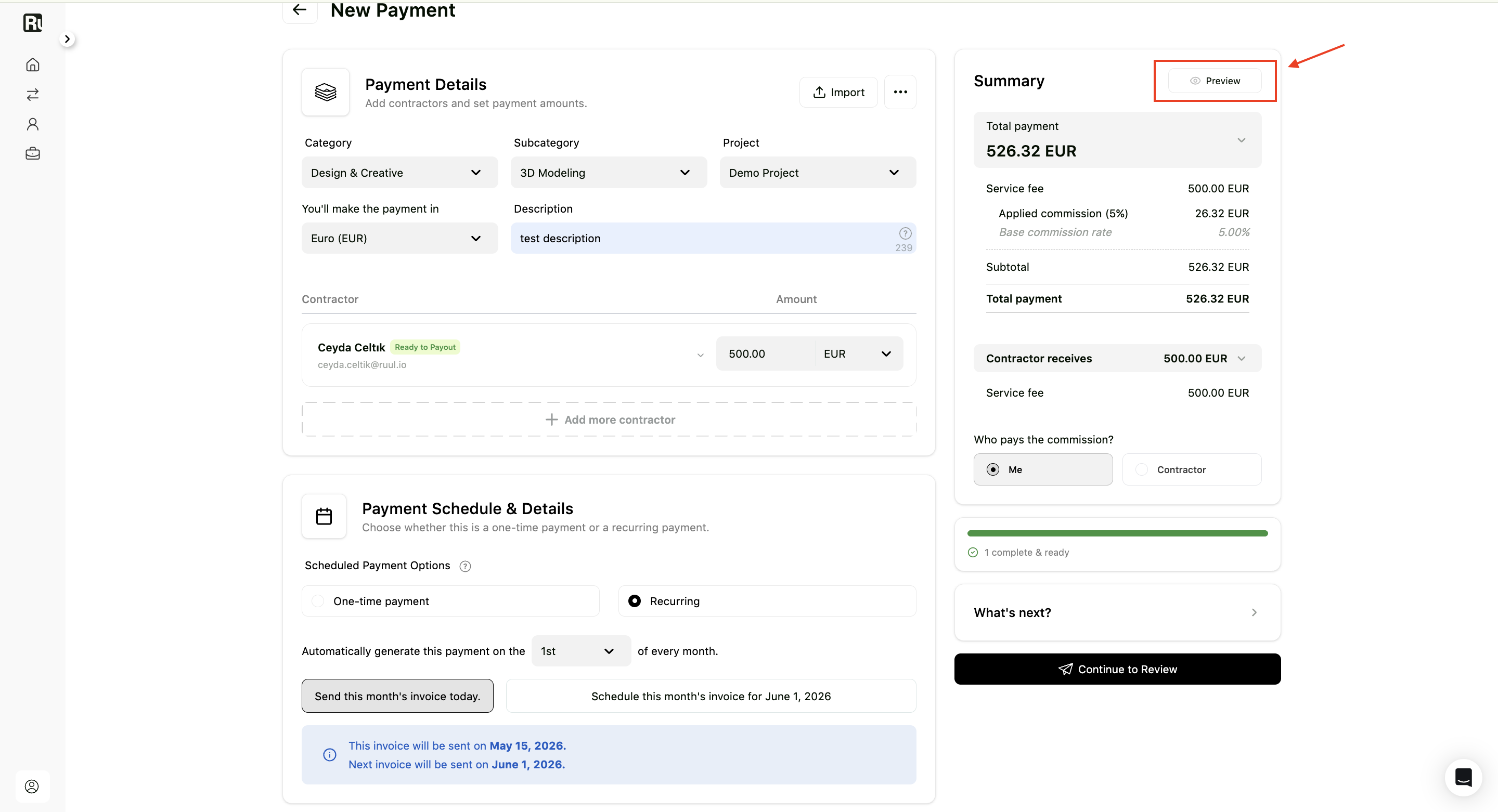
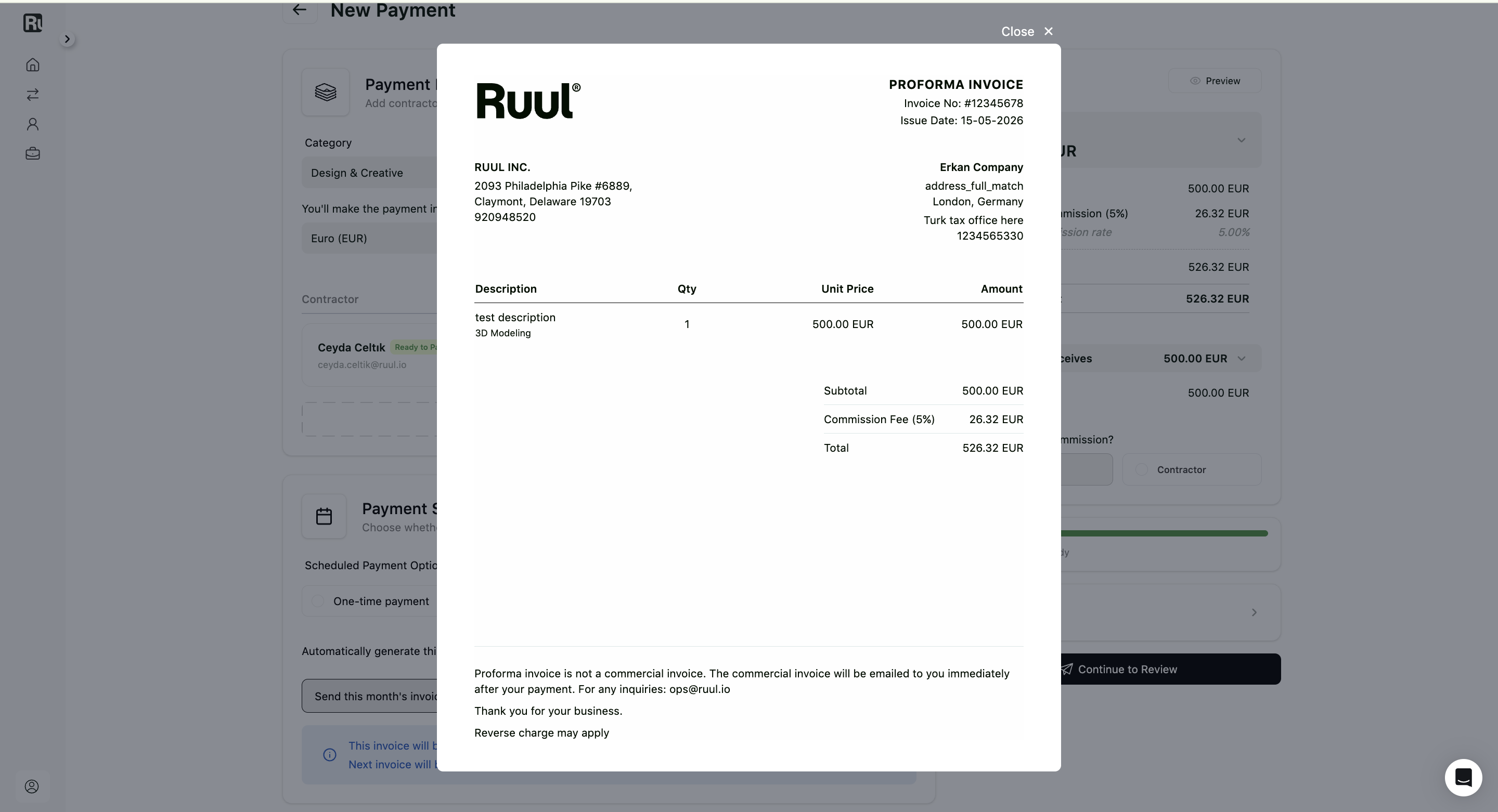
This is a preview. The final commercial invoice is issued once the payment is completed.
7. Continue to review
After completing all required fields, click Continue to Review.
You’ll see a review screen with:
- Payment summary
- Invoice preview
- What’s next information
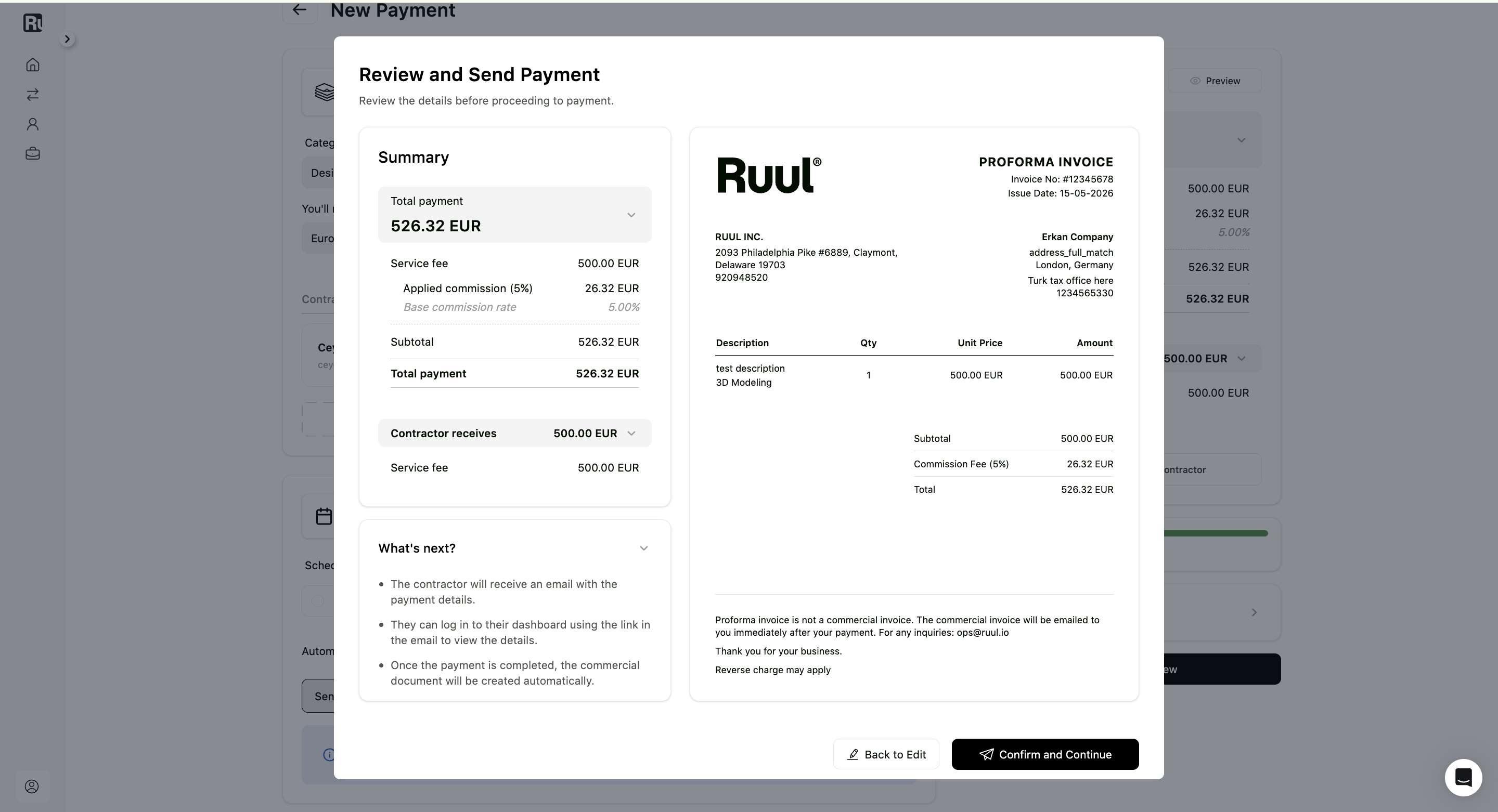
From this screen, you can:
| Button | Action |
|---|---|
| Back to Edit | Return to the payment form and make changes. |
| Confirm and Continue | Create the payment and continue to the success screen. |
8. Payment created successfully
After confirming, you’ll see a success screen that says the payment has been created and shared with the contractor or contractors.
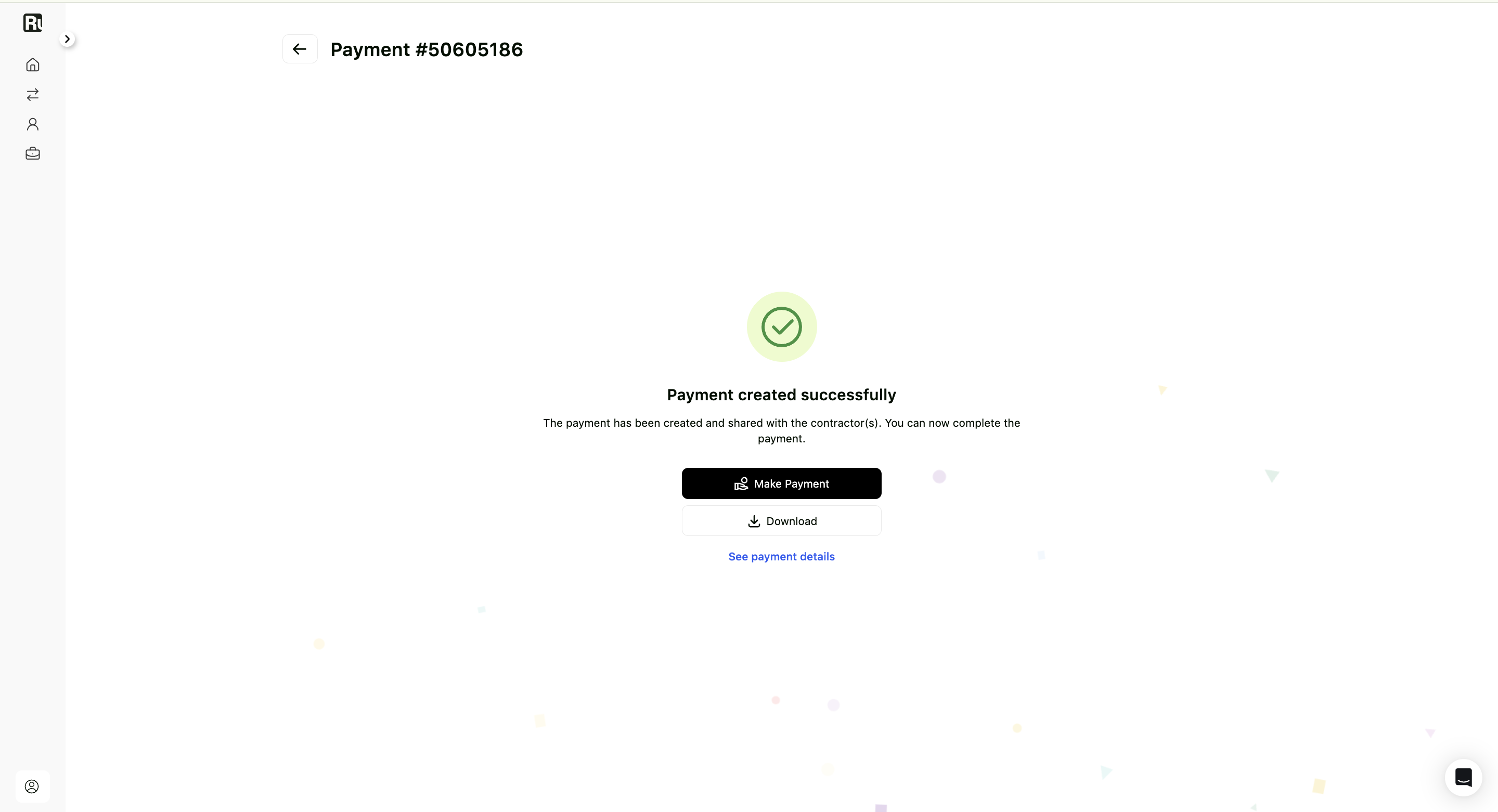
From here, you can:
| Option | What it does |
|---|---|
| Make Payment | Takes you to the payment screen so you can complete the payment. |
| Download | Downloads a copy of the invoice. |
| See payment details | Opens the payment detail page. |
Nothing reaches your contractors until the payment itself is completed. For how to do that, by bank transfer or card, see how to complete a payment.
Notes and best practices
- Currency conversions are based on real-time exchange rates and may vary slightly.
- Ruul issues the commercial invoice automatically once the payment is completed.
- Double-check the contractor, amount, currency, and commission payer before continuing to review.
- A recurring payment needs exactly one contractor, and that contractor has to be ready to receive payouts.
- When you pay more than one contractor at once, you always cover the commission.
- Use Preview before confirming, so you catch a wrong amount or description while it is still editable.
Frequently asked questions
Can I pay several contractors at once?
Yes. Add them all on the same New Payment screen. Ruul calls that a bulk payment, and you still receive a single invoice covering everyone on it.
Can I set up a recurring payment for several contractors at once?
No. A recurring payment works with one contractor at a time, and that contractor has to be ready to receive payouts. With more than one contractor the payment can only be one-time.
Who pays the commission?
You choose: either you or the contractor. When you pay more than one contractor at once, the business always covers it and the Contractor option is disabled.
What currency do I choose?
Payment currency is what you pay in, and it is the currency shown on the invoice. The amount you enter for each contractor is what they receive.
Was this article helpful?
Thanks for the feedback! 🙌