
A few minutes in Settings makes Ruul work the way you do. You can set your language and job title, manage your password, keep your company details current, decide who gets notified about payments, review your agreements, and manage your team.
To open your preferences, click your name at the bottom left corner, then choose “Settings”.
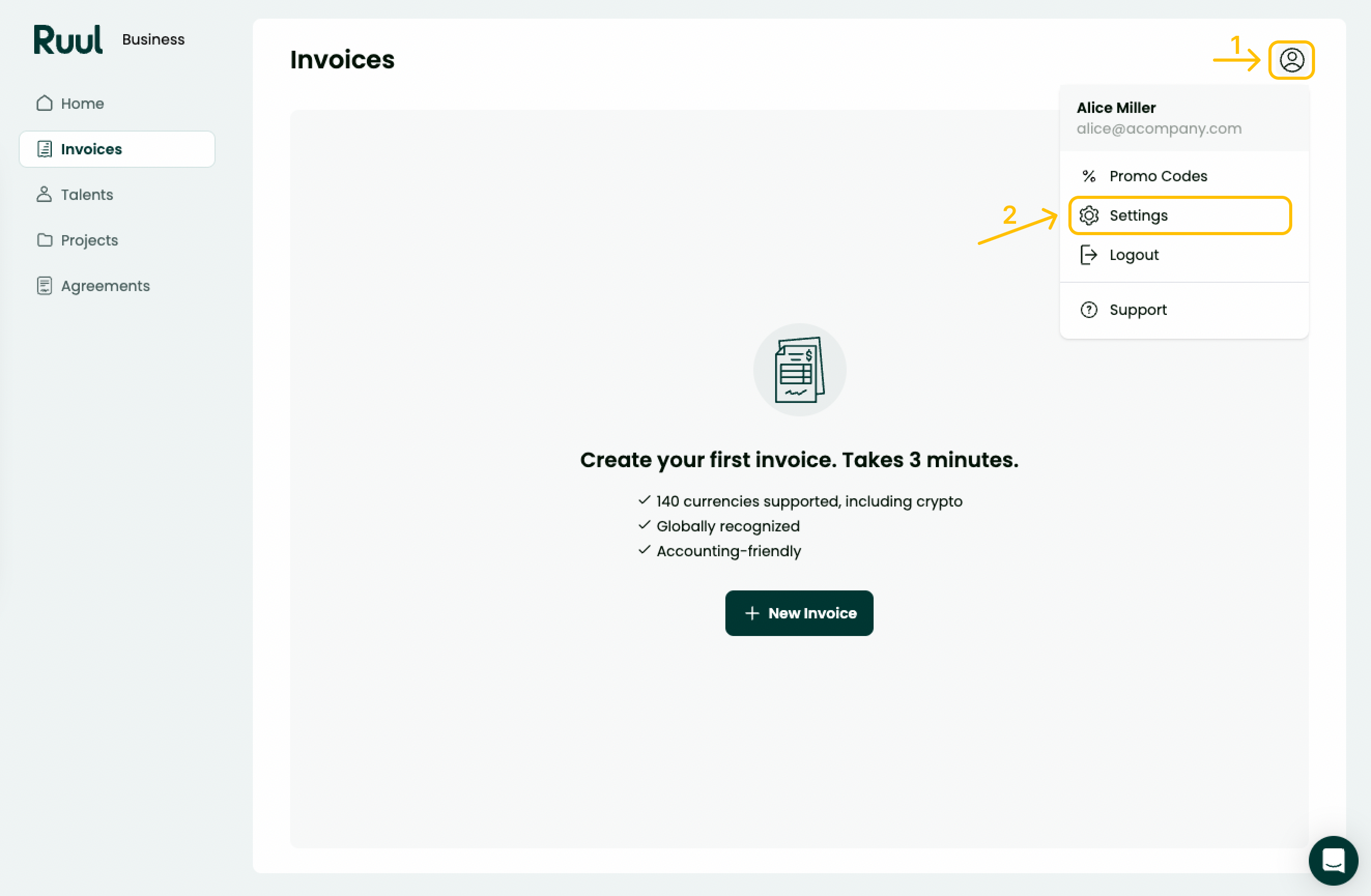
Settings are organized into tabs across the top: Profile, Account, Company, Agreements, and Team. Each section below covers one of them.
Profile
The Profile tab shows your name and email at the top. If you want to change either of these, use the “contact us” link on this tab and our team will update them for you.
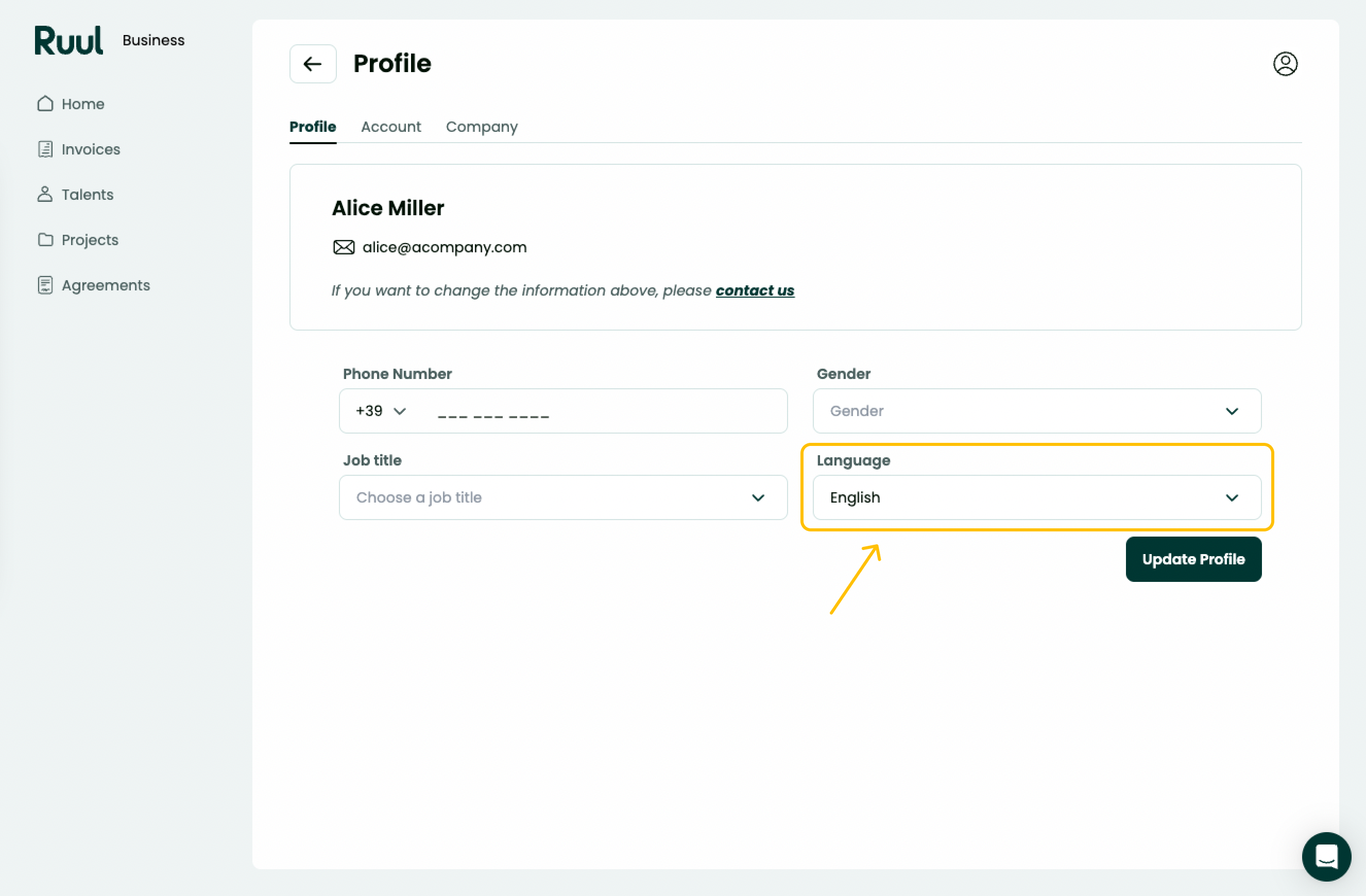
Language
To set your preferred language, choose from the Language dropdown and click Update Profile.
Supported languages include English (default) and Turkish. The emails you receive from Ruul will also be in the language you choose here.
Job title
Use the Job title dropdown to pick the title that best describes your work, then click Update Profile. You can search the list and select from options such as 3D Animator, Account Manager, Administrator, and more.
Change password
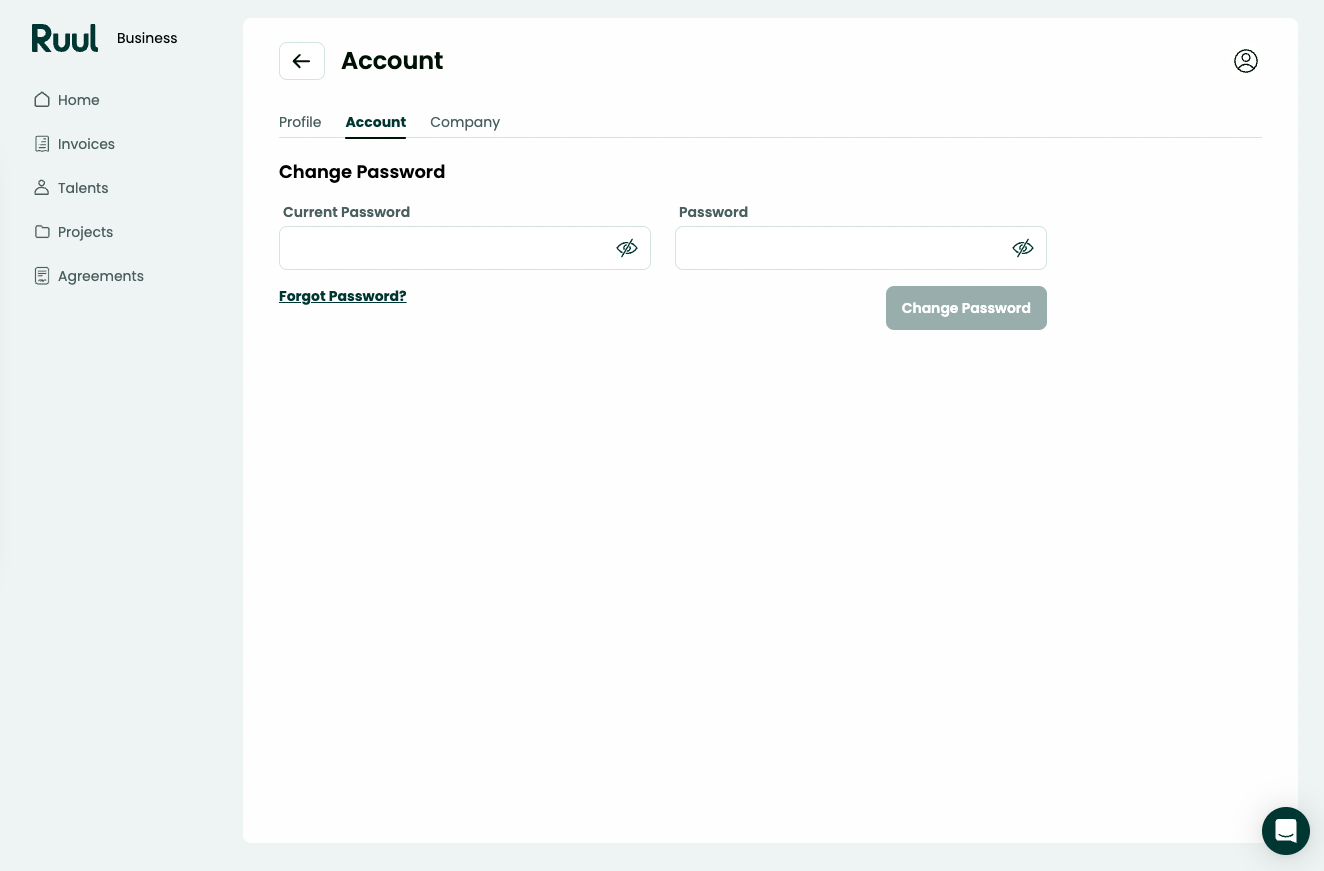
You can change your password from the Account tab. Enter your Current Password, type your New Password, then click Change Password. Use the eye icon in each field if you want to check what you’ve typed.
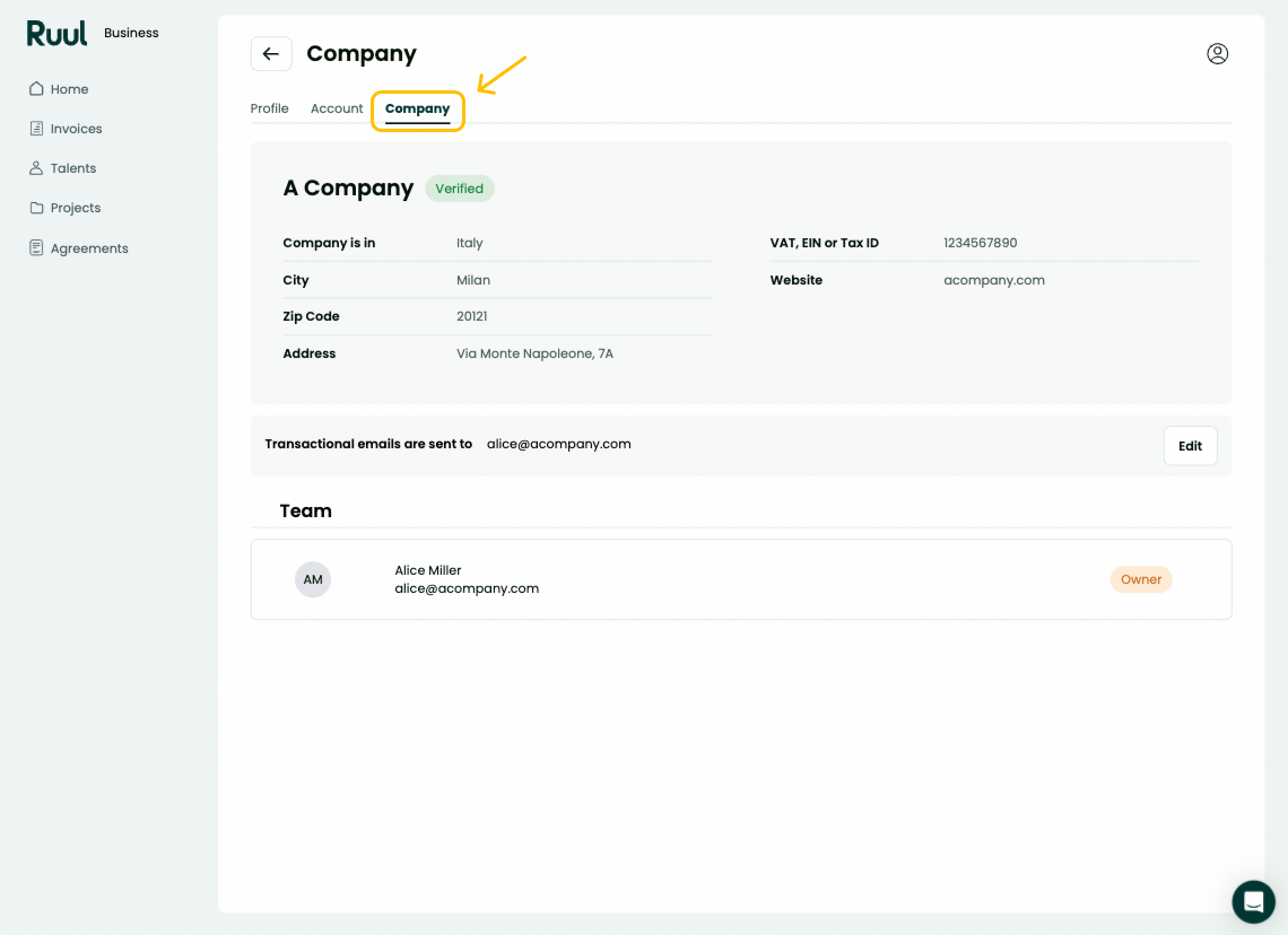
Company details
Open the Company tab to see your company information, including where the company is registered, city, zip code, address, VAT, EIN or Tax ID, tax office, and website.
To update these details, click the edit (pencil) icon in the top right corner of the company card.
This opens the Company Details panel, where you can edit fields such as company name, country, city, zip code, address, VAT, EIN or Tax ID, tax office, phone number, and website. Make your changes and click Update Now to save.
Payment emails
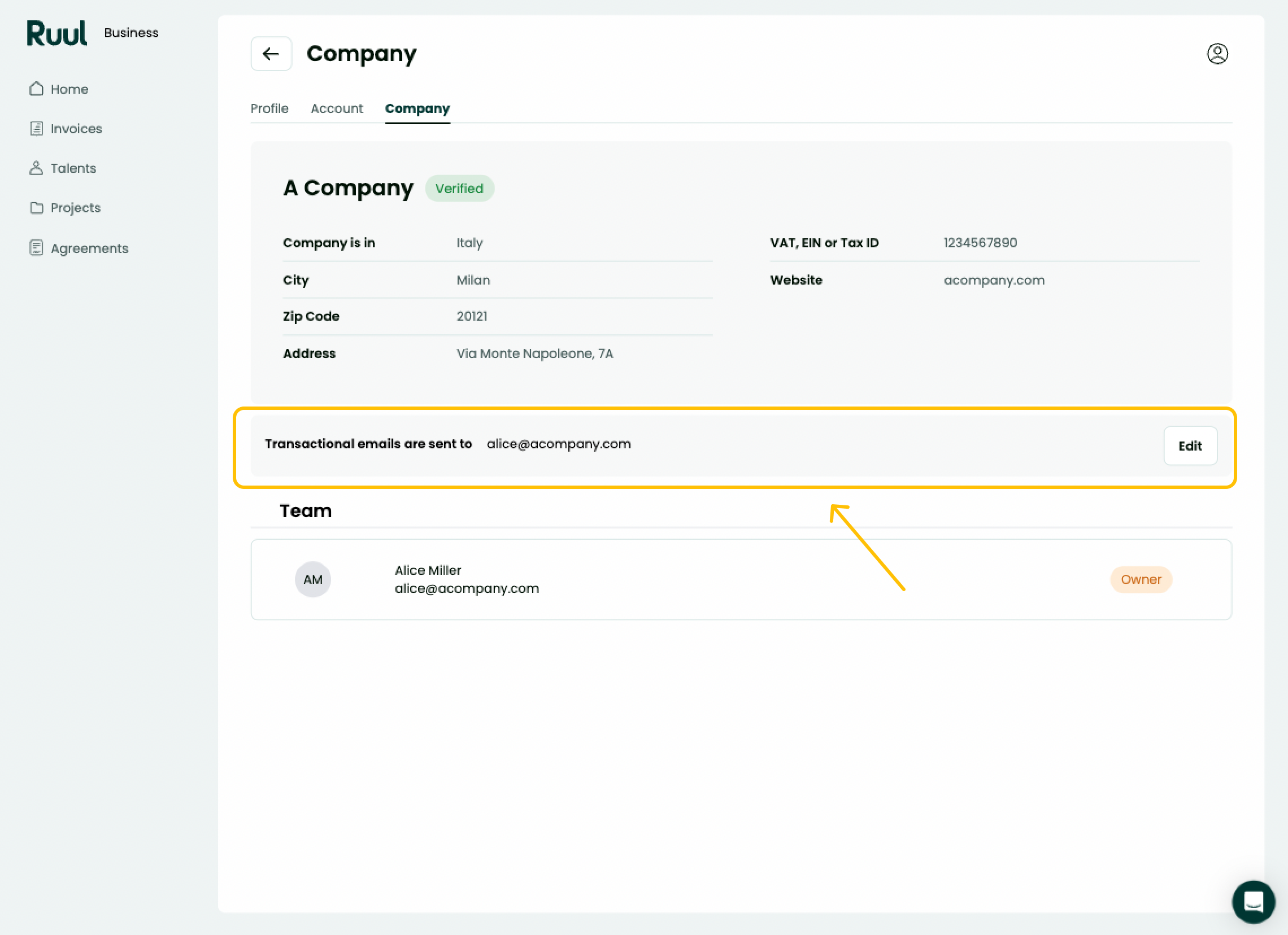
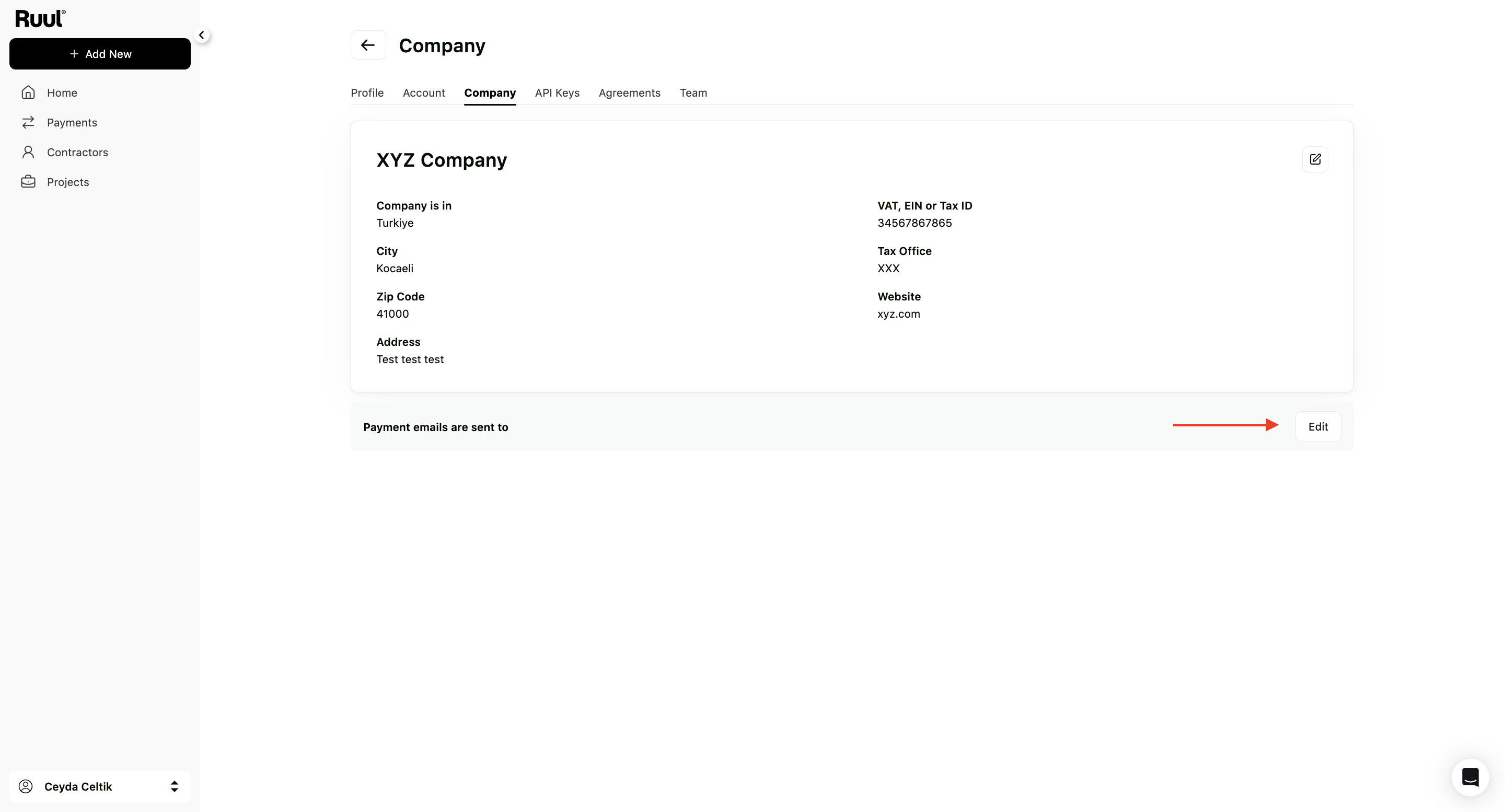
At the bottom of the Company tab you’ll find “Payment emails are sent to”. This controls which addresses receive notifications about payments, for example when an invoice is issued, paid, or a commercial invoice is sent.
By default, the account’s primary email address receives these emails. Adding more addresses is a handy way to make sure everyone on your finance or operations team stays in the loop. To start, click Edit.
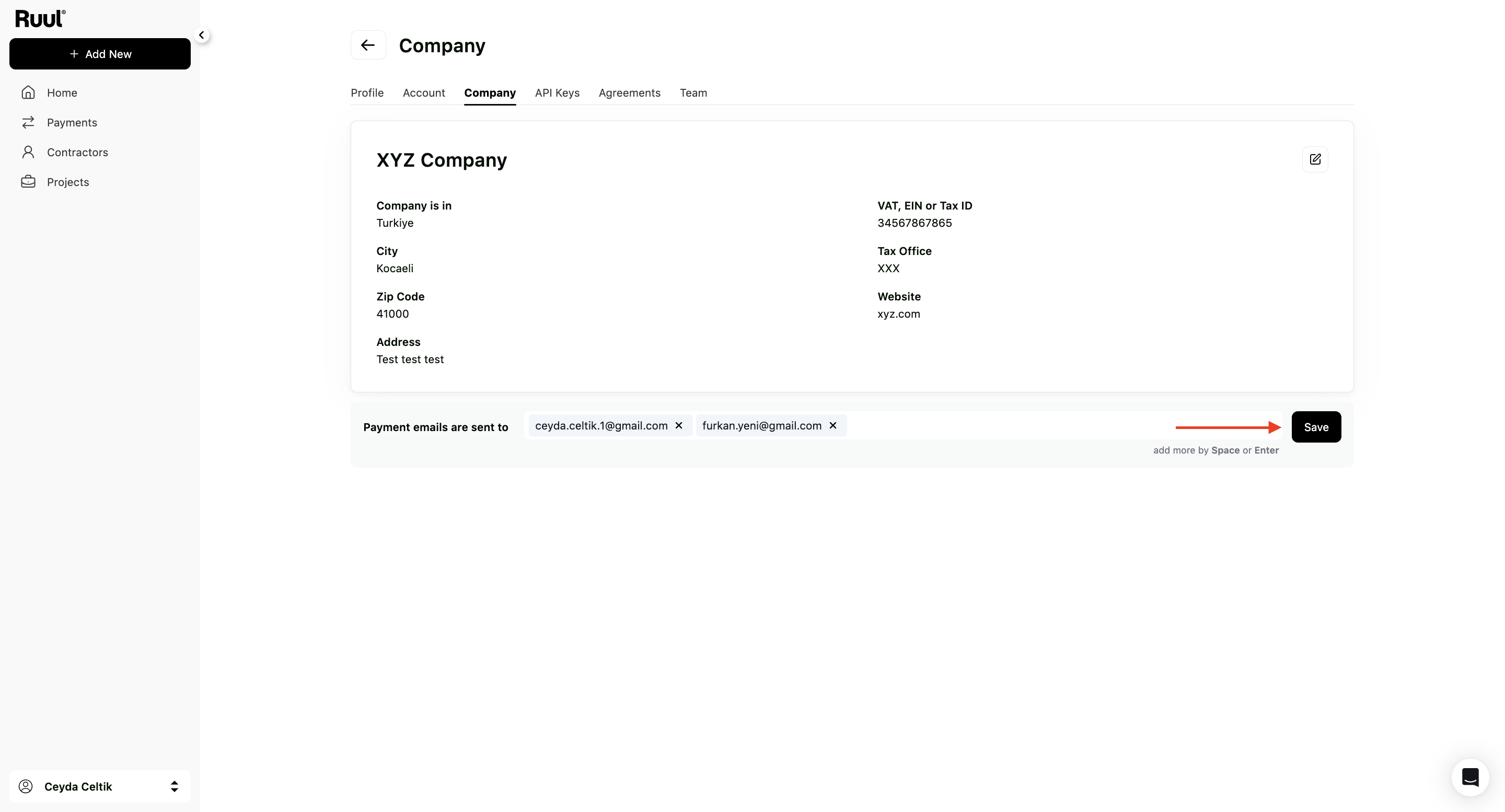
Type an email address and press Space or Enter to add it. Each address appears as a tag, and you can remove one with the x next to it. Add as many as you need, then click Save.
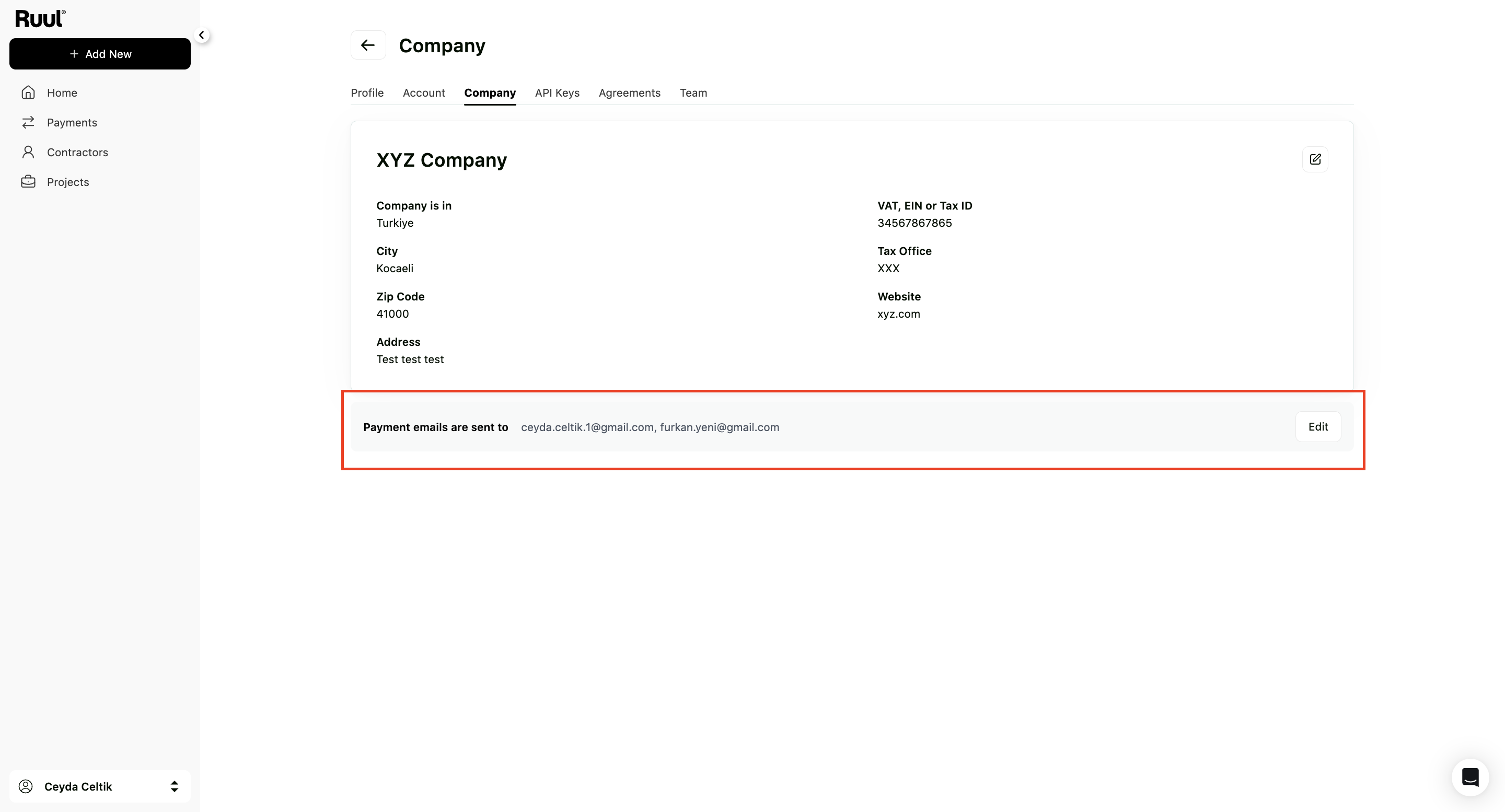
The saved addresses are then listed next to “Payment emails are sent to”. You can click Edit again at any time to add or remove addresses.
Agreements
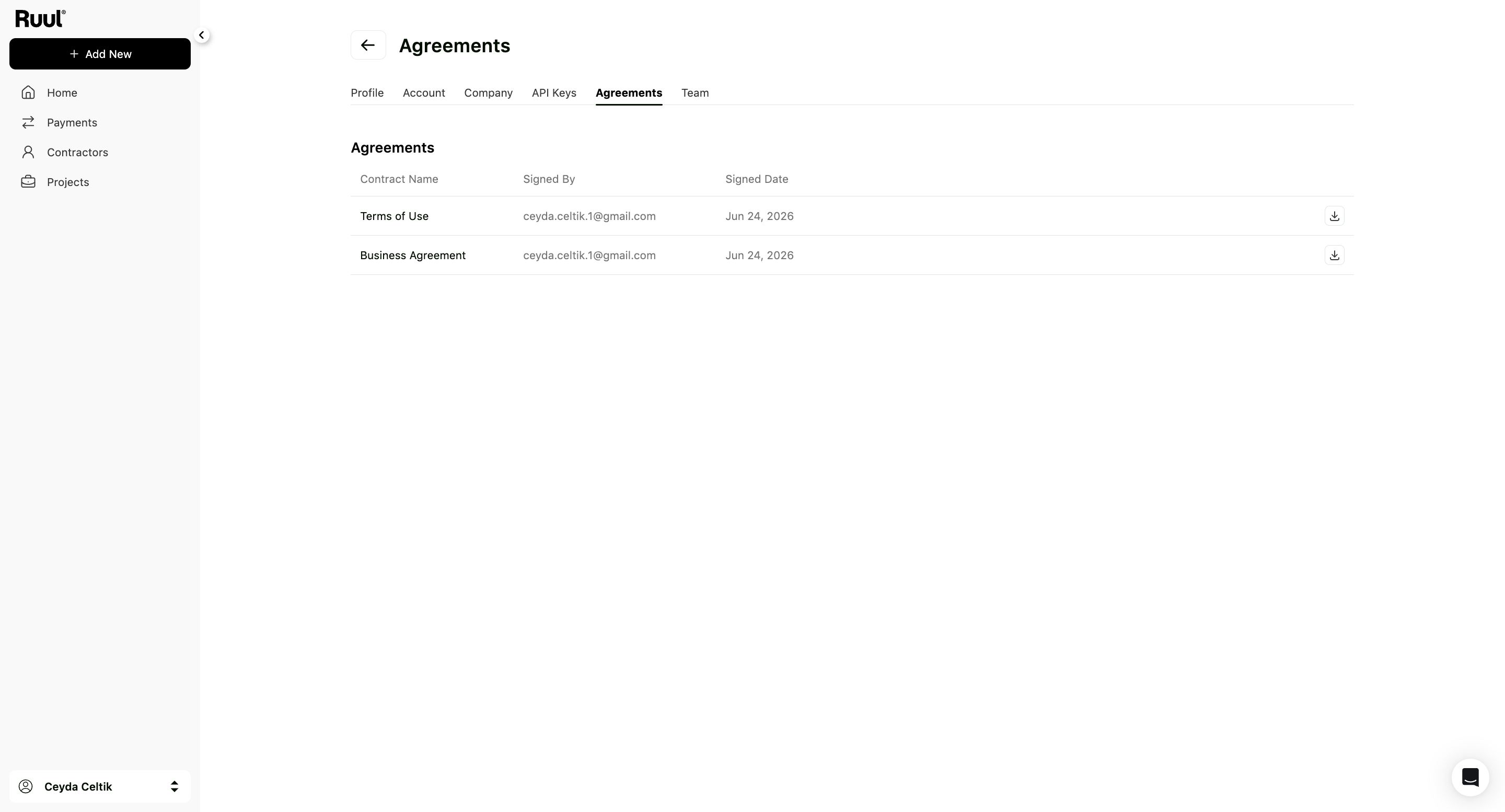
The Agreements tab lists the contracts you’ve signed with Ruul, such as the Terms of Use and the Business Agreement. For each one you can see who signed it, the date it was signed, and a download icon to save a copy.
Team
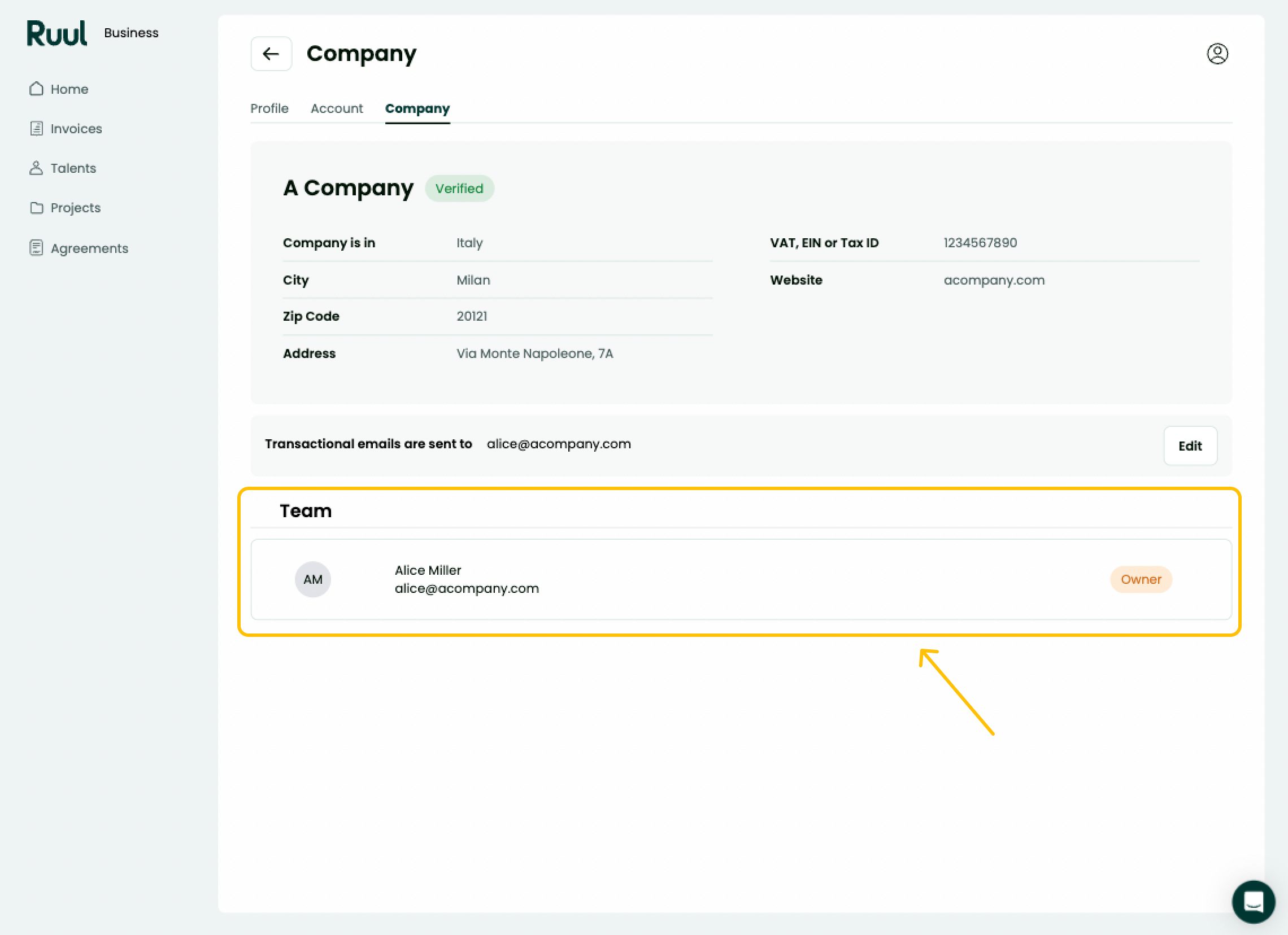
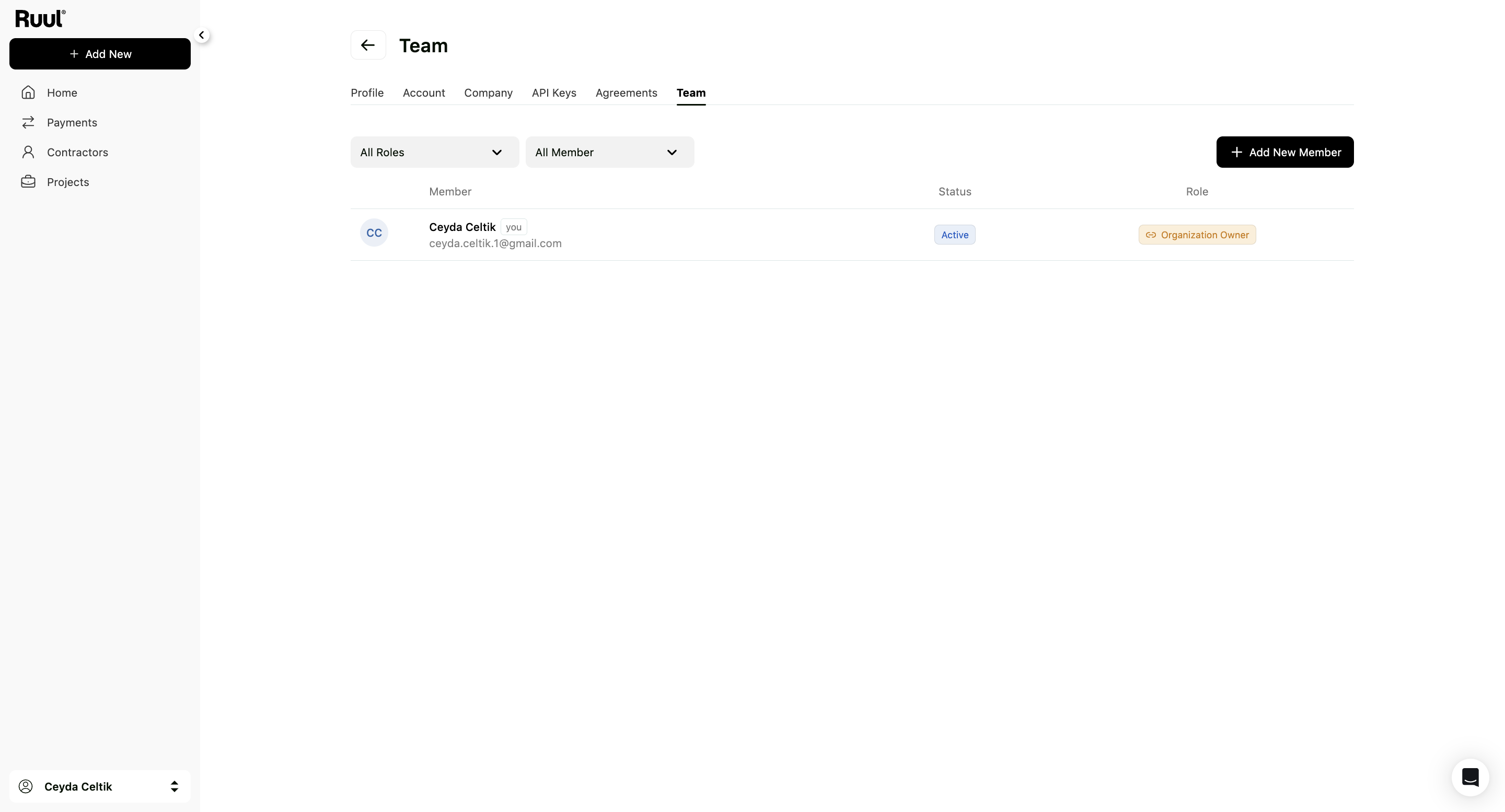
The Team tab shows everyone linked to your company on Ruul, along with each member’s status and role. You can filter the list by role or by member using the dropdowns at the top.
To bring in a colleague, click + Add New Member and follow the steps. Once added, they’ll appear in the member list with their own status and role.
Good to know
- The name and email on the Profile tab can’t be edited directly. Use the “contact us” link to have them changed.
- The language you choose applies to both the dashboard and the emails Ruul sends you.
- Adding addresses under “Payment emails are sent to” keeps your whole team updated on invoice and payment activity, not just the primary email.
- When adding payment emails, press Space or Enter after each address and remember to click Save.
- Your signed agreements are always available to download from the Agreements tab.
Frequently asked questions
Who receives payment emails?
By default, the account's primary email address receives them. Under your Company details you can add more email addresses to the "Payment emails are sent to" field, so everyone who needs invoice and payment updates is kept in the loop.
How do I change the name or email shown on my profile?
The name and email on the Profile tab can't be edited directly. Use the "contact us" link on that tab and our team will update them for you.
How do I add a colleague to my company's team?
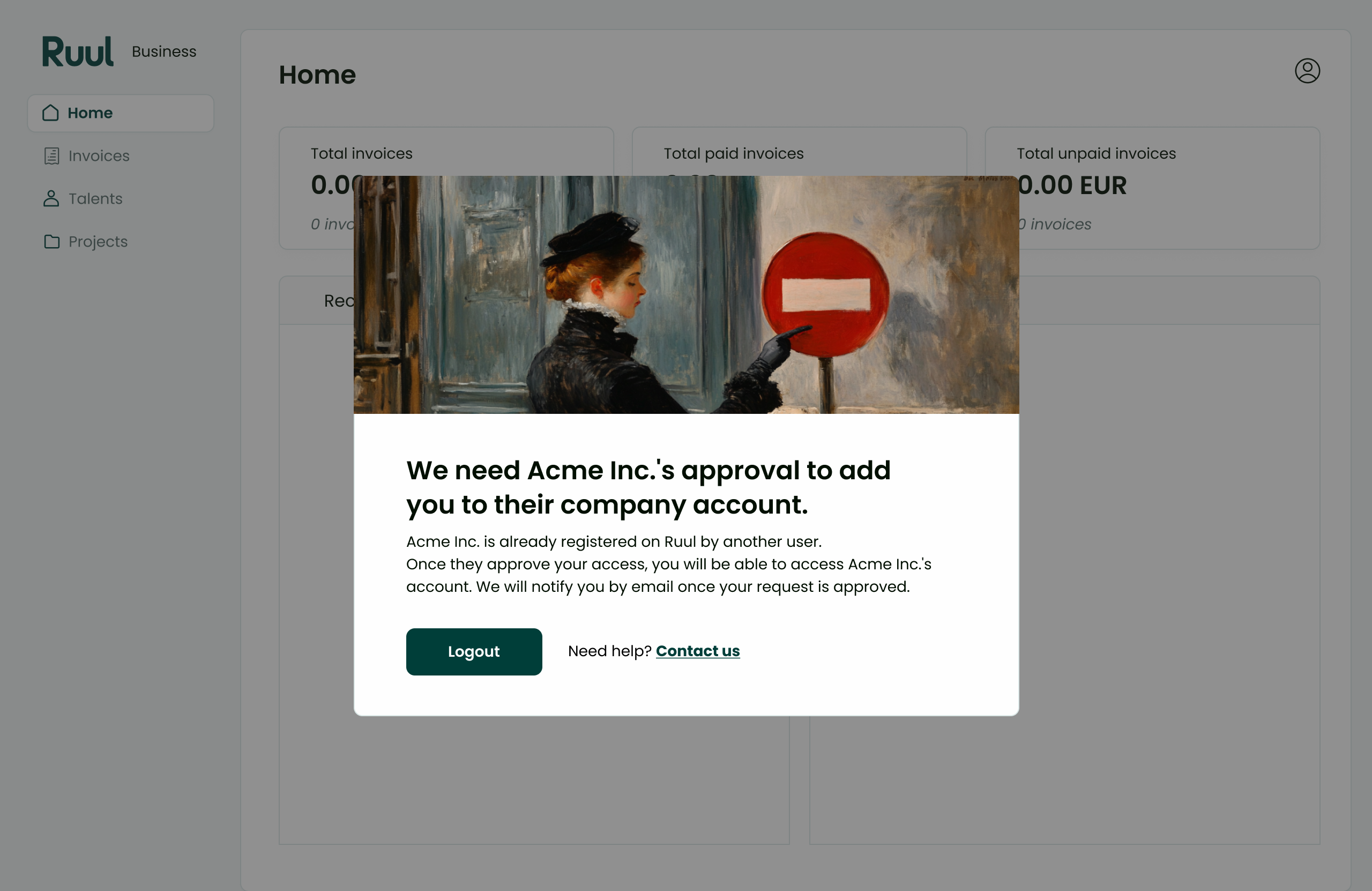
Open the Team tab and click "Add New Member". Your colleague can then join your company's team and will appear in the member list.
Was this article helpful?
Thanks for the feedback! 🙌