
Signing in to your Ruul business account takes just your email, password, and a one-time verification code. If you ever forget your password, you can reset it in a few steps. Here’s how both work.
1. Signing in
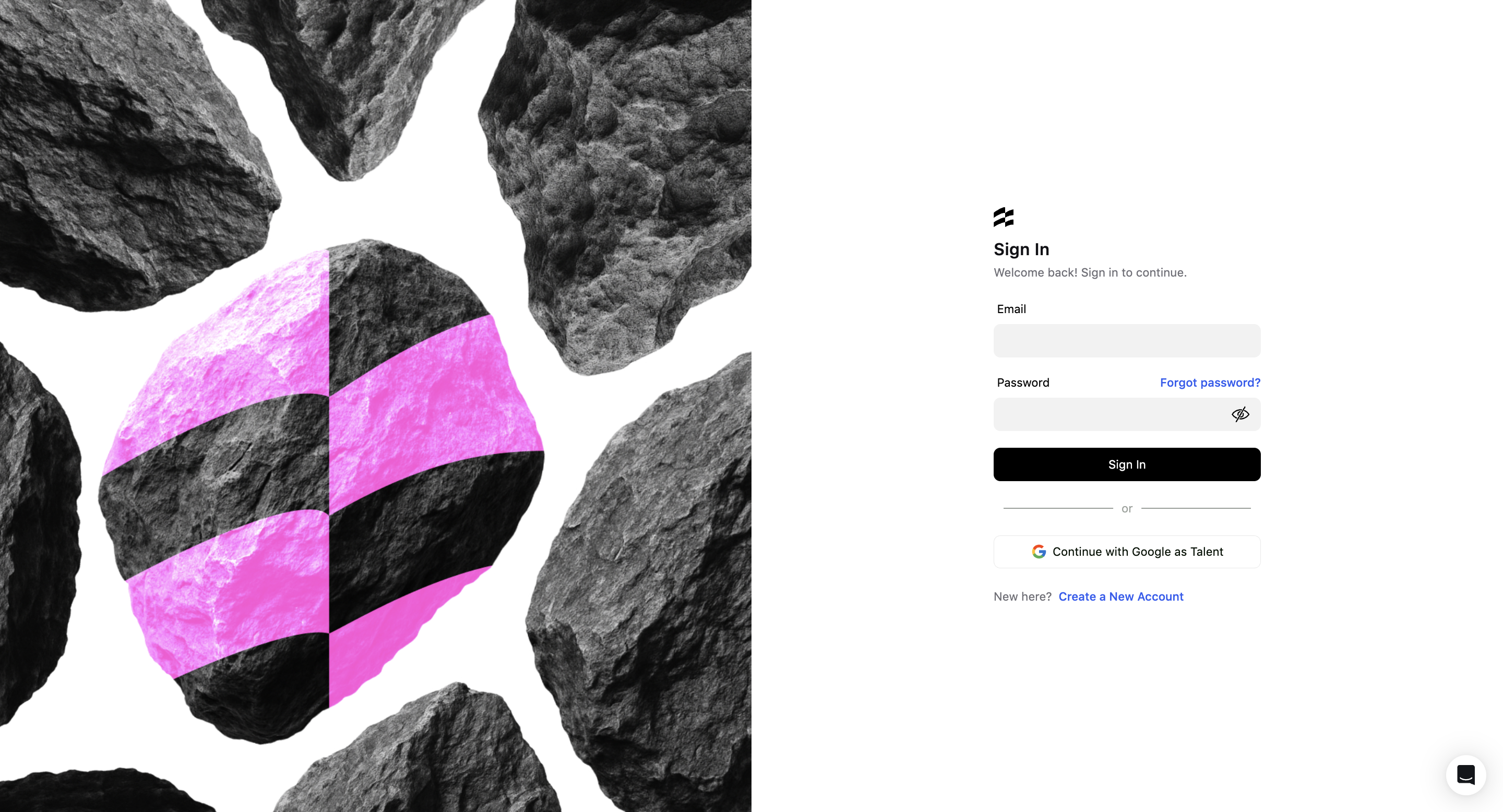
- Go to the Ruul Login Page.
- Enter your email and password in the fields provided.
- Click Sign In.
-
You’ll be prompted to enter a verification code sent to your registered email address.
- The authentication code is valid for 10 minutes.
- If you didn’t receive it, click Resend to get a new code.
-
Enter the code and click Continue.
-
Once verified, you’ll be redirected to your Dashboard.
2. Resetting your password
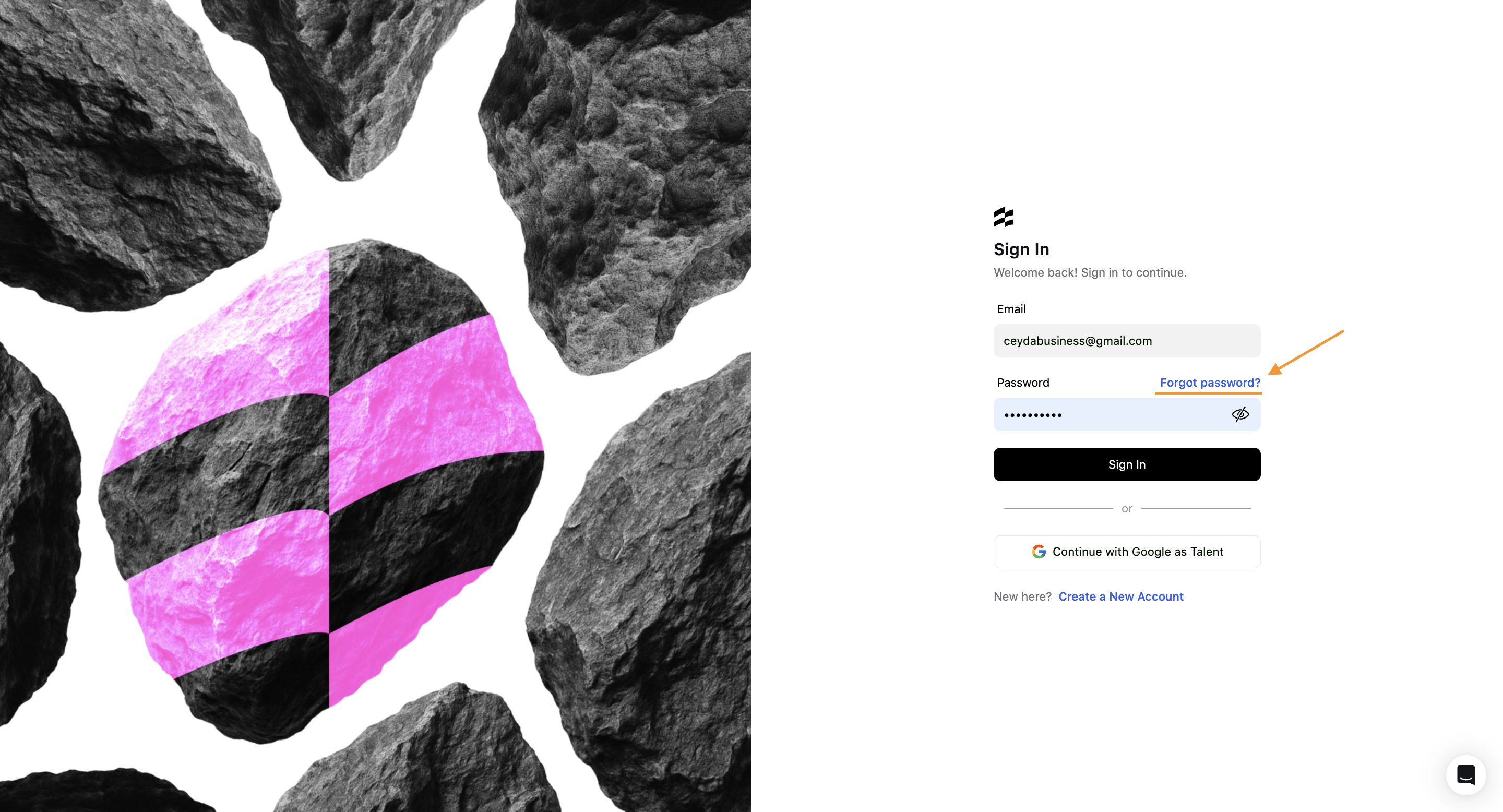
- On the Sign In page, click Forgot password?
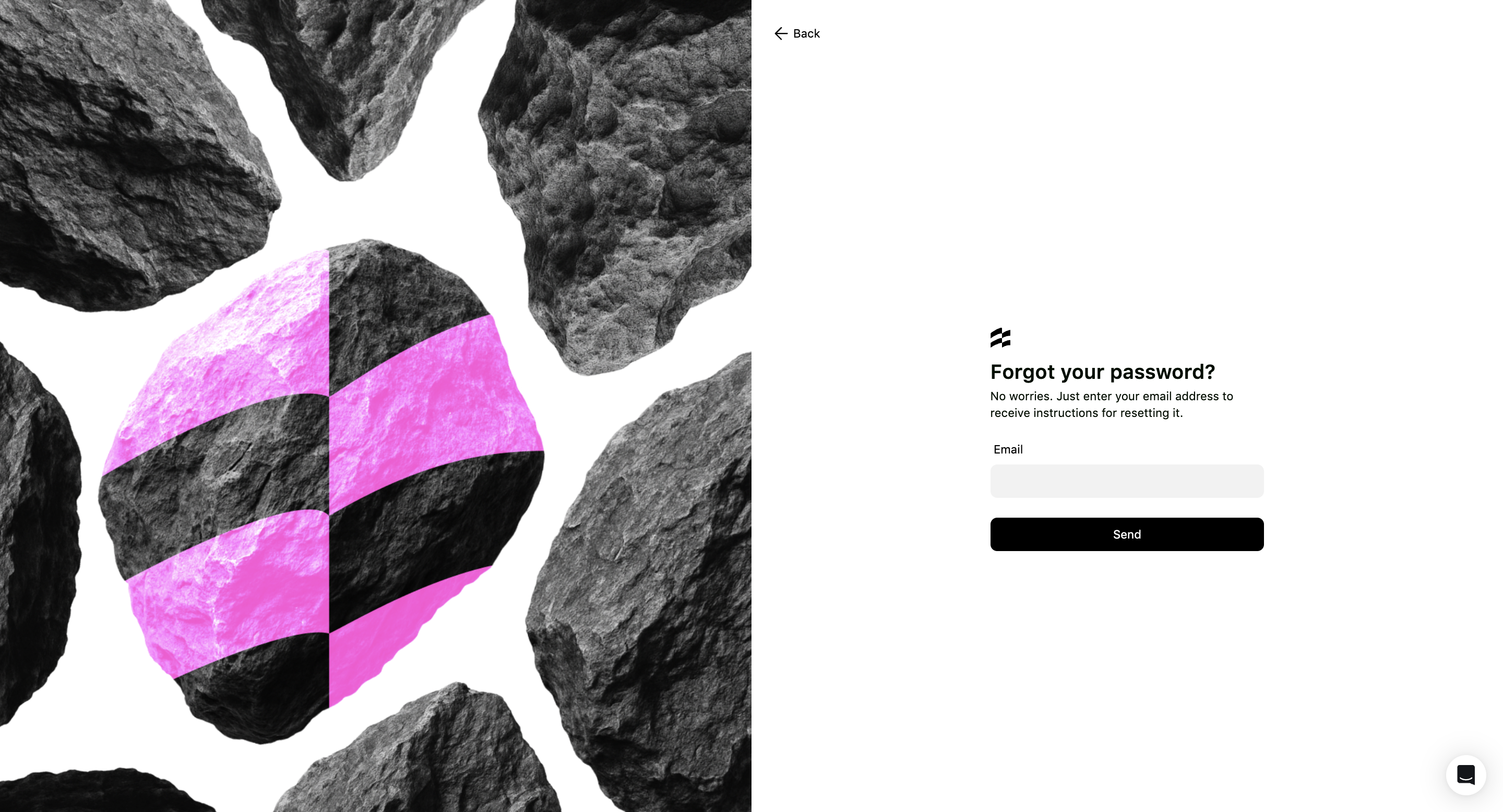
- Enter your email address and click Send.
-
Check your inbox for an email titled “Reset Your Password” from Ruul.
- If you don’t see it, check your spam or junk folder.
- You can also click Resend email to get another link.
-
Open the email and click the Reset Password link.
-
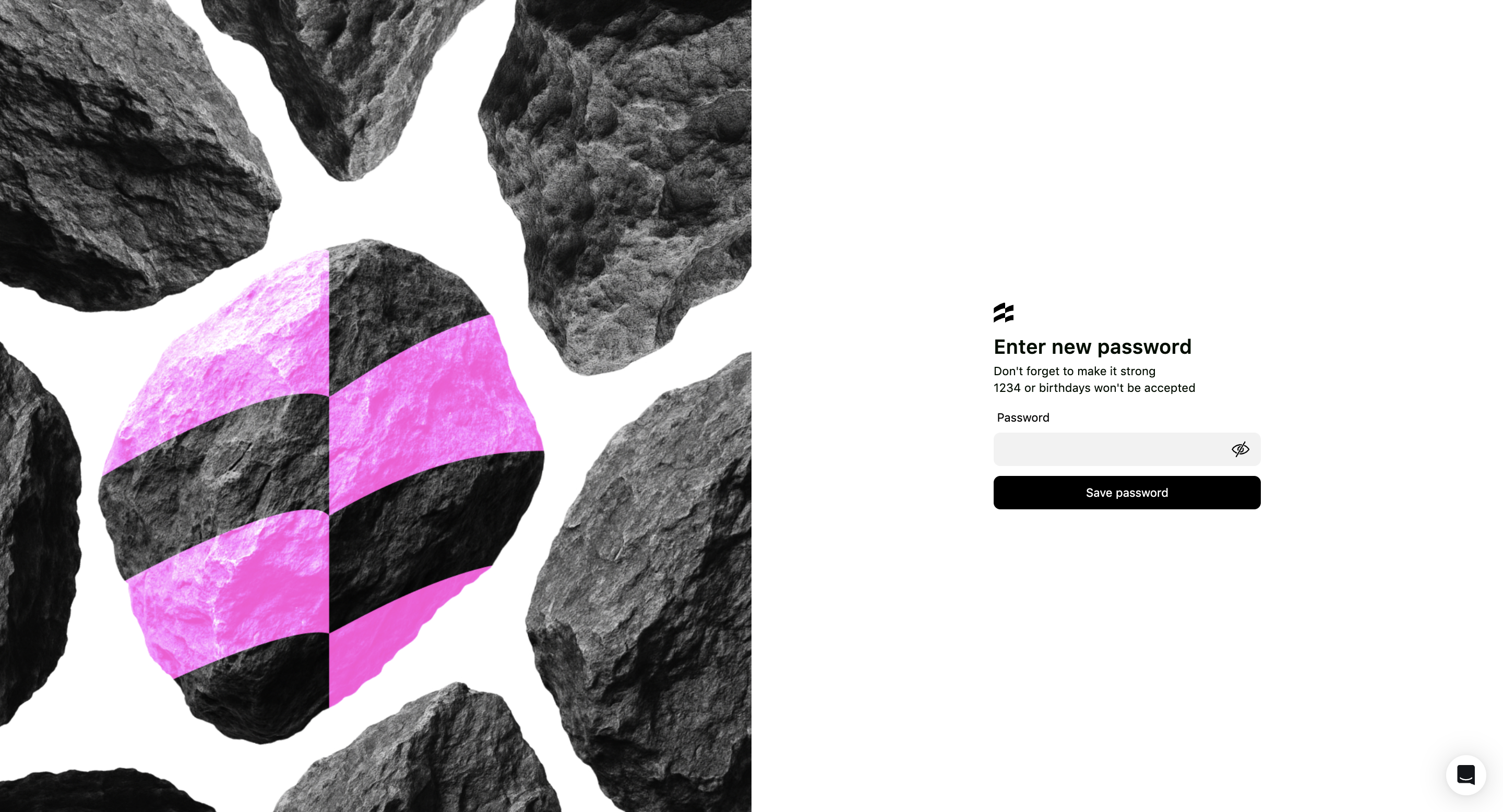
On the Enter New Password screen, create a new password and click Save Password.
-
Once saved, your password will be updated and you’ll be logged in automatically.
Notes & Best Practices
- The authentication code is only valid for 10 minutes - make sure to enter it promptly.
- Passwords must be strong and secure; simple combinations like “1234” or birthdays are not accepted.
- If you experience issues receiving emails, check your spam folder or click Resend to get a new one.
- Always make sure you’re logging in from app.ruul.io/login to ensure account security.
Was this article helpful?
Thanks for the feedback! 🙌