
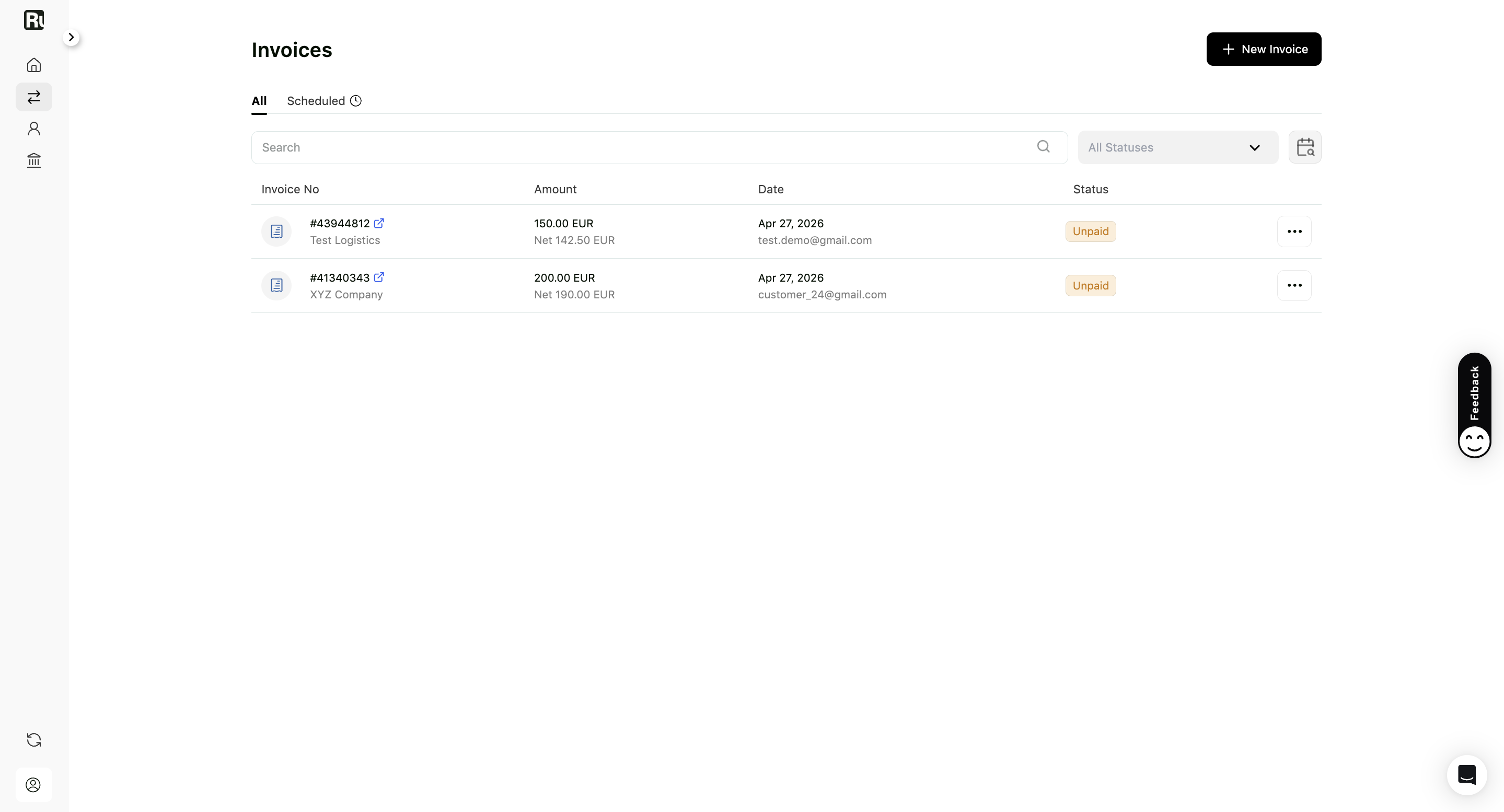
The Invoices tab is your home base for everything you’ve billed - you can view, manage, and follow the status of each invoice from one place. It’s split into two tabs:
- All: your one-time invoices.
- Scheduled: your recurring scheduled invoices.
1. Go to Invoices
From the navigation bar, click Invoices.
2. Manage your invoices
In the All tab, you’ll see:
- Invoice number & customer
- Amount (gross & net)
- Date
- Status
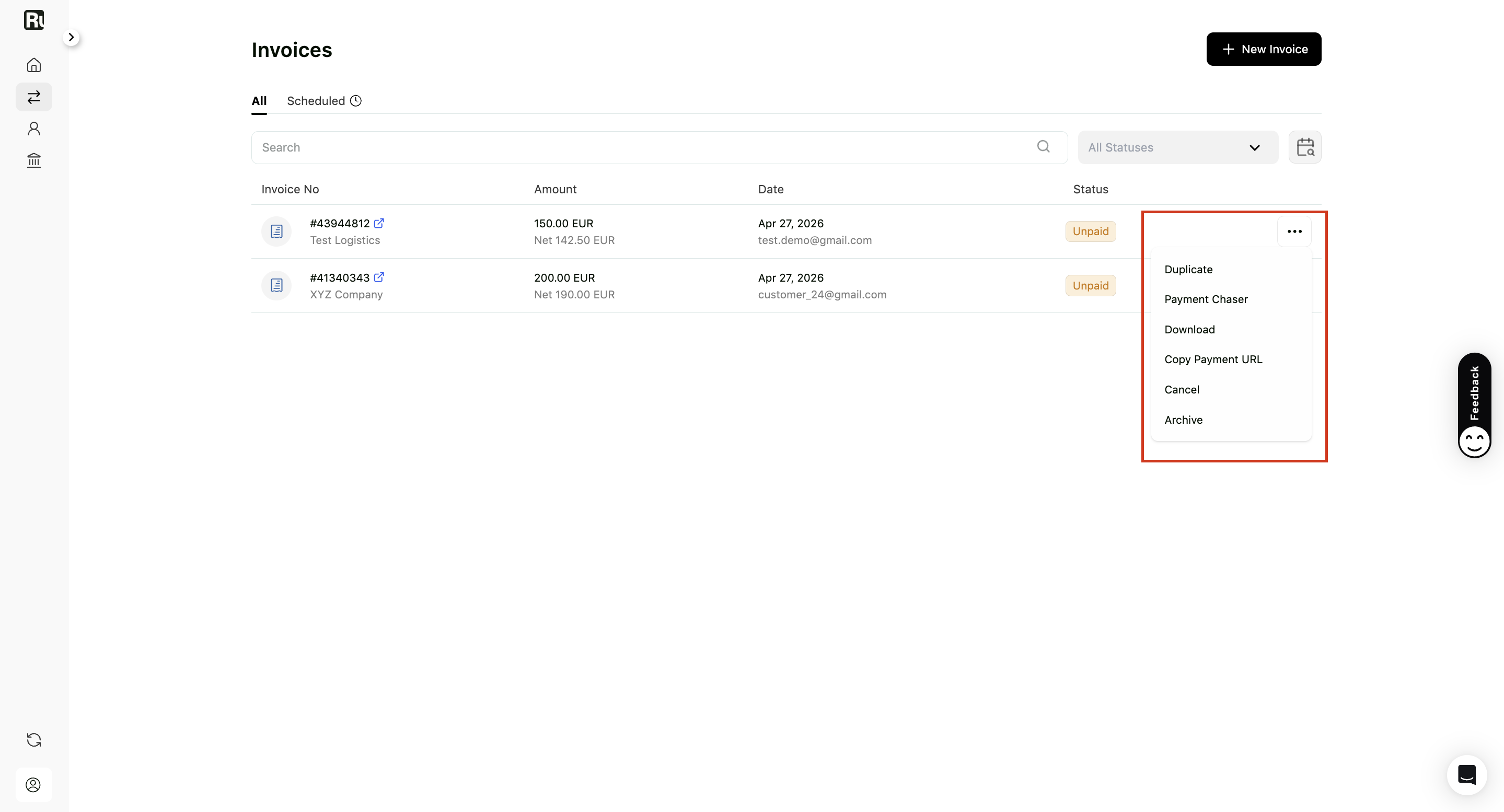
Available actions (More menu – •••):
-
Duplicate: Create a copy of the invoice with the same details to save time when issuing similar invoices.
-
Payment Chaser: Send a reminder to your customer about unpaid invoices. For detailed steps, see how to send payment reminders.
-
Download: Save a copy of the invoice.
-
Copy Payment URL: This link is shared with your client via email when you issue the invoice. If you’d like to send them the link again, or want to check it out yourself, you can easily do so by copying it from here.
-
Cancel: You can cancel the invoices you’ve created. Once you cancel it, the invoice will no longer be visible on your client’s dashboard. If there is a problem with the invoice, Ruul can also cancel it and inform you via email.
-
Archive: Since invoices are considered financial records, to comply with regulations, it is not possible to delete them altogether. However, if they are obsolete, you can archive them. Archived invoices can only be seen under the Archived tab; they are not visible in any other filter.
PS: The actions available for an invoice may change depending on its status.
Tip:
- Hover over the status to preview details.
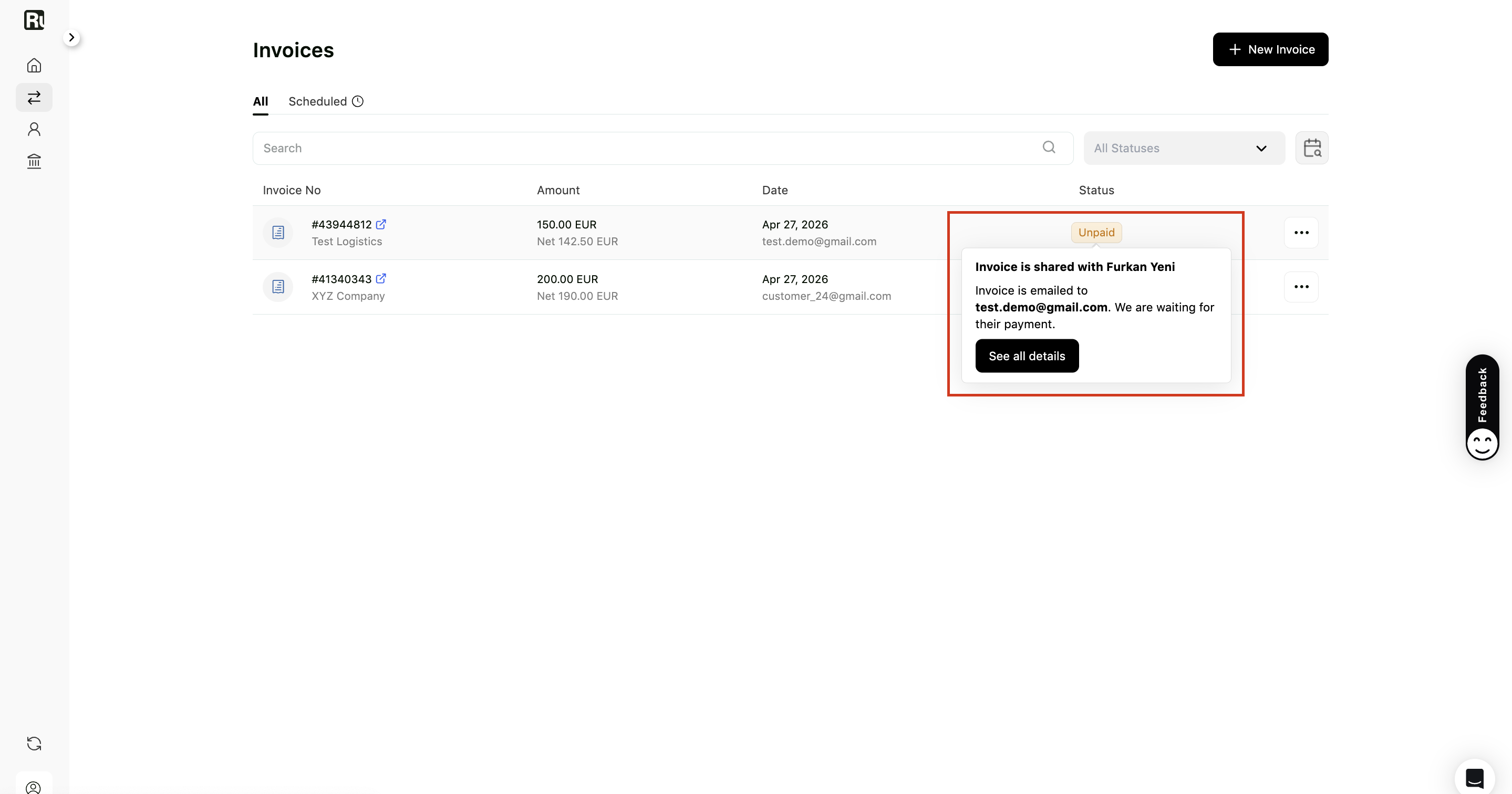
- Click See all details to open the timeline in a drawer.
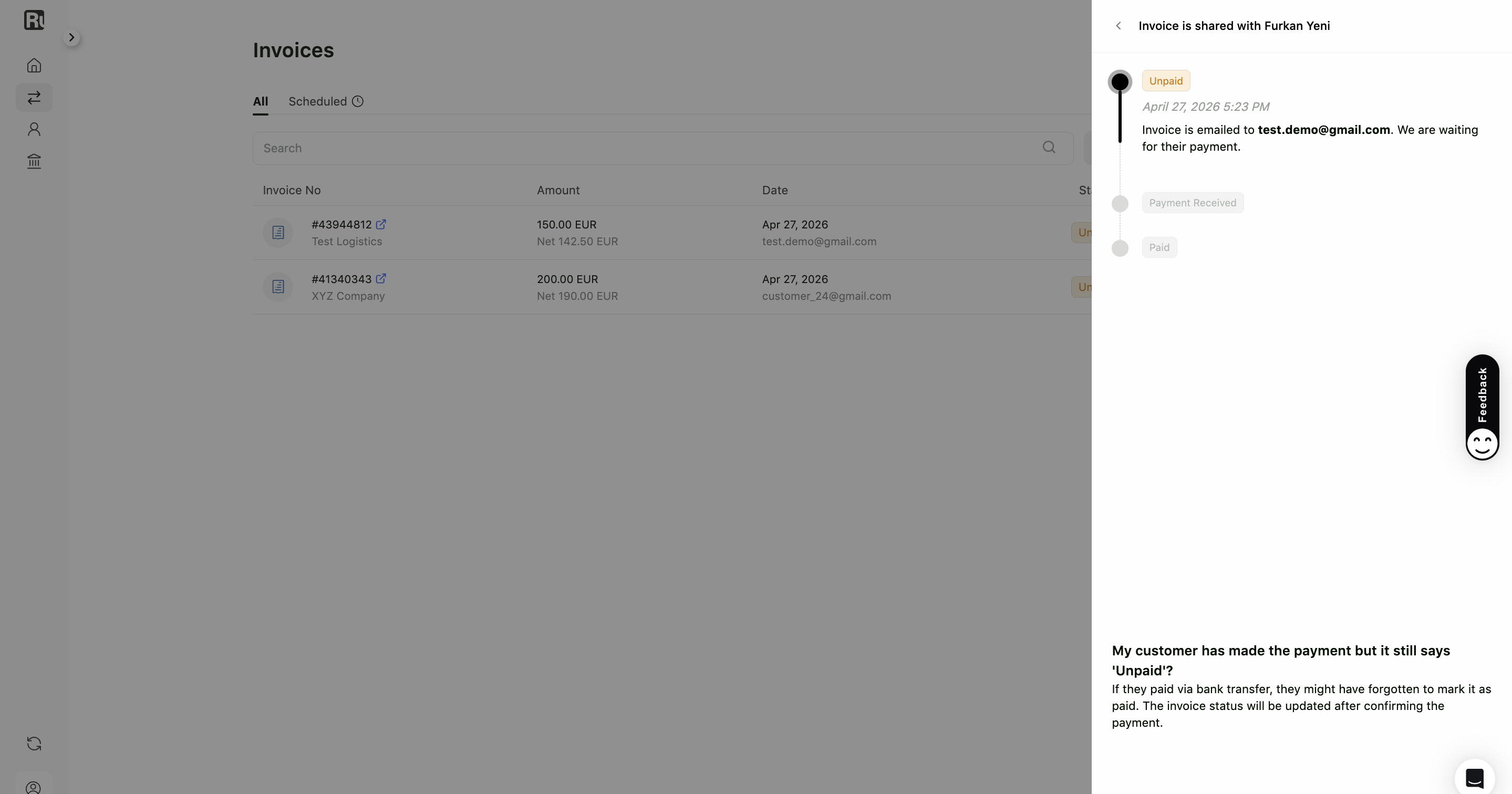
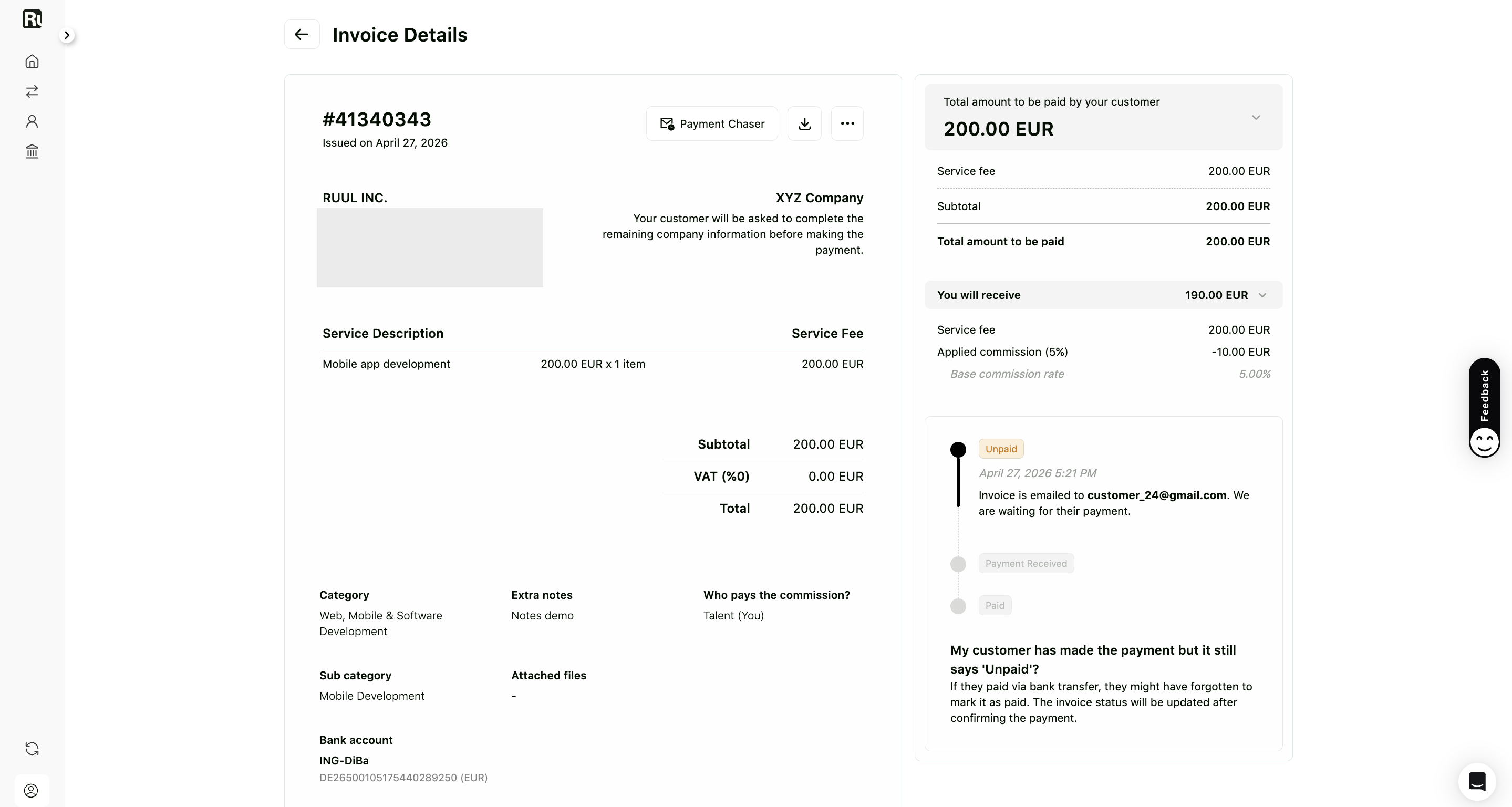
- Click the invoice number to open the full Invoice Details page.
3. Manage Scheduled Invoices
In the Scheduled tab, you’ll see each recurring invoice with its:
- Customer and amount
- The day of the month it is generated (e.g. Generates on the 5th of every month)
- Status (Active or Inactive)
Available actions (More menu – •••):
- Stop Recurring Invoice: Cancels the schedule. No further invoices will be generated.
Scheduled invoices keep running automatically until you stop them. See how to set up a scheduled invoice for more.
4. Statuses
| Unpaid | The invoice has been sent to your customer. |
|---|---|
| Payment Received | Your client has made the payment, and once it reaches us, we will transfer it to your chosen payment collection account. |
| Paid | We’ve sent the payment to your chosen payment collection account. |
| Cancelled | The invoice was canceled by you. |
| Rejected | The customer rejected the invoice. |
| Active | A scheduled invoice is active and generating on schedule. |
| Inactive | A scheduled invoice has been stopped. |
Good to know
- Use Archive instead of deleting to keep your financial records compliant.
- Scheduled invoices keep running automatically until you stop them from the Scheduled tab.
Where is my payment?
If a payout seems slow, the status usually tells you where things stand.
Status: Payment Received
We’ve received your customer’s payment, and your payout is being prepared - it usually begins within one business day.
If you still don’t see the funds after that:
- Give your bank a little more time to process the incoming transfer.
- For international/SWIFT transfers, the money may take 3–4 business days to arrive, depending on the intermediary banks involved.
If it’s been longer than expected, contact us and we’ll trace the payout for you.
Status: Paid
Once we’ve issued the payout, it can take a few business days to reach your account. This is most common with payouts to a non-local-currency account, since those go through SWIFT - several partner banks are involved, and the funds can take 3–4 business days to land.
If a few days have passed and you still haven’t received it, get in touch and we’ll look into it.
My customer paid, but the invoice still shows Unpaid
They may have forgotten to mark the payment as complete in their dashboard after making a bank transfer. The status updates once our finance team identifies and matches the payment to the invoice.
If the transfer is done, share the proof of payment with us so we can trace it with the payment provider.
Frequently asked questions
What does the 'Payment Received' status mean?
Your customer has paid, and once the funds reach Ruul we'll transfer them to your chosen payout account. Payouts usually begin within one business day.
My customer paid but the invoice still shows Unpaid - why?
They may have forgotten to mark the payment complete in their dashboard after a bank transfer. The status updates once Ruul's finance team matches the payment to the invoice. Sharing proof of payment helps us trace it faster.
Can I delete an invoice?
No. Invoices are financial records, so they can't be deleted. If one is obsolete, archive it instead - archived invoices only appear under the Archived tab.
Why hasn't my payout arrived yet even though the status is Paid?
After a payout is issued it can take a few business days to land, especially for international SWIFT transfers, which often take 3–4 business days because several partner banks are involved. If it's been longer, contact Ruul to trace it.
Was this article helpful?
Thanks for the feedback! 🙌