
Taking a couple of minutes to set up your preferences makes Ruul work better for you from day one. You can manage everything - your language, job title, phone number, notifications, password, and signed agreements - in one place.
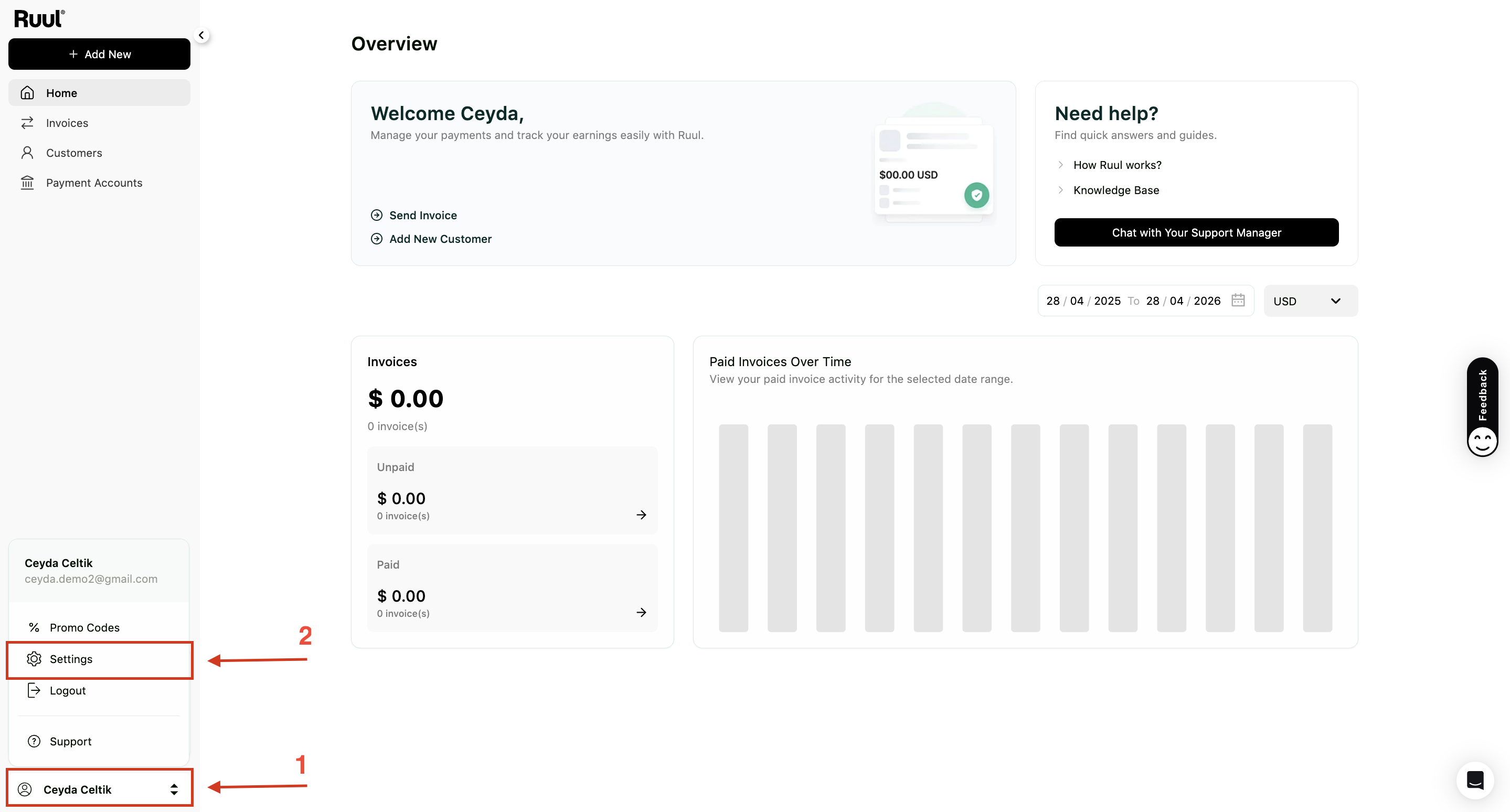
To set your preferences, click your profile name at the bottom left corner of the sidebar and go to Settings.
Language selection
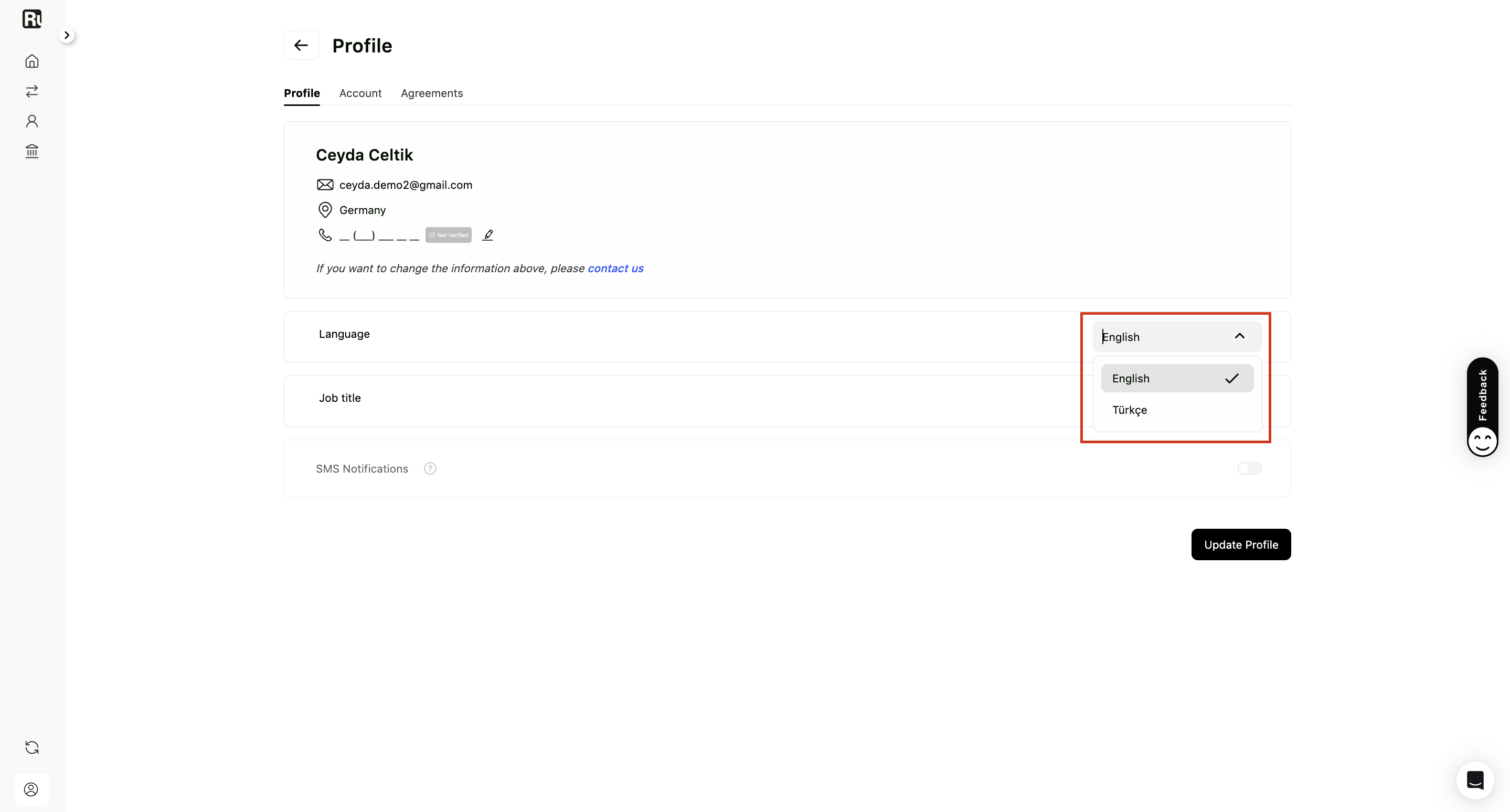
To set your preferred language, go to the Profile tab under Settings and choose from the available options.
Supported languages include English (default) and Turkish. The emails you receive from Ruul will also be in the language you choose here.
Job title
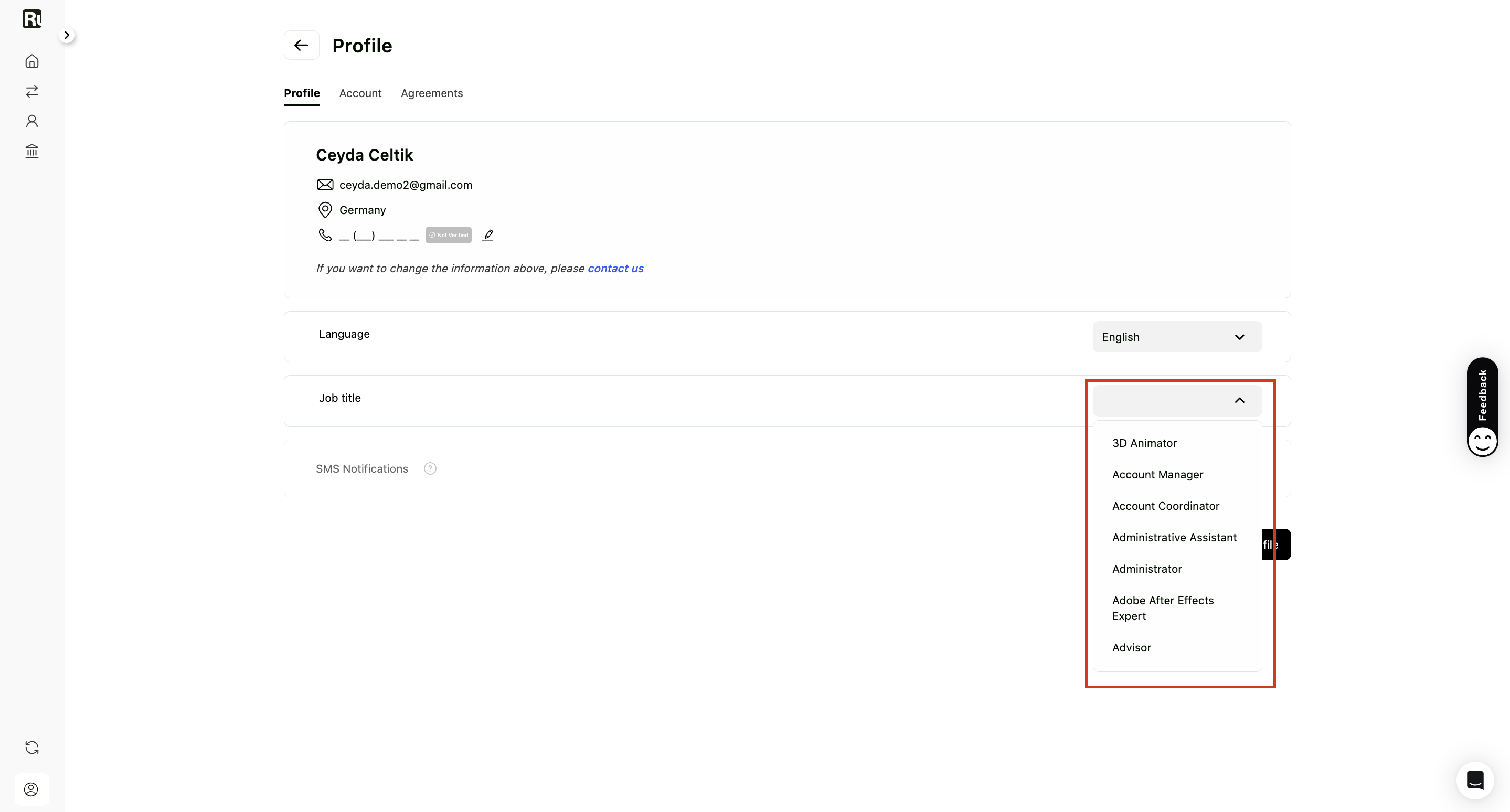
Select your job title from the Profile tab to be displayed on your profile. Choosing a job title helps us provide you with a better experience.
Phone number verification
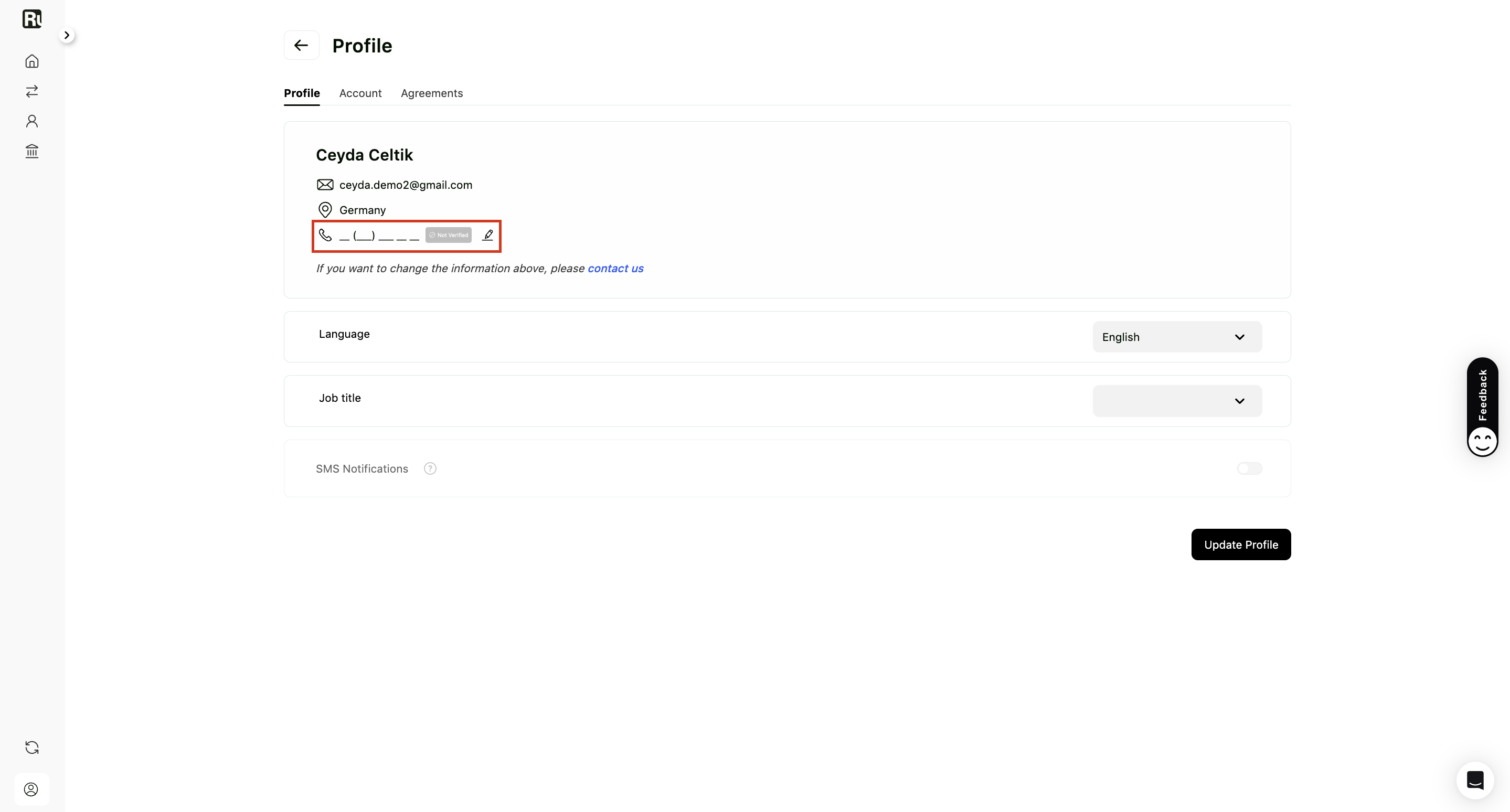
To enhance account security and enable certain features, you must verify your phone number.
- Click on the edit icon next to your phone number.
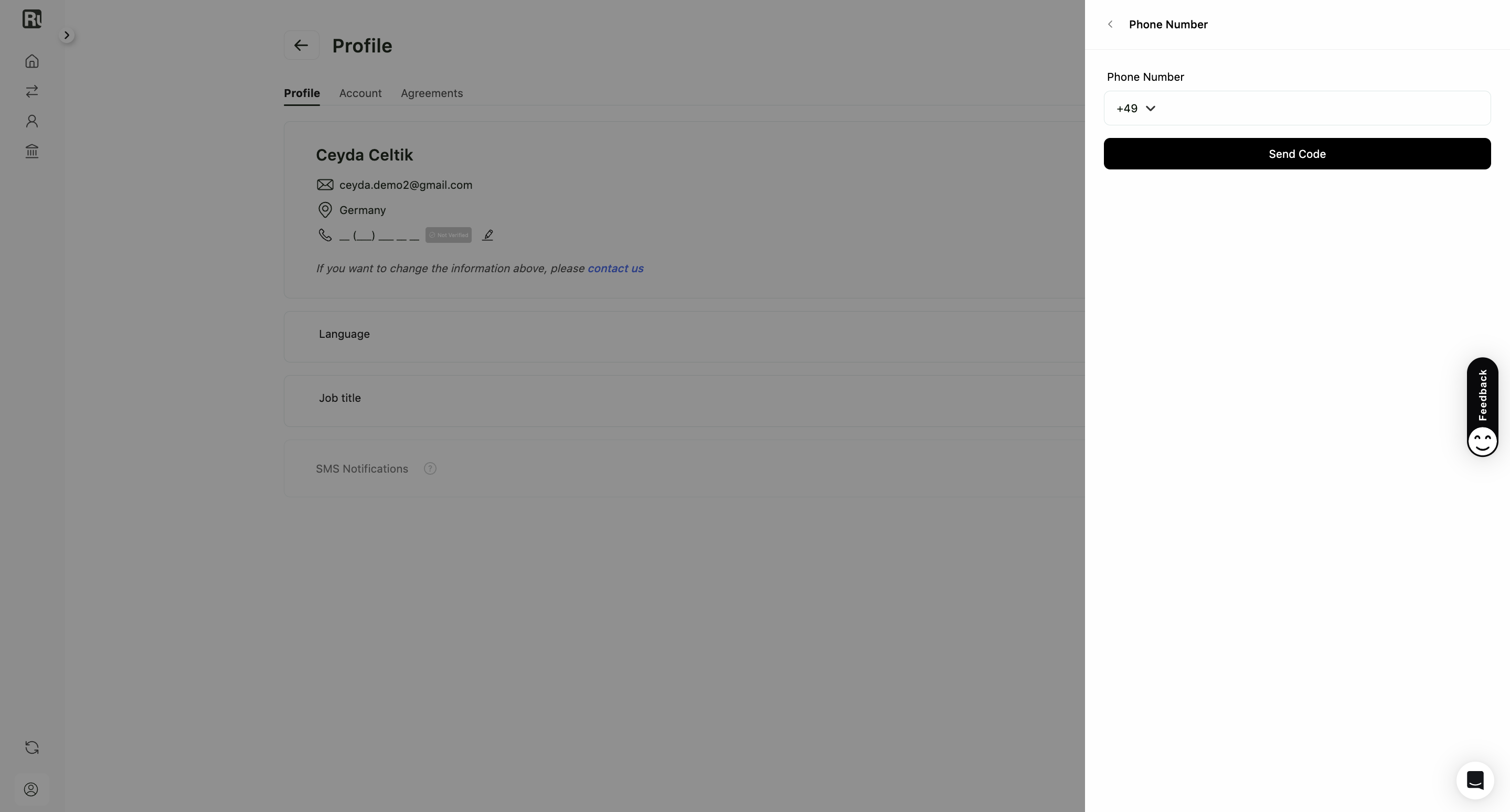
- Enter your phone number and click “Send Code”.
- Enter the verification code sent via SMS.
- Click “Verify” to confirm. Once verified, your phone number will display a “Verified” badge.
SMS notifications
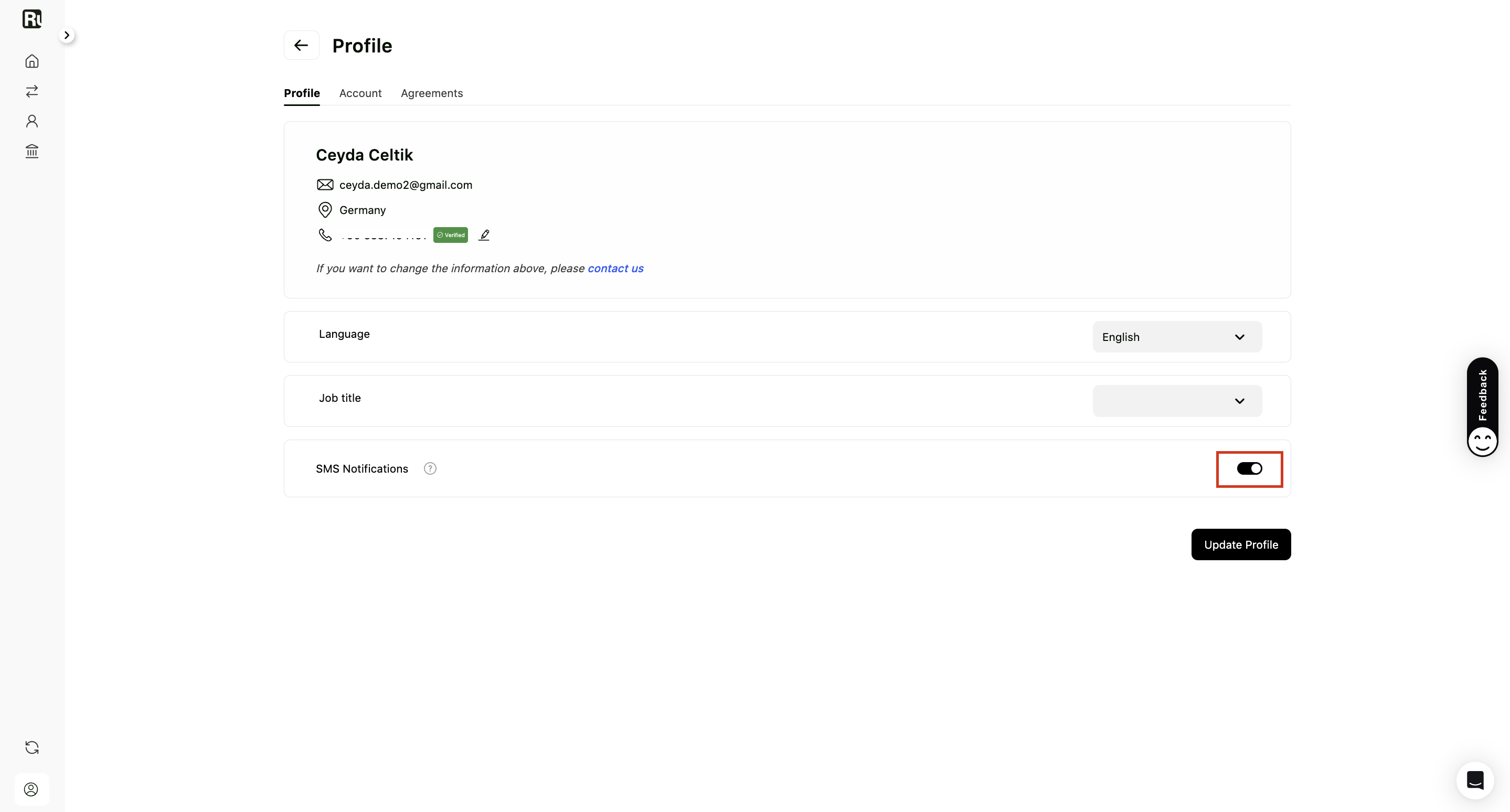
You can enable SMS notifications from the Profile tab. Use the toggle to turn notifications on or off for payment-related updates.
⚠️ Note: This option is only available after you have added and verified your phone number.
Change password
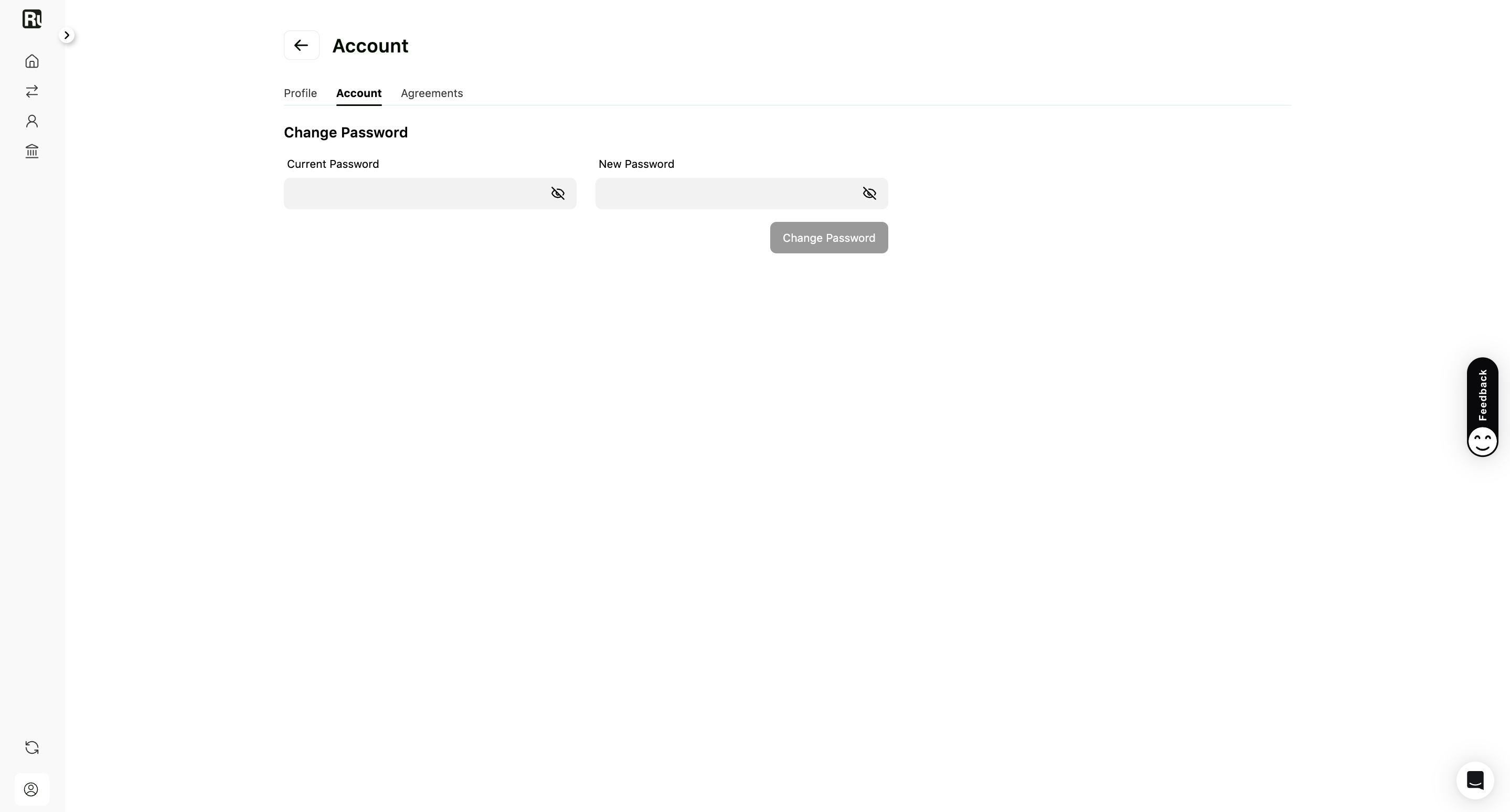
To change your password, go to the Account tab under Settings. Enter your current password, then your new password, and click Change Password.
Agreements
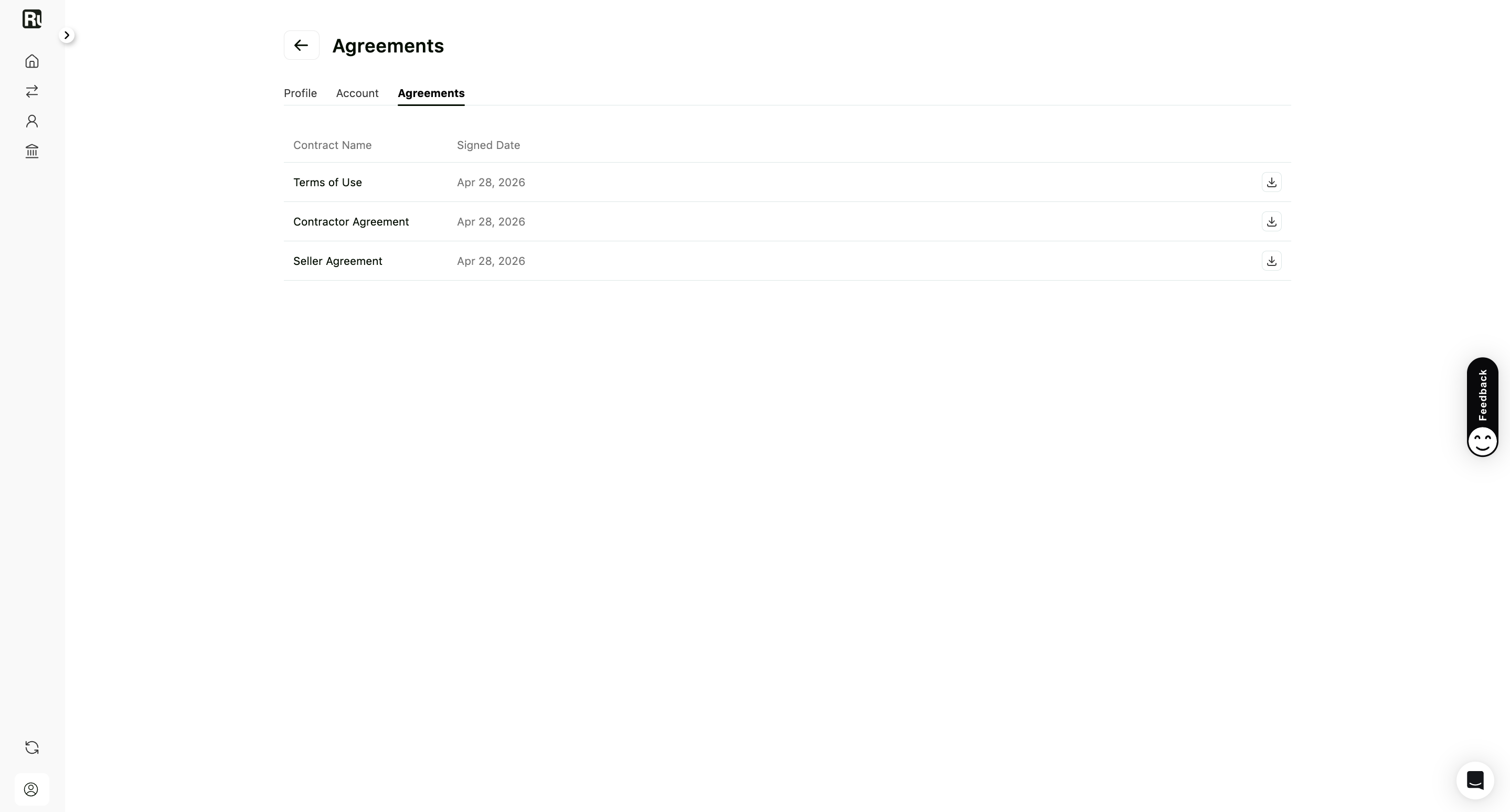
In the Agreements tab, you can view and download all contracts you’ve signed with Ruul.
- Terms of Use
- Contractor Agreement
- Seller Agreement Each document shows its signed date and can be downloaded for your records.
Frequently asked questions
Which languages does Ruul support?
English (the default) and Turkish. The language you choose here also applies to the emails Ruul sends you.
Why do I need to verify my phone number?
Verifying your phone adds an extra layer of account security and unlocks certain features, including SMS notifications for payment updates.
Where can I find the agreements I signed with Ruul?
Open the Agreements tab under Settings. You can view and download your Terms of Use, Contractor Agreement, and Seller Agreement, each with its signed date.
Was this article helpful?
Thanks for the feedback! 🙌