
From your dashboard you can see every payment you’ve made to your contractors, check its status, and take action when needed.
Find your payments
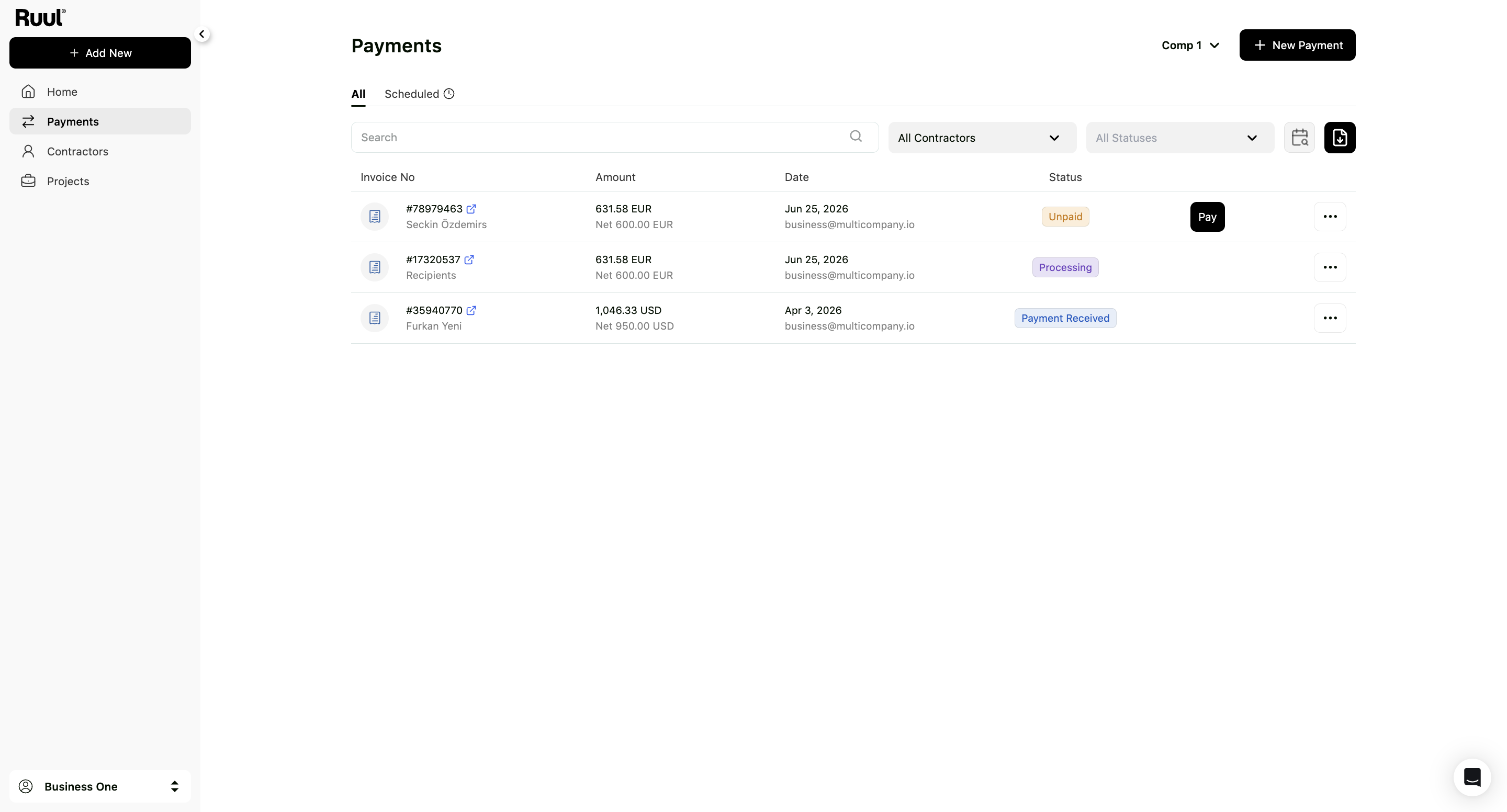
Go to the Transactions tab in the navigation bar. This lists all the payments you’ve created, single and bulk, with:
- The contractor (or, for bulk payments, the group of recipients)
- Amount
- Date
- Status
Click any row to open the full Transaction Details, or click Recipients on a bulk payment to see everyone included in it.
Payment statuses
| Status | What it means |
|---|---|
| Processing | The payment has been created and is being prepared. |
| Paid | Ruul has sent the funds to your contractor’s payout account. |
| Canceled | The payment was canceled. |
If a contractor’s payout account isn’t ready yet, the payment waits until they’ve added one - so it’s worth confirming your contractors are set up. See how to add and manage contractors.
When does my contractor receive their money?
After you complete a payment, here’s what happens on your contractor’s side:
- You pay Ruul. Once you confirm the bank transfer or card payment, Ruul receives the funds and runs standard compliance and security checks.
- Ruul pays the contractor. Once the payment clears, Ruul releases the payout to the contractor’s chosen payout account - usually within one business day.
- Funds land in the contractor’s account. The time from there depends on the payout method:
- Local bank transfers typically arrive quickly once initiated.
- International / SWIFT transfers can take 3-4 business days, depending on intermediary banks.
- Crypto and wallet payouts (Binance, MiniPay) usually arrive faster.
The payment status in your Transactions tab updates to Paid once Ruul has sent the funds. The contractor can also track this from their own dashboard.
If a payment has been in Processing for longer than expected, the most common reason is that the contractor hasn’t set up a payout account yet. Check their status in the Contractors list - they need to show Ready to Payout before funds can be released.
Useful actions
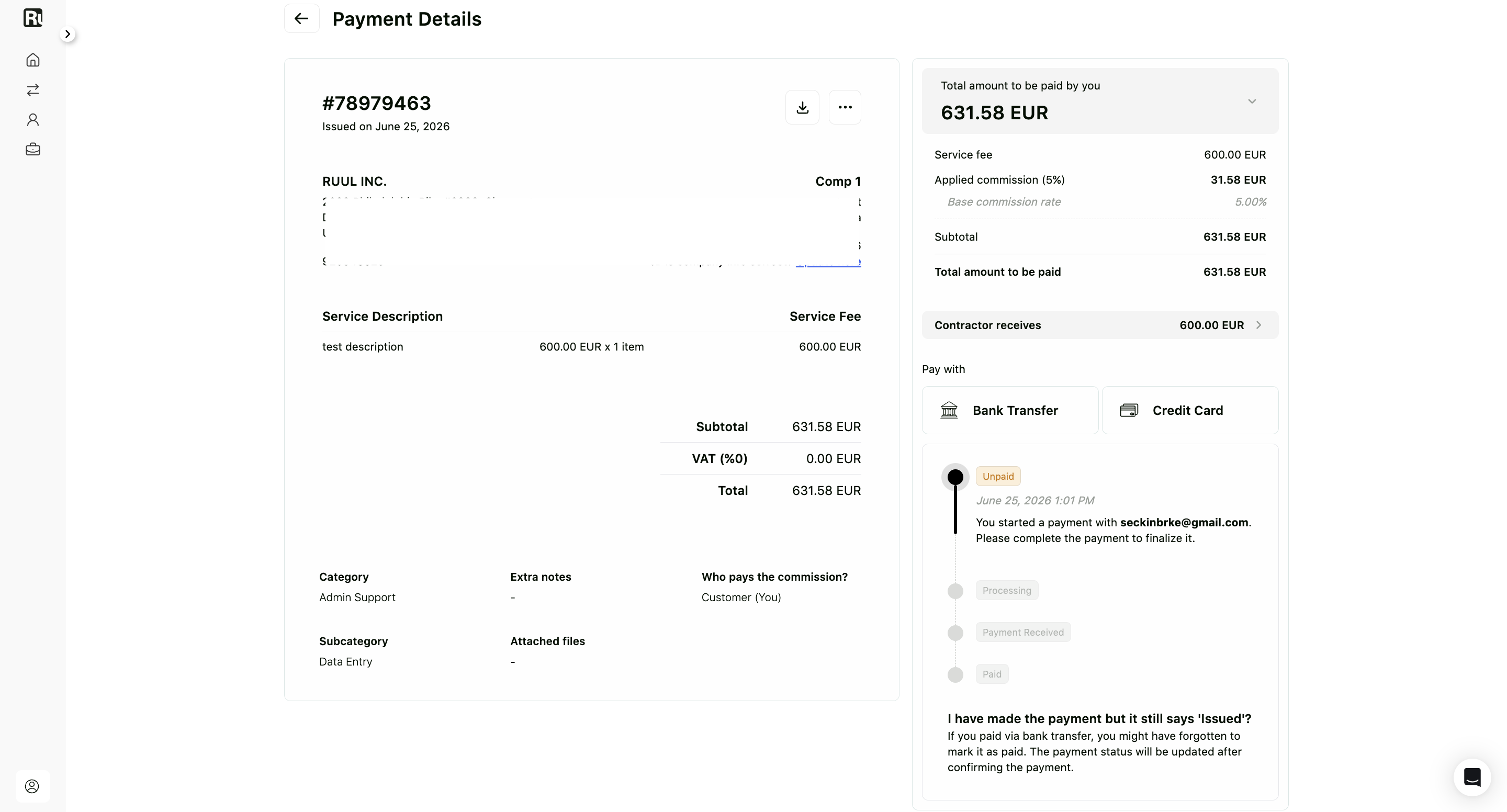
- Open the details of any transaction to see its full timeline and breakdown (amount, commission, total).
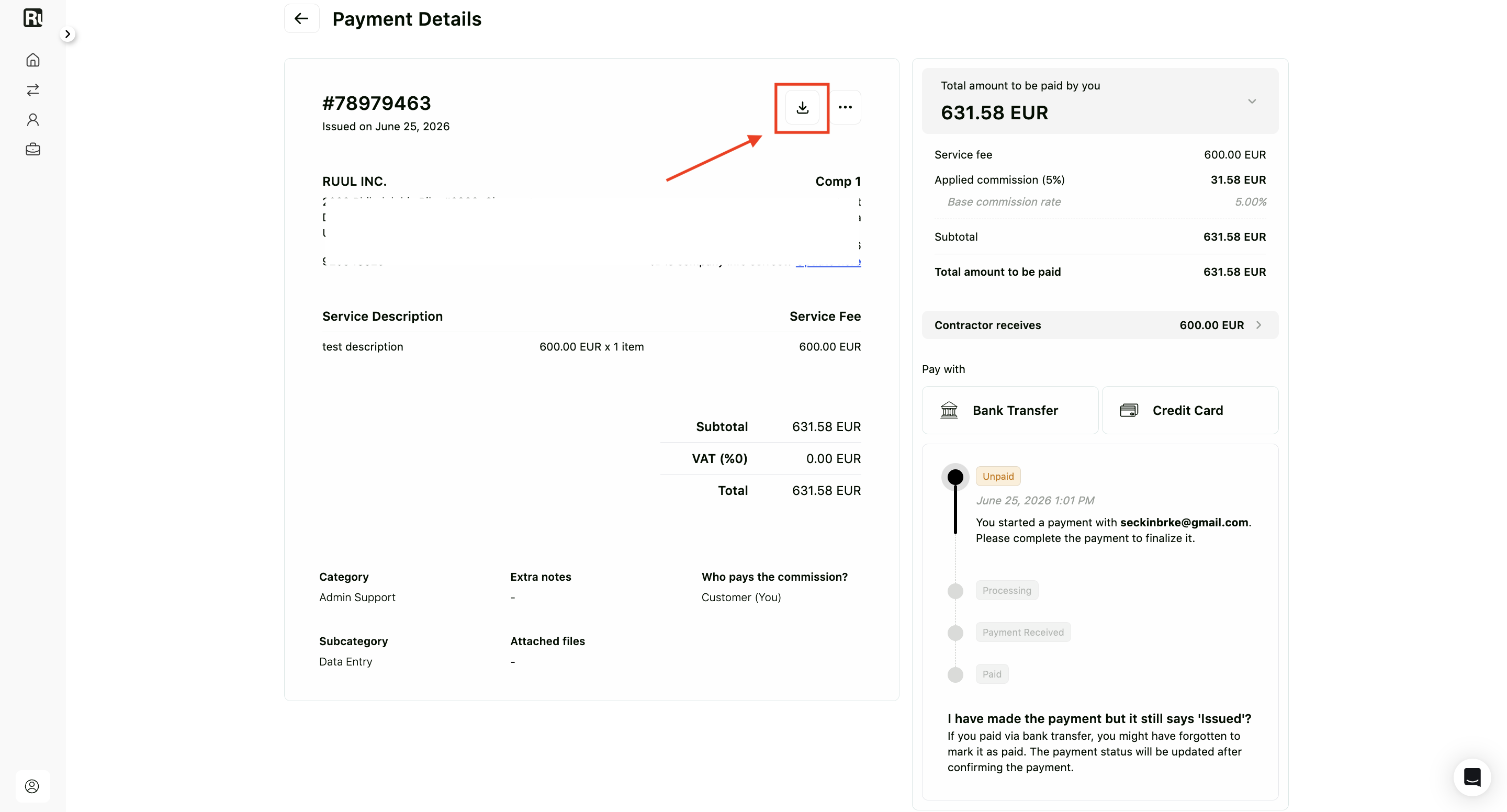
- Download a copy for your records using the download icon at the top of the Transaction Details. Payments are financial records, so they’re kept rather than deleted.
- For payments to many people at once, see how to pay contractors.
If a payment looks stuck or you can’t find one you expected, start a chat with our team and we’ll trace it.
Frequently asked questions
Where do I see all my payments?
Open the Transactions tab in the navigation bar. It lists every payment you've created, both single and bulk, with the contractor, amount, date, and status.
What do the payment statuses mean?
Processing means the payment is created and being prepared, Paid means Ruul has sent the funds to the contractor's payout account, and Canceled means the payment was canceled.
Why is my payment still processing?
A payment waits until the contractor has added a payout account. If it looks stuck, confirm your contractor is set up, or start a chat with our team to trace it.
Was this article helpful?
Thanks for the feedback! 🙌