
Promo codes let you apply a discount to an invoice. You create a code once, then apply an eligible one while building an invoice.
Adding a promo code
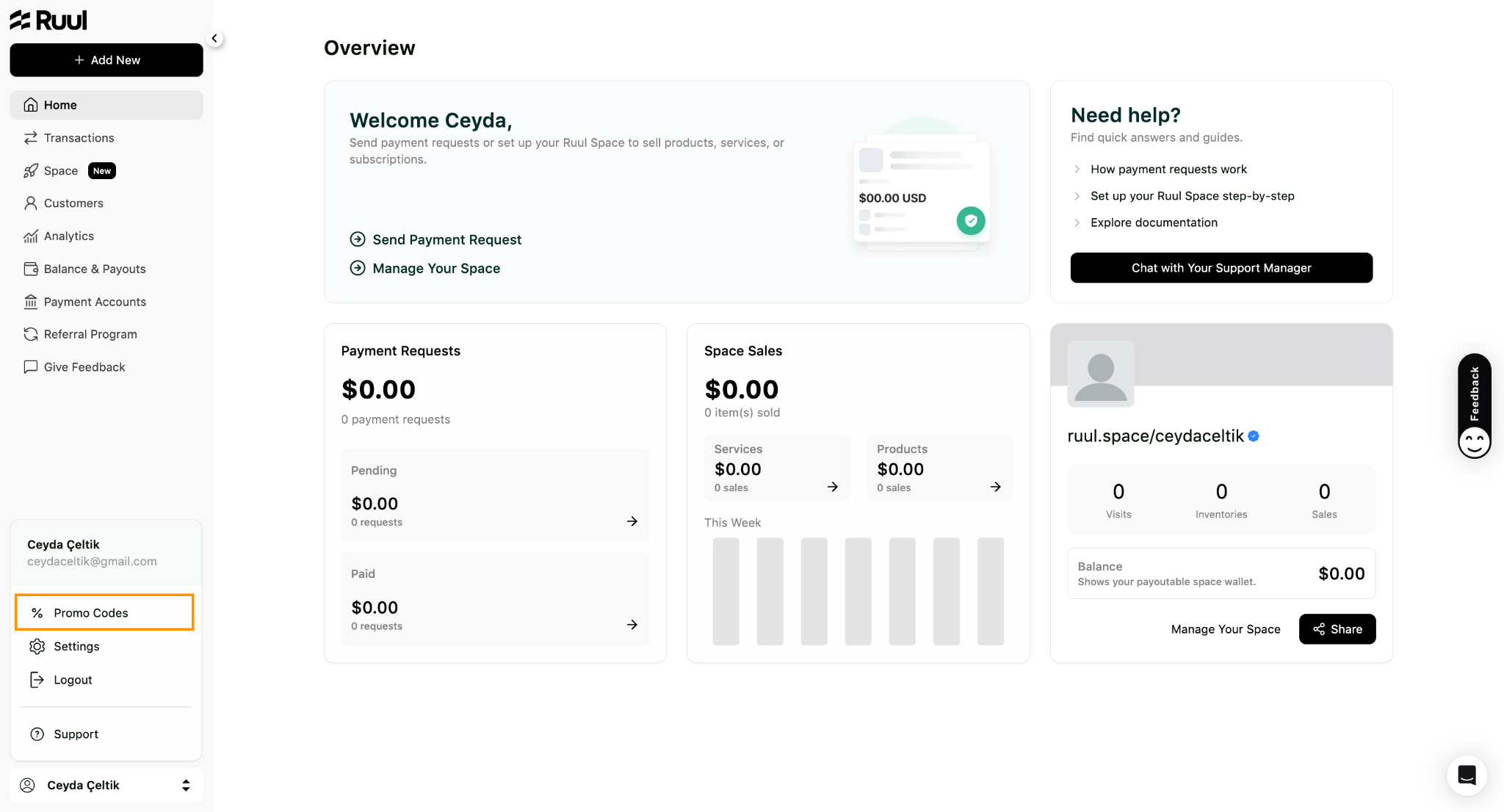
Go to your dashboard and click your name in the bottom-left corner, then select Promo Codes from the side menu.
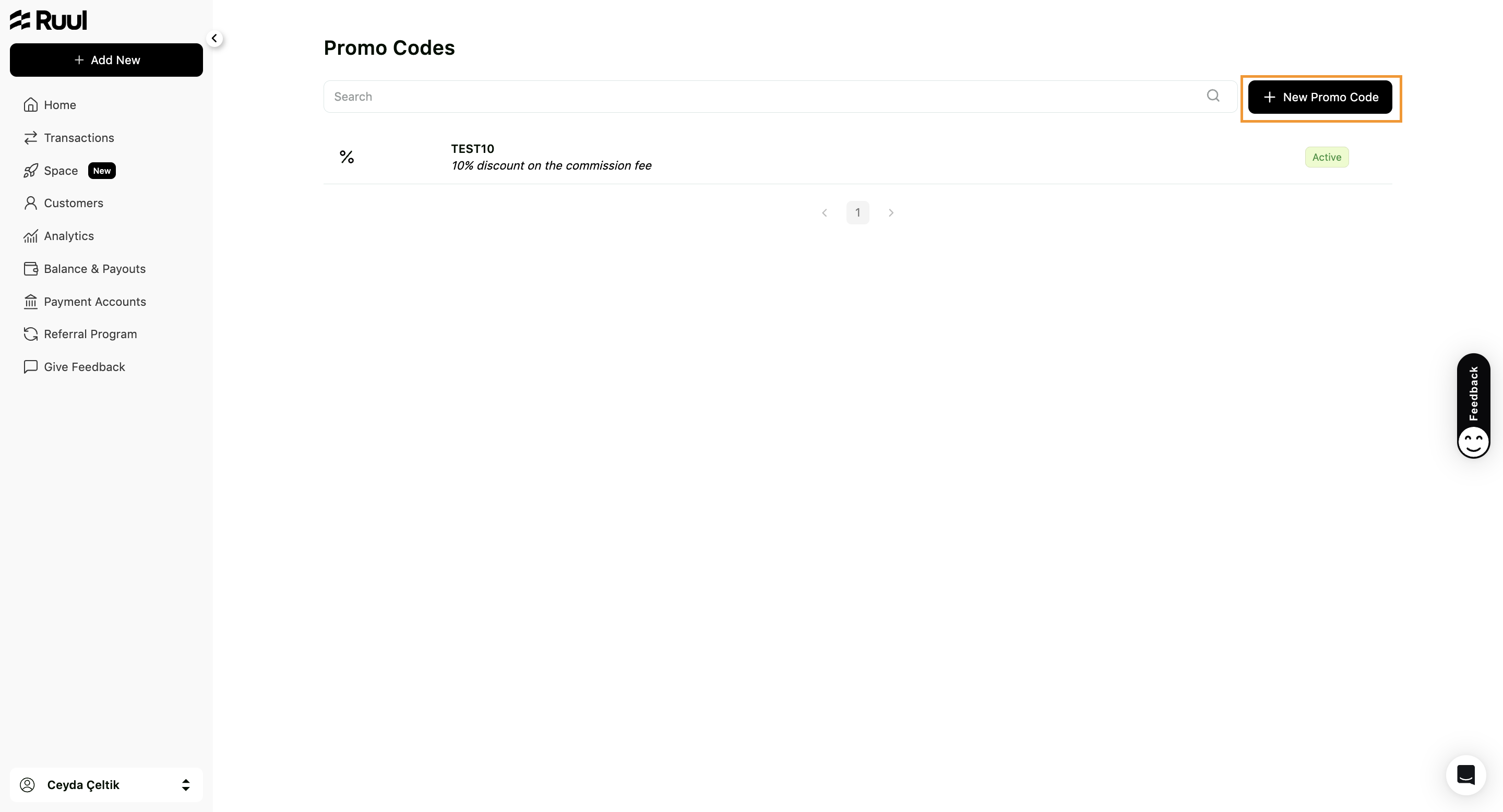
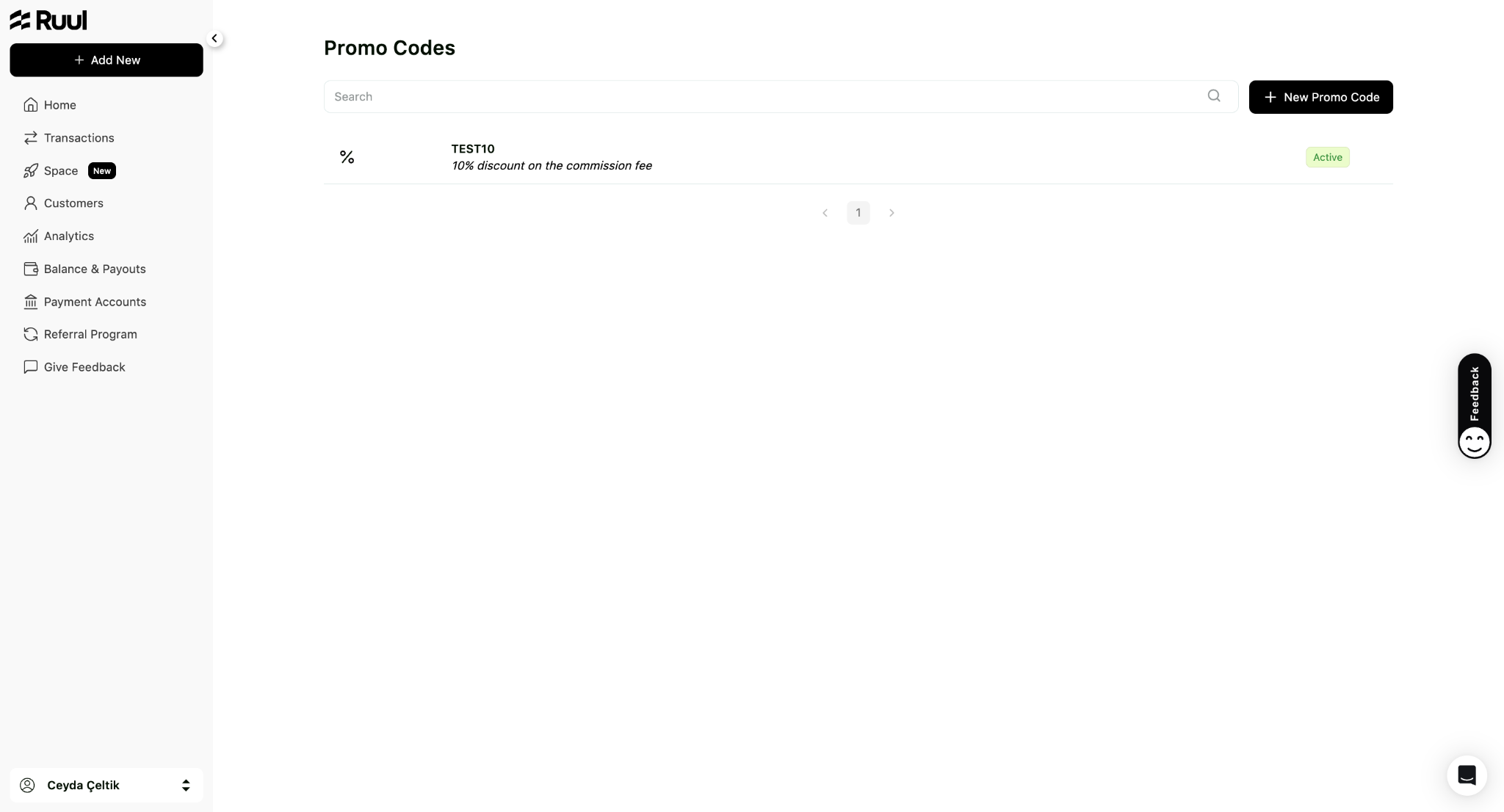
Any codes you’ve already created are listed here - use the search bar to find a specific one. To create a new code, click New Promo Code in the top right.
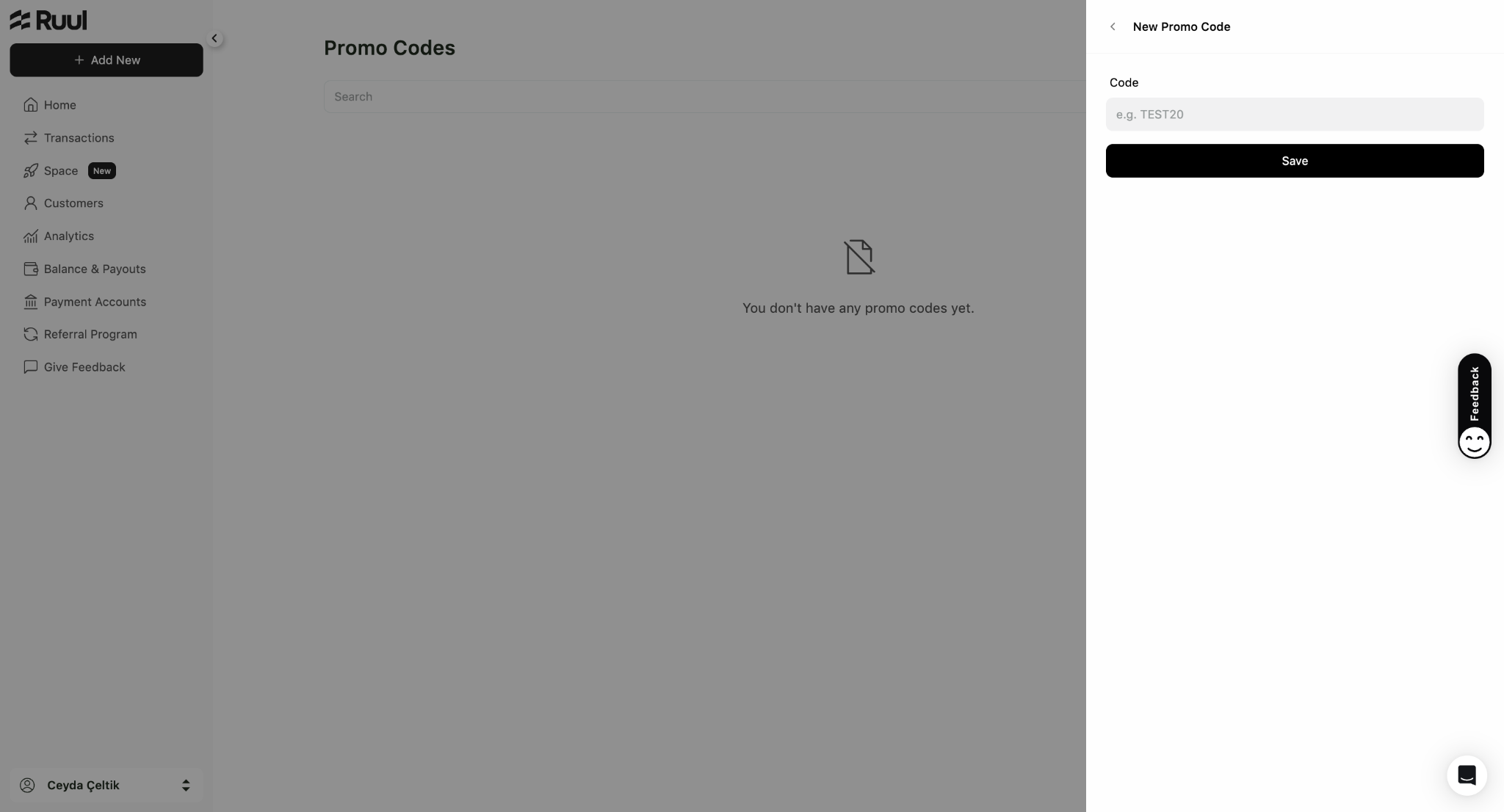
Enter your code (e.g. TEST10) and click Save.
Your code now appears in the list as Active, ready to use on eligible transactions. Its effect is shown underneath, and it will be one of three kinds:
- Commission discount - reduces the commission Ruul charges on the invoice.
- Payout earning - adds to the amount you receive.
- Customer payment discount - reduces what your customer pays.
How to apply a promo code
Promo codes are applied when you create an invoice. If you need a refresher on that, see how to create a one-time invoice.
Any eligible promo codes for the invoice you’re creating appear on the New Invoice screen.
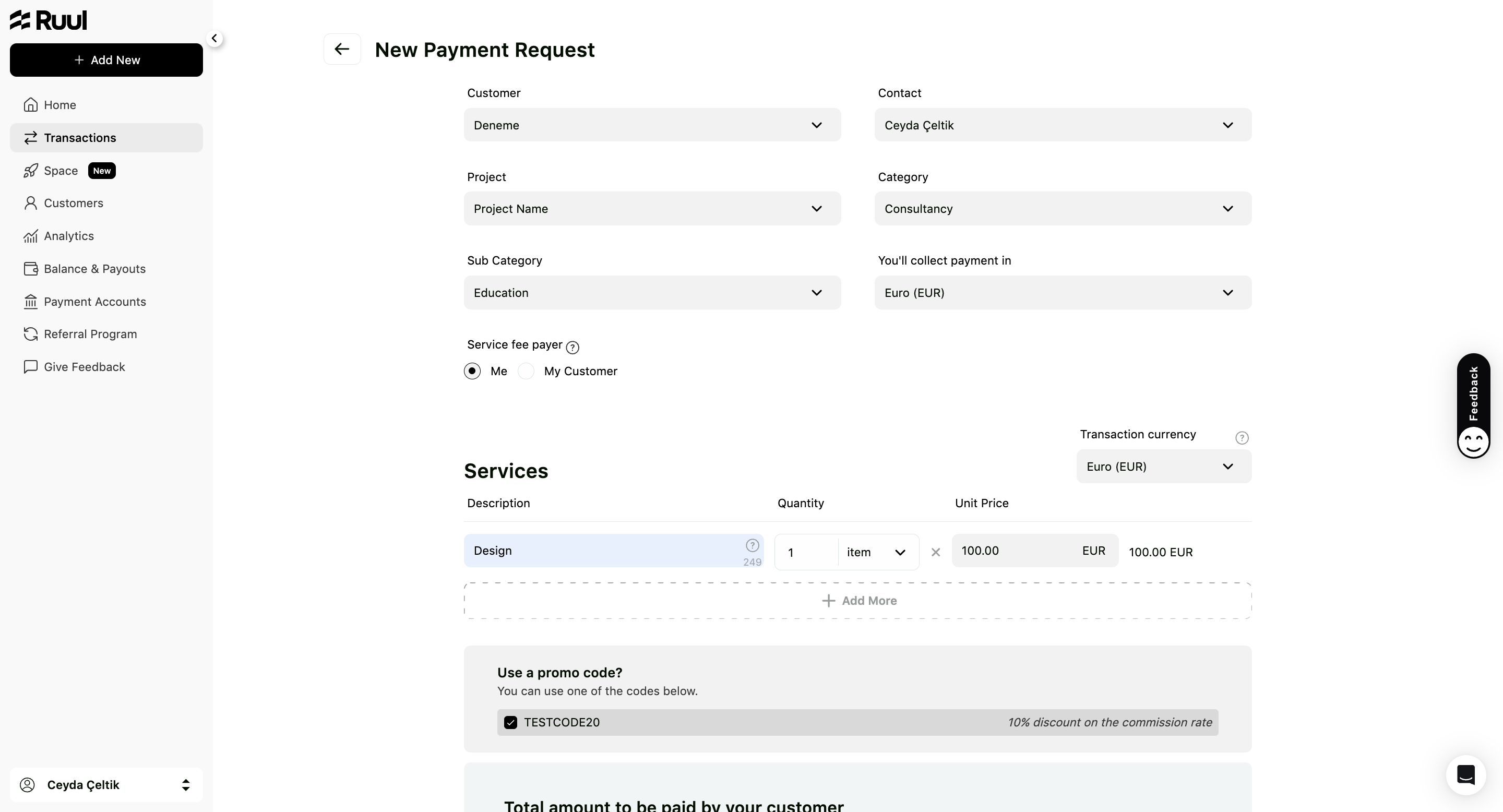
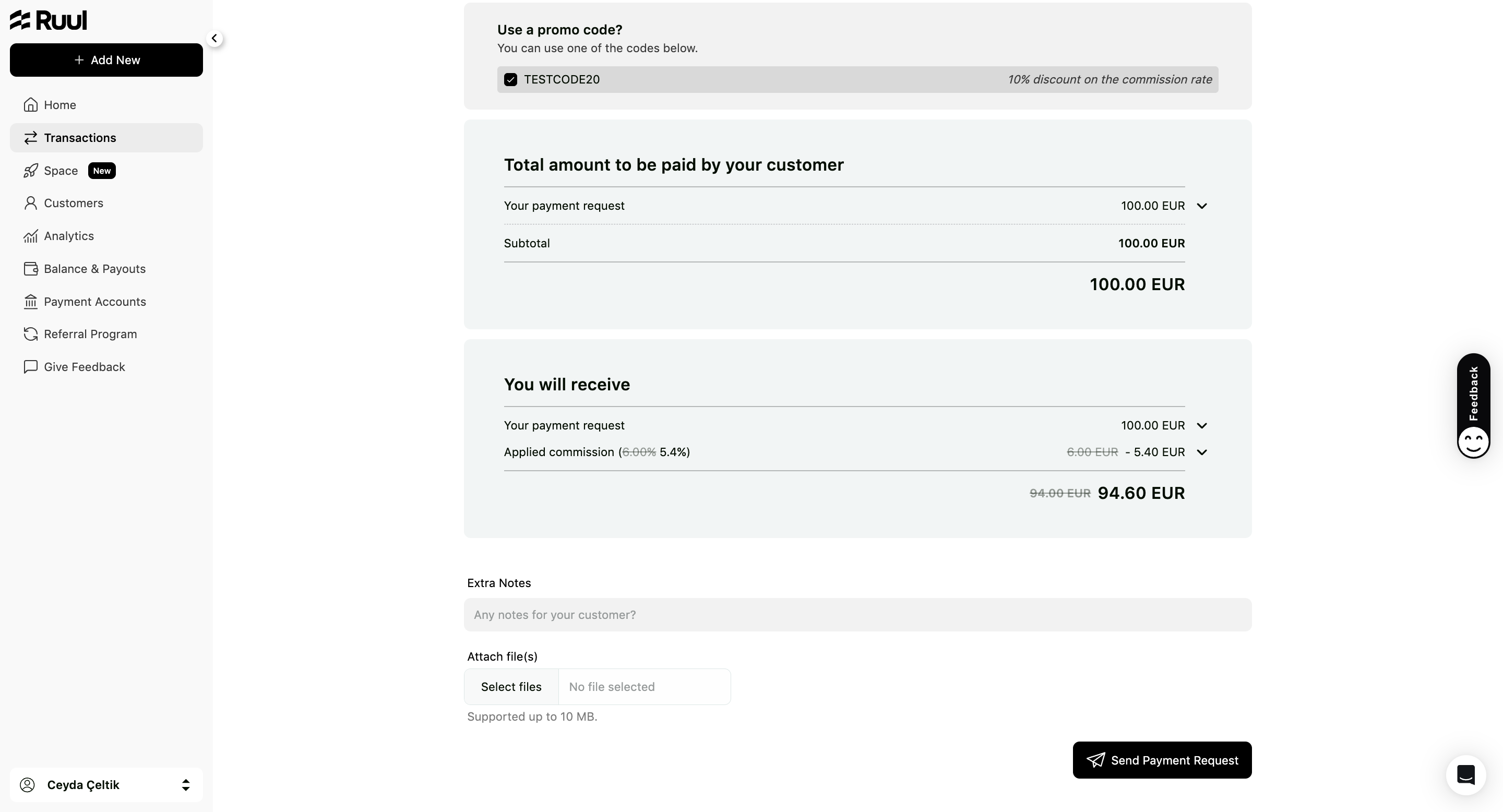
The total updates as soon as you select the code you want to apply.
Note: Only one promo code can be applied per invoice.
Frequently asked questions
Can I apply more than one promo code to an invoice?
No. Only one promo code can be applied per invoice. Selecting a code updates the invoice total right away.
Where do I create a promo code?
From your dashboard, click your name in the bottom-left corner and choose Promo Codes from the side menu, then click New Promo Code.
Was this article helpful?
Thanks for the feedback! 🙌