

When you need to pay several contractors at once, the Bulk Payment feature lets you handle them all in a single flow instead of creating one payment at a time. You can enter recipients manually or import them from an Excel file.
In a nutshell:
- Create multiple payments for different talents.
- Review the total amount to be paid.
- Ruul automatically distributes payments to each talent.
The service fee for bulk payments is always paid by the business (you).
How to Create a Bulk Transaction Manually
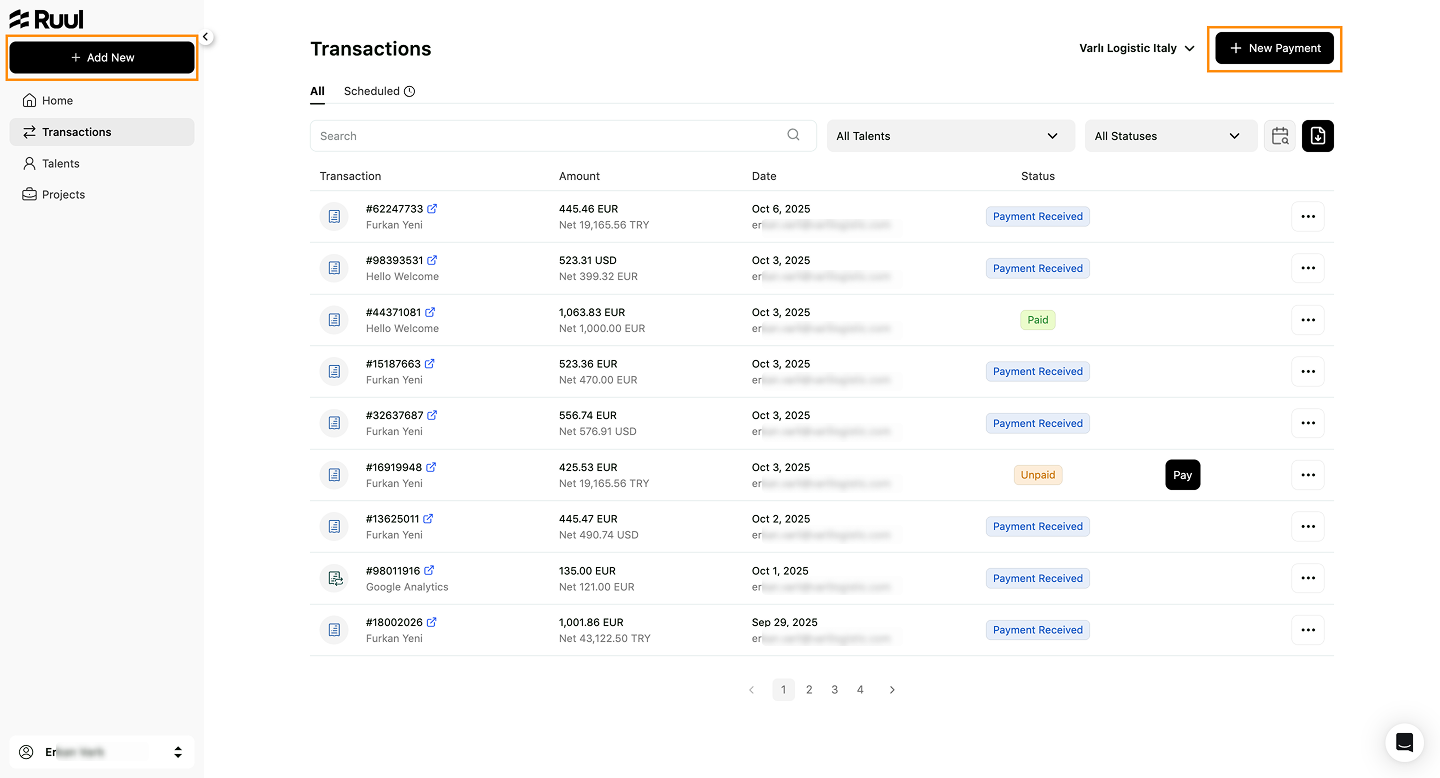
- Go to the Transactions tab and click New Payment, or use the + Add New button on the sidebar and choose New Payment.
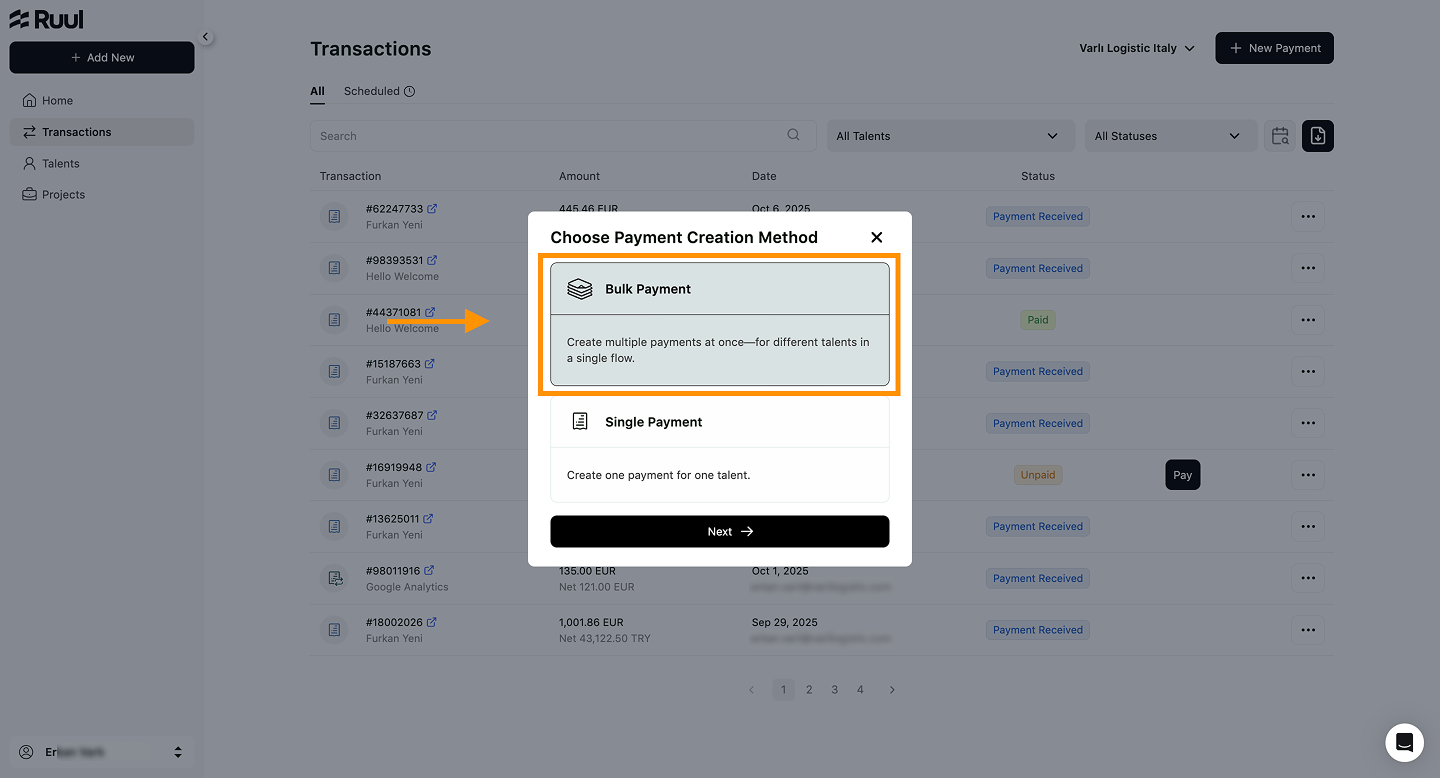
- A modal titled “Choose Payment Creation Method” will appear.
- Select Bulk Payment
- Click Next
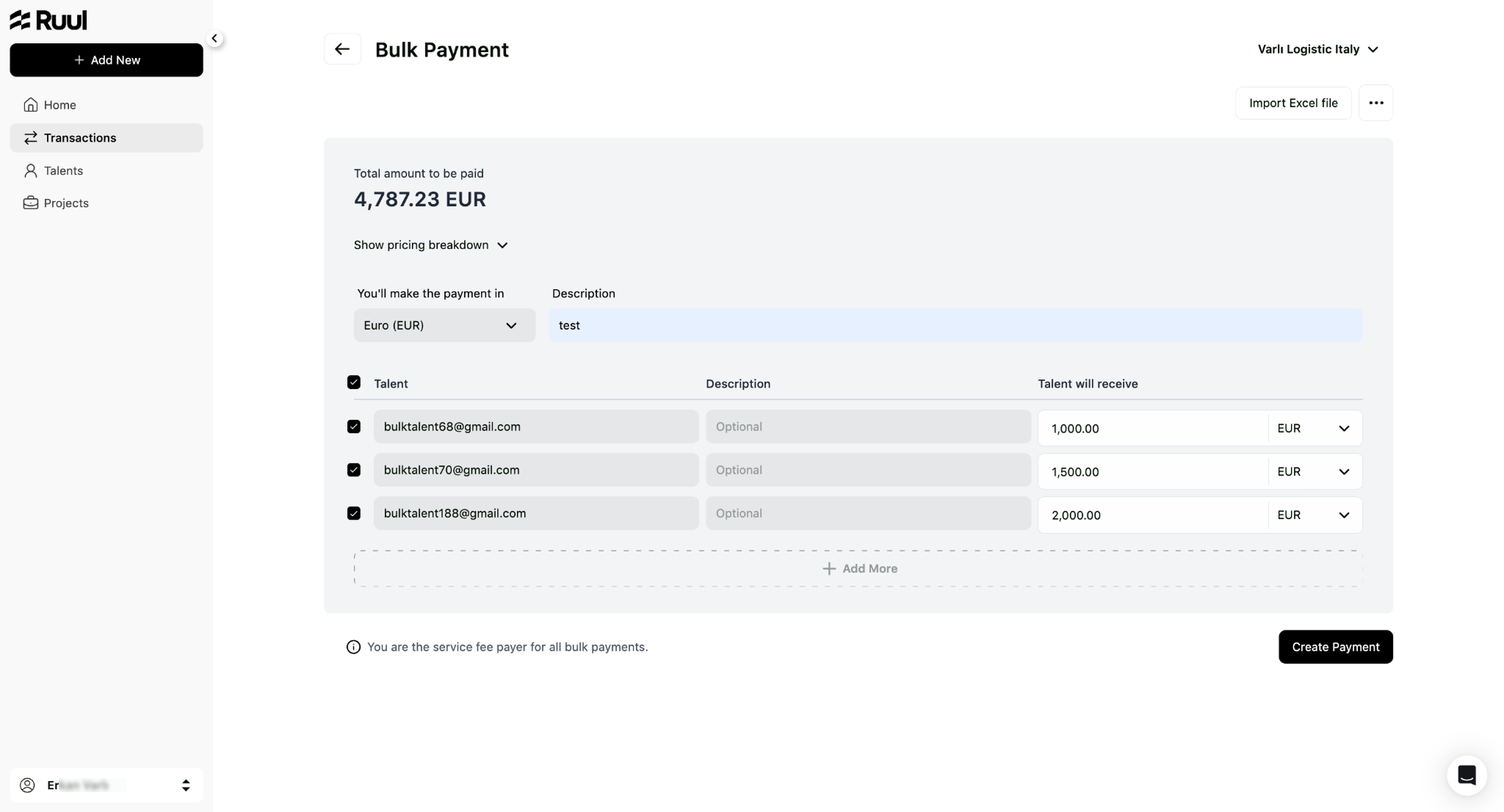
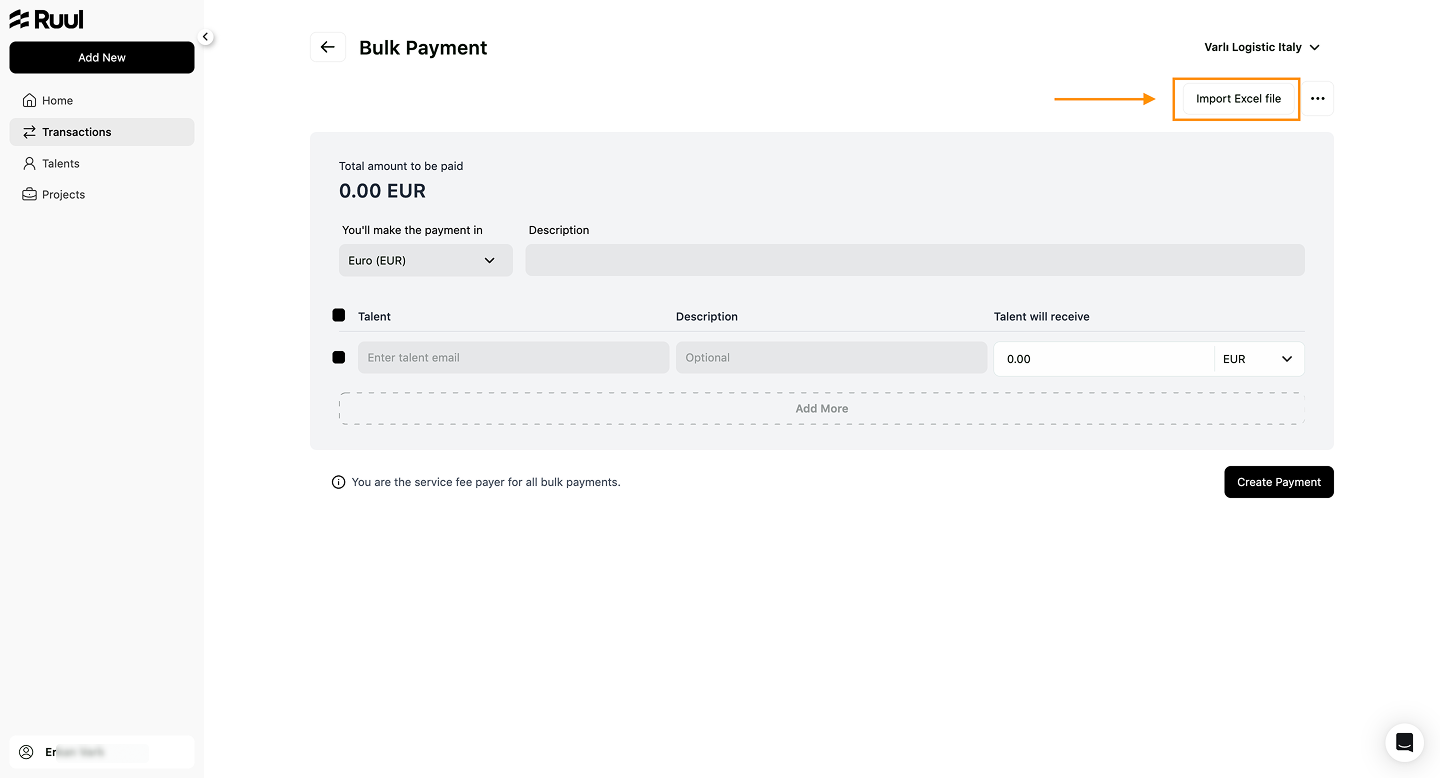
- You’ll land on the Bulk Payment screen. Here, you can manually enter payment details.
Fill in the following fields:
* **You'll make the payment in:** Choose the main payment currency.
* **Description:** Add a general description (this appears on all payment items).
* For each **Talent**, fill out:

	+ **Talent email**
	+ **Description** *(optional, talent-specific)*
	+ **Talent will receive:** Enter the amount and select the payout currency.
4. To add more recipients, click + Add More.
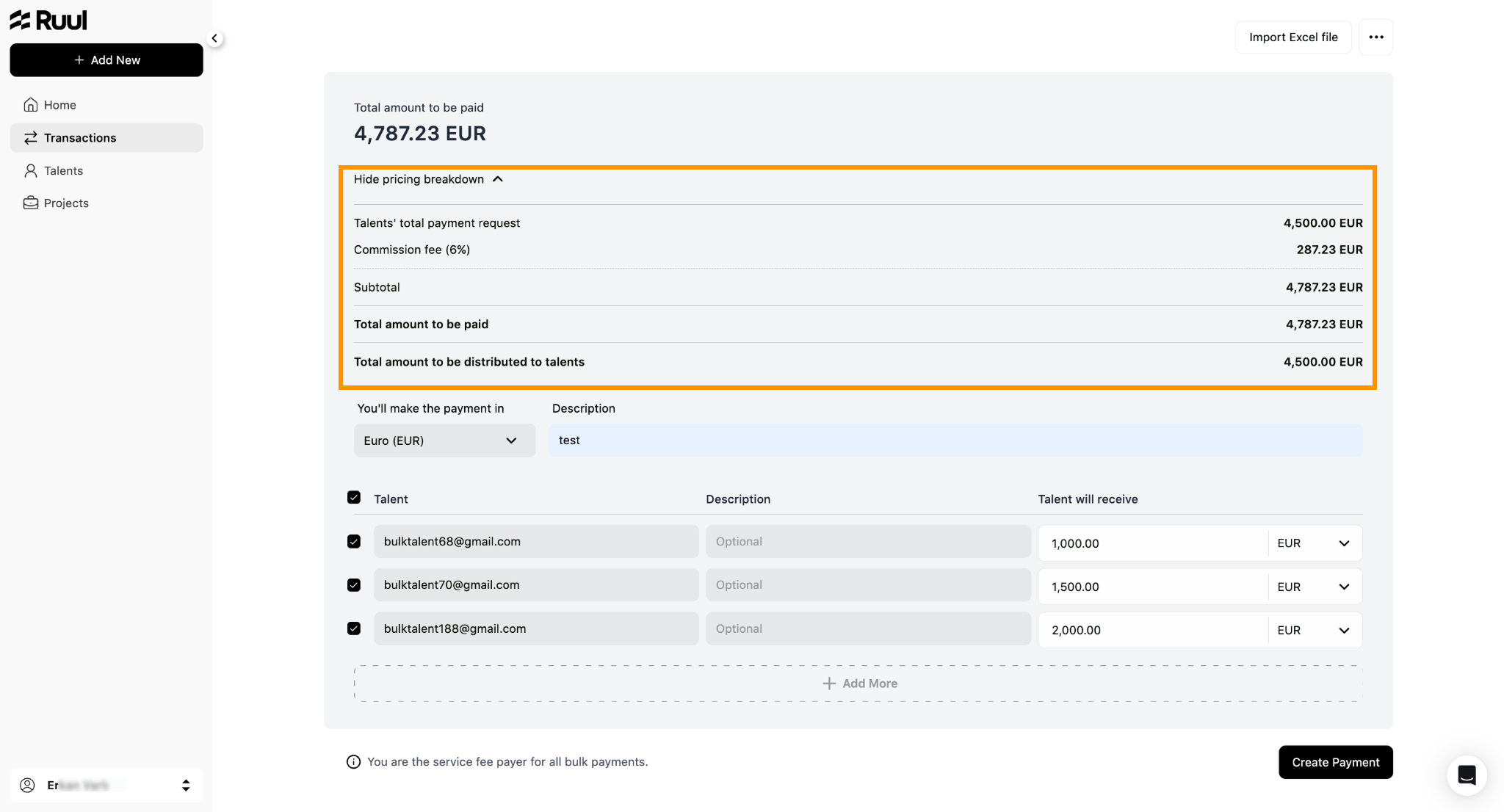
- You can expand Show pricing breakdown to review total amount, commission fee, and total payable.
- Once all entries are complete, click Create Payment. You’ll automatically be redirected to the Transaction Details page.
Importing via Excel File
If you prefer, you can upload all your payment data at once via Excel.
- From the Bulk Payment page, click Import Excel file.
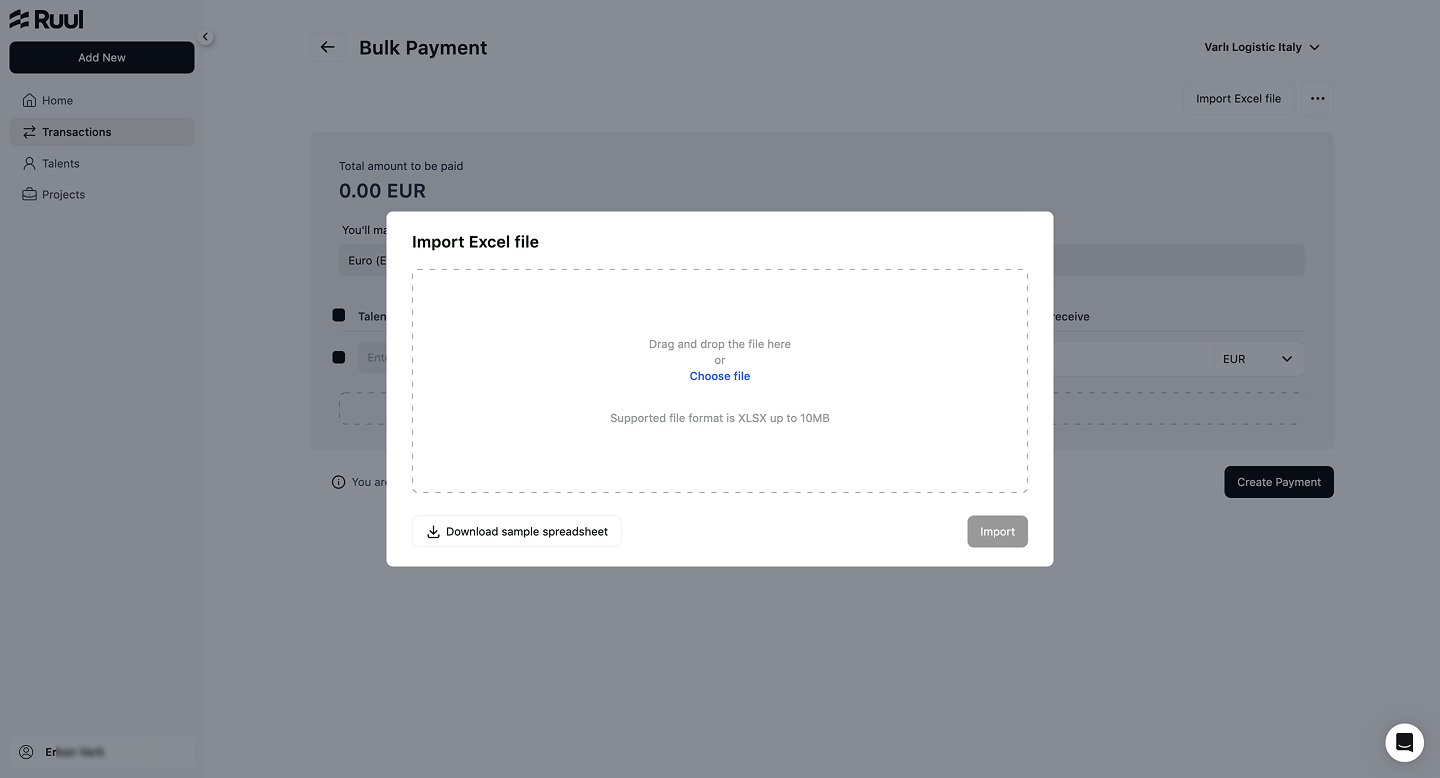
- A modal will open — here you can either:
- Drag and drop your file, or
- Choose file manually.
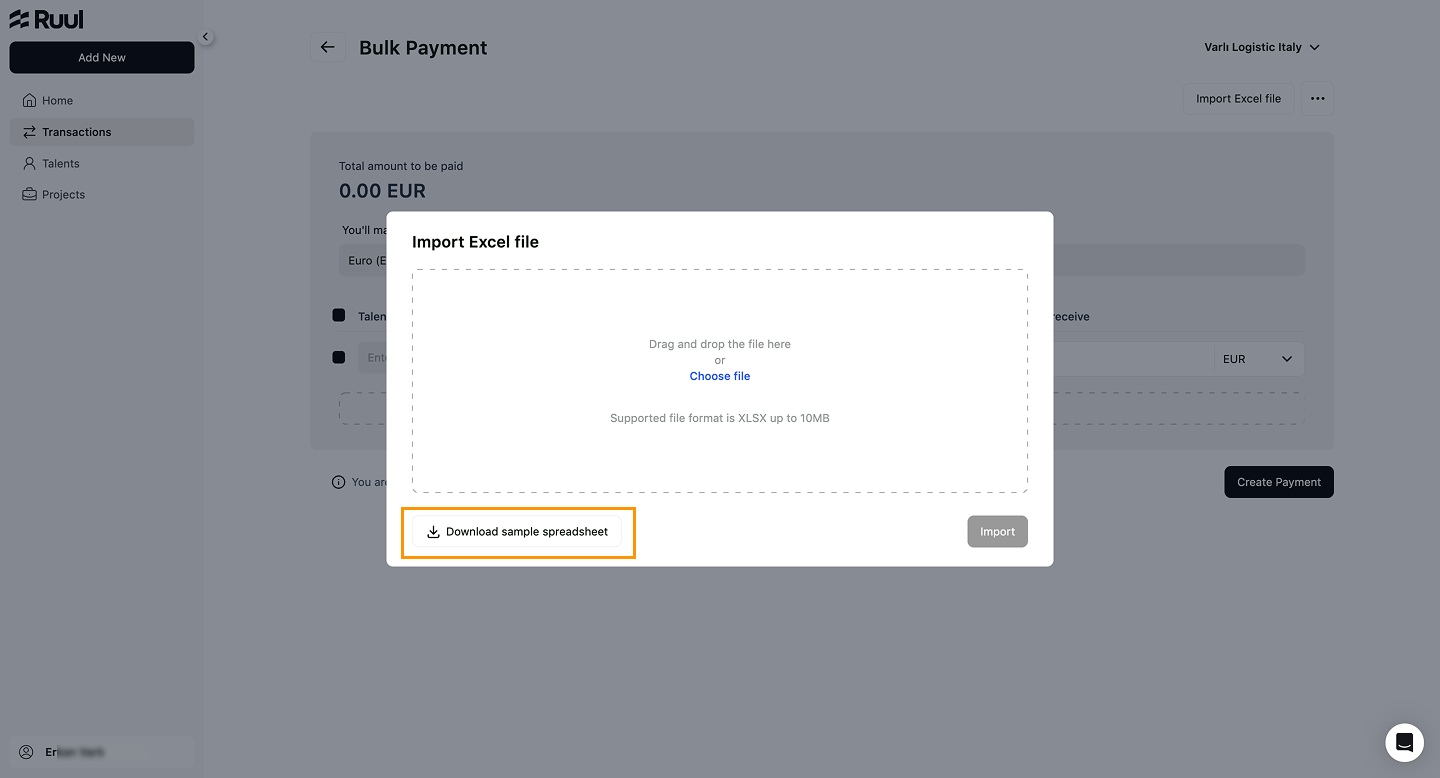
- If you don’t have a template, click Download sample spreadsheet to get one.
The file includes these columns:
* **Freelancer’s e-mail**
* **Invoice Description (optional)**
* **Invoice Amount**
* **Payout Currency**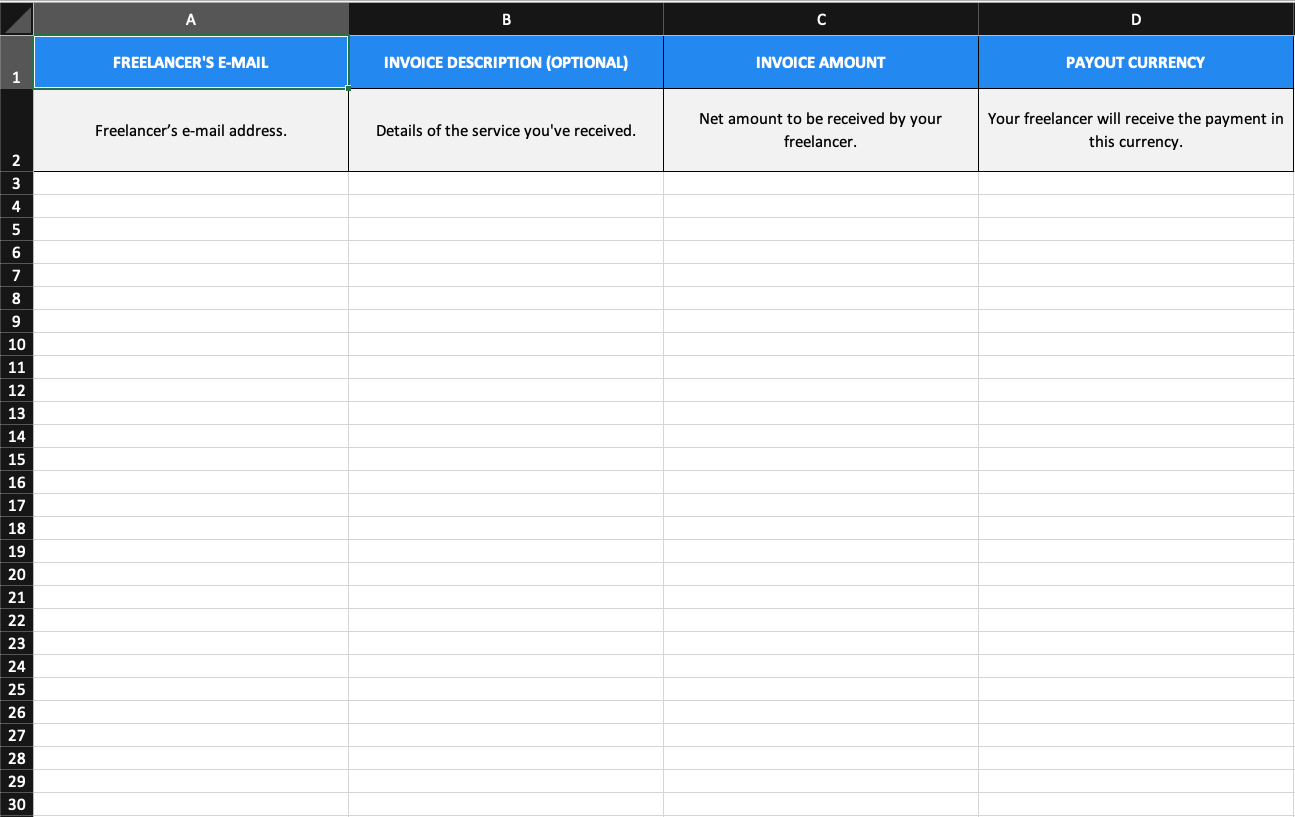
- Fill in your data in the sample spreadsheet and save it as
.xlsx(max 10 MB).
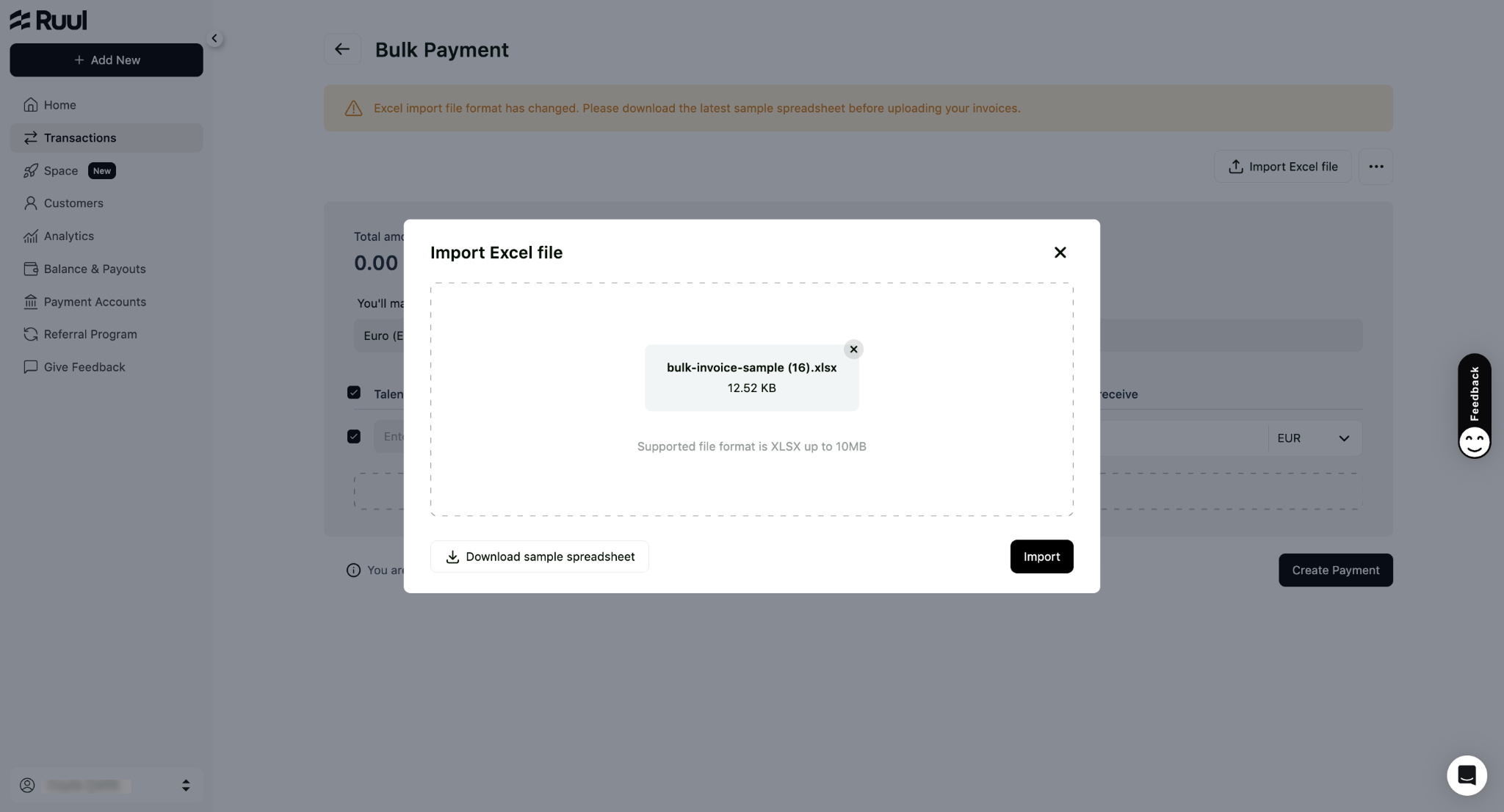
- Upload your file and click Import. → Your Excel data will automatically populate the Bulk Payment form.
- Review the amounts and click Create Payment. You’ll be taken to the Transaction Details page.
Viewing Bulk Transaction Details
You can view and track the details of your bulk transactions either from your Home or Transactions tab.
- Click Recipients next to the related transaction to open a pop-up showing all recipients included in that bulk payment.
- Alternatively, click anywhere on the transaction row to open the Transaction Details page.
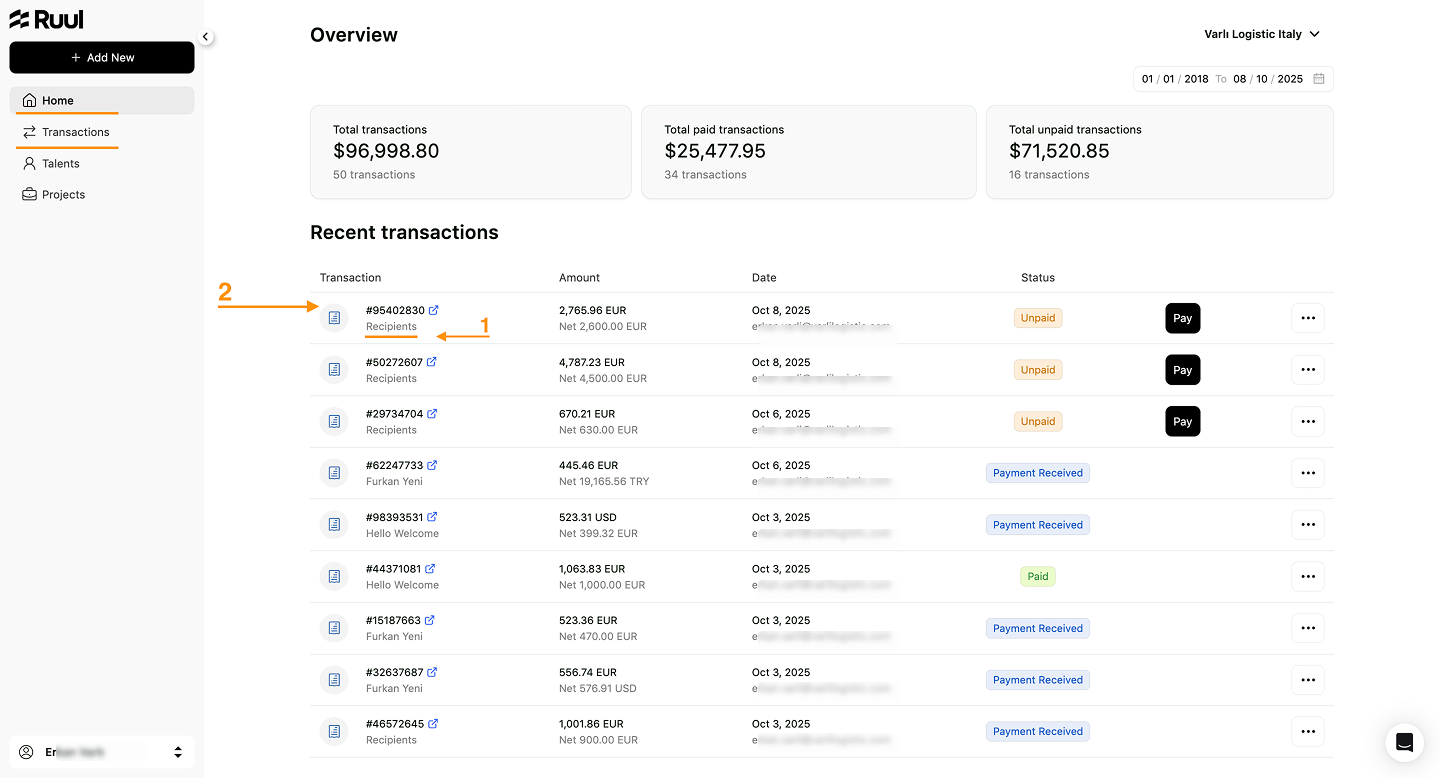
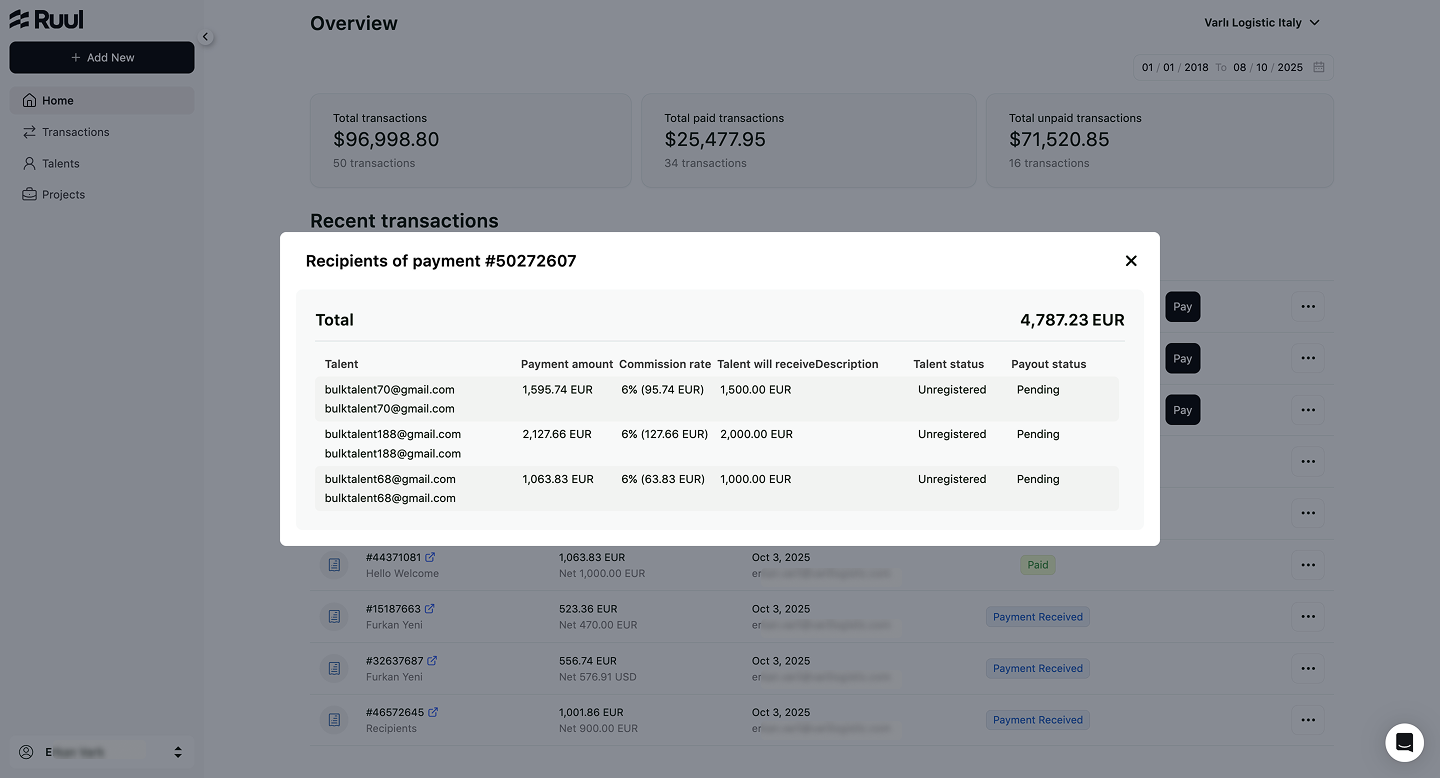
💡 Tip: The “Recipients” pop-up provides a quick overview of who was included in the bulk payment, while the Transaction Details page gives you a full breakdown of the payment and status updates.
Notes & best practices
- Double-check each talent’s email — incorrect emails may delay payment delivery.
- You can mix different payout currencies in the same bulk payment.
- All bulk payments are processed under one consolidated transaction number.
Frequently asked questions
Can I mix different payout currencies in one bulk payment?
Yes. Each talent can receive their payment in a different payout currency within the same bulk payment.
Who pays the service fee on a bulk payment?
For bulk payments, the service fee is always paid by the business.
Is there a limit on the Excel file I can import?
The spreadsheet must be saved as an .xlsx file and can be up to 10 MB. You can download a sample template from the import screen if you don't have one.
Was this article helpful?
Thanks for the feedback! 🙌